
How to set a time limit on iPhone apps (and make it stick)
 Beyond Alarm24 October 2026 · 7 min read
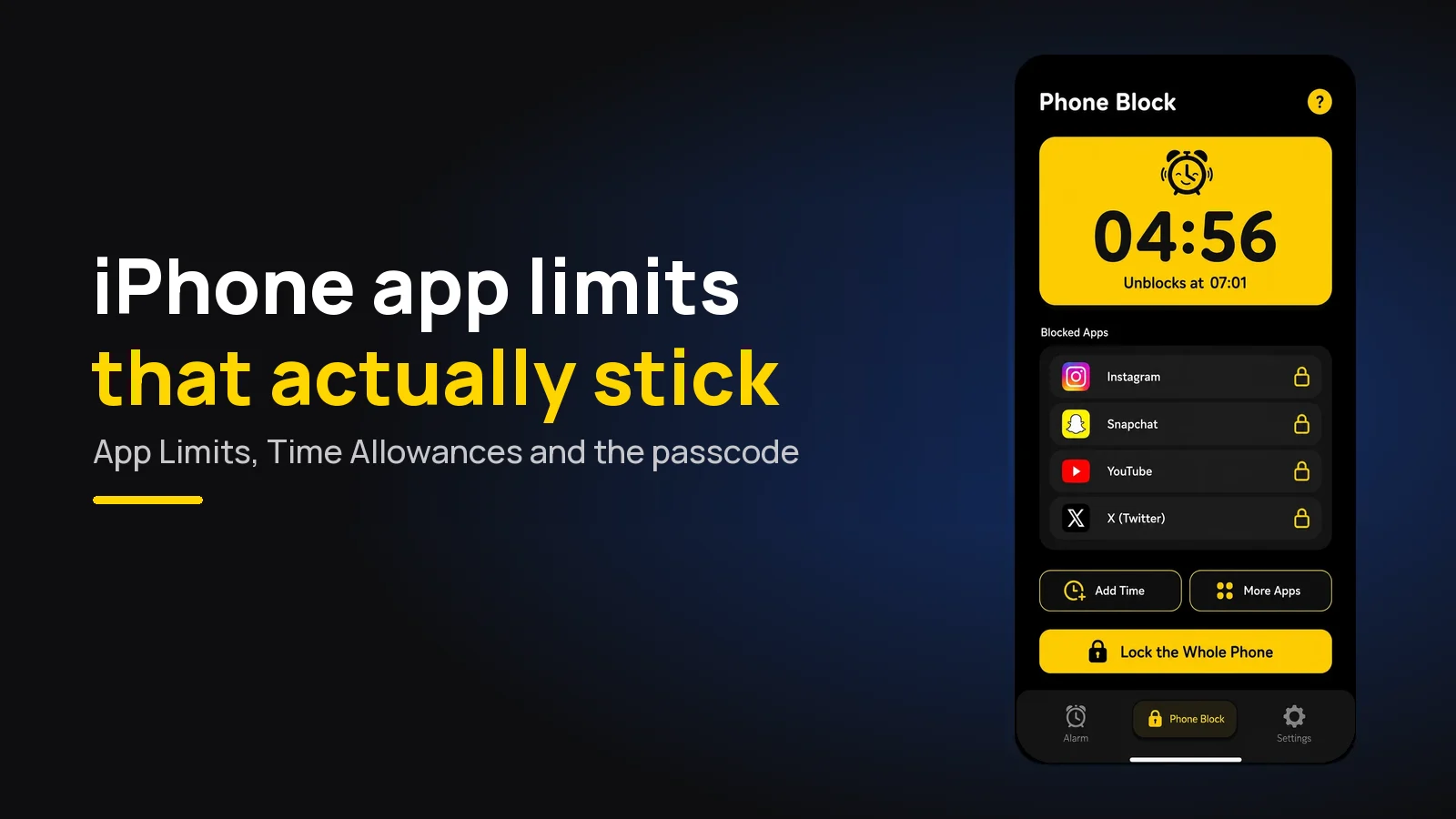
To set a time limit on an iPhone app, open Settings, then Screen Time, and add a limit: App Limits on iOS 26 and earlier, Time Allowances on iOS 27. Then lock it with a Screen Time passcode, or the limit screen lets you ignore it.
The short version:
- Check your iOS version first. Apple renamed the main limit settings in iOS 27, so most guides online now describe menus you may not have.
- Limit a category, not one app. Social catches the app you switch to next.
- Turn on a Screen Time passcode. Without one, every limit has an "ignore" button.
- On older versions, also turn on Block at End of Limit and Block at Downtime.
- Let someone else type the passcode. That one change does more than any number you set.
This is the iPhone walkthrough, button by button. If you want the wider plan for cutting screen time on either phone, that is in how to reduce screen time with limits that actually hold. The reasoning behind why one-tap limits fail is in why Screen Time and Focus mode don't stop you. This page is the settings.
First: which Screen Time do you have?
Apple's own guide says that to use the new Screen Time Schedules and Time Allowances you need iOS 27 or later on all your Apple devices. On iOS 26 and earlier you have the older App Limits and Downtime. Check under Settings, General, About.
| What you want | iOS 26 and earlier | iOS 27 |
|---|---|---|
| A daily cap on apps | Screen Time → App Limits → Add Limit | Screen Time → Time Allowances |
| Phone off at set hours | Screen Time → Downtime → Scheduled | Screen Time → Screen Time Schedule |
| Apps that are never blocked | Screen Time → Always Allowed | Screen Time → Always Allowed |
| Lock the settings | Screen Time → Lock Screen Time Settings | Screen Time → Manage Screen Time → Lock Screen Time Settings |
| Limits on iPad and Mac too | Share Across Devices | Manage Screen Time → Share Across Devices |
| See your usage | See All App & Website Activity | Screen Time → Daily Average |
The paths come from Apple's iPhone User Guide for iOS 26 and iOS 27, read on 23 October 2026. Labels shift in point releases, so if one is missing, search Settings for it.
Set an app limit on iOS 26 and earlier
- Open Settings, then Screen Time. If it asks, turn on App & Website Activity.
- Tap App Limits, then Add Limit.
- Tick a category such as Social or Entertainment. To limit one app, tap the category name and pick the app inside it.
- Tap Next, set the time, and use Customize Days if weekends should be different.
- Make sure Block at End of Limit is on, then tap Add.
If you pick several apps or categories in one limit, the time is shared between them. Thirty minutes across Instagram and TikTok is thirty minutes in total, not each.
Set a time allowance on iOS 27
- Open Settings, then Screen Time, then Time Allowances.
- Drag the top slider to set your total daily time on the device.
- Under Time Allowances, tap a category and drag its slider to set how long those apps get.
- To make a new category, tap Manage Categories, then the add button.
- Turn on Match Screen Time Schedule if the allowance should only apply in certain time windows.
Apple describes the rule plainly: you can use apps in a category "until they reach either the category's allowance or the daily total". So you are setting two ceilings at once, and whichever you hit first wins.
Add Downtime or a schedule
A daily cap stops the total. A schedule stops the hours, which is often what matters, because a lot of screen time sits at the start and end of the day.
- iOS 26 and earlier: Screen Time, then Downtime, then Scheduled. Pick the days and times. Apple sends a five-minute reminder before it starts.
- iOS 27: Screen Time, then Screen Time Schedule, turn on Schedule, then Add Schedule. Each time window lists which allowance categories are open during it.
On the older system, also turn on Block at Downtime. Apple's guide says that without it "you see a reminder that it's downtime, but you can choose to continue using the apps".
Choose what is always allowed
Before you lock anything, open Always Allowed and check it. Phone calls always work, but this is where you keep Maps, a bank app, or a family member's messages reachable during a limit.
Keep this list short. Every app on it is a door, and a messaging app with a built-in video feed is not really a messaging app.
Lock it with a Screen Time passcode
This is the step most people skip, and it is the one that decides everything. On iOS 27 the path is Settings, Screen Time, Manage Screen Time, then Lock Screen Time Settings. On iOS 26 and earlier, Lock Screen Time Settings sits further down the main Screen Time page.
- Don't reuse your phone passcode. You type that dozens of times a day.
- Have someone else type it. A partner, a flatmate, a parent. You only need them when you genuinely want to change something.
- Know about passcode recovery. Apple offers Screen Time Passcode Recovery, which lets you reset a forgotten passcode with your Apple Account. It is a sensible safety net, but it also means a passcode someone else chose is not fully out of your reach.
Beyond Alarm
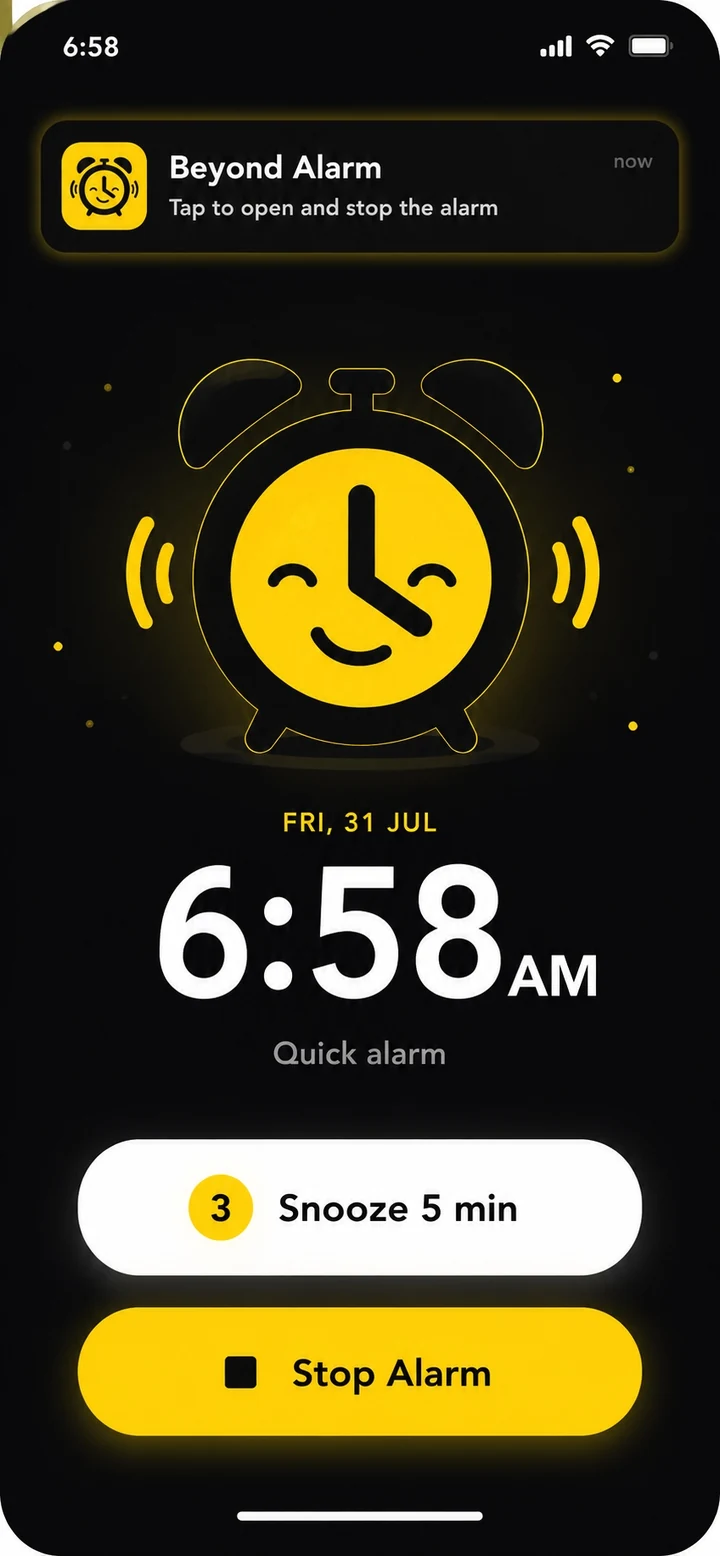
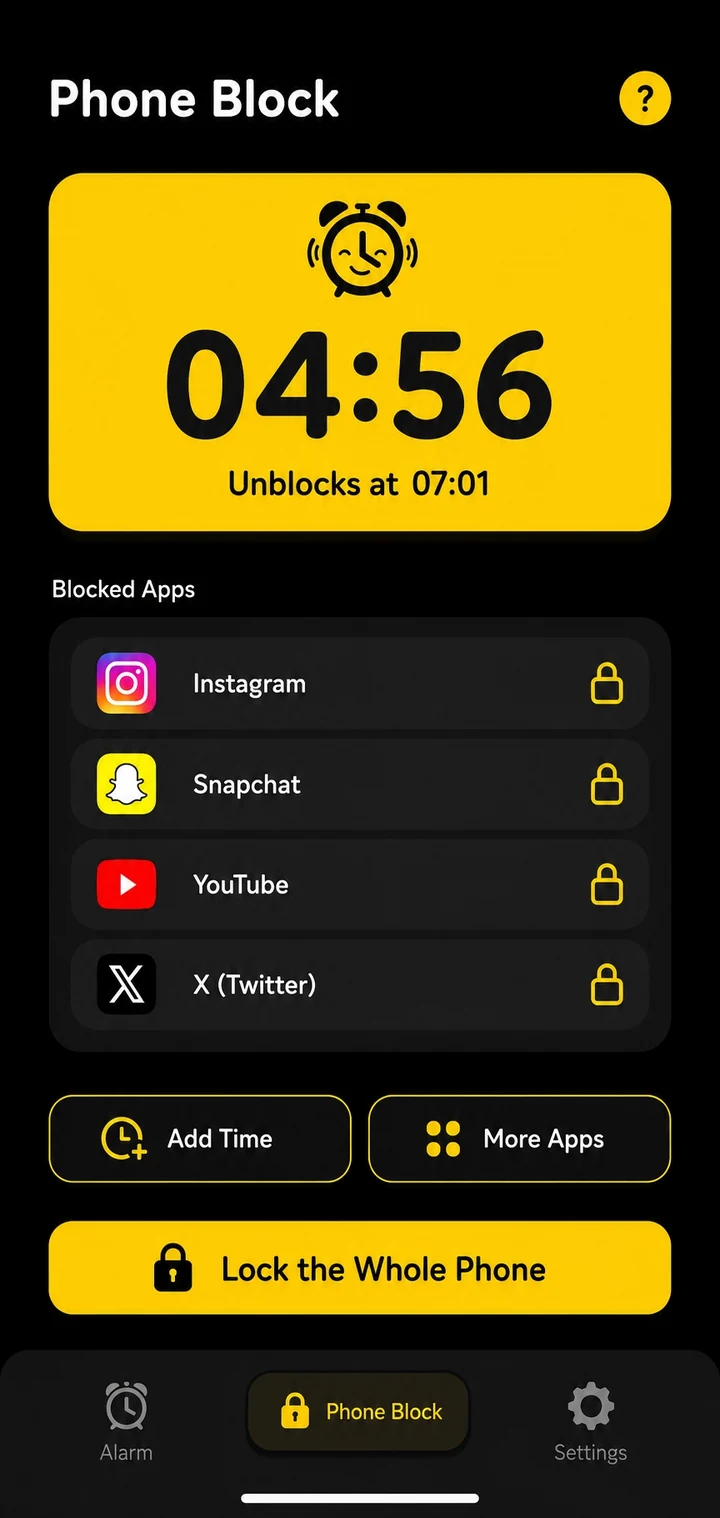
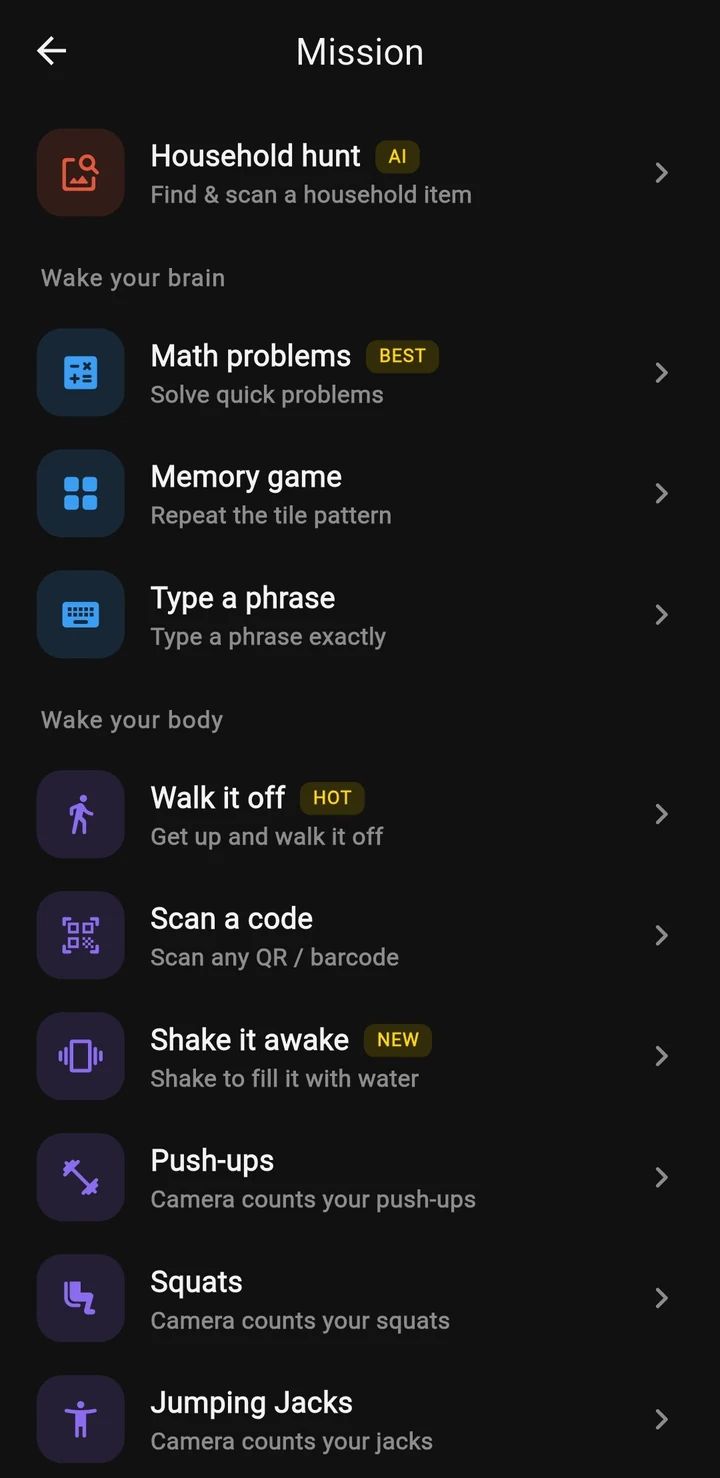
Beyond Alarm does this part for you: the alarm will not switch off until you have actually moved, and the apps you pick stay locked afterwards.

The loophole: One More Minute and Ignore Limit
When an app hits its limit on iOS 26 and earlier, the screen that greys it out still has a button on it. What that button offers depends on two settings.
| Your setup | What the limit screen offers |
|---|---|
| No Screen Time passcode | Ignore Limit: One More Minute, Remind Me in 15 Minutes, or Ignore Limit for Today |
| Passcode, Block at End of Limit off | Still lets you continue past the limit |
| Passcode, Block at End of Limit on | Ask for More Time: One More Minute once, or enter the passcode |
One More Minute is the leak that stays open. It is offered when you first reach the limit, even when everything is locked down, and it is enough to send a reply or finish a video. With separate limits on several apps you get it for each, which is one more reason to limit categories rather than apps.
Ignore Limit for Today is the one that kills the habit. Use it once and the limit has taught you it is optional. The fix is the passcode, not a smaller number.
Apple's iOS 27 guide does not describe what the limit screen offers when a Time Allowance runs out, and we have not been able to confirm it on a device. Hit a limit on purpose on day one and see what your phone shows you before you trust it.
Close the other gaps
- Turn on Share Across Devices. Otherwise your iPad and Mac keep their own limits, and the iPad becomes the way round.
- Watch for the browser. Apple notes that on iOS 27 an allowance applies to an app's website only "if an app has an associated website it declares". Check by opening the site in Safari after the limit.
- Move the app off the Home Screen. It doesn't block anything, but it removes the reflex of opening it.
- Hit the limit early on purpose. Set five minutes on day one and use them up. You learn what the block looks like before you are tempted.
What Screen Time can't do
Screen Time is a good timer and a decent lock if someone else holds the passcode. It can't start a block at the moment your alarm finishes, because it doesn't know when that was. And if you hold the passcode, the person who sets the rule is the same person who wants to break it.
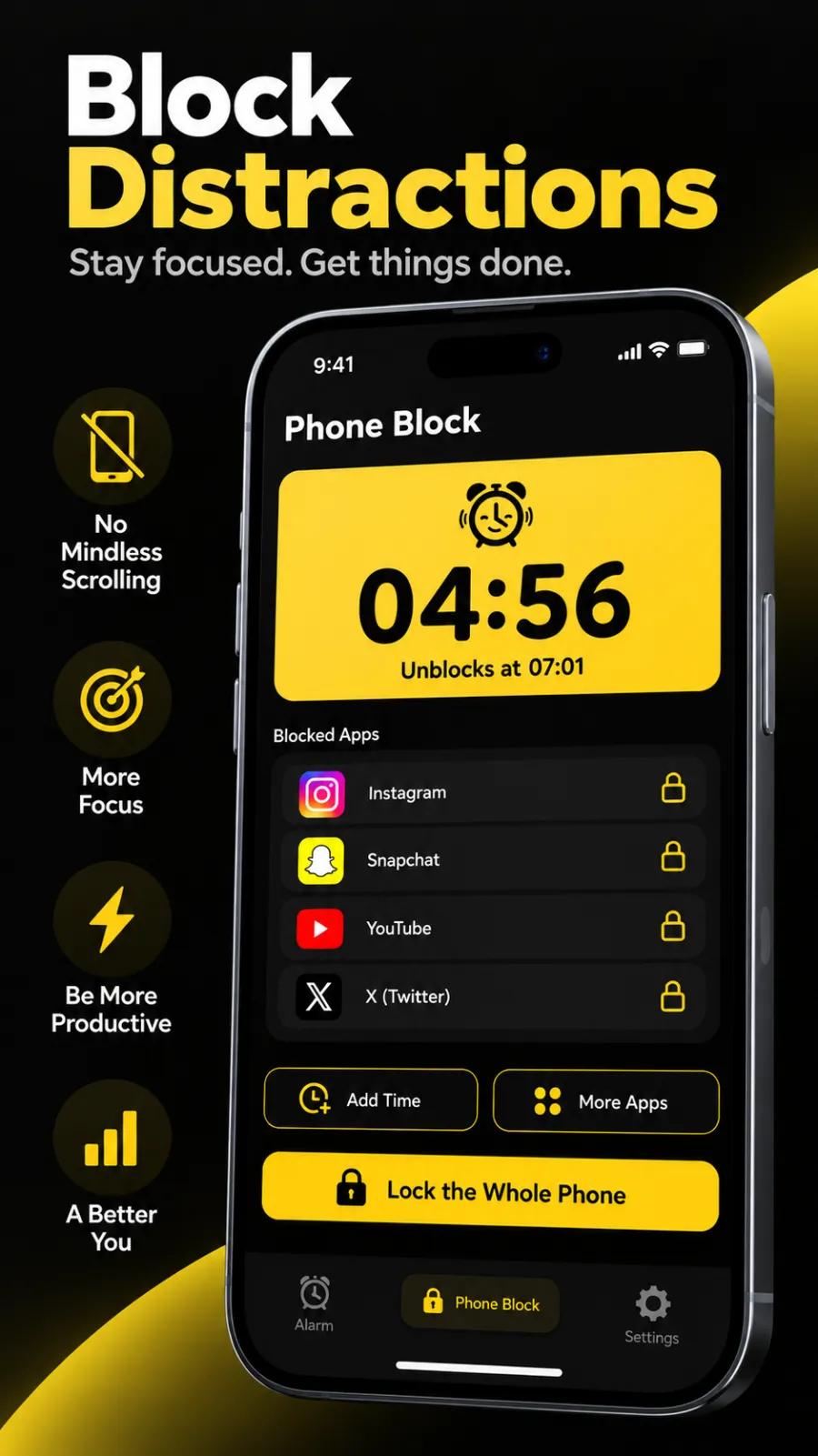
Beyond Alarm runs on the same Apple Screen Time framework, so it can't do anything iOS doesn't allow. What it adds is timing and a harder exit. Phone Block starts by hand, with presets from 15 minutes to 2 hours or Custom from 5 minutes to 8 hours. Strict lets you leave early only after a short ad on the free version and a five-second hold; we built the hold because a tap is a reflex and five seconds is long enough to change your mind. Hard mode has no stop button until the timer ends. Morning Lockout starts on its own when you finish your alarm, which a clock schedule can't do.
Where it is weaker, from our own code: on iPhone it blocks the apps or categories you choose, never the whole phone, and switching off its Screen Time access in Settings ends a block. It has no repeating schedule, so for the same window every evening, Apple's Downtime or Screen Time Schedule is the better tool and costs nothing.
A setup that holds
If you want one configuration to copy, use this:
- A category limit or allowance on Social and Entertainment, set at about two-thirds of what your Screen Time report shows now.
- A schedule or Downtime for the hour before bed.
- Always Allowed trimmed to calls, maps and the two people you'd need in a hurry.
- Block at End of Limit on, on iOS 26 and earlier.
- A Screen Time passcode, typed by someone else.
Leave it a week before you change the numbers. If the total hasn't moved, it's almost always step 5 that was skipped.
Common questions
How do I set a time limit on an app on my iPhone?
On iOS 26 and earlier, open Settings, then Screen Time, then App Limits, and tap Add Limit. Pick a category or tap into it to pick single apps, set the time and save. On iOS 27, Apple replaced App Limits with Time Allowances under Settings, then Screen Time.
Why can I still open an app after the time limit on my iPhone?
Because without a Screen Time passcode, the limit screen lets you ignore it. Set a passcode under Lock Screen Time Settings and turn on Block at End of Limit for each limit. Even then, One More Minute is offered once when you first hit the limit.
How do I get rid of Ignore Limit on Screen Time?
Turn on a Screen Time passcode, then turn on Block at End of Limit in the limit's settings. The limit screen then asks for the passcode instead of offering to ignore the limit for the day. Ideally someone else chooses the passcode.
Can I limit screen time on my iPhone without a passcode?
You can set the limit, but it will not hold. Without a passcode, ignoring a limit takes a tap, and Downtime only shows a reminder you can continue past. The passcode is what turns both into actual blocks.
Does an iPhone time limit also apply on my iPad and Mac?
Only if you choose. On iOS 27, Share Across Devices under Manage Screen Time applies your limits and schedules to every device signed in to the same Apple Account. Without it, each device keeps its own limits and the iPad becomes the way round.
We build Beyond Alarm, an Android alarm app that will not switch off until you have actually moved. Most of what we write here comes out of problems we hit building it.
Beyond Alarm
An alarm that keeps ringing until you’ve actually moved — then blocks the apps that pull you back to bed. Free to start, no account.
Keep reading
Study timer: 25, 50 or 90 minutes — which works best?
25, 30, 50, 60 or 90 minutes? How to choose a study timer length, what the research really shows, and when a stopwatch beats a countdown.
Digital detox: a 7-day plan that doesn't need a cabin
A 7-day digital detox you can do at home - one change a day, from notifications to an offline afternoon, then a plan for what comes back.