
How to reduce screen time with limits that actually hold
 Beyond Alarm24 October 2026 · 7 min read
To reduce screen time, first measure where it goes, then put limits on the two or three apps and the two times of day that eat most of it. Finally, make those limits cost real effort to dismiss, or you will tap past them.
The short version:
- Check the numbers first. Digital Wellbeing on Android and Screen Time on iPhone already track it.
- Limit apps, not "the phone". Two or three apps usually account for most of the total.
- Fix the first hour after waking and the last hour before sleep before anything else.
- A limit you can dismiss with one tap stops working within a week. Add a passcode, distance, or a block with no stop button.
Step 1: measure it before you cut it
Most people guess their screen time wrong, and they guess the wrong apps. Both phones already keep the record, so the first job is reading it for a few days before changing anything.
- Android: Settings, then Digital Wellbeing and parental controls. The dashboard shows screen time per app, how many times you unlocked, and how many notifications you got.
- iPhone: Settings, then Screen Time, then See All App & Website Activity. It shows the daily total, apps by time, pickups, and which apps send the most notifications.
Look for three things. Which two or three apps make up most of the total. What time of day the use clusters in. And what your first pickup of the day is — on most phones it is within minutes of the alarm.
That last one matters more than it looks. The phone that wakes you is also the phone with every feed on it, which is why the first thing in the morning is so hard to win.
Step 2: set the limits, by phone
Menu names change between Android versions and manufacturers, so treat these paths as directions rather than exact labels. If a menu is not where it should be, search Settings for the name.
| Setting | Android path | iPhone path | What it does |
|---|---|---|---|
| Usage dashboard | Settings → Digital Wellbeing | Settings → Screen Time | Shows time per app, unlocks or pickups, notifications |
| App limit | Digital Wellbeing → tap an app → App timer | Screen Time → App Limits | Caps one app or category per day |
| Scheduled downtime | Digital Wellbeing → Bedtime mode (Samsung: Modes and Routines → Sleep) | Screen Time → Downtime | Restricts the phone during set hours |
| Focus session | Digital Wellbeing → Focus mode | Settings → Focus | Pauses chosen apps (Android) or silences notifications (iPhone) |
| Grayscale | Bedtime mode → customise → grayscale | Accessibility → Display & Text Size → Color Filters | Makes the screen less rewarding to look at |
| Lock the settings | None for your own limits (Family Link is for parents) | Screen Time → Use Screen Time Passcode | Stops you raising the limit yourself |
On iOS 27, Apple renamed these: App Limits became Time Allowances and Downtime became Screen Time Schedule. The passcode moved to Manage Screen Time, then Lock Screen Time Settings. Step-by-step for both versions.
A few details that decide whether these do anything:
- On iPhone, turn on "Block at End of Limit" and "Block at Downtime". Without them, a limit is just a reminder.
- Set the Screen Time passcode, and don't use your phone passcode. Better still, let someone else type it.
- Limit categories carefully. A limit on "Social" covers the app you forgot about; a limit on one app sends you to its nearest substitute.
Step 3: why the limits get dismissed
Every built-in limit has a way past it, because the person holding the phone is meant to have the final say. On iPhone without a passcode, the limit screen offers "One more minute" and "Ignore limit for today". On Android, a Focus session has "Take a break", and an app timer can be removed from the same dashboard that set it.
The first time a limit appears, it works. The third time, you have learned where the button is, and the limit becomes a notification you dismiss without reading. We went through this in detail in why Screen Time and Focus mode don't stop you.
So the useful question is not "is there a limit?" but how much effort does getting past it take, at the moment you want to? Here are the ways to raise that cost, cheapest first:
- A passcode someone else holds. Free, and on iPhone it is the single biggest upgrade to Screen Time.
- Distance. A phone charging in the kitchen needs a walk, not a tap.
- A dull screen. Grayscale does not stop you, but it removes some of the pull.
- Deleting the app from the phone. Using Instagram or YouTube in a browser is clumsier, and clumsy is the point.
- A blocker with no quick exit — one where stopping early takes a delay, or is not possible until the timer ends.

Beyond Alarm
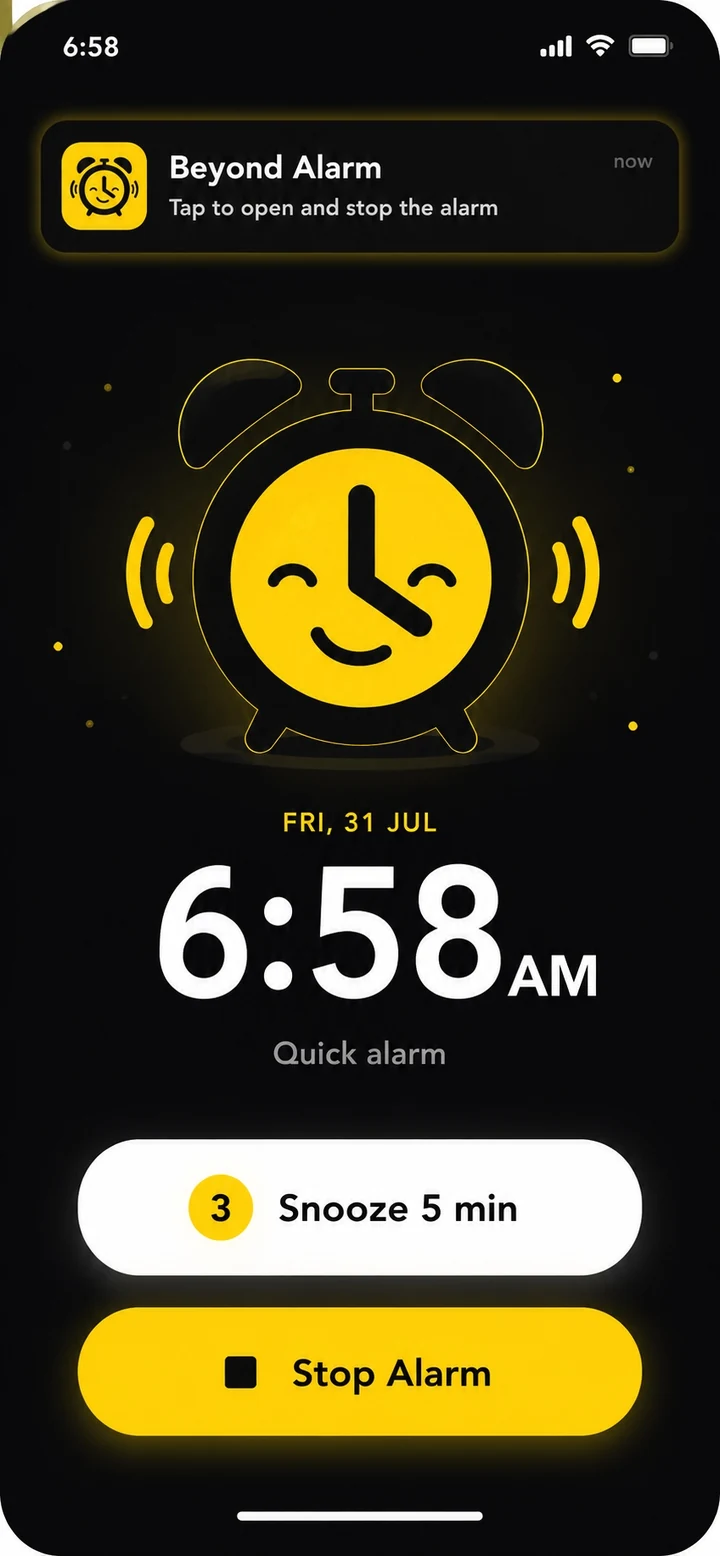
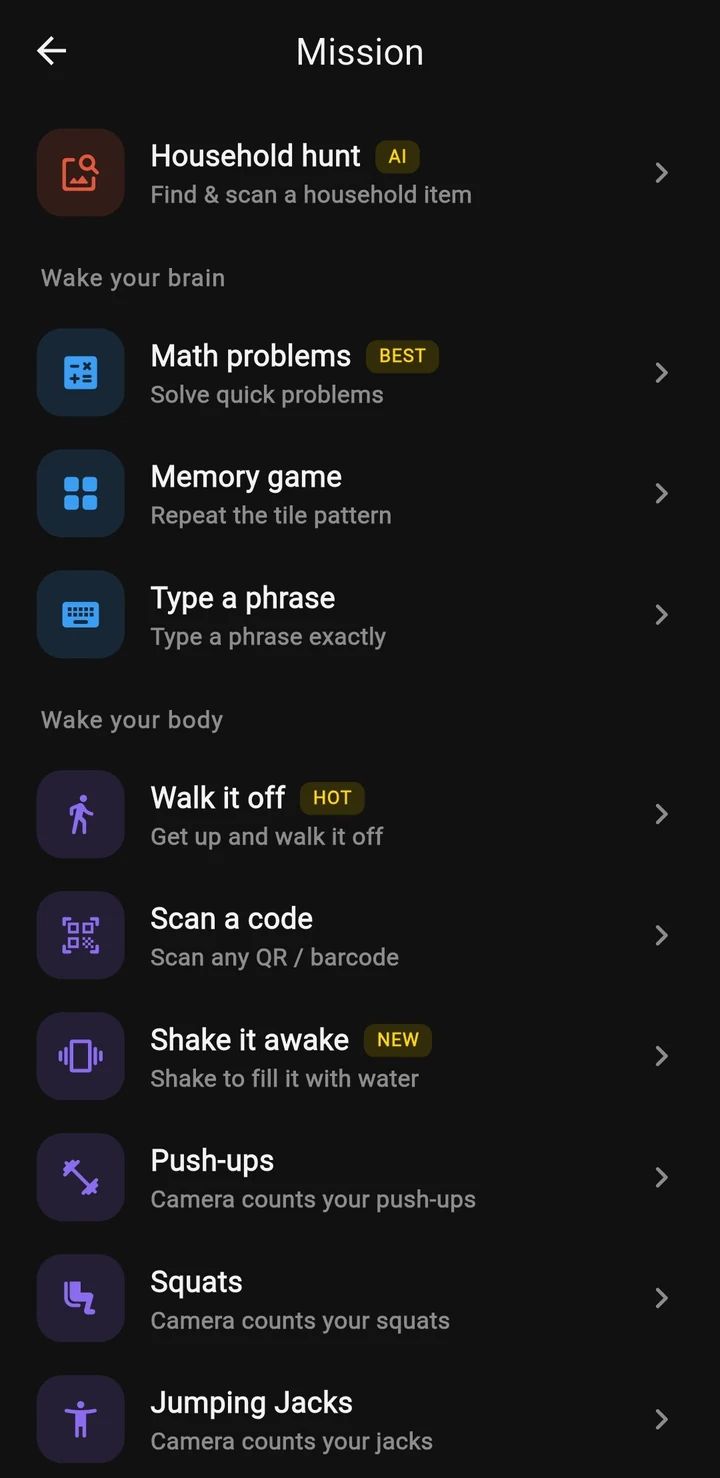
Beyond Alarm does this part for you: the alarm will not switch off until you have actually moved, and the apps you pick stay locked afterwards.


Step 4: go after the biggest wins
You will not cut screen time evenly across the day, and you shouldn't try. The hours worth fighting for are the ones where the phone replaces something else.
The morning. If your first pickup is the alarm, the scroll starts before you are properly awake. A separate alarm clock is the cleanest fix and costs very little. If the phone has to stay the alarm, put it across the room so switching it off means standing up.
Bed. Night-time scrolling eats sleep, not just time. Bedtime mode or Downtime, starting 30 to 60 minutes before you mean to sleep, plus charging the phone outside the bedroom, does more than any app limit. There's a fuller plan in how to stop scrolling in bed when your phone is your alarm.
Social and short video. These are usually the top of the dashboard. Put a category limit on them, turn off their notifications, and move them off the home screen. For focused stretches of work, a timed block works better than a daily cap — see blocking apps while studying.
Everything else. Turn off notifications for any app that is not a person talking to you. Most pickups start with a buzz.
What free tools can't do
The built-in tools are good at measuring and reasonable at reminding. What they don't do well is hold a limit at the exact moment you most want to get past it, unless someone else has the passcode. Android's Digital Wellbeing has no passcode for your own limits; Family Link can lock them, but it is built for a parent managing a child's account.
If you have a willing partner, flatmate or parent, use them. That plus a phone that sleeps in another room solves the problem for a lot of people, and it costs nothing.
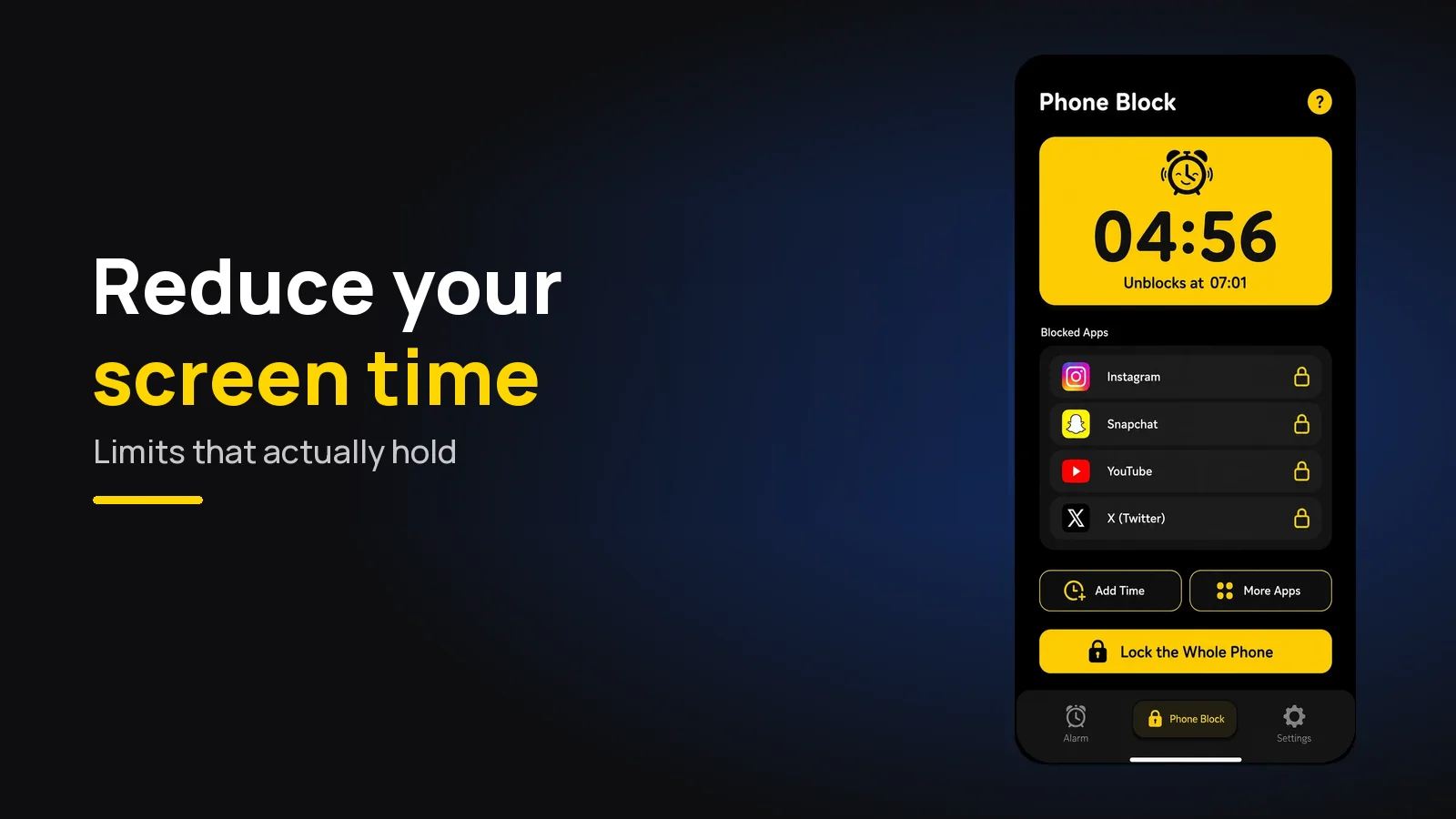
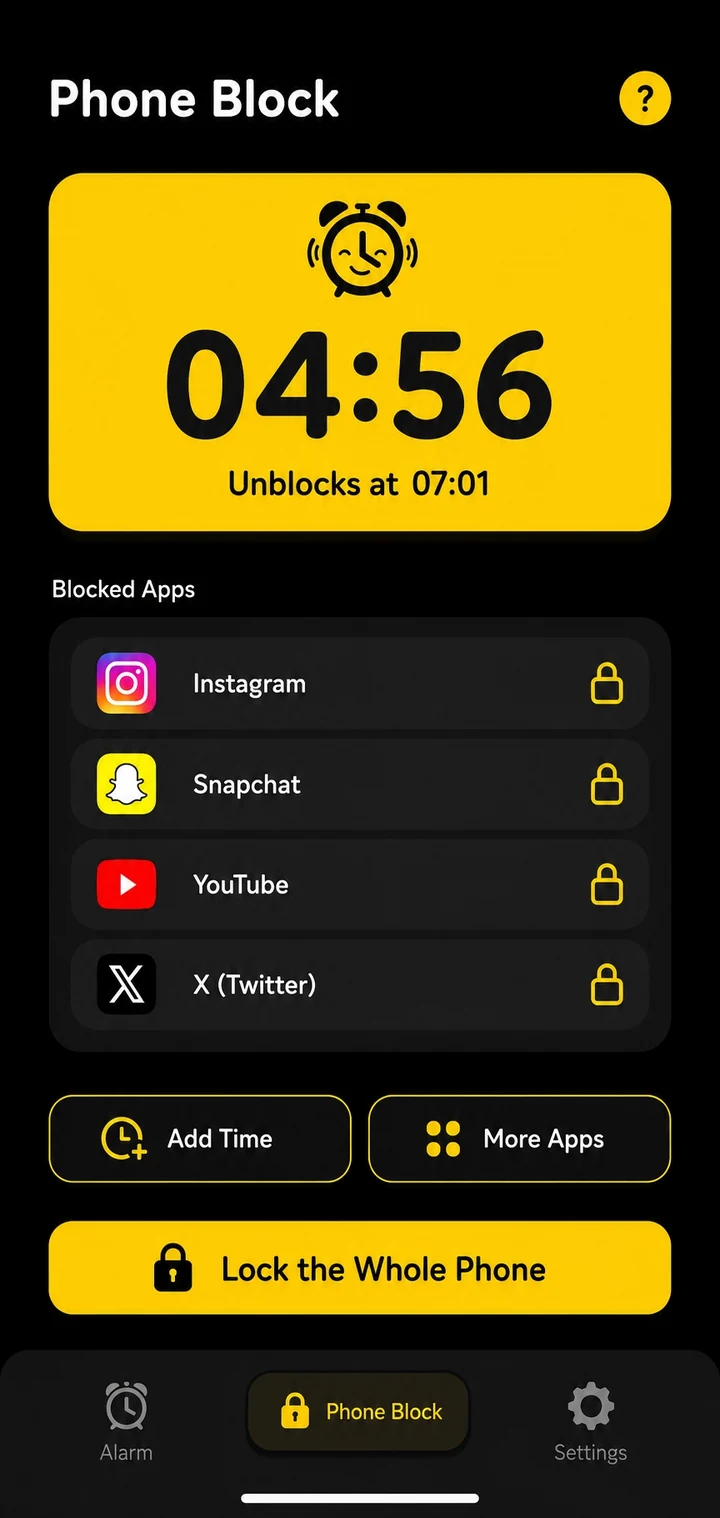
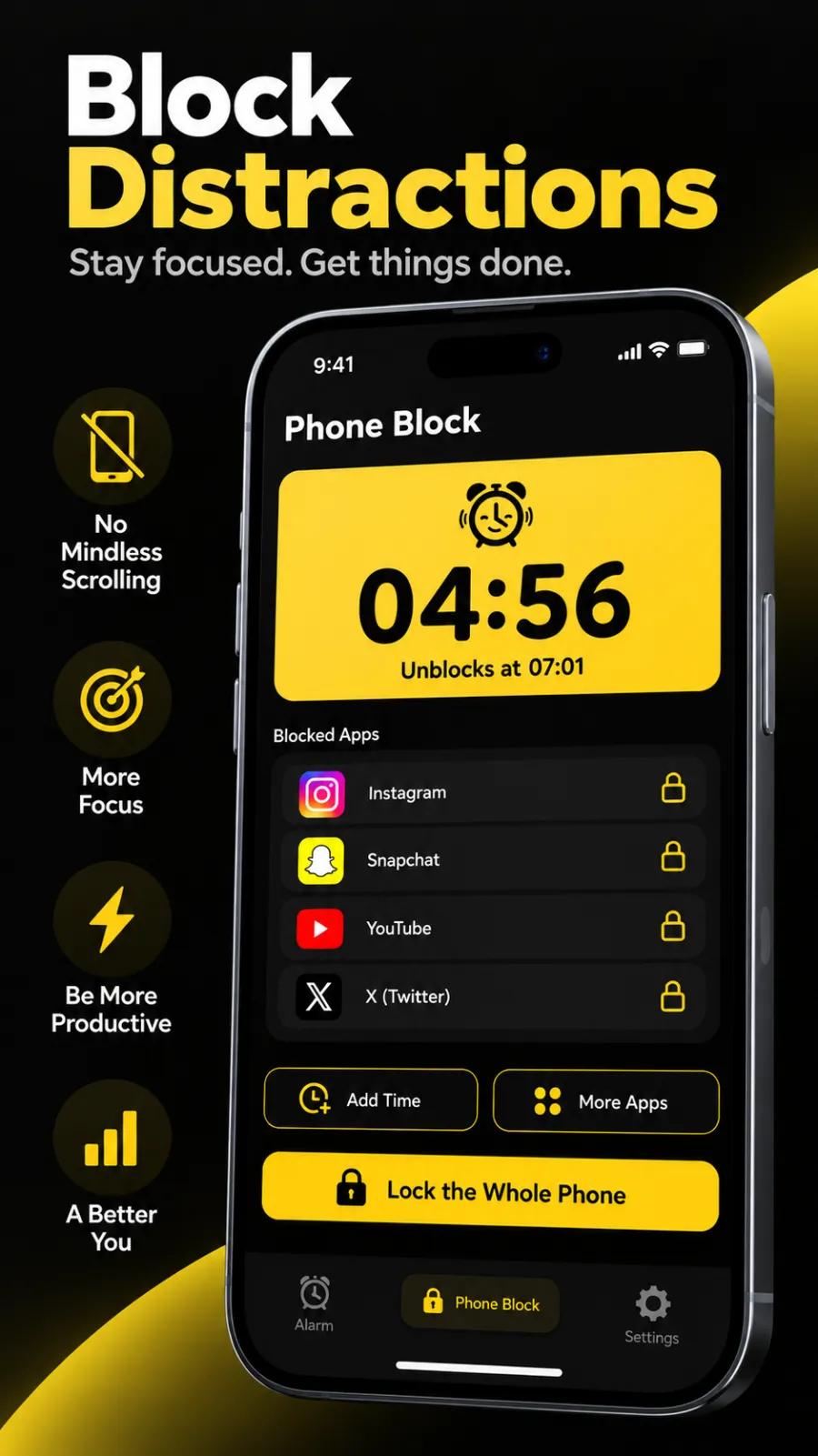
This is the gap Beyond Alarm's Phone Block is built for: a limit you cannot just tap past. You start it by hand — presets from 15 minutes to 2 hours, or Custom from 5 minutes to 8 hours — and choose between two modes. Strict lets you leave early, but only after a short ad and a five-second hold; we built the hold that way because a tap is a reflex and five seconds is long enough to change your mind. Hard mode has no stop button until the timer ends, and asks for a short rewarded ad first unless you have Pro.
For the mornings, Morning Lockout starts by itself when an alarm is finished and keeps the apps you picked shut for the time you set. In our own code, a block survives a phone restart, and switching the phone off doesn't pause it — it still ends at the same clock time.
Where we're weaker, honestly: there are no scheduled or repeating blocks, so for a daily window Downtime or Bedtime mode does that job better. On iPhone, Phone Block uses Apple's Screen Time, so it blocks the apps or whole Screen Time categories you choose — not the whole phone — and turning off our Screen Time access in iPhone Settings ends a block. On Android it can block chosen apps or the whole phone (calls still work), using an Accessibility service, with optional "Prevent app uninstall" and "Prevent power-off". The app is free with ads; Pro removes them.
A one-week plan
Day 1–3: change nothing, just read the dashboard each evening. Write down the top three apps and the hour with the most use.
Day 4: set a daily limit on the top category, with a passcode if you're on iPhone. Turn off notifications for everything that isn't a person.
Day 5: move the charger out of the bedroom, or at least across it. Start Downtime or Bedtime mode an hour before sleep.
Day 6–7: compare the dashboard with day 1–3. If the number hasn't moved, the limit is being dismissed — add a cost to it, from the list above, rather than lowering it further.
Common questions
How do I set a screen time limit on Android?
Open Settings, then Digital Wellbeing and parental controls, tap the app in the dashboard and set an App timer. When the timer runs out the app is paused for the rest of the day. The exact menu names vary by manufacturer and Android version, so search Settings for "Digital Wellbeing" if you cannot find it.
How do I make iPhone screen time restrictions harder to ignore?
Turn on a Screen Time passcode and make sure "Block at End of Limit" is on for your App Limits and "Block at Downtime" is on for Downtime. Without a passcode, the limit screen lets you ignore it with a tap. The strongest version is a passcode someone else sets and you do not know.
What is a realistic screen time goal?
A lower number than this week's, in the hours that matter most to you. Cut the first hour after waking and the last hour before sleep before you try to cut the middle of the day. A small cut you keep beats a big one you abandon on day four.
Why do I keep ignoring my screen time limits?
Because ignoring them costs one tap, and you learn where the tap is within a few days. A limit only holds if getting past it takes real effort - a passcode you do not know, a phone in another room, or a block with no stop button.
Does turning my phone off end an app block?
It depends on the app. Built-in limits pick up again after a restart. In Beyond Alarm, a Phone Block survives a restart and switching the phone off does not pause the timer - it still ends at the same clock time.
We build Beyond Alarm, an Android alarm app that will not switch off until you have actually moved. Most of what we write here comes out of problems we hit building it.
Beyond Alarm
An alarm that keeps ringing until you’ve actually moved — then blocks the apps that pull you back to bed. Free to start, no account.
Keep reading
Study timer: 25, 50 or 90 minutes — which works best?
25, 30, 50, 60 or 90 minutes? How to choose a study timer length, what the research really shows, and when a stopwatch beats a countdown.
Digital detox: a 7-day plan that doesn't need a cabin
A 7-day digital detox you can do at home - one change a day, from notifications to an offline afternoon, then a plan for what comes back.