
How to lock your phone for an hour (Android and iPhone)
 Beyond Alarm23 October 2026 · 7 min read
To lock your phone for an hour, use a blocker app with a timer that has no stop button, or a timed lock box. Built-in Focus mode, Screen Time Downtime and Guided Access all take a time, but your own passcode ends each of them early.
That difference — whether the lock can be cancelled by the person it is meant to stop — is the whole question. Everything below is sorted by it.
The short version:
- Just want fewer notifications? Built-in Focus or Do Not Disturb is free and enough.
- Want the apps gone for an hour? Android's Focus mode or iPhone's Downtime do it, but one tap or your passcode lifts it.
- Want a lock you cannot cancel? A blocker with a hard timer, or the phone in a timed box.
- iPhone can't lock the whole phone from an app. Only chosen apps, through Apple's Screen Time.
- Restarting the phone does not reset a good blocker's timer.
The five ways, compared
Every option here lets you choose a length. What separates them is what it takes to get out before the time is up.
| Method | Locks what | Can you end it early? | Android | iPhone |
|---|---|---|---|---|
| Focus mode / Do Not Disturb | Notifications (Android's Focus also pauses chosen apps) | Yes, one tap | Yes | Yes (filters, doesn't block) |
| App timers / Screen Time Downtime | Chosen apps or everything but allowed apps | Yes — "Ignore limit" or your Screen Time passcode | Yes (app timers) | Yes |
| Guided Access / app pinning | The screen stays in one app | Yes, with your passcode | App pinning, no timer | Guided Access, optional time limit |
| Timed lock box | The whole physical phone | No, not without breaking it | Any phone | Any phone |
| Blocker app with a hard timer | Chosen apps, or the whole phone on Android | No stop button until the timer ends | Apps or whole phone | Chosen apps only |
The built-in tools are well made. They are built for people who will respect a reminder, which is exactly who you are not at minute twenty of a study session — the reason Screen Time limits and Focus Mode stop working for a lot of people after the first week.
Built-in options on Android
Focus mode in Digital Wellbeing pauses the apps you pick — their icons grey out and their notifications stop. You can set it to end after a chosen time or run it on a schedule. The catch is in the notification itself: "Take a break" and "Turn off now" are one tap each.
App timers cap how long you can use an app per day, not per session. They are good for "no more than an hour of YouTube today" and poor for "nothing for the next hour", because they only bite once the allowance is used up.
App pinning (sometimes called screen pinning) keeps the phone in one app until you unpin it. There is no timer, and unpinning is a button gesture plus your PIN. It is meant for handing your phone to someone, not for locking yourself out.
Menus differ between Samsung, Pixel, Xiaomi and the rest — search Settings for "Focus mode", "App timers" or "Pin" rather than following a fixed path.
Built-in options on iPhone
Focus on iPhone filters notifications and can hide home screen pages. It does not stop an app opening if you go looking for it.
Screen Time Downtime is the closest thing to a phone lock Apple builds in. During Downtime only the apps you allow, and calls, are available. When you open a blocked app you can ask for more time — and unless a Screen Time passcode you don't know is set, that request is granted by you.
Guided Access is the most honest-sounding and the most misunderstood. Turn it on under Settings → Accessibility → Guided Access, open an app, then triple-click the side (or Home) button. Under Options you can set a time limit.
What it actually does is lock the phone to one app. It doesn't lock the phone shut. When the time runs out the screen locks, and you leave with your Guided Access passcode or Face ID — which works just as well five minutes in. It is excellent for keeping a child inside one game, and weak as a self-control tool.
The physical option: a timed lock box
A timed lock box is a container with a countdown lid: phone in, set the time, and it stays shut until zero. They are sold under names like "phone lock box" or "time-lock container", in plastic and in clear acrylic.
It is the only option on this page that works on any phone and that no setting can undo. The trade-off is that it locks the whole phone, so no calls, no maps, no music — and if you need the phone in an emergency, you're breaking a box to get it.
For a lot of people the cheapest version works almost as well: the phone in another room, on charge, with the door shut. It is not a lock, but it does remove the cue, which is half of what any lock is for.
Beyond Alarm
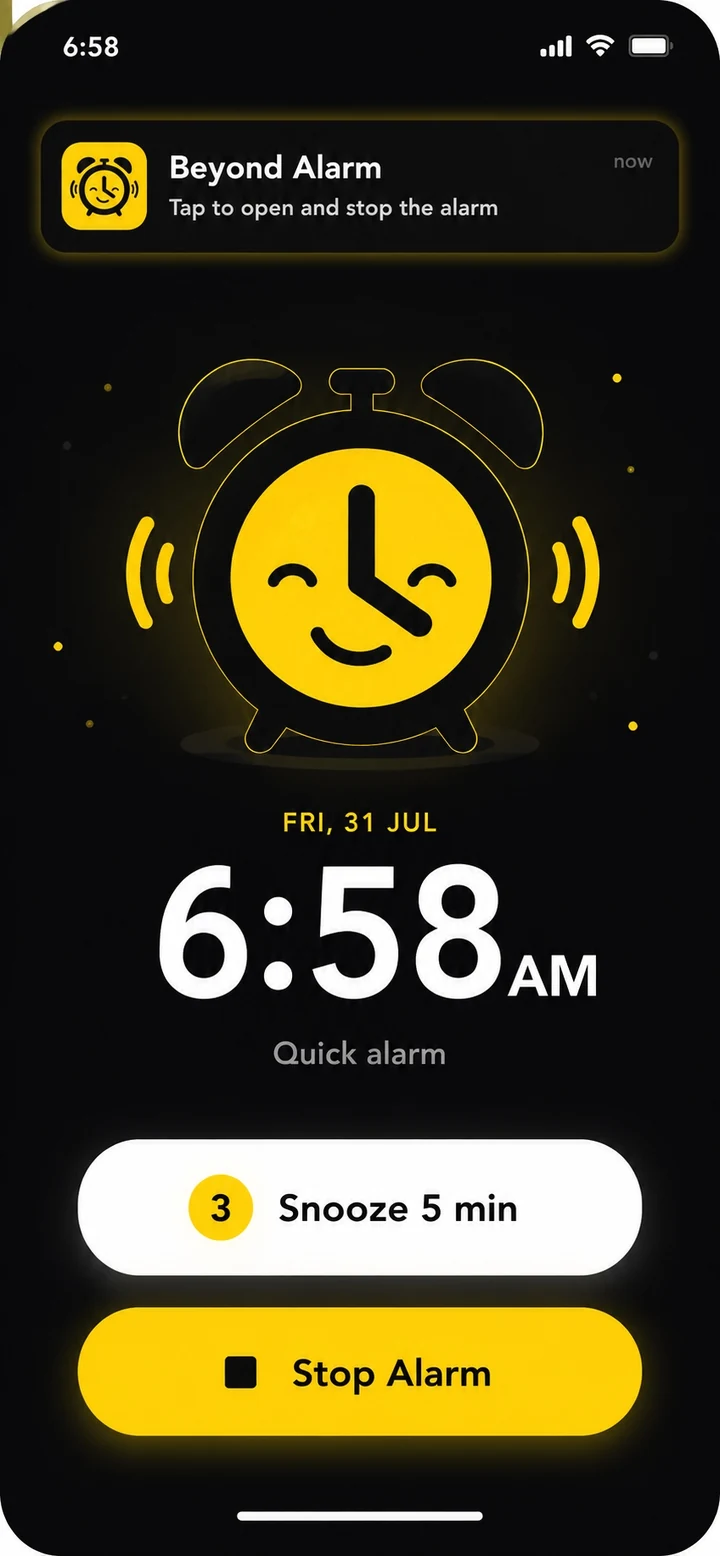
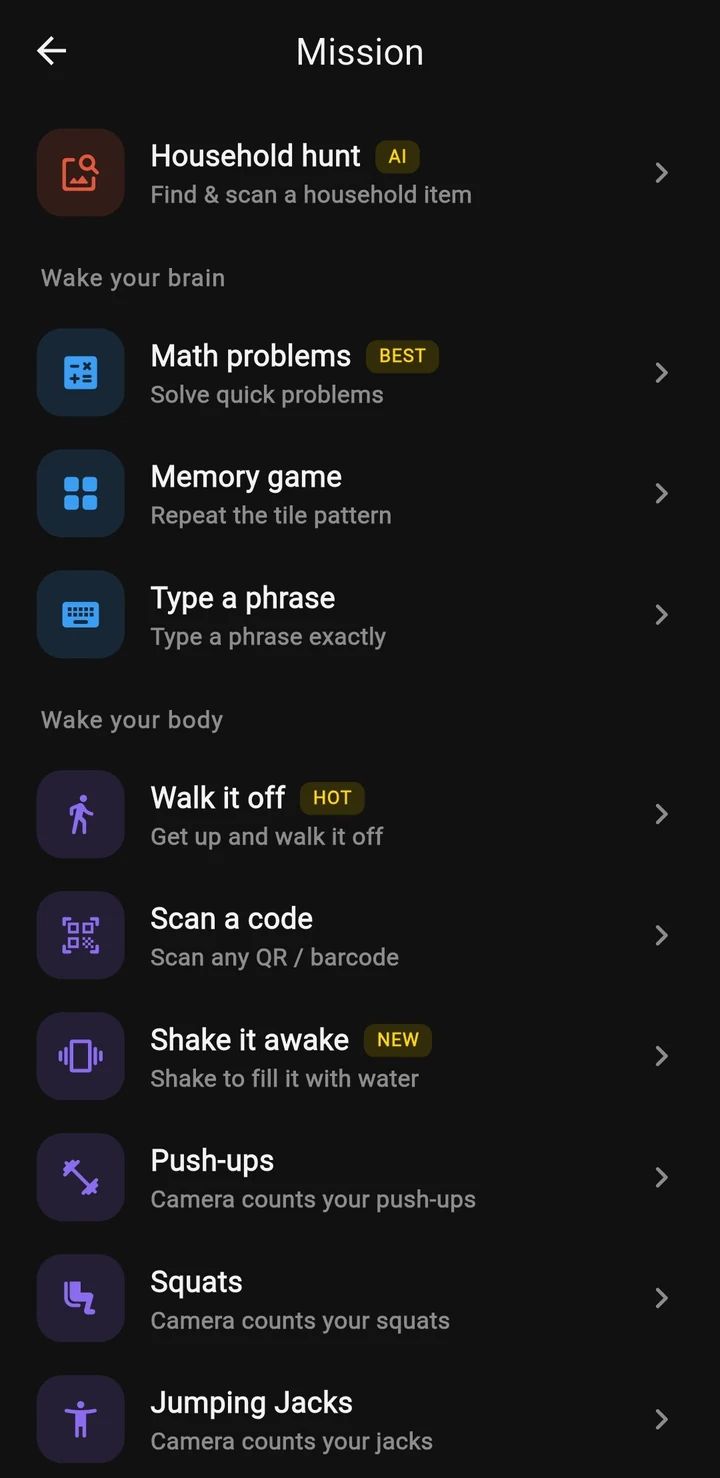
Beyond Alarm does this part for you: the alarm will not switch off until you have actually moved, and the apps you pick stay locked afterwards.

Blocker apps with a timer you can't stop
A blocker app is the middle ground: it locks only what you choose, keeps the rest of the phone working, and — in its strictest setting — has no way out until the timer ends.
Free options exist. Digital Wellbeing's Focus mode and Apple's Screen Time are already on your phone, and several third-party blockers have free tiers; at the time of writing, check each listing for which features are paid. The question to ask of any of them is the one from the table: what does stopping early take? Our comparison of app blockers on Android goes through the main ones on that question.
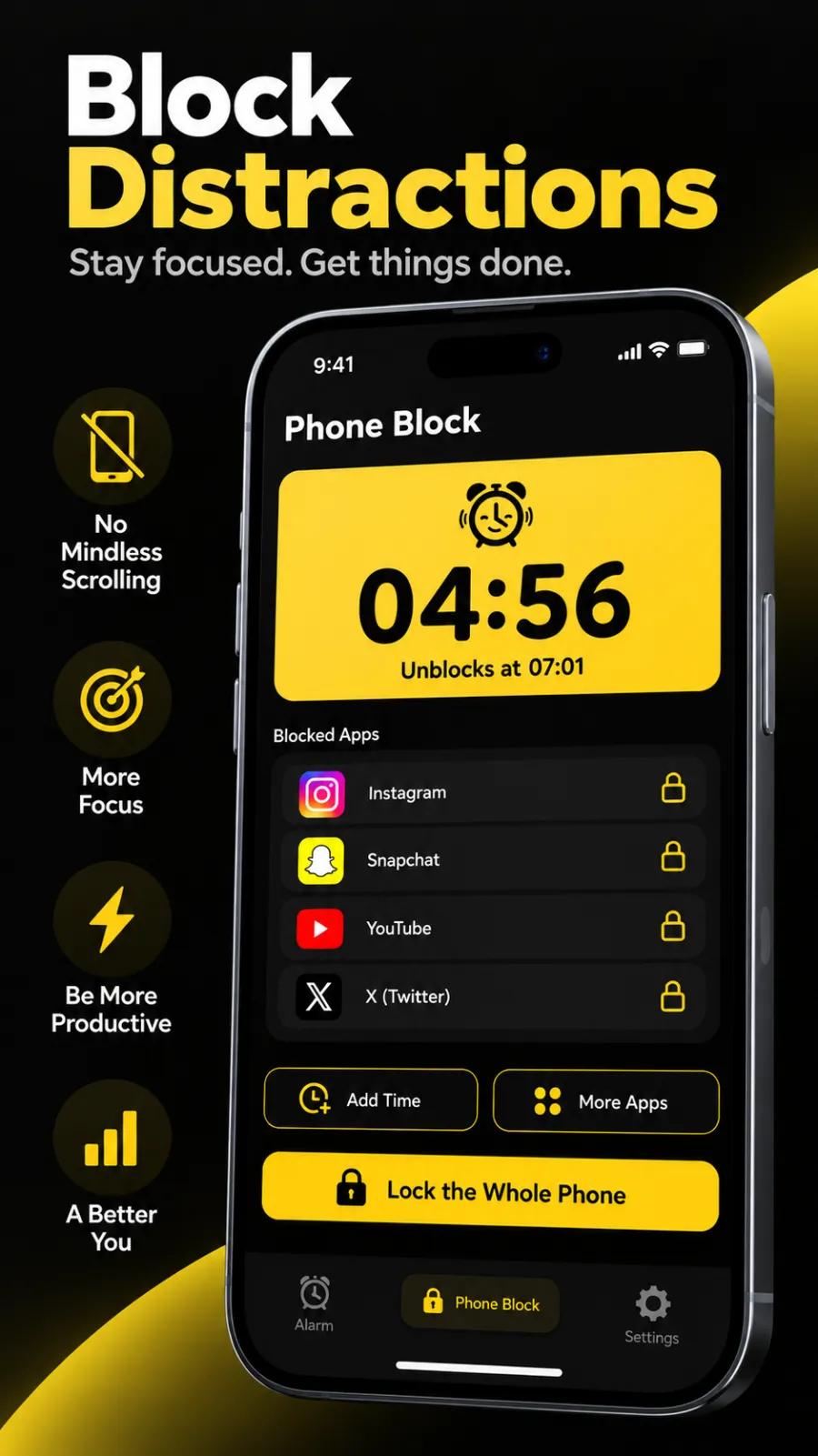
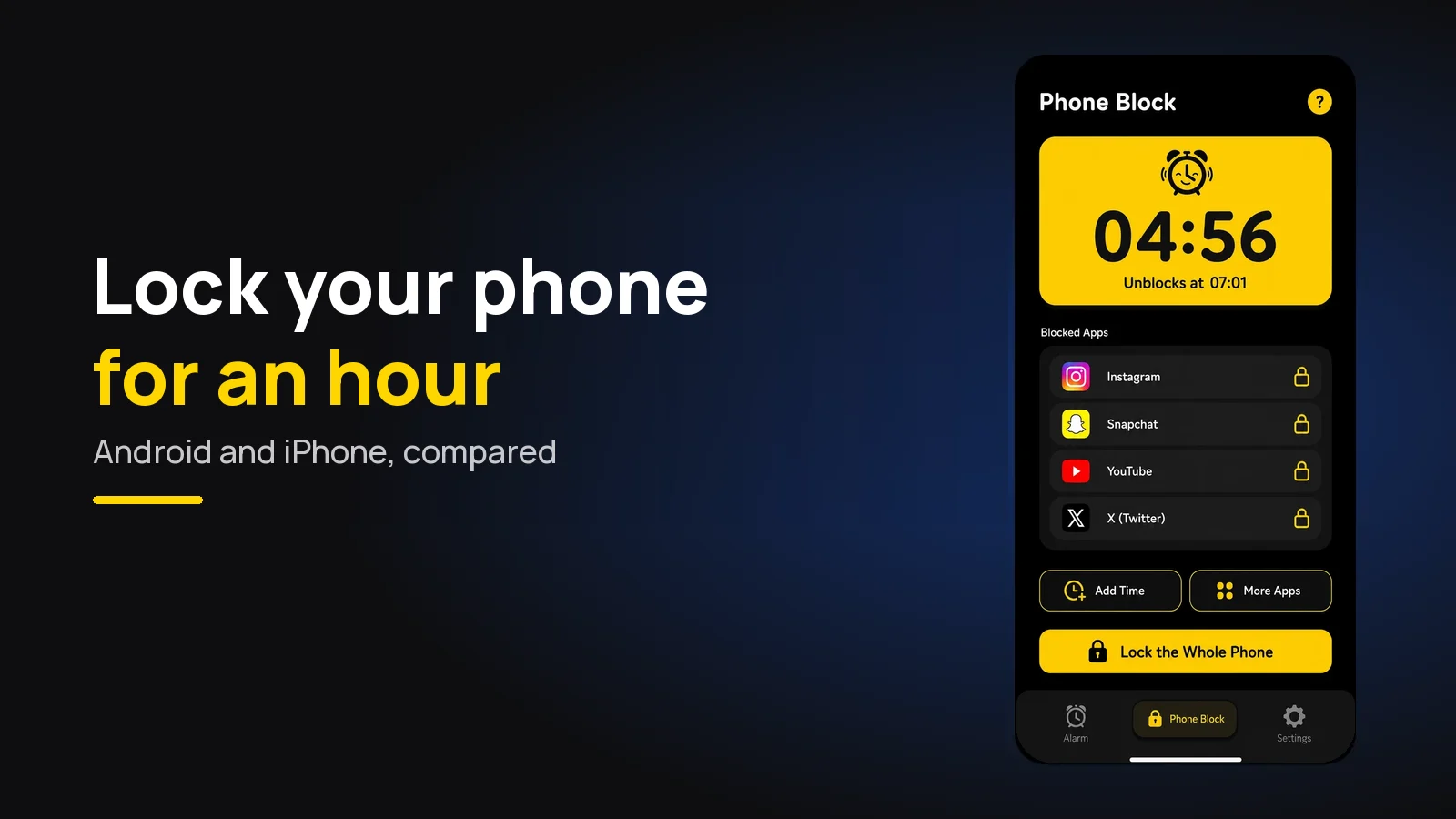
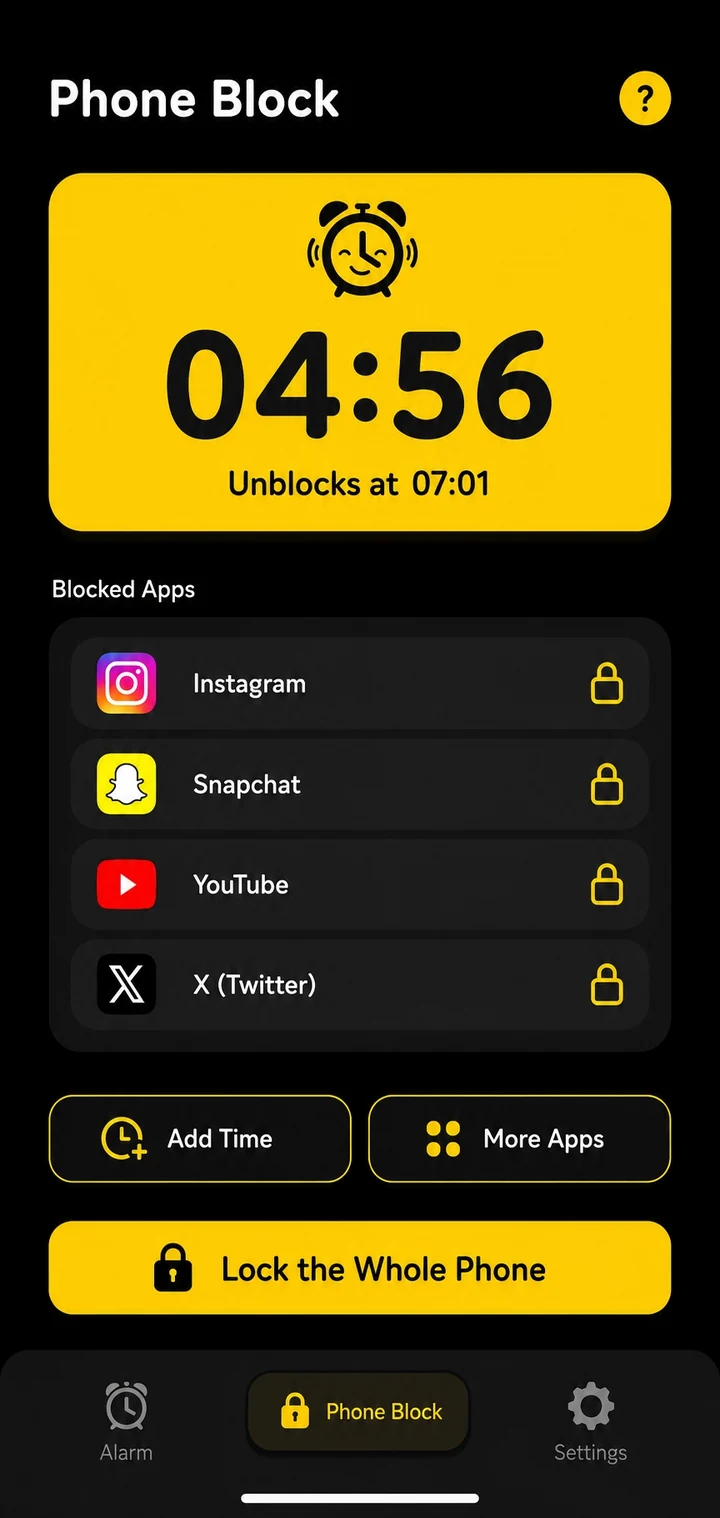
This is the job we built Phone Block for in Beyond Alarm. You start it by hand — presets of 15, 30, 45, 60, 90 and 120 minutes, or Custom from 5 minutes to 8 hours. Strict lets you leave early after a short rewarded ad and a five-second hold. Hard mode has no stop button at all until the timer ends; turning it on asks you to watch a short ad first, unless you have Pro. On Android it can block chosen apps or the whole phone (calls still come through), using an Accessibility service, with optional "Prevent app uninstall" and "Prevent power-off" in Settings. On iPhone it uses Apple's Screen Time and blocks only the apps or whole categories you pick.
Where it is weaker, honestly: there is no whole-phone lock on iPhone, because Screen Time has no "all apps" option for a third-party app to use. On iPhone, turning off the app's Screen Time access in Settings ends a block — Apple keeps that switch in the user's hands, and no app can take it away. Blocks also don't repeat on a schedule; you start each one yourself. And the app is free with ads; Pro removes them.
What happens if you restart the phone?
This is the first thing most people try, so it is worth knowing before you start.
Built-in tools carry on: Screen Time Downtime and Android's scheduled Focus mode are system settings, and a restart doesn't touch them. Guided Access ends, because a restart drops you back to the lock screen.
A blocker app depends on how it was written. In our own code, a Phone Block stores the clock time it ends, not a countdown, so a restarted phone picks the block back up and it still ends at the same time. Switching the phone off for forty minutes of a sixty-minute block leaves twenty minutes, not sixty. On Android, "Prevent power-off" goes further and closes the power menu while a block runs.
A lock box doesn't care — the phone is inside it.
Which one to choose
Pick by what you are actually trying to stop.
- Notifications pulling you away: Focus or Do Not Disturb. Free, built in, enough.
- One or two apps for an hour, with an easy way out: Focus mode on Android, Downtime on iPhone.
- Chosen apps, no way out: a blocker with a hard timer — on either phone.
- The entire phone, no way out: a whole-phone blocker on Android, or a timed lock box on iPhone.
Whatever you use, make the length honest. A 45-minute lock you finish does more for the habit than a three-hour one you spend bargaining with. If you are setting one up to study, blocking apps while studying covers which apps to put on the list and when Hard mode is worth it.
Common questions
How do I lock my phone for a set amount of time?
For a lock you cannot talk yourself out of, use a blocker app with a timer that has no stop button, or put the phone in a timed lock box. The built-in options — Focus mode on Android, Screen Time Downtime and Guided Access on iPhone — all set a time, but each can be ended early by whoever knows the phone's passcode.
Can I lock my iPhone for hours so I can't use it?
Not the whole iPhone, with any app. Apple's Screen Time lets apps block the apps and categories you choose, not the phone itself, and Guided Access keeps the screen inside one app but ends with your passcode. For the whole device, a timed lock box is the honest answer.
Is there an app that locks your phone and you can't unlock it?
On Android, yes — some blockers lock the whole phone with no stop button until the timer ends, while still letting calls through. On iPhone, apps can only block chosen apps, and turning off the app's Screen Time access in Settings ends the block, so nothing there is truly impossible to undo.
What happens if I restart my phone during a phone lock?
It depends on the app. Built-in Screen Time and Focus schedules carry on after a restart. A well-made blocker stores the time the block ends, so it picks up again after the restart and still finishes at the same clock time — switching the phone off does not pause the countdown.
Does Guided Access have a timer?
Yes. When you start Guided Access you can open Options and set a time limit. When it runs out the screen locks, and you leave with your Guided Access passcode or Face ID or Touch ID — which also works before the time is up, so it is not a lock you cannot end.
We build Beyond Alarm, an Android alarm app that will not switch off until you have actually moved. Most of what we write here comes out of problems we hit building it.
Beyond Alarm
An alarm that keeps ringing until you’ve actually moved — then blocks the apps that pull you back to bed. Free to start, no account.
Keep reading
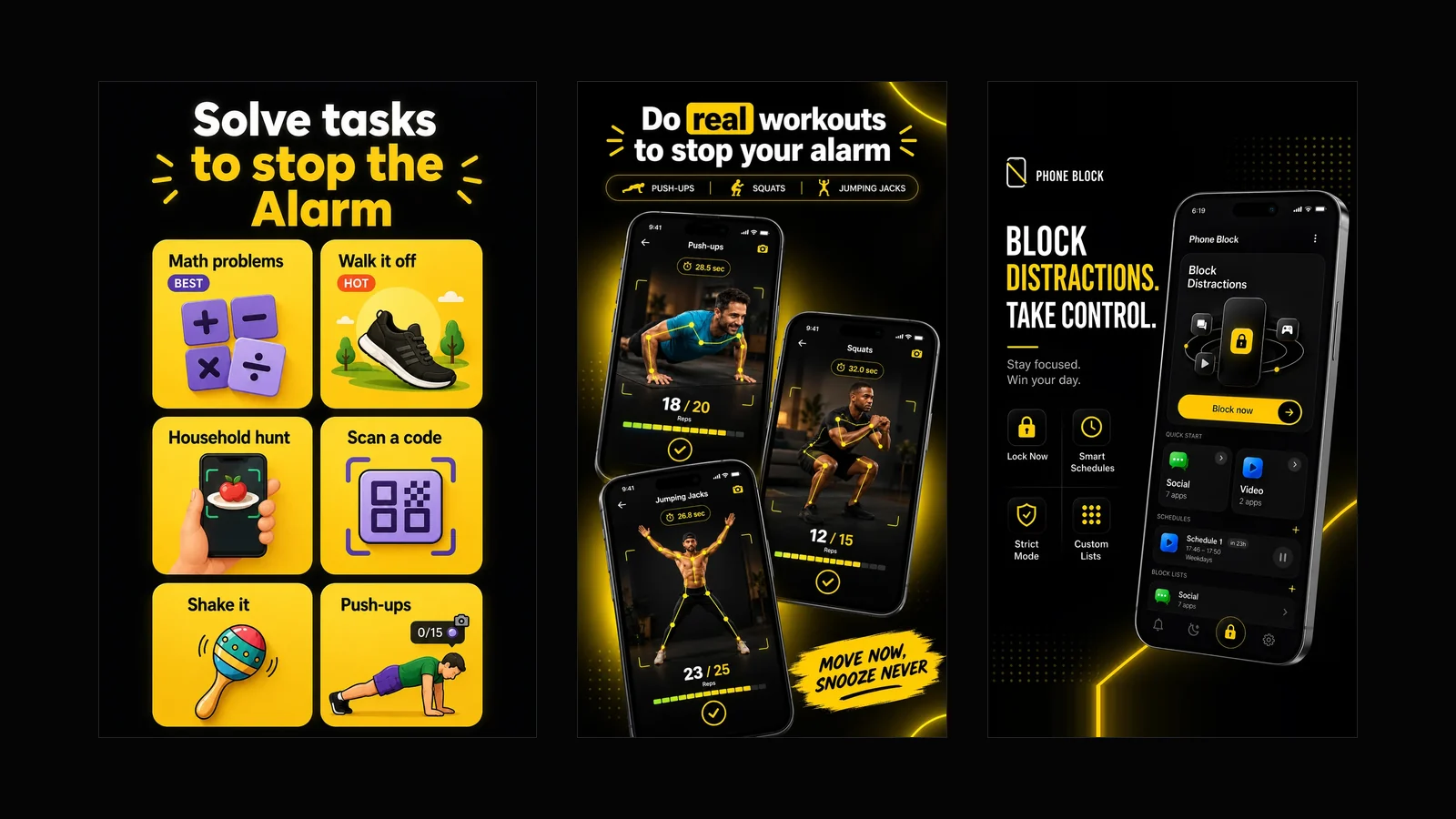
What Beyond Alarm does: wake-up missions and app blocking
The whole app on one page, for Android and iPhone — missions to stop the alarm, app blocking after it, Phone Block, and what it does not do.

Alarmy vs Beyond Alarm: feature-by-feature comparison, 2026
Missions, pricing, platform support, app blocking, sleep tracking — compared directly, with the numbers dated and sourced rather than asserted.