
How to make your iPhone alarm harder to turn off
 Beyond Alarm23 November 2026 · 6 min read
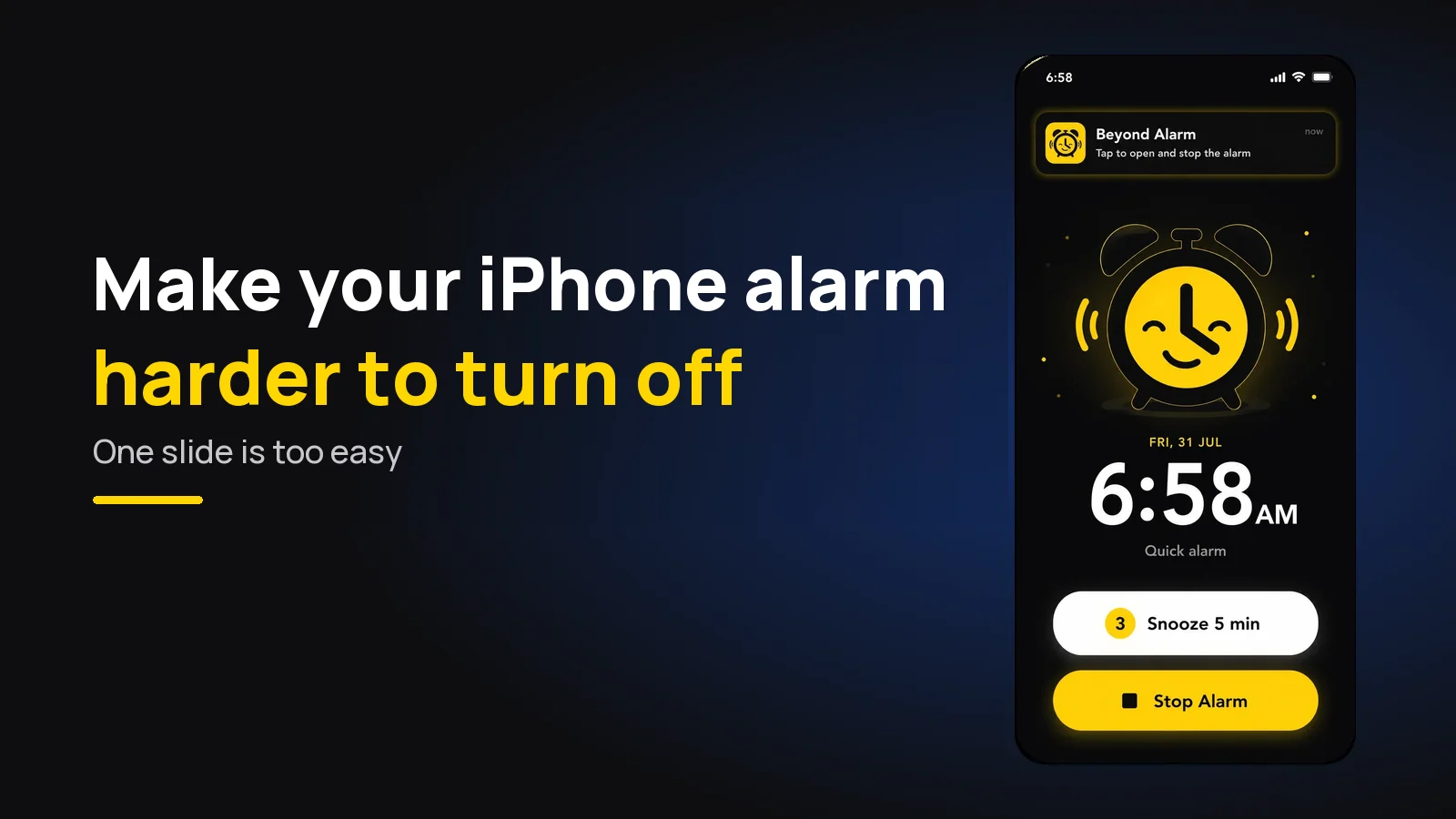
To make your iPhone alarm harder to turn off, you need an alarm where the slide doesn't end it. Apple's Clock always stops with one slide. Beyond Alarm runs on Apple's AlarmKit and turns that slide into the start of a wake-up mission. The alarm keeps going until you've finished it.
The short version:
- Apple's alarm stops with one slide, and your hand can learn to do that asleep.
- With Apple's Clock alone, put the phone across the room and turn Snooze off.
- Beyond Alarm keeps ringing after the slide. It opens on a mission, and the alarm comes back about 30 seconds later if you ignore it.
- Pick a mission that needs you out of bed, like a photo of the kitchen.
Why one slide is too easy
Apple's Clock is reliable. Apple says Do Not Disturb, the Ring/Silent switch and Silent mode don't affect the alarm sound, on its alarm support page. The trouble is the other end: how it stops.
One slide is a small, repeated movement. Do it every morning and your hand learns it, the same way it learns to unlock the phone. After a few weeks you can stop the alarm before you're awake enough to remember doing it.
That's why "I turned off my alarm in my sleep" is so common. Our post on turning off your alarm in your sleep goes into the science. The short answer: an alarm that stops with a reflex will get stopped by a reflex.
What you can do with Apple's Clock
Apple's Clock gives you a few settings that help. From Apple's guide to setting an alarm, each alarm has Repeat, Label, Sound and Snooze.
- Turn Snooze off. Edit the alarm and switch Snooze off. Then there's no snooze button to reach for.
- Put the phone across the room. If you have to stand up to slide, you are at least standing up. Charge it on a shelf or a desk, not the bedside table.
- Check the volume. Apple puts alarm volume on the Ringtone and Alerts slider in Settings → Sounds & Haptics. On Face ID iPhones, Attention Aware Features can lower it if you look at the phone. Apple covers that in its Face ID and attention settings.
- Use a sound you don't love. A song you like is easy to sleep through.
These help, but none of them changes the slide. Walk back to bed with the phone and you can still stop it with your eyes shut.
How Beyond Alarm keeps ringing
AlarmKit, Apple's alarm system for apps from iOS 26, has one rule no app can change: the lock screen always shows Apple's slide to stop. In Apple's WWDC25 session, these alerts also "break through the silent mode and the current focus".
So we built Beyond Alarm around what the slide does:
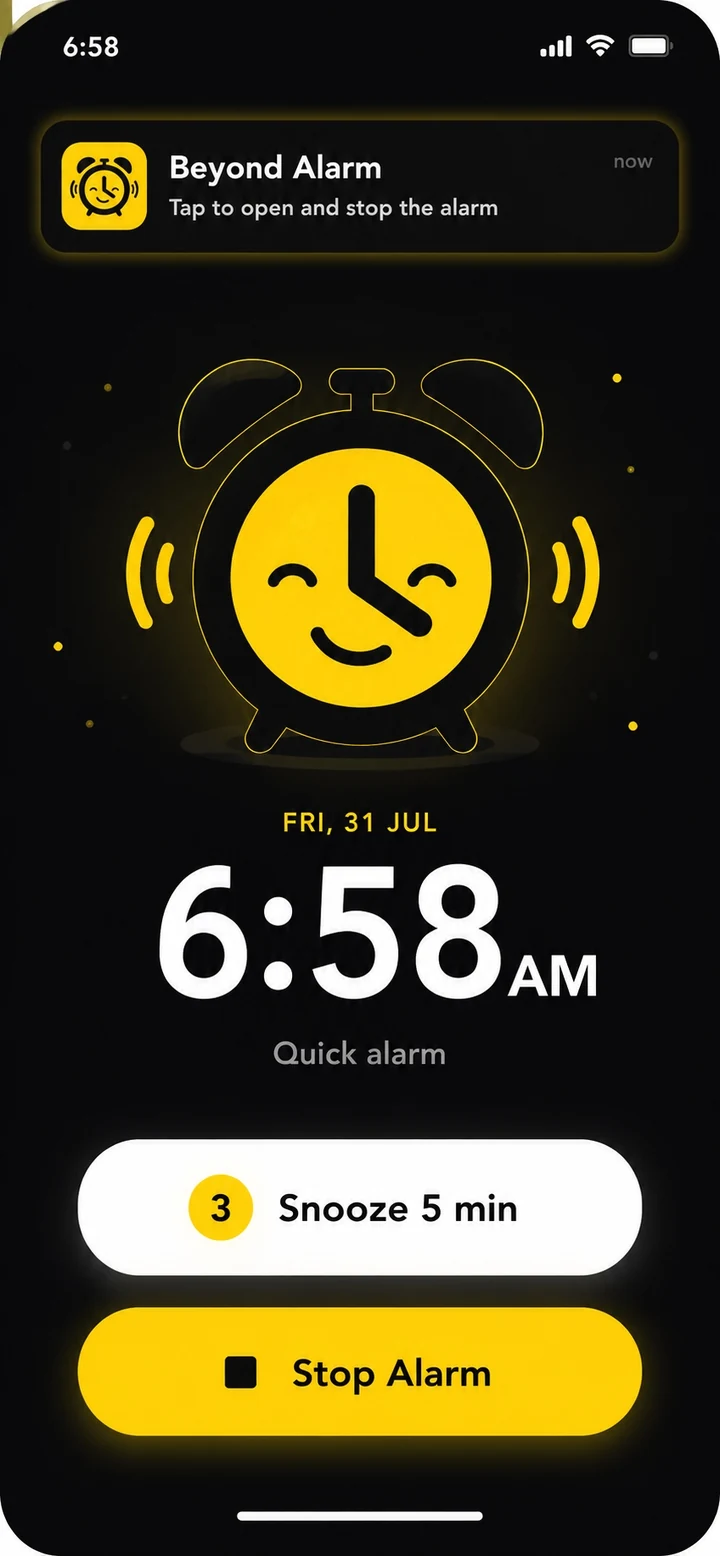
- The slide opens the alarm, it doesn't end it. The sound carries on while you unlock, and the app opens on the ring screen with your mission.
- It comes back. If you slide and don't open the app, the full system alarm returns about 30 seconds later.
- Only the mission ends it. Solve the sums, take the photo, scan the code. Then it's over.
| Feature | Beyond Alarm | Apple Clock |
|---|---|---|
| Rings on silent and in a Focus | Yes, through AlarmKit | Yes |
| What the slide does | Opens the app on the mission | Stops the alarm |
| If you ignore it | The alarm returns in about 30 seconds | It stays off |
| Snooze | Off, or capped at 1–10 presses, 1–30 min each | On or off |
| Wake-up missions | Stack them on one alarm | None |
| After the alarm | Morning lockout on apps you choose | — |
| Requires | iOS 26.1 or later | Built in |
Beyond Alarm
Beyond Alarm does this part for you: the alarm will not switch off until you have actually moved, and the apps you pick stay locked afterwards.


Pick a mission you can't do in bed
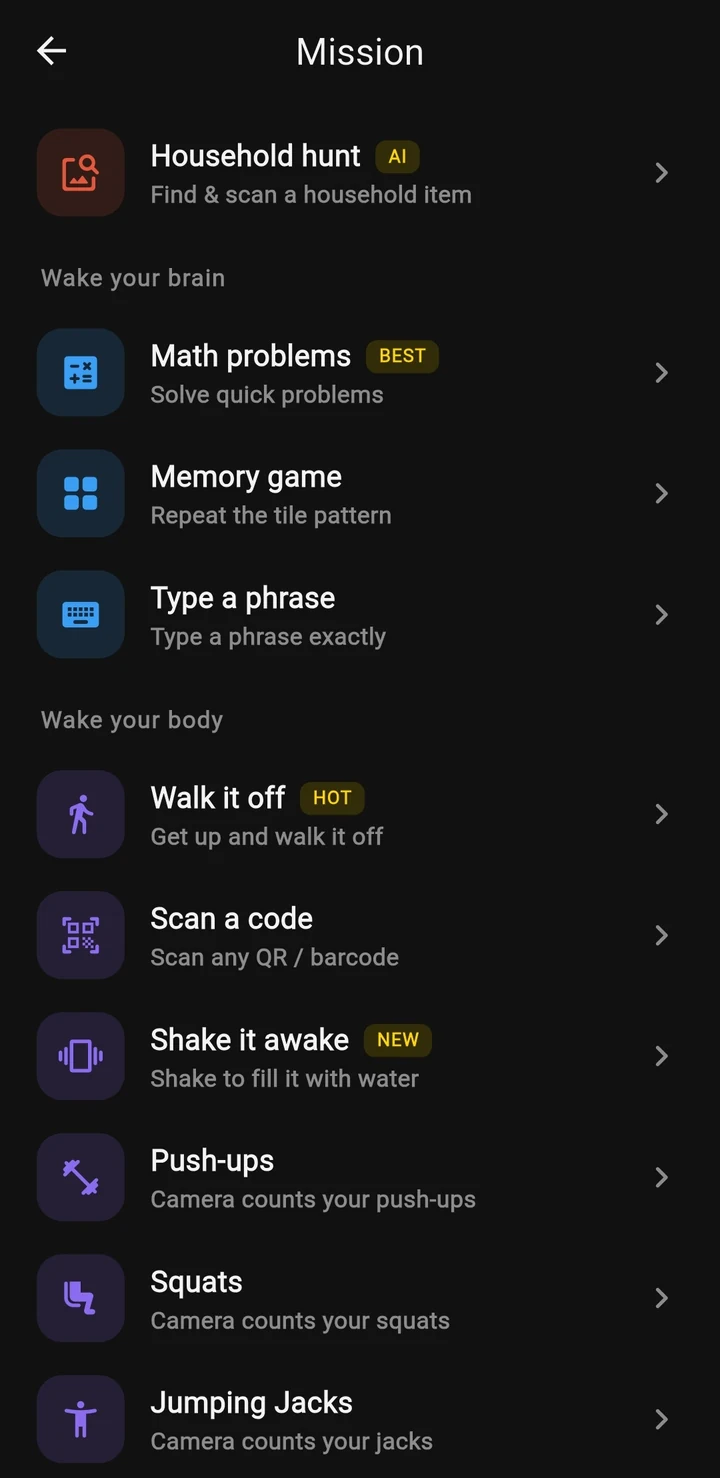
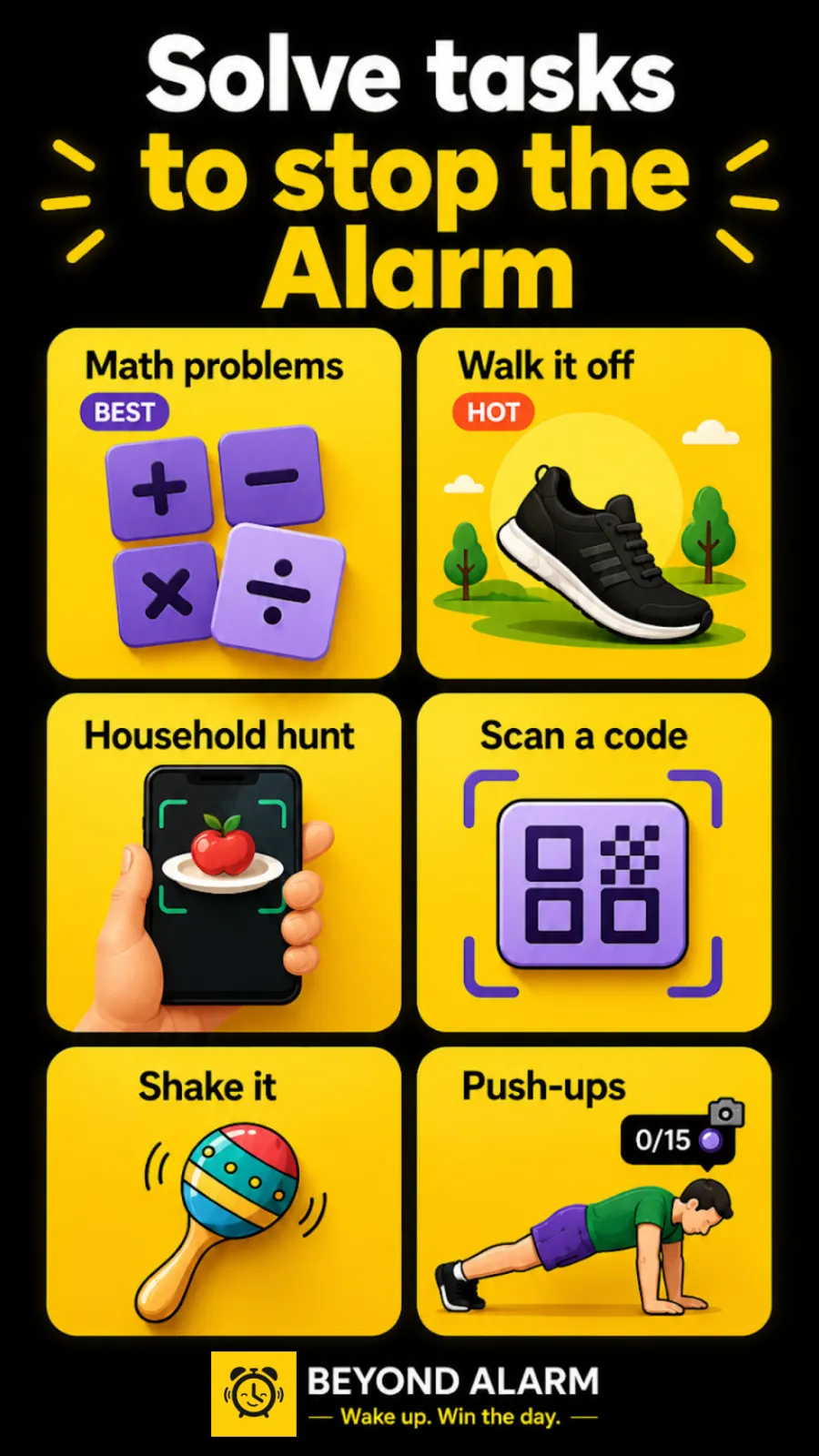
The mission is what makes the alarm hard to turn off, so choose one you can't finish lying down. On iPhone:
- Photo of your morning spot. Match a picture of the kitchen sink or the bathroom mirror.
- Household hunt. Find and photograph a real item in another room.
- Code scan. Scan a barcode or QR code you've stuck somewhere else.
- Camera workouts. Squats, push-ups and jumping jacks, counted by the camera.
- Walk it off. The alarm ends once you've walked the steps you set.
- Maths, memory, typing and shake. These wake your brain, but you can do them in bed. Pair one with a mission above.
The set-up we use: a photo of the kettle plus maths on Keypad. The slide gets you nowhere, the sums wake your head, and the kettle is in another room. By the time the alarm stops, you're up and in the kitchen.
Cap the snooze, don't just hope
Snooze is where most mornings slip. In Beyond Alarm you set it per alarm:
- Open the alarm and tap Snooze.
- Turn it off, or keep it and set an Interval (1 to 30 minutes) and a Snooze limit (1, 2, 3, 5, 10 or unlimited).
- When the snoozes run out, the snooze button goes and the mission is the only way out.
Snoozing only delays the alarm. When it rings again, the mission is still there. More on this in our guide to the alarm app you can't snooze.
After the alarm: keep the phone shut
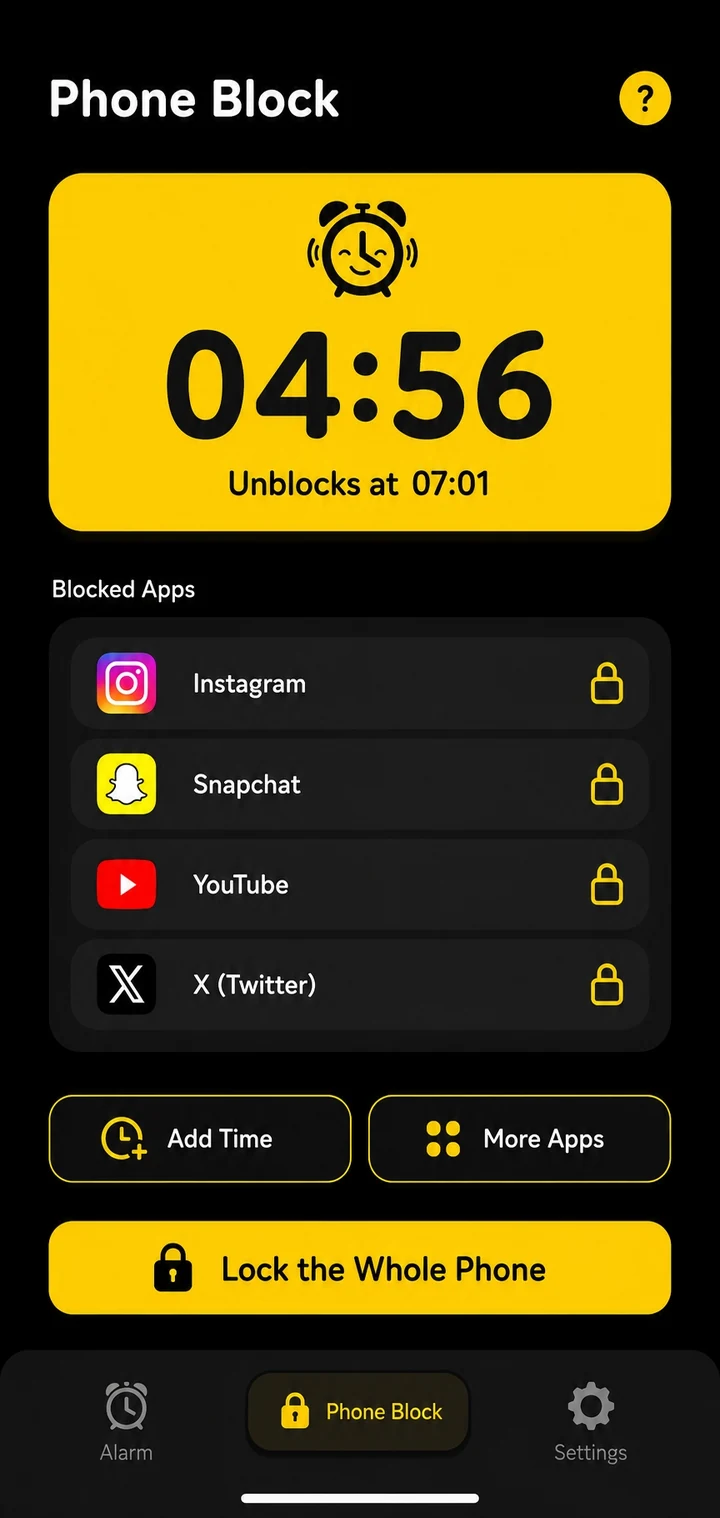
A hard-to-stop alarm gets you up. It doesn't stop you sitting on the edge of the bed scrolling for 40 minutes. Beyond Alarm's Morning lockout handles that part. Once the mission is done, the apps or categories you chose in Apple's Screen Time picker stay shielded for 15 to 60 minutes, or a time you set.
Setting it up
- Install Beyond Alarm from the App Store. It needs iOS 26.1 or later.
- Tap +, set the time and repeat days.
- Add a Wake-up mission you can't do in bed, plus a second one if you like.
- Set Snooze to off, or a small limit.
- Allow alarms when iOS asks. That's the AlarmKit permission that lets it ring on silent.
- Test it once with the phone locked, two minutes out.
Then turn off the Apple Clock alarm for the same time. Otherwise the one-slide alarm is still there as an escape.
Sources
Checked on 23 November 2026.
Common questions
How do I make my iPhone alarm harder to turn off?
Apple's Clock always stops with one slide, so the built-in tricks are to put the phone across the room and turn Snooze off. For an alarm that keeps going, use Beyond Alarm. It runs on Apple's AlarmKit, and its slide opens the app on a wake-up mission instead of ending the alarm. The alarm only stops once the mission is done.
Is there an iPhone alarm you can't turn off?
Every iPhone alarm shows Apple's slide to stop, and no app can remove it. In Beyond Alarm that slide doesn't end the alarm. It opens the mission, the sound carries on, and if you don't open the app the system alarm comes back about 30 seconds later. Only finishing the mission cancels it.
How do I stop snoozing on my iPhone?
In Apple's Clock, edit the alarm and turn off Snooze. In Beyond Alarm you can turn snooze off, or cap it at 1, 2, 3, 5 or 10 presses with a length of 1 to 30 minutes. When the snoozes run out, the mission is the only way to stop the alarm.
Why do I turn off my iPhone alarm in my sleep?
Because one slide is a movement your hand can learn. Done every morning, it becomes automatic, and you can do it before you're properly awake. A task that needs thought or movement, like sums or a photo of another room, can't be done on autopilot the same way.
Does Beyond Alarm ring on silent on iPhone?
Yes. It needs iOS 26.1 or later and uses Apple's AlarmKit, whose alerts break through silent mode and the current Focus, the same as Apple's own alarm.
We build Beyond Alarm, the alarm for Android and iPhone that will not switch off until you have actually moved, then blocks the apps that pull you back. Most of what we write here comes out of building it.
Beyond Alarm
An alarm that keeps ringing until you’ve actually moved — then blocks the apps that pull you back to bed. Free to start, no account.
Keep reading
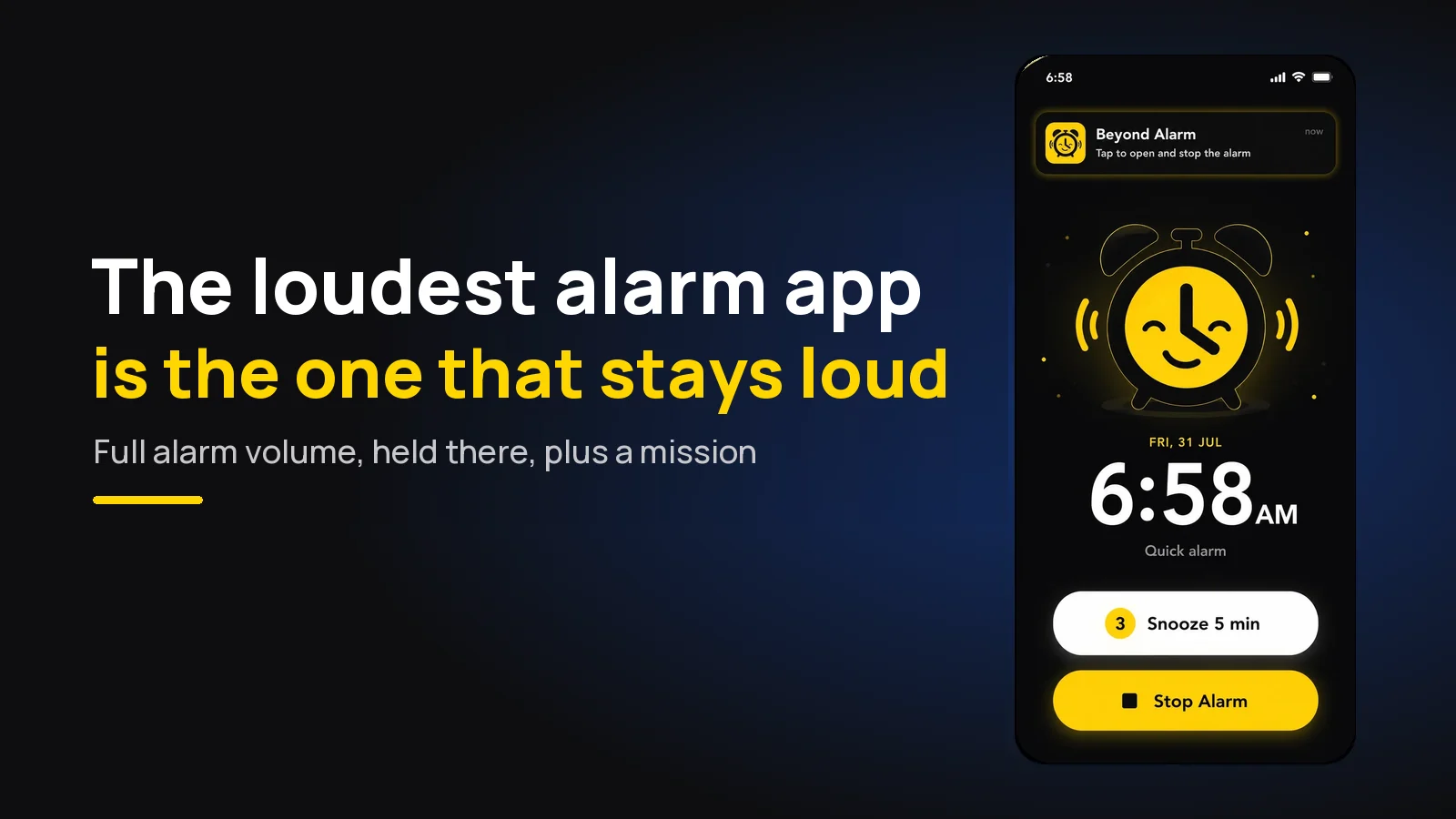
The Loudest Alarm App for Heavy Sleepers, Honestly
No app plays louder than your phone's speaker. What really makes an alarm loud: the alarm volume at full, kept there, and an alarm you can't stop from bed.
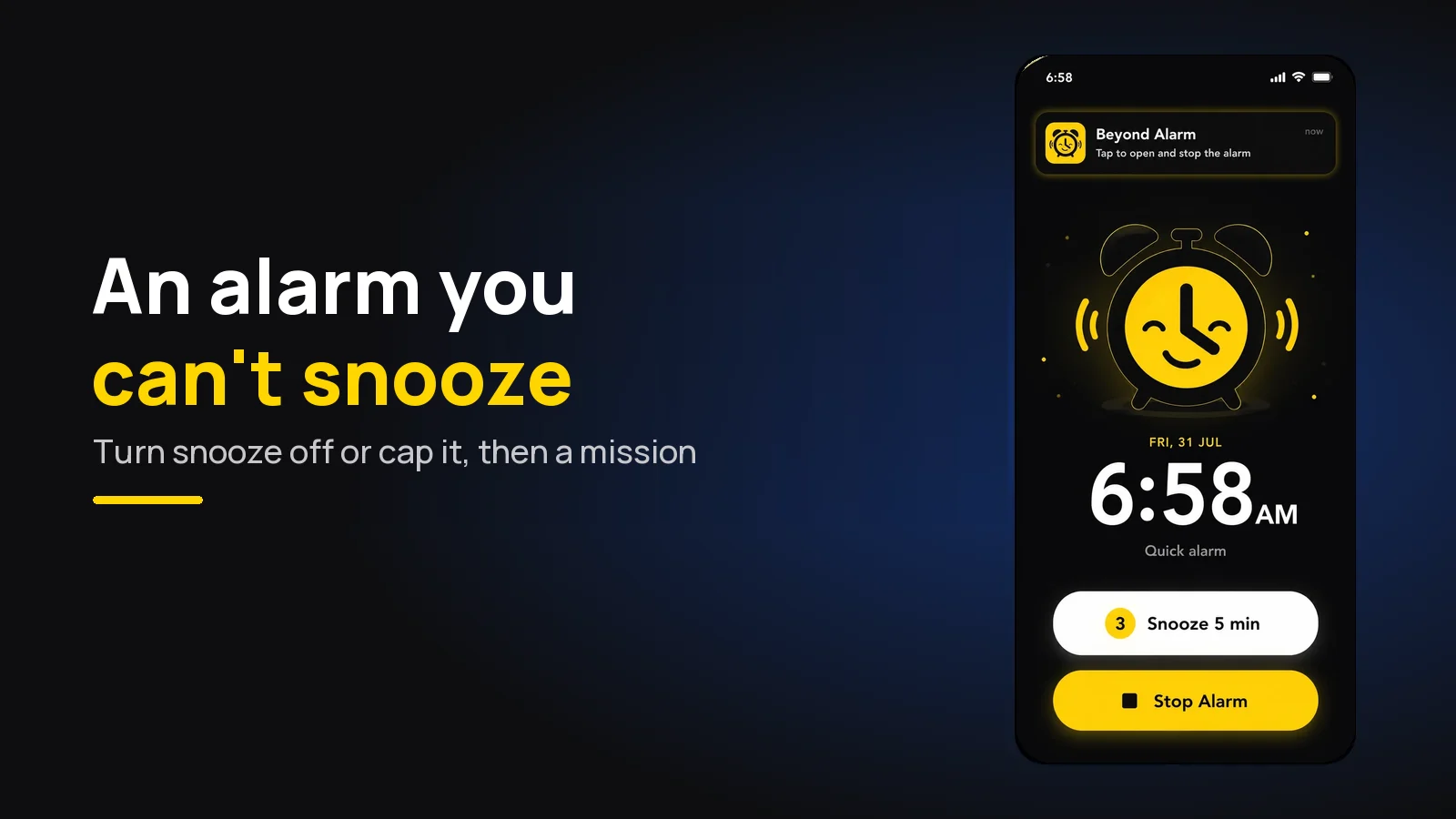
Alarm App You Can't Snooze: Turn Snooze Off or Cap It
Want an alarm you can't snooze? Beyond Alarm lets you switch snooze off or cap it at 1 to 3 presses, then makes you finish a wake-up mission. Free.