
Free Strict mode
A block you can't cancel, for the price of one short ad. Strict mode takes away the stop button until the timer runs out, and you don't need a subscription to use it.


Most of the time you don't need a stricter blocker. You need one you can't talk yourself out of. Beyond Alarm's Strict mode removes the stop button from a Phone Block until the timer runs out, and it's free: one short ad turns it on. In many blockers the mode you can't cancel is a paid upgrade. Here, one short ad is the whole price.
What it does
Every Phone Block in Beyond Alarm runs at one of two strictness levels, and the app makes you choose one before the block starts:
| Regular mode | Strict mode | |
|---|---|---|
| Ending early | Watch a short ad, then hold a button for 5 seconds | Not possible. No stop button until the timer ends |
| Turning it on | Free | Free with one short ad. No ad on Pro |
| Calls | Always come through | Always come through |
| Making it longer or wider | Yes | Yes |
Regular mode is for days when you want friction. Strict mode is for days when you already know the five-second hold would win. Once a Strict mode block starts, the countdown is the only thing that ends it.
How it works
- You pick Strict mode on the setup screen. Under How strict, choose Strict mode: "No stop button until the timer ends."
- You confirm with one ad. A Turn on Strict Mode? card spells out the deal: no stop button, a short ad to switch it on. Free users watch the ad to the end and Strict mode switches on. If you skip the ad, Strict mode stays off and nothing has started. Pro members don't see this step.
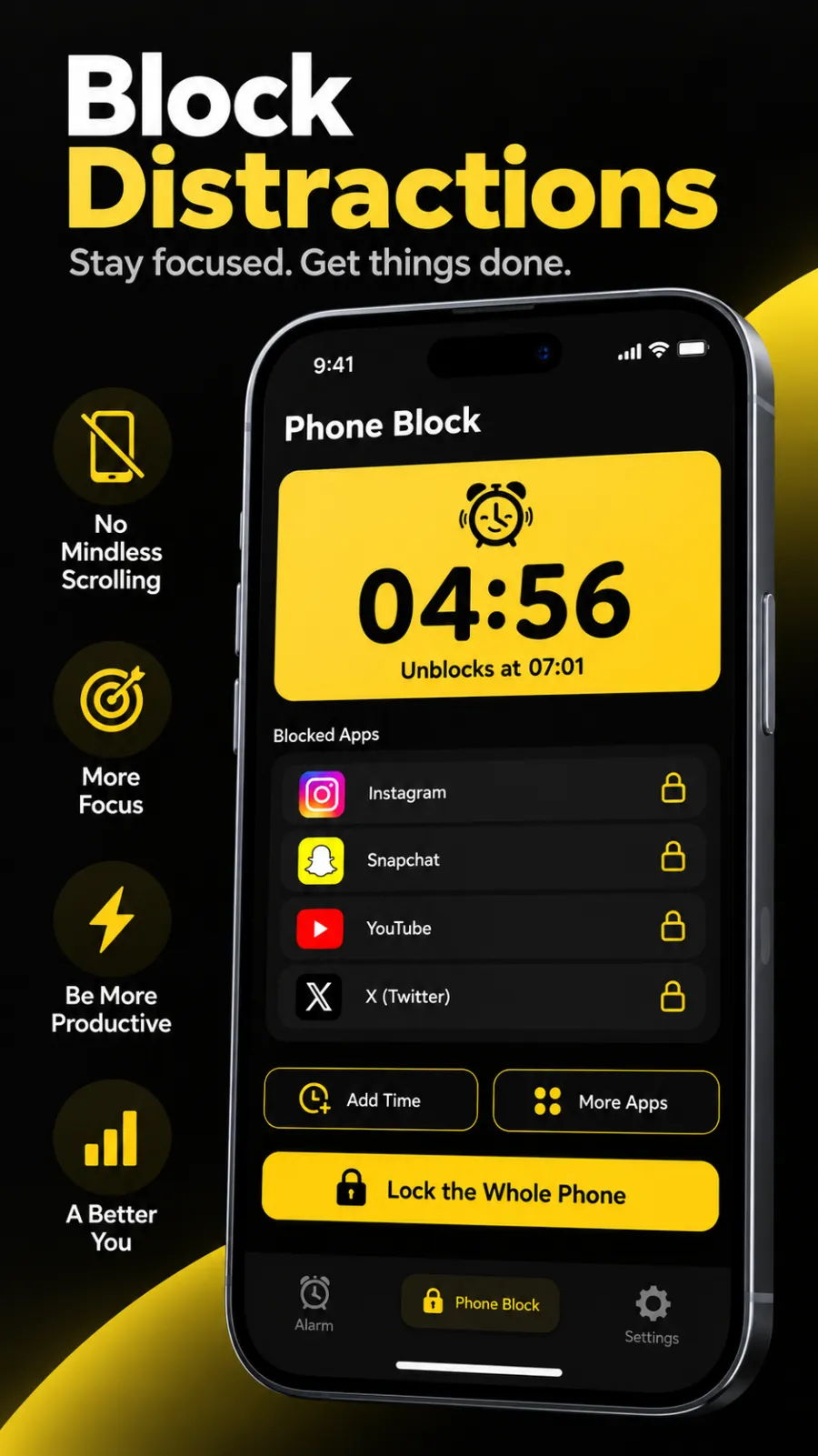
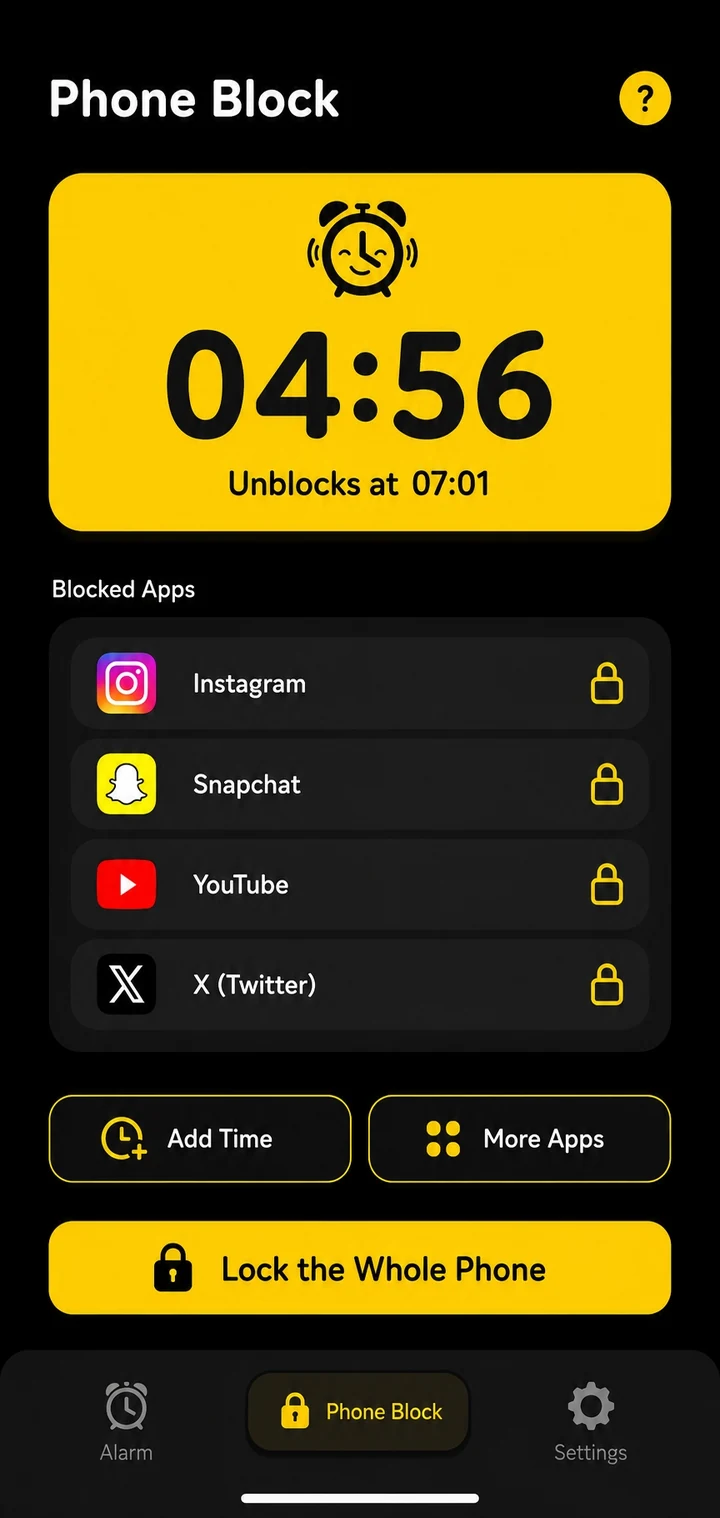
- The block starts, with no stop button. The running screen shows the countdown, the time it unblocks and what's blocked. In Regular mode there's a Leave early button at the bottom. In Strict mode there isn't one.
- It can only get stricter. Add Time adds 5, 15, 30 or 60 minutes. More Apps adds apps to the block. On Android, Lock the Whole Phone widens it to every app. Nothing shortens it. As the screen says, "A block can be made longer or wider, never shorter."
- The timer ends it. Your apps open again on their own.
On Android, blocking runs through Beyond Alarm's accessibility guard. If you open a blocked app, it's sent back. If your phone restarts, the block picks up again and still ends at the same time. On iPhone, the block runs through Apple's Screen Time, and apps can't be deleted while a Strict mode block runs, so deleting the app doesn't get you out either.
Beyond Alarm
Beyond Alarm does this part for you: the alarm will not switch off until you have actually moved, and the apps you pick stay locked afterwards.
When to use it
- Exams and deadlines, when an hour of real work matters more than anything in your feed.
- The first hour of the day, if you keep breaking your own morning rules. (For a block that starts the moment your alarm ends, see Morning Lockout.)
- A night out or a family dinner, with the whole phone locked on Android and calls still getting through.
- Any time you've left a Regular mode block early and wished you hadn't.
Set it up
- Open the Phone Block tab and tap Block now.
- Pick a length: 15m, 30m, 45m, 1h, 1h 30m or 2h, or tap Custom for anything from 5 minutes to 8 hours.
- Under What to block, choose Whole phone (Android), one of your saved block lists, or Pick apps.
- Under How strict, choose Strict mode.
- Tap Block for …. On Android the app checks that its guard is on first. If it isn't, it walks you through switching it on in Accessibility settings.
- On the Turn on Strict Mode? card, watch the short ad. The block starts as soon as it finishes.
Related
Common questions
Is Beyond Alarm's Strict mode really free?
Yes. When you start a Phone Block in Strict mode, a free user watches one short ad to switch it on. Pro members get Strict mode straight away, with no ad. Right now every feature in the app is free, and Pro removes the ads.
Can I stop a Strict mode block early?
No. There is no stop button until the timer ends. You can still make the block longer or add more apps, but nothing makes it shorter. If you want a way out, pick Regular mode instead, which ends early after a short ad and a five-second hold.
Can I still take calls during Strict mode?
Yes. Calls always come through, in Regular mode and in Strict mode. On Android a whole-phone block also shows a call button, so you can make a call without ending the block.
Does Strict mode work on iPhone?
Yes. On iPhone it blocks the apps and categories you choose through Apple's Screen Time, and apps can't be deleted while a Strict mode block is running. Whole-phone blocking is Android only.
Why does turning on Strict mode need an internet connection?
Only for the ad. Free users unlock Strict mode by watching one short ad to the end, and the ad has to load. The block itself runs on the phone.
Beyond Alarm
An alarm that keeps ringing until you’ve actually moved — then blocks the apps that pull you back to bed. Free to start, no account.
More features
Phone Block
Block chosen apps or the whole phone for a set time. Regular mode or free Strict mode.
Whole-phone block
Android: every app locked until the timer ends. Calls still come through.
Push-up alarm
Push-ups, squats or jumping jacks, counted by the camera on your phone. Fake reps don't count.
QR and barcode alarm
The alarm stops only when you scan a QR code or barcode. Keep one a room away from bed.
Photo alarm
Register a place the night before. The alarm stops only when you photograph it again.
Alarm reliability check
Checks battery, auto-start, exact-alarm and full-screen settings, with one tap to each fix.
Prevent power-off
Android: the power menu closes while the alarm rings. Optional uninstall protection.
Wake-up streaks
A run of kept wake-ups for each repeating alarm, plus a warning before you break it.
Daily Phone Block reminder
A daily nudge an hour before your usual Phone Block time, learned from when you really block.
Beyond Alarm on iPhone
AlarmKit alarms, wake-up missions, and Screen Time blocking with free Strict mode.