How to block social media after your alarm on Android
 Beyond Alarm9 September 2026 · Updated 21 October 2026 · 6 min read
Photo by Erik Schereder on Pexels
To block social media after your alarm on Android, decide what starts the block: a clock time (a scheduled Focus mode) or finishing the alarm (an alarm-triggered blocker). The second gives you a full interval away from Instagram or YouTube even after a late wake-up.
The short version:
- Do Not Disturb silences notifications; it does not stop you opening apps.
- Focus mode on a schedule is free, built in, and ends at a fixed time.
- An alarm-triggered block starts when you finish the alarm, so a late morning still gets the full interval.
- Block only the feeds; keep tickets, maps and messages available.
- Test with a short block in the afternoon before relying on it.
The difference is easy to miss until you snooze. A block that ends at 7:30 still ends at 7:30 whether you got up at seven or twenty past. Neither setup is wrong; they protect different parts of your morning.
This guide covers both, with a small setup you can try before committing to an hour. We built Beyond Alarm, so the Morning Lockout instructions describe our own app. The Android options below are checked against Google's documentation, and the product flow against our own code on 21 October 2026 — not a claim that we tested every phone or measured a change in anyone's habits.

Which kind of morning block do you need?
Choose the time you need the restriction to end, then work backwards.
| Your actual goal | A useful starting point | What to check |
|---|---|---|
| No social media before 8am | A recurring Focus mode or blocker schedule | Whether a temporary break is easy enough to undermine your plan |
| No social media for 30 minutes after finishing the alarm | Beyond Alarm's Morning Lockout | Set it on the alarm you actually use |
| Fewer notifications while you get ready | Do Not Disturb | Apps may still open when you tap them |
| Less social media across the whole day | A daily app timer | A daily allowance is not a protected morning window |
| A block only on a difficult morning | An on-demand Phone Block session | You must remember to start it |
For example, say your alarm is set for 7:00 and you finish it at 7:18. A scheduled 7:00–7:30 block has 12 minutes left. A 30-minute block triggered by finishing the alarm ends at 7:48. These are example times, not measured results.
A recurring window that isn't tied to the night or to an alarm at all — work hours on weekdays, say — is a third option. See scheduled app blocks on Android for the tools that do that, including the built-in one.
If you need a train ticket at 7:35, that second end time matters. Blocking selected feeds while leaving the ticket app available is usually a more practical first attempt than locking the entire phone.
The built-in option: schedule Focus mode
On supported Android phones, open Settings → Digital Wellbeing → Focus mode, choose the distracting apps, and set a morning schedule. Menu names and availability vary by phone. Google documents both scheduled activation and a temporary Take a break option in its Digital Wellbeing guide.
Focus mode pauses selected apps and their notifications. It is a reasonable first choice if a fixed schedule works for you and you are comfortable keeping the restriction on. You do not need to install another app just to try this approach.
Do Not Disturb and Bedtime mode serve different purposes: quieter notifications and bedtime display changes do not, by themselves, prevent you opening a feed. Our nighttime blocking guide explains that distinction for the other end of the day.
Make the block start after your alarm
In Beyond Alarm, Morning Lockout belongs to the alarm you configure. You can find it while setting up or editing that alarm; it is separate from starting a Phone Block session by hand.
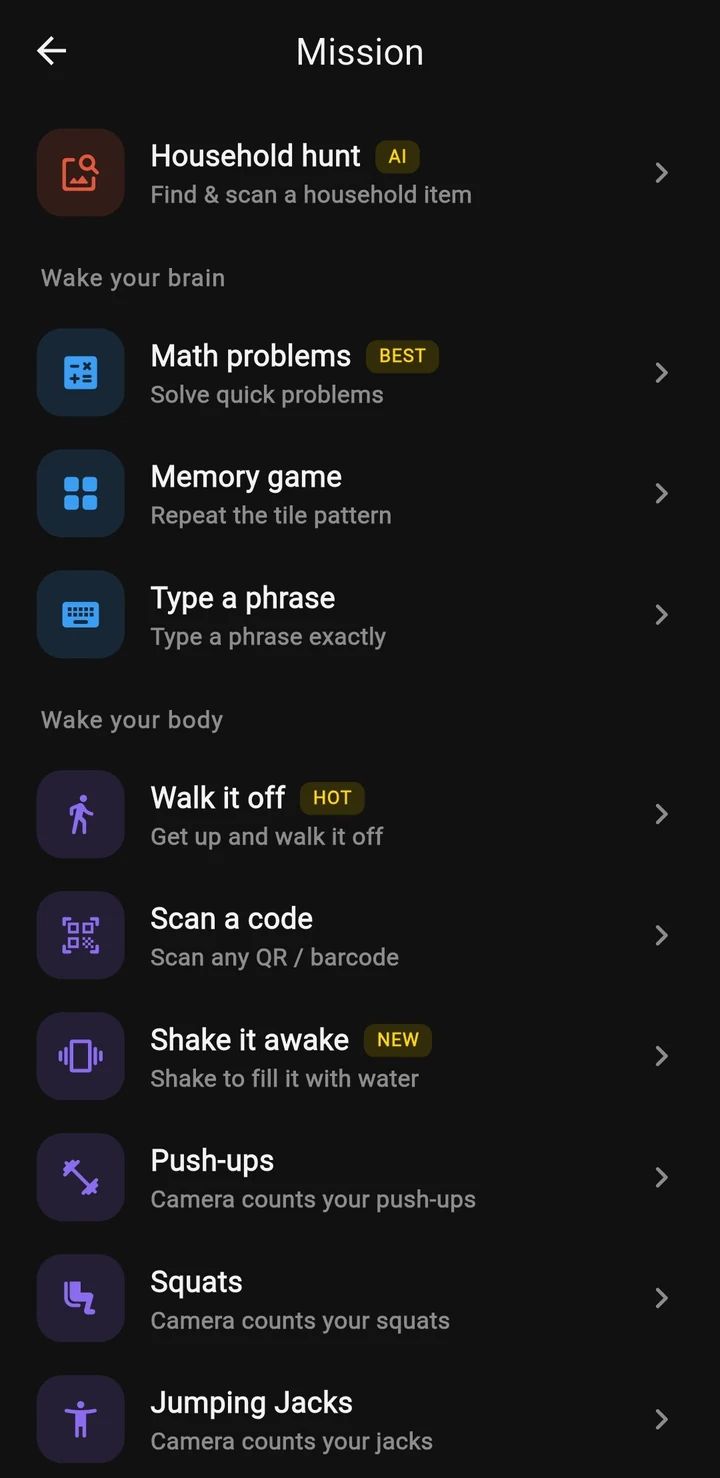
- Open the alarm you use on the relevant mornings. Add a mission you can complete safely, or keep your existing mission.
- Open Morning Lockout and turn it on. Pick an initial duration such as 15 or 30 minutes. Those are starting suggestions, not scientifically established ideal durations.
- Choose Block apps and select your distractions. Begin with the feeds you actually open, rather than every app that could possibly distract you.
- Review the strictness. Strict lets you leave early by holding a button; Hard mode removes the stop button until the timer ends. On Morning Lockout, Hard mode needs Beyond Pro; a free account gets Strict.
- Complete the permissions requested for your chosen scope. Android accessibility access lets the guard enforce your selection; whole-phone blocking also needs its overlay permission. The privacy policy explains what the guard accesses.
- Save the alarm and run a short daytime test. Finish the alarm, try one selected app, then verify that an essential unblocked app still opens. Let the short test block expire before setting your usual duration.
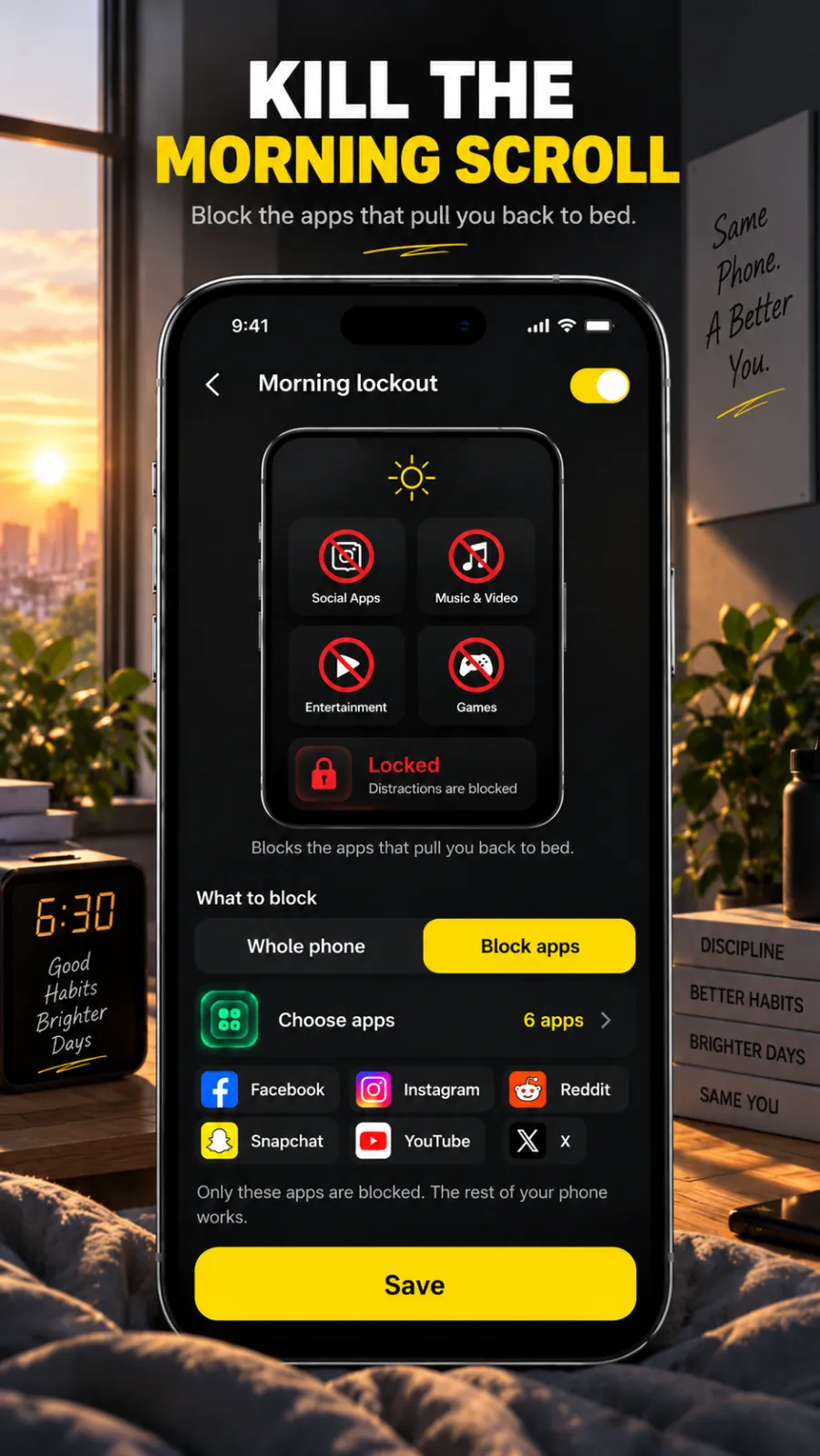
Selecting Block apps without selecting any apps does not create a useful rule. The current Android setup treats that empty selection as off; whole-phone blocking must be chosen separately.
The timer starts after you finish the alarm. It does not use the first ring as evidence that you are awake, and snoozing does not complete the alarm. If your problem is scrolling between snoozes, combine your morning setup with a clock-based window that covers that earlier period.
On iPhone, Morning Lockout works through Apple's Screen Time on the apps you pick. There is no whole-phone option there, and no strictness choice: once it starts, it runs to the end of the timer.
Beyond Alarm
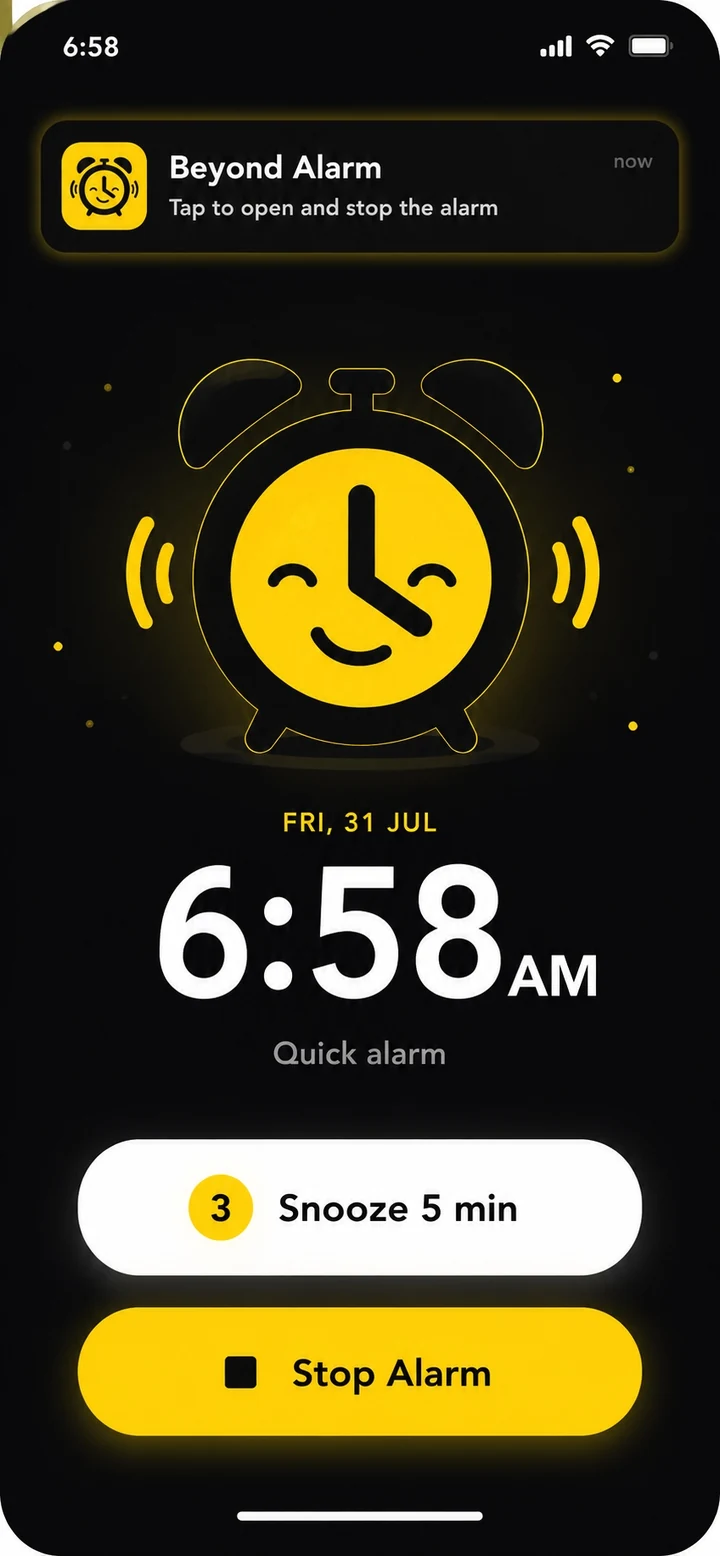
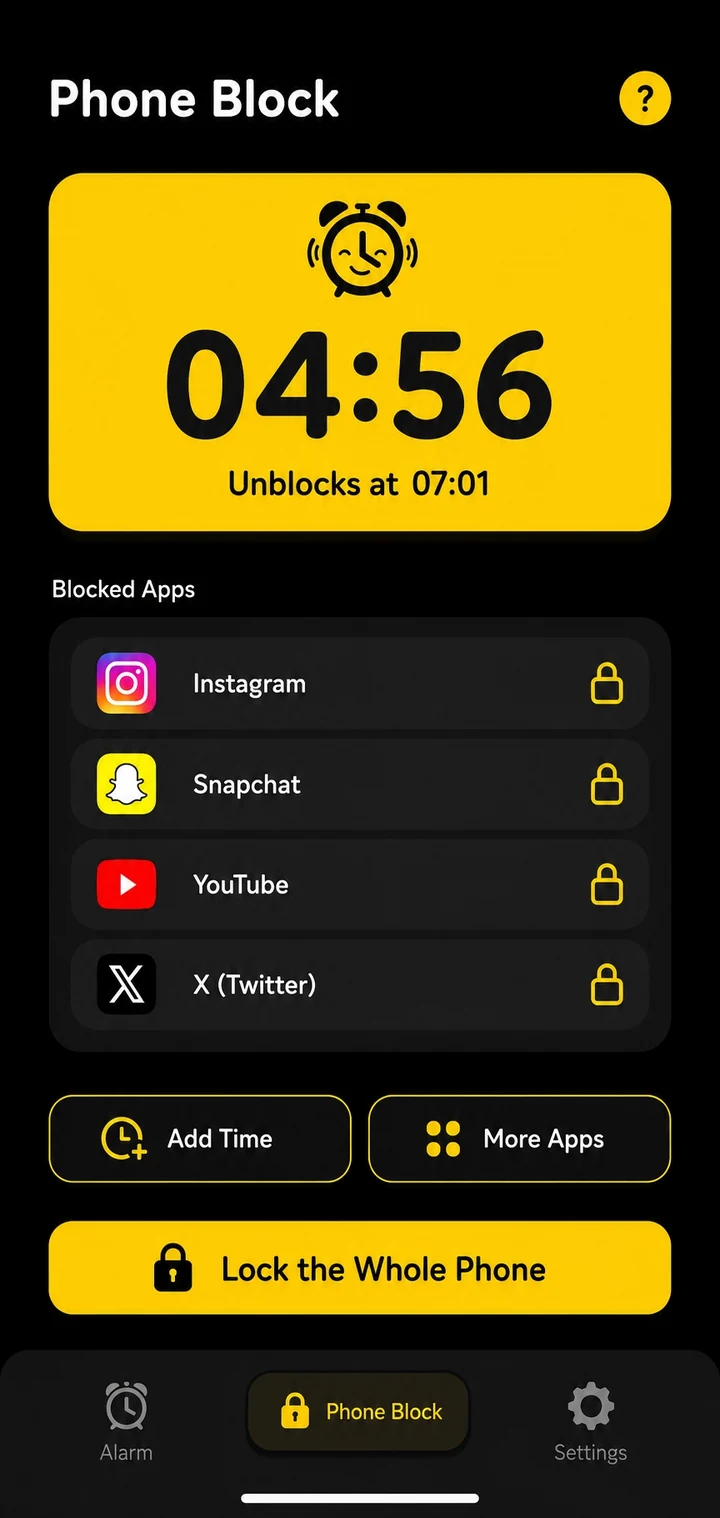
Morning Lockout starts after you finish your Beyond Alarm alarm. Pick the distracting apps and how long you want them closed.

Keep the useful parts of your phone available
Make a short list of what getting ready requires. That might include calls, a family messaging app, weather, maps, music, an authenticator or a bus ticket.
Leave those apps out of the first block. A restriction that prevents a necessary task creates a reason to abandon the whole setup. You can widen the list later if you discover another feed replacing the original one.
Also consider your browser. Blocking the Instagram app does not necessarily cover every way of reaching Instagram on the web. Beyond Alarm's website enforcement depends on a supported browser exposing its address bar; it is not a network-wide filter and does not cover every in-app browser.
Use a separate app-blocker comparison if browser coverage or blocking across several devices is your main requirement. Morning Lockout's particular fit is the handoff from your alarm to the next part of your morning.
What if the block does not start?
First check the alarm itself. Did you save Morning Lockout on this alarm, choose a non-zero duration, select apps, and actually complete the alarm rather than snooze it?
Next check the requested permissions and the app's reliability screen. Android and manufacturer background restrictions can interrupt third-party apps; our Android reliability guide is a starting point, with settings that can vary by OS version.
Check for another active block before assuming the timer is wrong. A Phone Block you started by hand, or a Focus mode schedule, may still cover the same app after Morning Lockout ends. Look at what is actually running before changing the alarm.
Finally, keep the limits in view. Hard mode removes an in-app exit; it does not make a phone impossible to power off or turn an ordinary app into device management software. Use a short test to understand your own phone's behavior before relying on a longer restriction.
Give the first clear minutes a job
Pick one thing to do before opening a feed: get dressed, make breakfast, or step away from the bed. The block creates an interval in which that is easier to choose; it does not supply the activity for you.
Try the same modest setup for a few mornings and note whether you used it, bypassed it, or needed something you accidentally blocked. Change the list or duration based on that observation. There is no need to call an inconvenient configuration a failure of willpower.
If the alarm-to-block handoff matches your problem, download Beyond Alarm and configure one alarm first. For a fixed before-work cutoff, the built-in schedule may already be enough.
Common questions
Can Android block social media after I dismiss my alarm?
Beyond Alarm's Morning Lockout can start a timed block after you finish that alarm. Android's Digital Wellbeing Focus mode offers a clock-based schedule instead. Choose based on whether you need a fixed end time or a full interval after waking.
Does Do Not Disturb stop me opening Instagram?
No. Do Not Disturb controls interruptions. To prevent opening selected apps, use Focus mode or an app blocker.
Should I block my whole phone in the morning?
Start with selected apps if you need messages, maps, tickets or other tools. Whole-phone blocking is a separate, more restrictive choice; read its confirmation before enabling it.
Does Morning Lockout start when I snooze?
It is tied to completing the alarm, not the first ring or a snooze. A scheduled block is a better fit if you also want restrictions while you are snoozing.
Is Morning Lockout free?
Yes, with ads. Strict mode is free; Hard mode on Morning Lockout needs Beyond Pro on Android, while Hard mode in an ordinary Phone Block is free. Check the offer shown in the app, since it can change.
We build Beyond Alarm, an Android alarm app that will not switch off until you have actually moved. Most of what we write here comes out of problems we hit building it.
Beyond Alarm
An alarm that keeps ringing until you’ve actually moved — then blocks the apps that pull you back to bed. Free to start, no account.
Keep reading
How to block YouTube Shorts on Android and iPhone
No phone can switch off only the Shorts tab. What YouTube's own settings hide, how to block YouTube on Android and iPhone, and which way is hardest to undo.
How to break phone addiction - 8 changes that work
Willpower alone rarely breaks a phone habit. Eight changes to your surroundings that do, how long it takes, and what to skip.