How to block YouTube Shorts on Android and iPhone
 Beyond Alarm24 October 2026 · 6 min read
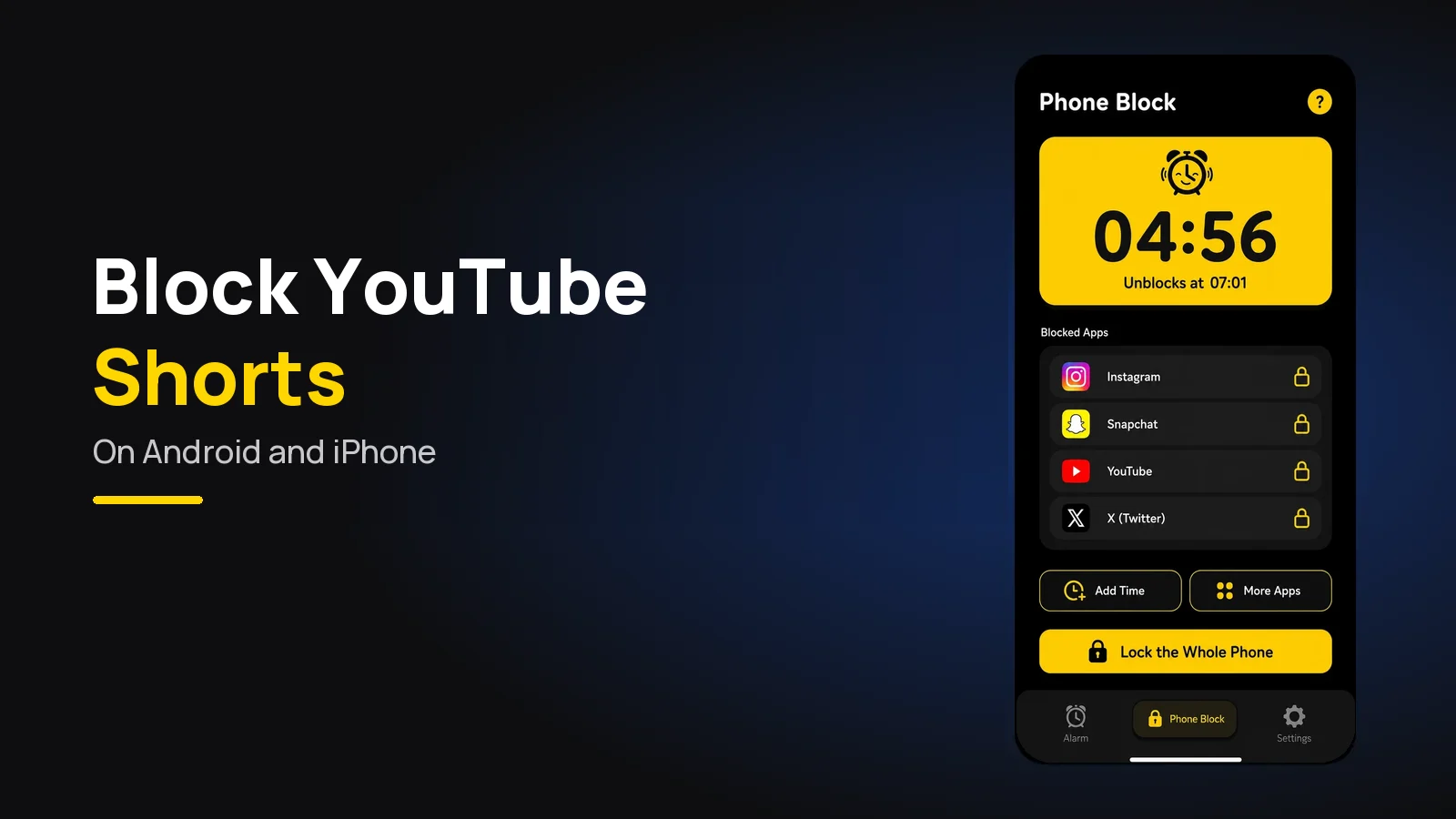
You cannot remove only the Shorts tab from the official YouTube app on Android or iPhone. You can hide the Shorts shelf for a while with "Not interested", watch YouTube in a browser where extensions can hide Shorts, or block the whole YouTube app during the hours you scroll.
Pick the method by when you scroll, not by how much you hate Shorts.
The short version:
- "Not interested" on the Shorts shelf hides it for a while. It comes back.
- In a browser, a Shorts-hiding extension removes Shorts but keeps normal videos. Easiest on a computer.
- On a phone, block the YouTube app itself for the hours that go wrong — usually the first hour after waking and the last hour before sleep.
- Built-in timers work until the moment you most want past them. Choose a block that takes more than one tap to undo.
Why there is no "turn off Shorts" switch
YouTube makes money from attention, and Shorts is its answer to TikTok. A switch that removes the format would work against that, so the settings lean towards less Shorts, never no Shorts.
Your phone's own tools do not help with the tab either. Android's Digital Wellbeing and Apple's Screen Time both work on whole apps (and, on iPhone, websites). Neither can see which screen inside YouTube you are on.
So every real answer is one of three things: hide Shorts from the feed, move YouTube to somewhere Shorts can be stripped out, or block YouTube itself at the times it costs you.
Every method, compared
| Method | Android | iPhone | Blocks only Shorts? | How easy to undo |
|---|---|---|---|---|
| "Not interested" on the Shorts shelf | Yes | Yes | Hides the shelf, not the tab | Comes back on its own |
| Watch history off | Yes | Yes | No — empties the home feed | One switch |
| YouTube in a browser + extension | Firefox on Android | Safari extensions | Yes, while the extension keeps up | Open the app instead |
| App timer (Digital Wellbeing / Screen Time limit) | Yes | Yes | No — whole app | "Ignore limit" or change it in Settings |
| Focus mode / Downtime | Yes | Yes | No — whole app | One tap, or a passcode you know |
| Delete the YouTube app | Usually (often preinstalled) | Yes | No — whole app | Reinstall in a minute |
| A dedicated app blocker | Yes | Yes | No — whole app | Depends on its mode |
The pattern is plain. Everything that targets only Shorts is either temporary or tied to a browser. Everything that actually holds on a phone takes the whole app with it.
Method 1 — hide Shorts inside YouTube
This is free, takes ten seconds, and is worth doing first.
- On the YouTube home feed, scroll to the Shorts row.
- Tap the three dots (or the X) on that row and pick Not interested.
- On any single Short you do watch, use the three-dot menu and pick Not interested or Don't recommend channel.
That hides the Shorts row on the home feed for a period, then it returns. It does nothing to the Shorts tab at the bottom, which is one tap away.
Some people also turn watch history off. Since 2023, YouTube has shown an almost empty home feed to accounts with history off and none saved, so there is nothing to drift into. The Shorts tab still works, and so does search, so it lowers the pull rather than removing it.
Check Settings → General in the app as well. YouTube's own Remind me to take a break and Remind me when it's time for bed live there. They are reminders, not locks, but they are free and they interrupt the scroll.
Method 2 — use YouTube in a browser
A browser is the only place you can keep normal videos and lose Shorts entirely, because extensions can rewrite the page.
- On a computer: extensions such as Unhook (Chrome, Firefox) hide Shorts, the home feed and recommendations. Check the store listing for what it currently does — YouTube changes its pages and extensions have to catch up.
- On Android: Firefox for Android supports extensions, including content blockers that can hide Shorts elements. Chrome on Android does not support extensions.
- On iPhone: Safari supports extensions from the App Store. Search the App Store for a YouTube or Shorts filter and read the recent reviews first.
Then delete or block the YouTube app, or the browser plan has a back door. The honest weakness: watching in a browser is clumsier, and on a bad morning clumsy is exactly why you reach for the app again.
Beyond Alarm
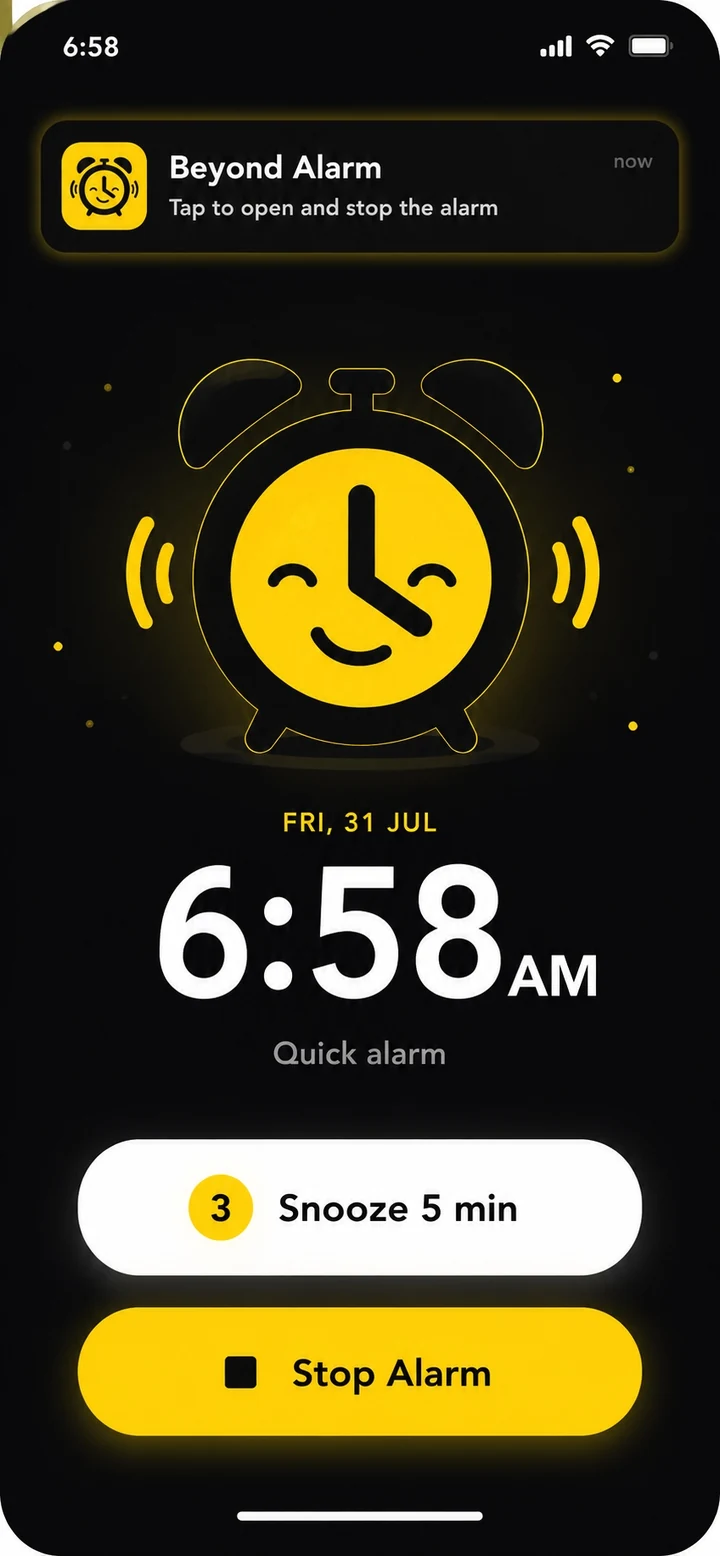
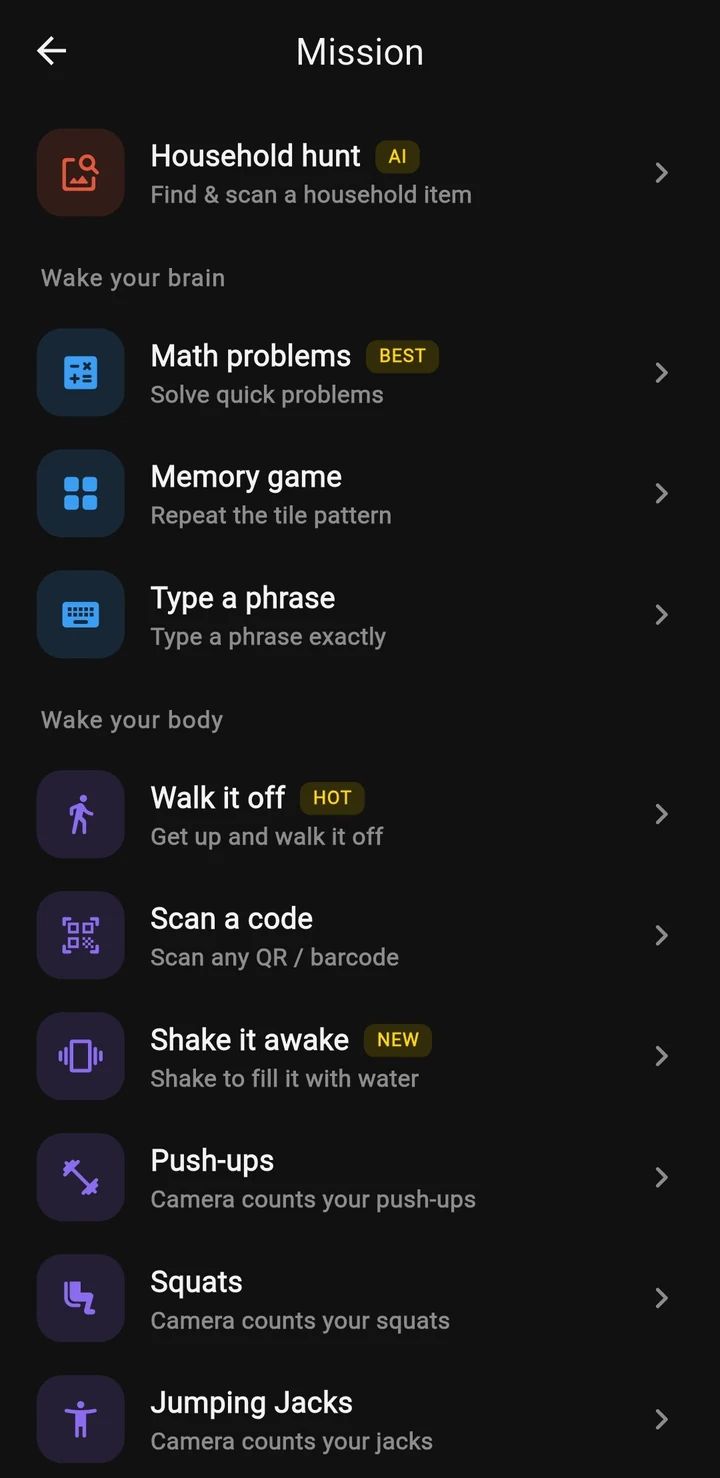
Beyond Alarm does this part for you: the alarm will not switch off until you have actually moved, and the apps you pick stay locked afterwards.
Method 3 — block YouTube itself, on a timer
If Shorts is the problem at particular times — in bed, or the first half hour after the alarm — blocking the whole app for those hours is the most reliable thing a phone can do.
Android, free: Settings → Digital Wellbeing & parental controls. Set an app timer on YouTube for a daily cap, or add YouTube to Focus mode and schedule it. Menu names vary between Samsung, Pixel and other phones.
iPhone, free: Settings → Screen Time. Use App Limits for a daily cap or Downtime for set hours. To stop youtube.com in Safari too, go to Content & Privacy Restrictions → App Store, Media, Web & Games → Web Content, choose Limit Adult Websites and add youtube.com under Never Allow. Paths shift slightly between iOS versions.
These are good tools. Their weakness is the same on both phones: the limit is one tap from gone, and you are the person who knows the passcode. That is the whole of why Screen Time limits stop working after the first week for so many people.
The morning is where Shorts wins
Shorts asks for no decision. You open the app "for one thing", a video is already playing, and one swipe is the next. That suits the half-awake brain perfectly, which is why the first scroll of the day is so hard to stop.
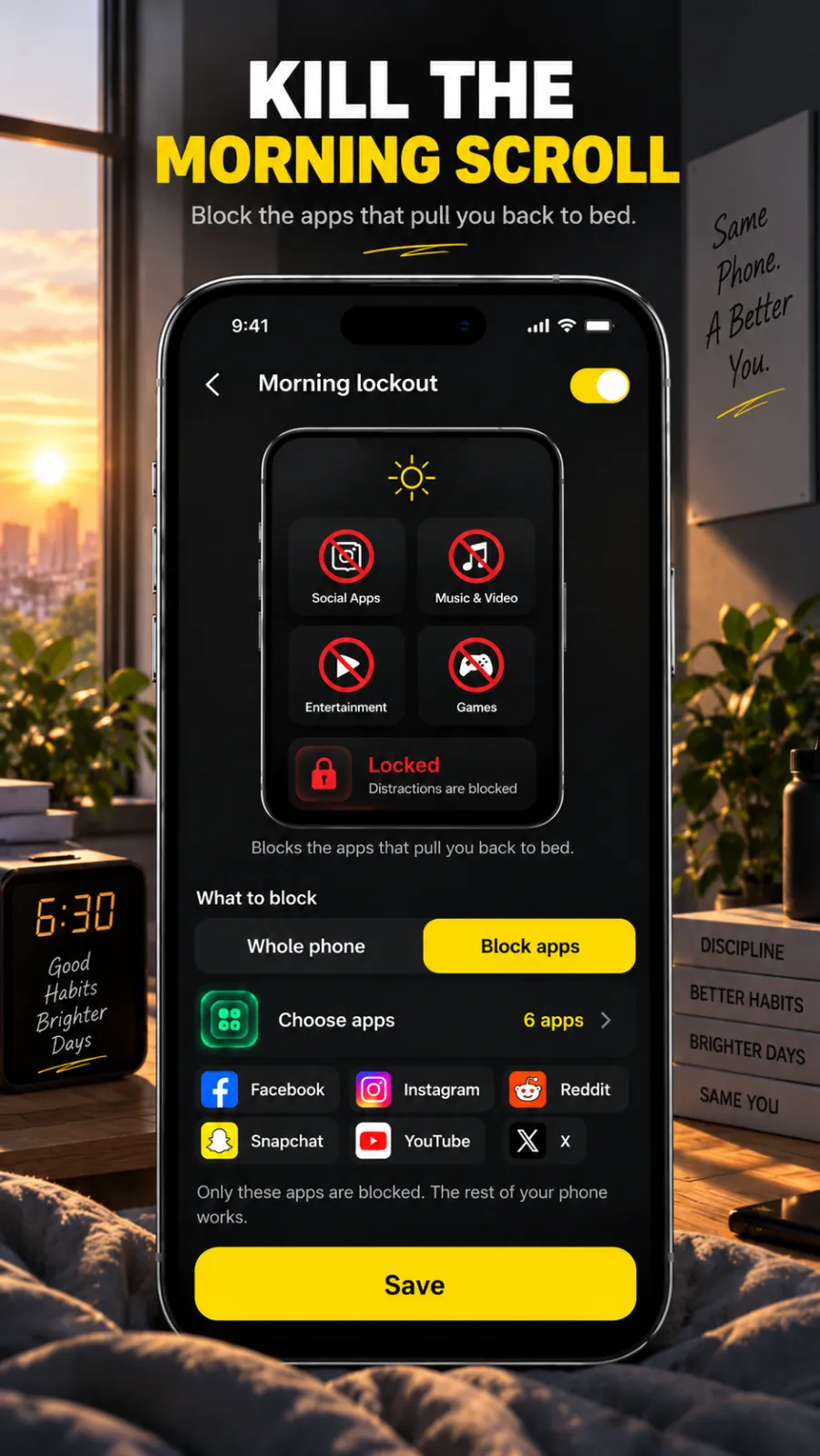
What works is moving the decision earlier. Set the block before bed, or have it start the moment the alarm ends, so the first open meets a wall instead of a feed. Stopping the scroll when your phone is also your alarm goes through the free versions of this, from charging the phone across the room to a cheap alarm clock.
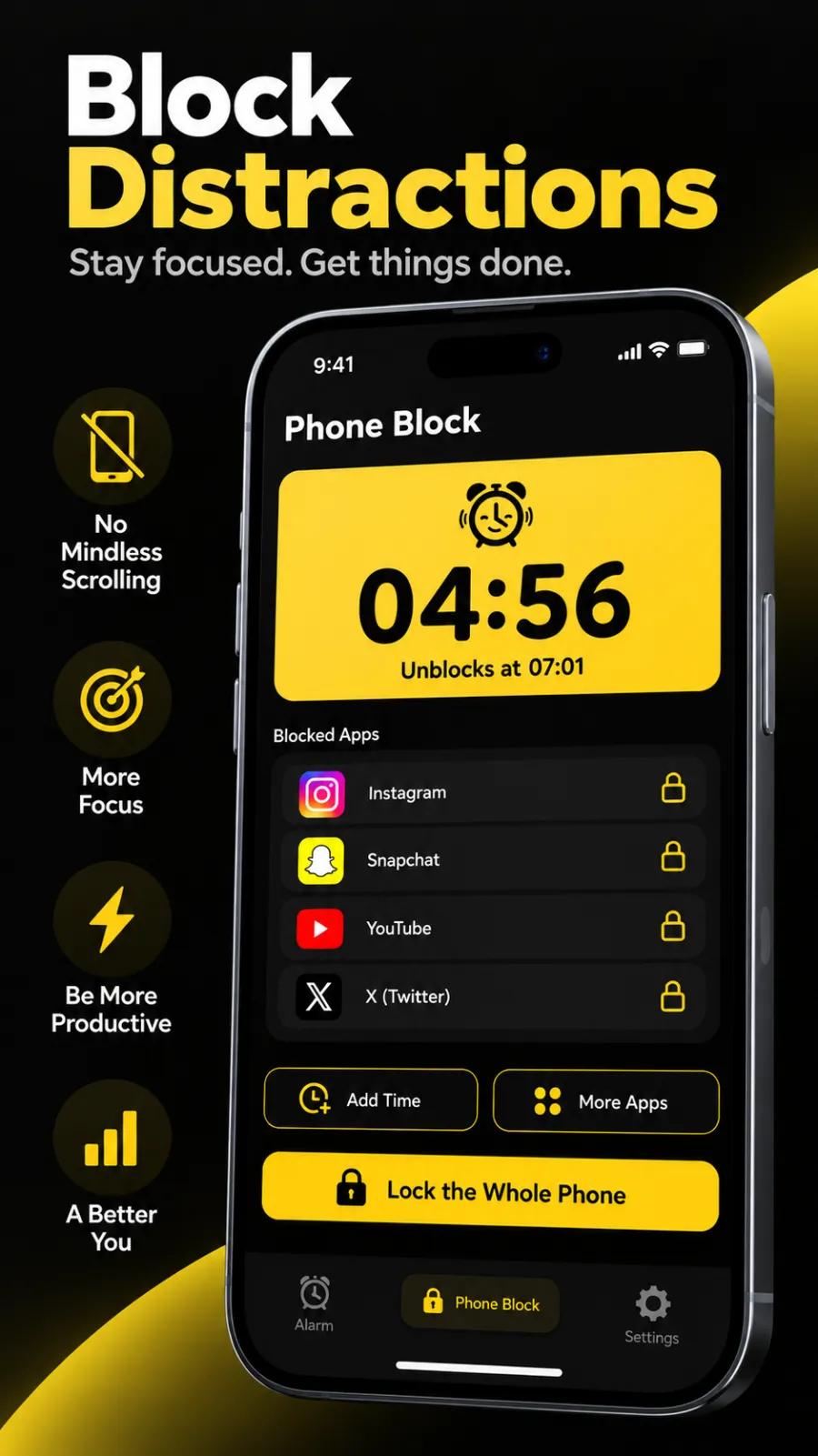
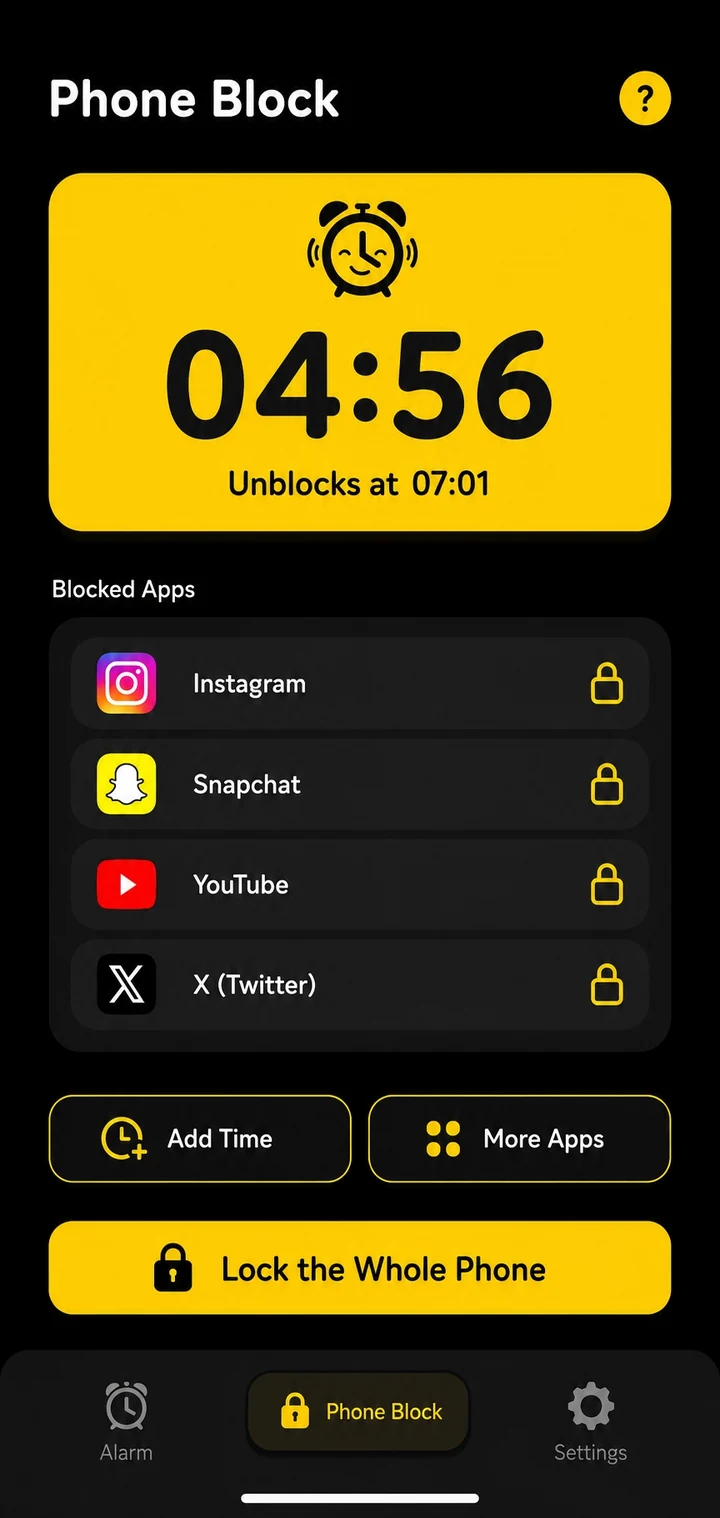
This is what we built Beyond Alarm's Phone Block and Morning lockout for. Phone Block blocks YouTube (and anything else you pick) for a length you choose — presets from 15 minutes to 2 hours, or Custom from 5 minutes to 8 hours. Strict lets you out after a short ad and a five-second hold; Hard mode has no stop button until the timer ends. Morning lockout runs the same block automatically once your alarm is finished. A block survives a restart, and switching the phone off doesn't pause the clock. It is free with ads; Pro removes them.
Where it's weaker, honestly: it blocks the whole YouTube app, not just the Shorts tab — no app can do that. On Android it uses an Accessibility service and can lock the whole phone (calls still work), but a Phone Block list is apps only, so youtube.com in Chrome stays open unless you lock the whole phone. On iPhone it uses Apple's Screen Time for the apps and categories you pick, there is no whole-phone block, and turning off the app's Screen Time access in iPhone Settings ends a block. Blocks also don't repeat on a schedule — you start Phone Block each time.
Which method to use
- You mostly watch long videos and Shorts just leaks in: hide the shelf with "Not interested", and turn on the bedtime reminder. Free and enough.
- You watch on a laptop: a Shorts-hiding browser extension. Nothing on a phone matches it.
- You lose the first hour of the morning or the last hour of the night: block the YouTube app for those hours with something you cannot undo in a tap. On Android, the best app blockers compared covers the options, ours included.
- Shorts has simply replaced other apps: if Instagram Reels and TikTok go next, block them in the same list — the habit moves to whatever is open. Blocking social media after your alarm walks through that on Android.
Common questions
Can you turn off YouTube Shorts completely?
Not inside the official YouTube app, at the time of writing. You can mark Shorts "Not interested", which hides the Shorts shelf on the home feed for a while, but the Shorts tab stays. To stop Shorts for real you either use YouTube in a browser with a Shorts-hiding extension, or block the whole YouTube app for the hours that matter.
How do I block YouTube Shorts but keep normal YouTube videos?
On a computer, a browser extension that hides Shorts is the cleanest way. On a phone it is harder, because Android and iPhone block whole apps, not tabs inside them. The practical compromise is to block the YouTube app at the times you scroll and watch the videos you actually want at other times, or in a browser.
How do I block YouTube on my iPhone?
Use Screen Time. An App Limit on YouTube gives you a daily allowance; Downtime shuts it for set hours. To stop youtube.com in Safari as well, add it under Content & Privacy Restrictions, Web Content. The exact menu names move a little between iOS versions.
Does Digital Wellbeing block YouTube Shorts?
It can limit the whole YouTube app with an app timer, or pause it in Focus mode, but it cannot tell Shorts apart from other videos. Both are easy to switch off again in Settings, which is where they tend to fail.
Why do I always end up watching Shorts in the morning?
Because the phone in your hand at 7am is the one you just used as an alarm, and Shorts is built to need no decision. One swipe starts the next video. The fix is less about willpower and more about making the first open cost something.
We build Beyond Alarm, an Android alarm app that will not switch off until you have actually moved. Most of what we write here comes out of problems we hit building it.
Beyond Alarm
An alarm that keeps ringing until you’ve actually moved — then blocks the apps that pull you back to bed. Free to start, no account.
Keep reading
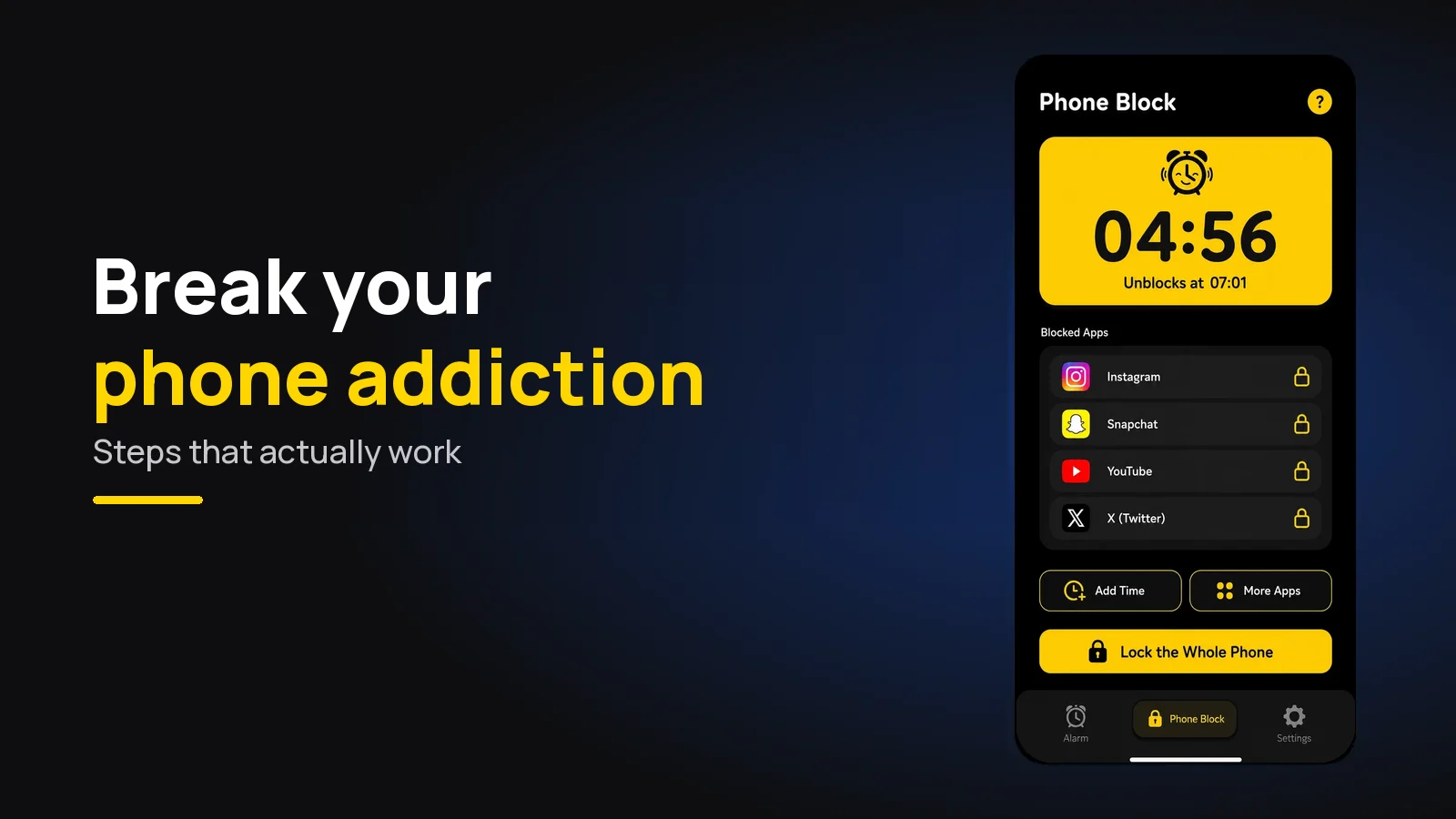
How to break phone addiction - 8 changes that work
Willpower alone rarely breaks a phone habit. Eight changes to your surroundings that do, how long it takes, and what to skip.
Scheduled app blocks on Android: work hours and overnight
How to block apps on a schedule on Android with Focus mode or a blocker app: weekday hours, overnight windows, and the loopholes to check first.