
Scheduled app blocks on Android: weekdays, overnight windows and overlapping rules
 Beyond Alarm15 September 2026 · 8 min read
A Schedule in Beyond Alarm is a named, recurring app block that runs on the clock: pick a start time, an end time, the days it applies to and the apps it covers, and it fires whether or not you've touched your phone that day. It has nothing to do with an alarm and nothing to do with night — that's the whole point of it. Night Lockout is one fixed nightly window; Morning Lockout starts when you finish an alarm. A Schedule is what you reach for when the window you want is neither: work hours on weekdays, a study block on Tuesday and Thursday evenings, or Instagram off between 9 and 5 regardless of when you woke up.
This guide covers how Schedules actually behave on Android, checked against the app's current code on 15 September 2026 — not a report of running one for months on every phone. We build Beyond Alarm, so the setup steps describe our own app; the mechanics of what happens when two rules overlap are specific to it and worth understanding before you build more than one.
Which recurring block actually fits?
Three Beyond Alarm modes all create a recurring block, and the difference is what starts them and what they're named for.
| Mode | Starts | Days | Typical use |
|---|---|---|---|
| Night Lockout | A fixed clock time, every matching night | Chosen once, applies every week | A bedtime window, same hours nightly |
| Morning Lockout | When you finish that alarm (not the first ring, not a snooze) | Whichever days that alarm is set for | A protected stretch right after waking |
| Schedules | A fixed clock time, on the days you choose | Chosen per schedule, independently | Any other recurring window — work hours, study time, several separate rules |
Android's own Digital Wellbeing Focus mode is the built-in alternative to all three, with a schedule and a temporary "Take a break" option; see Google's Digital Wellbeing guide. It's a reasonable first stop if one fixed daily window covers what you need and you're comfortable keeping it on.
Where to find it, and what it costs
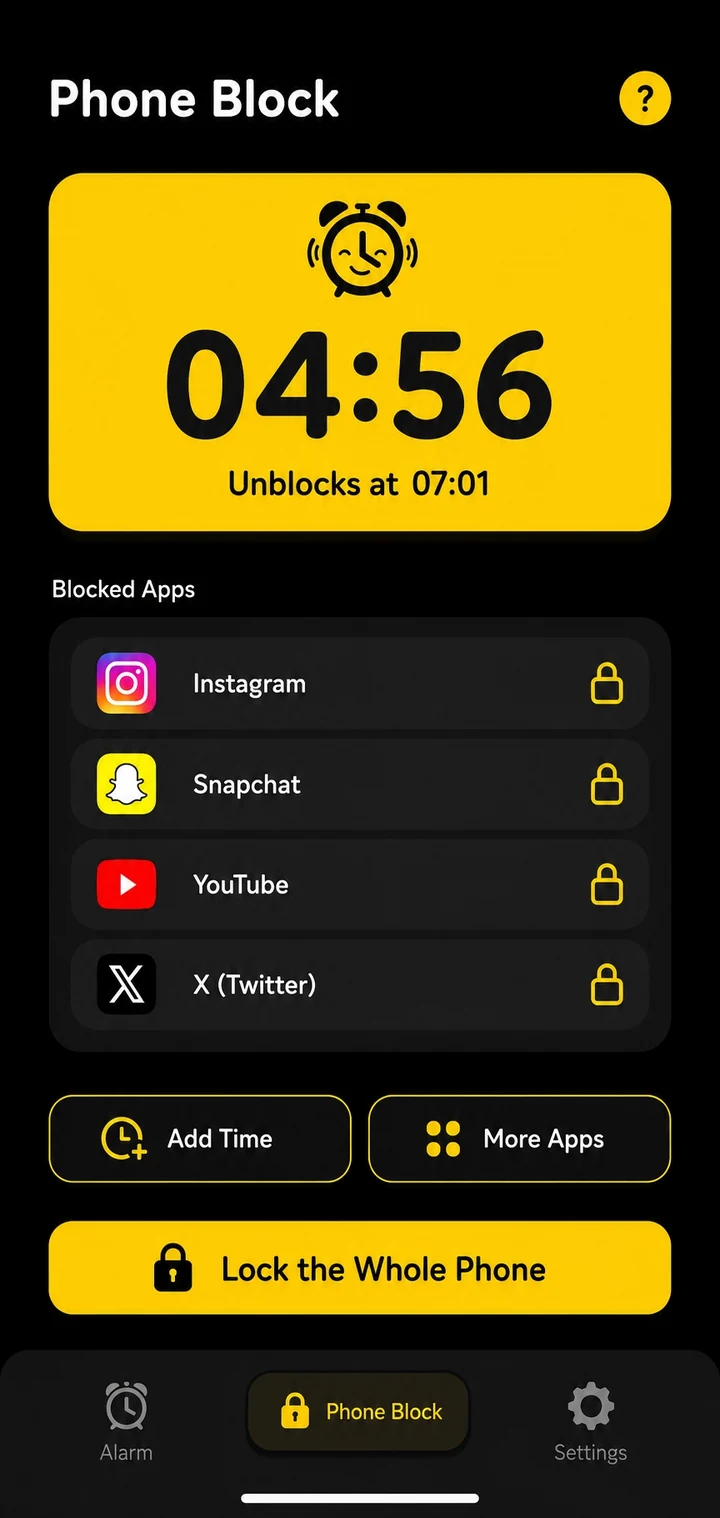
Schedules live under Phone Block → Schedules, below the saved app lists. An empty state reads "Add a schedule — Same apps, same time, every week"; tapping it opens a sheet with the schedule's shape already filled in rather than blank.
Worth knowing before you set one up: Schedules is a Pro feature. Free users can see a schedule that already exists — its name, its time window, whether it's currently running — but creating a new one, editing an existing one, or switching a paused one back on all open the paywall. Night Lockout and Morning Lockout don't have that gate; Schedules does, because arranging for a block to start at nine tomorrow is the same feature as starting one right now, just with a delay attached.
Setting one up
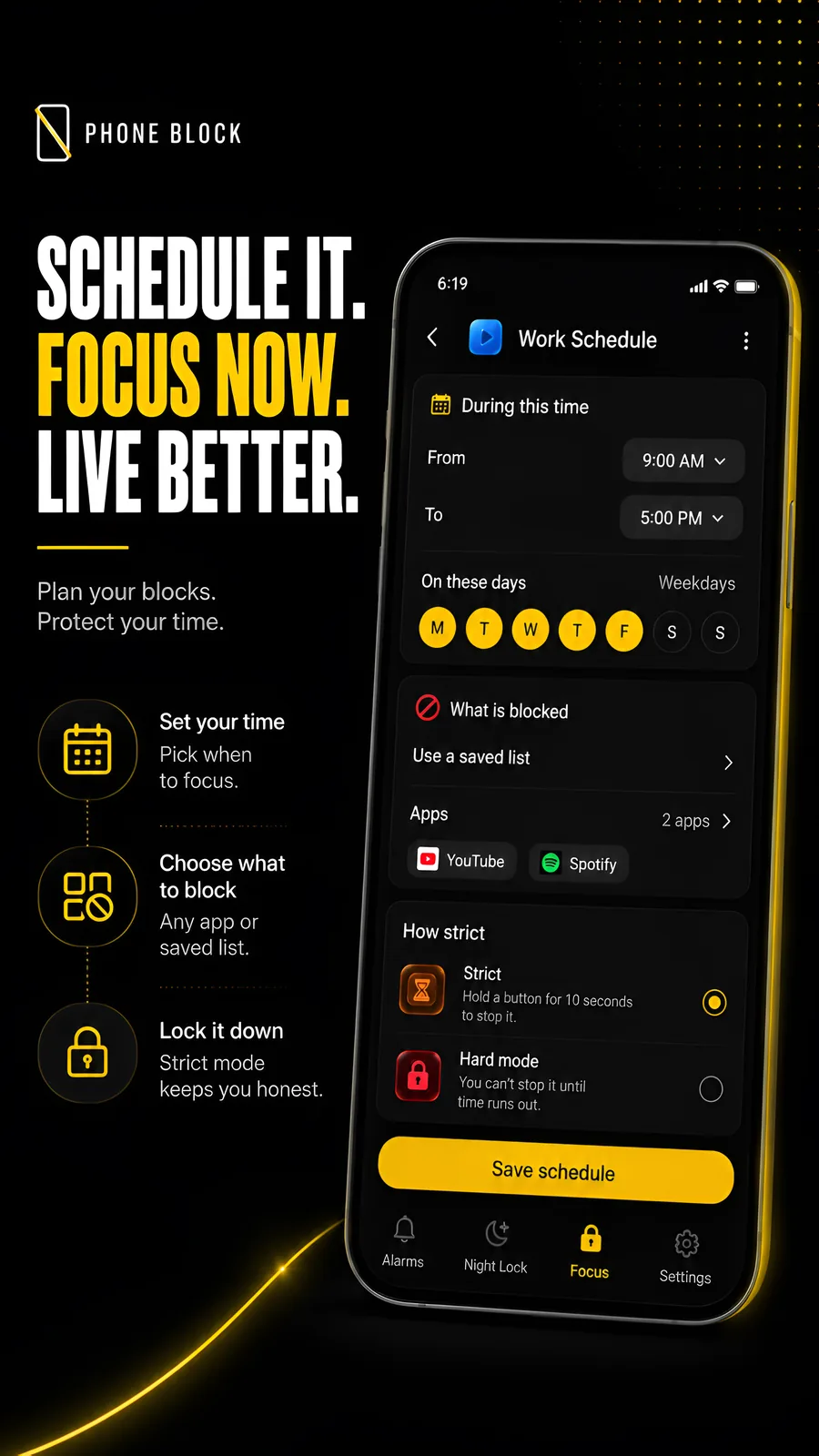
- Open Phone Block → Schedules → Add a schedule. A new schedule opens with a name field, a default 9:00–5:00 window and weekdays already selected — the shape most first schedules turn out to be, and faster to adjust than to build from nothing.
- Name it and pick an icon. "Rule" three times over tells you nothing when you have several; a name like "Work hours" does.
- Set the start and end time. If the end time is earlier than or the same as the start, Beyond Alarm treats it as crossing midnight and says so directly — "Crosses midnight — ends the next morning" — the same encoding Night Lockout uses for an overnight window.
- Choose the days. Tap each day individually; leaving all of them off means every day. The list shows a plain label back — "Weekdays," "Weekends," "Every day," or "N days a week" for anything else.
- Pick the apps. Use a saved list, or select apps by hand. If you have a saved list already, the sheet seeds a new schedule from your smallest one, not your biggest — the gentlest starting point that's still a real block, rather than a wide one you have to argue with before you can use it. Leaving the app selection empty blocks the whole phone, which is a separate, more drastic choice worth reading the confirmation on.
- Choose how strict. The same two levels a one-off block offers: Strict gives you a ten-second hold to leave early; Hard mode removes that button entirely until the window ends, and saving a Hard-mode schedule asks you to watch a short ad to confirm it first, since there's no stop button left to ask anything from after that.
- Save, and test once before relying on it. App-scoped schedules need Android's accessibility permission to actually tell one app from another; Beyond Alarm asks for it before you pick apps, and again at save if it was turned off in between. Run a short version during the day and confirm both that a chosen app is blocked and that something you didn't select still opens.
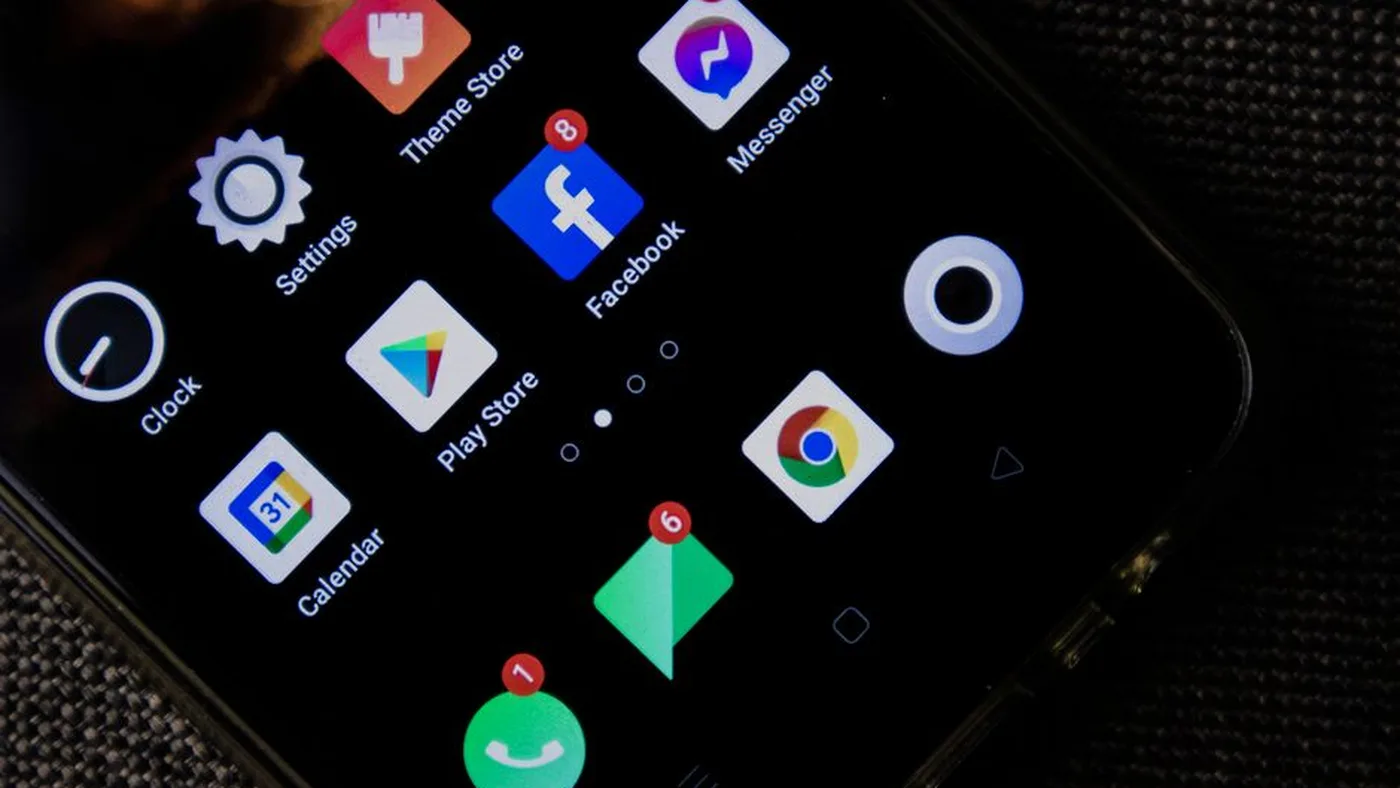
This is the manual version of what a Schedule automates: deciding, every single morning, whether you're allowed to open Instagram right now. A schedule makes that decision once and keeps it, which is the entire value of setting one up instead of relying on willpower at 9:03am.
Beyond Alarm
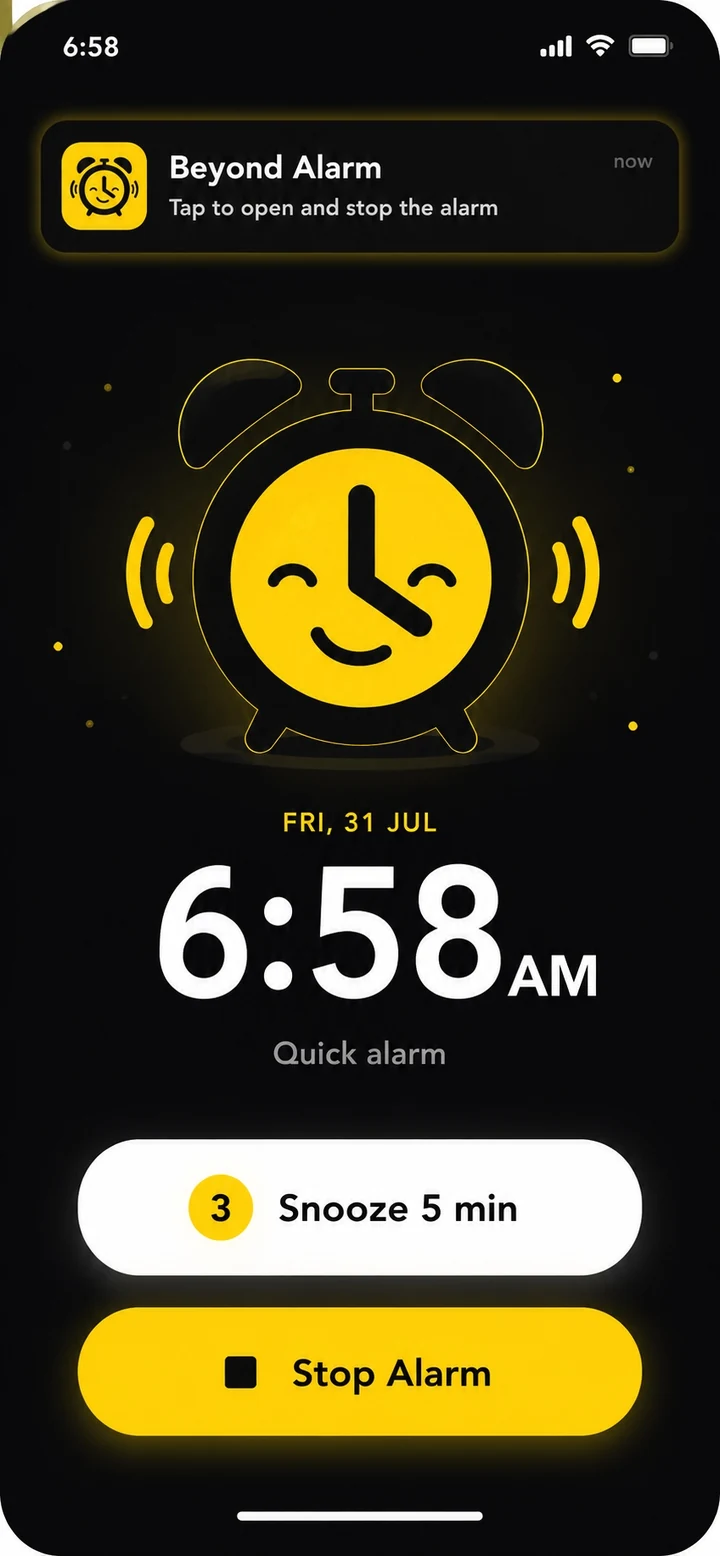
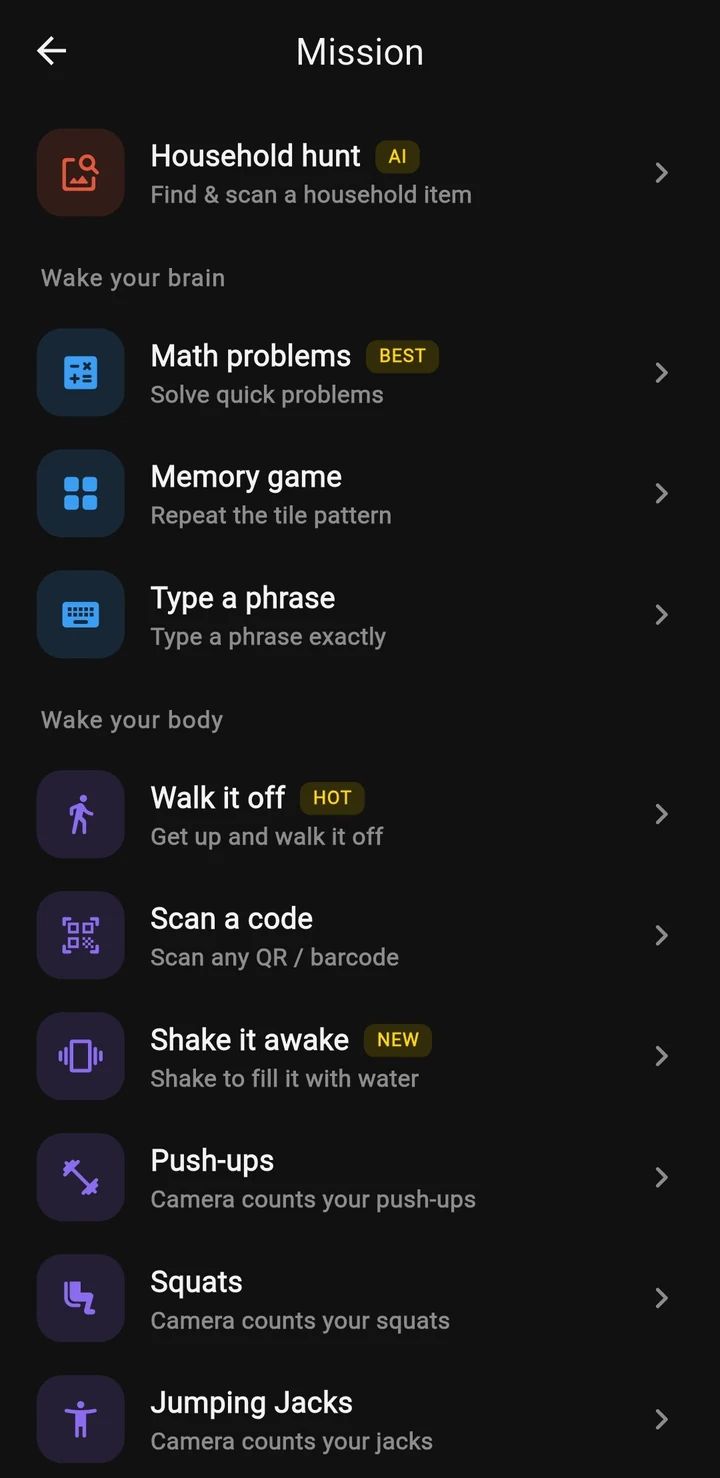
Schedules turn a recurring block into something you set once instead of a decision you make every morning — Phone Block → Schedules → Add a schedule.

Pausing works differently depending on whether it's running
Tap Pause on a schedule that's outside its window — evenings, on a work-hours rule — and after a short ad and a ten-second hold, every future occurrence stops firing until you switch it back on. That's a real pause: tomorrow's 9am doesn't happen either.
Tap Pause while it's actively blocking you right now, and Beyond Alarm doesn't offer that. Instead it asks whether you want to end just today's occurrence — the schedule stays armed and fires normally again next time its day and time come round — or unblock apps for a few minutes without touching the schedule at all. Resuming an already-paused schedule, by contrast, is always instant and free; nothing is being escaped by turning a block back on.
While a schedule is inside its own window, its shape is mostly frozen. You can add apps to it but not remove any, and you can move its strictness from Strict to Hard but never back — loosening any of it mid-run is exactly the "just this once" edit a recurring rule exists to prevent. A schedule that's both running and in Hard mode is sealed: no pause button, no delete, nothing to do but wait for the window to close.
What happens when two schedules overlap
This is the part that's easy to get wrong by assumption. Beyond Alarm doesn't queue overlapping schedules or let one silently override another — it merges them. Whenever more than one of your schedules is inside its own window at the same moment, the app takes the union of every app across those active schedules and holds the block open until the later of their end times.
Concretely: a "Work hours" schedule blocking Instagram and TikTok from 9 to 5, and a separate "Focus block" covering Slack and YouTube from 4 to 6, together mean Instagram, TikTok, Slack and YouTube are all blocked from 4 until 6 — the overlap window — and Instagram and TikTok alone stay blocked from 9 until 4. Ending the 9-to-5 rule early doesn't touch the second one; the state is recalculated fresh from whichever schedules are genuinely still active, not accumulated on top of whatever was already enforced.
That merge behavior is specific to Schedules overlapping each other. A Schedule overlapping with Night Lockout or Morning Lockout is a different case — those are separate rules with their own place in Beyond Alarm's blocking system, so as our night-blocking guide explains, ending one doesn't hand an app back if another rule is still covering it. If you run a Schedule, a Night Lockout and a Morning Lockout together, treat each as independently responsible for its own apps rather than assuming one closing frees anything the others still claim.
Where Schedules sit next to the other two
If your problem is specifically the stretch right after you wake up, Morning Lockout is still the better fit — it starts from finishing your alarm rather than a fixed clock time, so a late morning still gets the full protected interval. Our guide to blocking social media after your alarm covers that setup and a short daytime test.
If your problem is a fixed bedtime window every night, Night Lockout is purpose-built for exactly that and doesn't need a name or an icon chosen. Use a Schedule for everything else recurring: work hours, a no-phone study block, a weekend-only rule, or several of those running side by side.
Platform note, and a few things to check if it doesn't run
Schedules are an Android feature right now. iOS has one fixed schedule wired into it — the night window — and letting people name and run several of their own is separate, later work; the Schedules section simply isn't there yet on iOS.
If a schedule never seems to start, check the basics first: is it enabled, not paused, and are today's day and the current time actually inside its window? Then check Android's accessibility permission — an app-scoped schedule with the guard disabled fires on time and blocks nothing, silently, which is the worst version of this failing. Manufacturer battery restrictions can also interrupt background services on some phones; our Android reliability guide is a starting point, though menus shift with OS updates.
Set the first schedule modestly — a couple of apps, hours you actually keep — and widen it once you've seen it hold for a week. If a fixed recurring window is genuinely what you need and Focus mode already covers it, you don't need a second app just to get one; download Beyond Alarm when a schedule that survives Hard mode, or one that merges cleanly with a night or morning rule, is the part that matters to you.
Common questions
What is a Schedule in Beyond Alarm, and how is it different from Night Lockout or Morning Lockout?
A Schedule is a named, recurring block built from a clock window and a set of days — for example, Instagram and TikTok, 9am to 5pm, Monday to Friday. Night Lockout is one fixed nightly window and Morning Lockout starts when you finish an alarm; Schedules exist for every other recurring window, including ones with nothing to do with sleep or waking up.
What happens if two schedules overlap on the same app?
They merge rather than queue. Beyond Alarm takes the union of the apps from every schedule that is currently inside its window and holds the block open until the later of their end times — so a 9-to-5 rule and a 4-to-6 rule that both cover Instagram keep it blocked until 6, not 5.
Can a schedule run on only some days of the week?
Yes. Days are chosen individually, Monday through Sunday, and leaving all of them off means every day. Weekday and weekend are common shapes, but any combination — three days, five days, just Tuesdays — is allowed.
Do Schedules cost anything?
Creating, editing or switching a paused schedule back on requires Beyond Alarm Pro. Free users can still see a schedule that already exists — its name, times and whether it's currently running — but opening it to change anything shows the upgrade screen. Night Lockout and Morning Lockout are both free.
Can I loosen a schedule while it is running?
No. While a schedule is inside its own window, its start time, end time, days and app list are locked — apps can only be added, never removed — and strictness can only move from Strict to Hard mode, never back, until the window closes.
We build Beyond Alarm, an Android alarm app that will not switch off until you have actually moved. Most of what we write here comes out of problems we hit building it.
Beyond Alarm
An alarm that keeps ringing until you’ve actually moved — then blocks the apps that pull you back to bed. Free to start, no account.
Keep reading
How to block social media after your alarm on Android
Keep Instagram, YouTube and other distractions closed after waking. Compare scheduled Focus mode with an alarm-triggered block, then set up your morning.
How to block apps at night automatically on Android
Set a recurring nighttime app block on Android. Compare Focus mode and Night Lockout, keep essential apps available, and check the morning handoff.