
How to block apps at night automatically on Android
 Beyond Alarm7 September 2026 · Updated 21 October 2026 · 5 min read
Photo by Beyond Alarm Studio on Pexels
To block apps at night automatically on Android, schedule Digital Wellbeing's Focus mode: choose the distracting apps, set a start and end time, and pick the nights. It turns on by itself. Bedtime mode alone only dims and silences the phone.
The short version:
- Focus mode is the built-in tool that actually pauses apps on a schedule.
- Bedtime mode and Do Not Disturb change interruptions, not what you can open.
- Block only the distracting apps; keep calls, messages and alarms available.
- Test a short window while awake before trusting it overnight.
- A blocker with a harder exit is worth it only if Focus mode's break button keeps winning.
Our earlier version of this article confused Bedtime mode with Focus mode and overstated bypass protection. It was corrected on 9 September 2026 and rechecked against the app's code on 21 October 2026.
Choose a tool for the restriction you actually want
| Goal | Tool to consider | Limit to understand |
|---|---|---|
| A quieter, darker phone at bedtime | Bedtime mode / Do Not Disturb | Does not itself prevent opening feeds |
| Selected apps paused during fixed hours, every night | Digital Wellbeing Focus mode | A temporary break is one tap away |
| A recurring block with a harder exit | A third-party blocker with schedules | Needs accessibility access and background permission |
| One night's block you start yourself at bedtime | An on-demand blocker session | You have to remember to start it |
| A protected interval after finishing an alarm | An alarm-triggered block, such as Morning Lockout | Covers the morning, not the night |
Google's Digital Wellbeing instructions describe schedules for Focus mode and its Take a break control. Menus vary by phone. Try that built-in option first; a separate blocker is not automatically better for everyone.
Set up a nightly Focus mode schedule
On most phones the path is Settings → Digital Wellbeing → Focus mode. Samsung and some other brands nest Digital Wellbeing under its own heading, and the wording shifts between Android versions.
- Open Focus mode and select the apps that eat your evening — short video, social feeds, games.
- Leave out anything you need at night: phone, messages, maps, your authenticator, the alarm clock.
- Set a schedule: start time, end time and the nights it should run.
- Save, and check that the Focus mode notification appears at the start time.
Start with a window that matches your evening. For example, 10:30pm to 7:00am might fit someone getting ready for bed at eleven, but it is a configuration example, not a sleep recommendation.
Choose the relevant nights rather than copying a seven-day rule you will immediately need to change. Shift work, weekend travel and family responsibilities can make different windows more practical.
Where Focus mode stops being enough
Focus mode's weakness is the exit. Take a break lifts the pause for a short time, and turning Focus mode off is a quick trip into Settings. At 12:40am, that is usually the moment the plan meets the urge.
If you notice you take a break most nights, you have two honest options. Make the exit physically harder — charge the phone across the room — or use a blocker whose early exit costs more than a tap. Our Android app-blocker guide compares the dedicated options.
Third-party blockers with schedules have their own weakness. They rely on an accessibility service and background permissions, which phone updates can quietly reset. Why app blockers stop working after an update covers the three settings to recheck.
Beyond Alarm
Beyond Alarm does this part for you: the alarm will not switch off until you have actually moved, and the apps you pick stay locked afterwards.


What Beyond Alarm does at night, as of October 2026
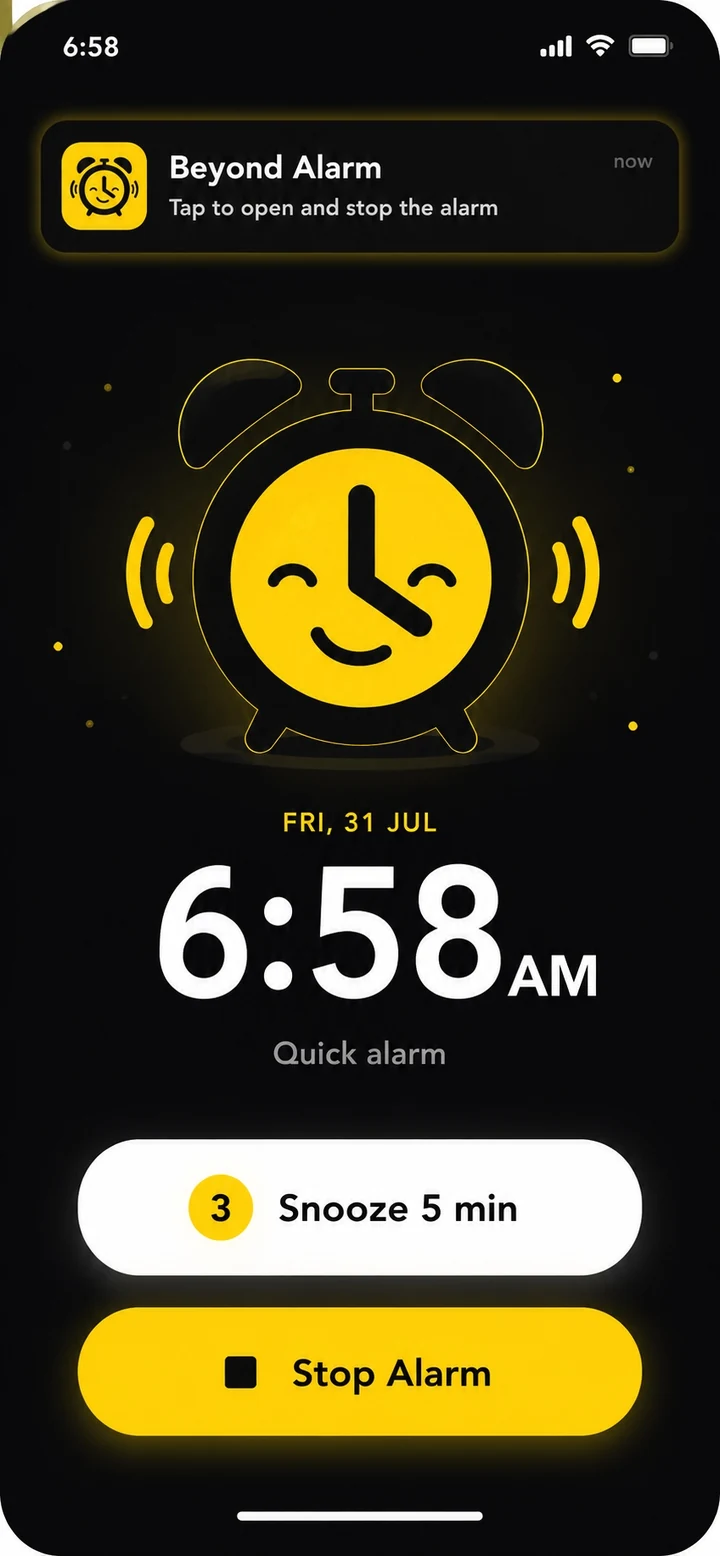
We built Beyond Alarm, so this part is about our own app. It used to have a recurring Schedules feature, and earlier versions of this guide walked through it. Schedules were removed from the Blocks tab in version 1.2.14 (September 2026), so Beyond Alarm's current app has no automatic nightly block. We would rather say that than leave old steps here.
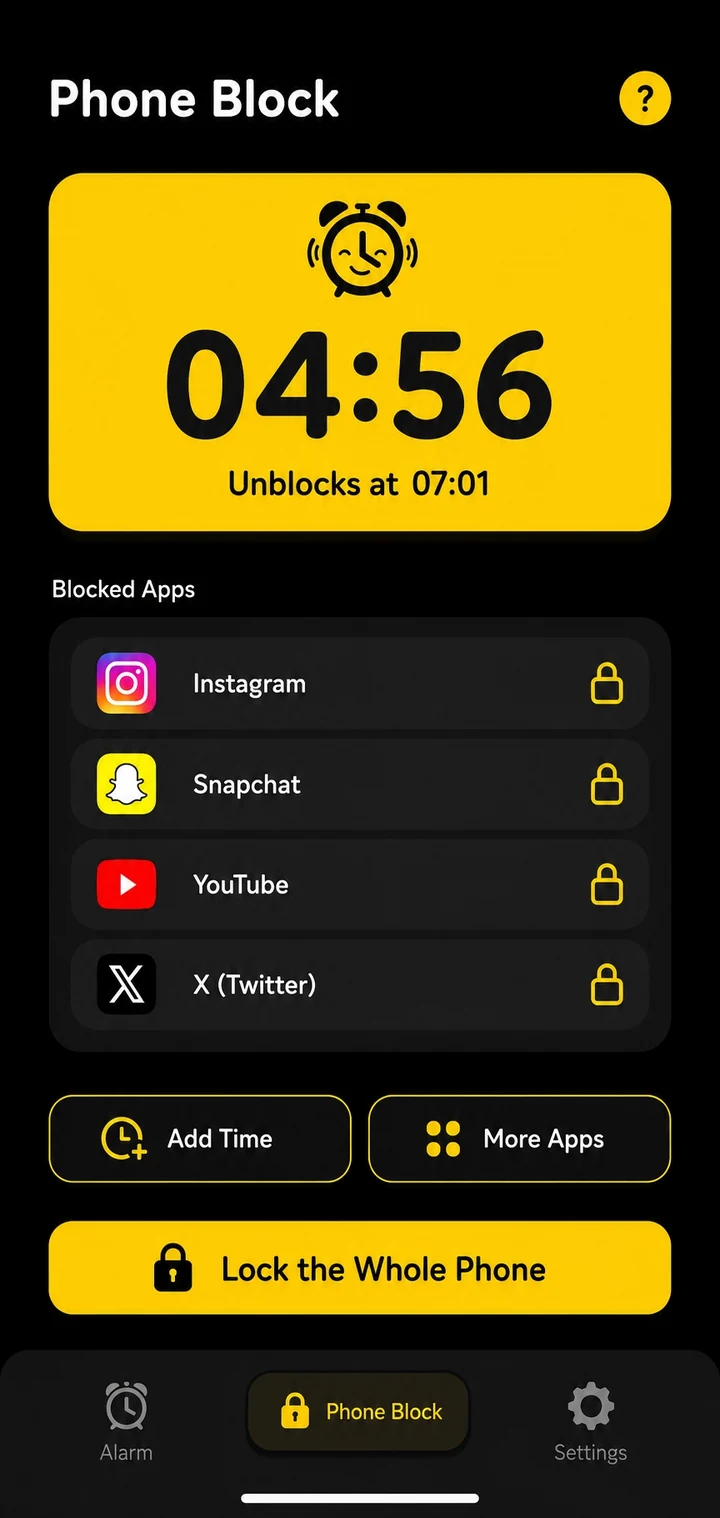
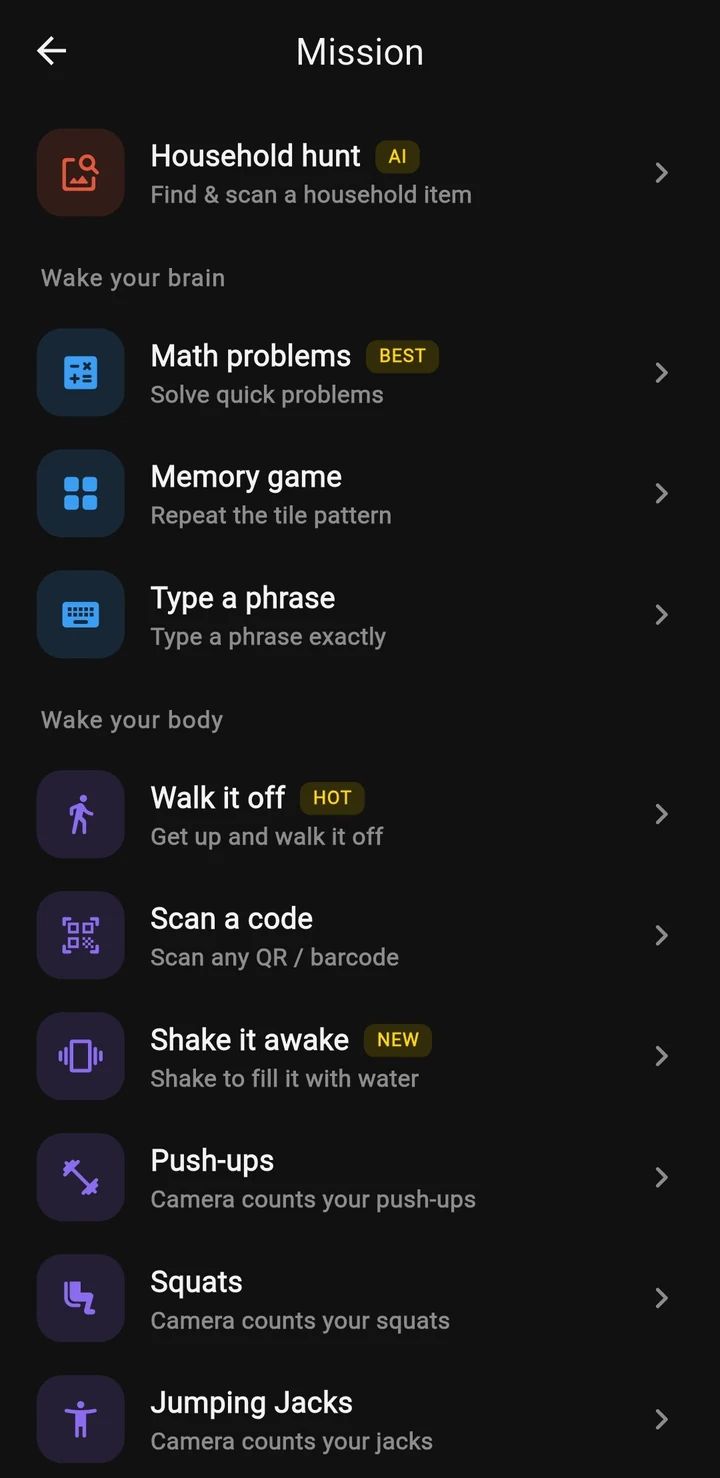
What it offers instead is a Phone Block you start by hand. Pick the apps (or a saved list), choose a length — presets up to two hours, or Custom from 5 minutes to 8 hours — and choose Strict or Hard mode. Strict lets you leave early after a short ad and a held button; Hard mode has no stop button until the timer ends.
That is not automatic, which is the point of this article. It suits someone who will tap one button at bedtime but needs the block to hold once started. If you want the block to start by itself, Focus mode is the better tool.
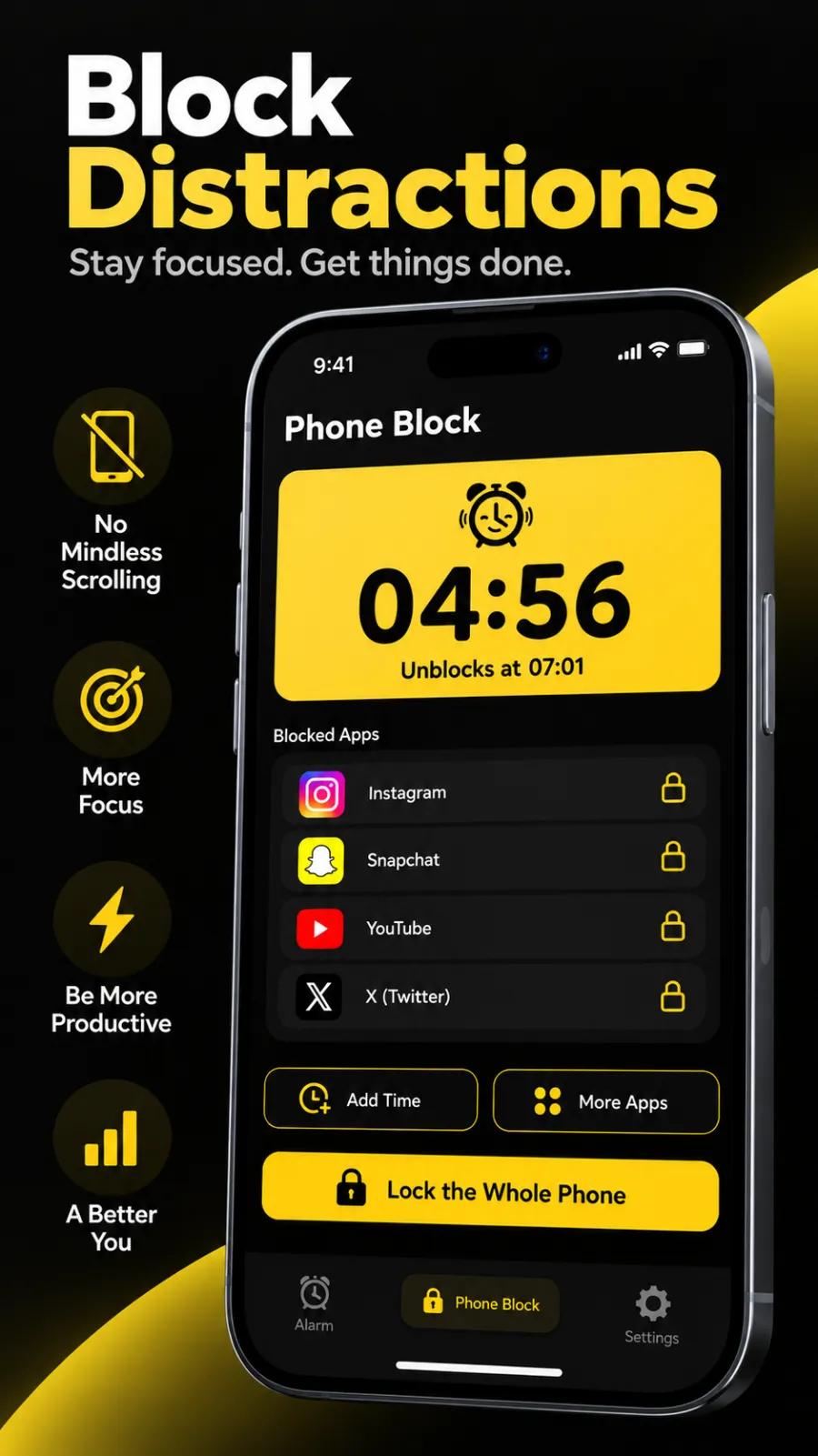
On iPhone, Beyond Alarm's Phone Block uses Apple's Screen Time to shield the apps you pick; there is no whole-phone option there. The iPhone's built-in equivalent of a nightly schedule is Screen Time's Downtime.
Does a night block end at the alarm or at a clock time?
A scheduled block ends at its configured time. It does not wait for you to finish an alarm. If you want the morning protected too, that needs a second rule that starts when you finish the alarm.
For example, a night window ending at 7:00 and an alarm completed at 7:15 leave a 15-minute gap. Read how to block social media after your alarm for the alarm-triggered setup and a short test.
The alarm-and-blocker comparison explains why an interval measured from finishing an alarm differs from a fixed morning cutoff. Use the one that matches your goal.
What protection can an Android blocker really provide?
An accessibility guard can enforce selected rules while it is enabled and running. Optional administrator protection can add a step before uninstalling. Neither makes the device impossible to power off or guarantees enforcement through every manufacturer restriction or permission change.
Website blocking has another limit. Blockers that read the browser's address bar depend on the browser exposing it; hidden address bars and in-app browsers may not. That is not a network-level filter.
Test the setup before tonight
Use a short window while you are fully awake. Confirm that a selected app is blocked, an essential unselected app remains available, and the block ends when expected. Check again after any system update.
If a scheduled block never starts, verify its days, times and selected apps first. Then check background restrictions; our Android reliability guide covers the usual places to look, though menus change with OS updates.
Finally, decide what ending the screen session makes room for. Put a book, a charger across the room, or tomorrow's things somewhere convenient. A schedule can close the feed; a workable evening still needs something to do after that.
Common questions
Does Bedtime mode block social media apps?
Bedtime mode changes interruptions and display settings. Focus mode is the Digital Wellbeing feature for pausing selected apps; it supports schedules and temporary breaks.
What is the simplest way to block apps every night on Android?
Digital Wellbeing's Focus mode with a schedule. Pick the distracting apps, set a start and end time and the days, and it turns on by itself. Its Take a break option is the main weakness.
Does Beyond Alarm block apps on a nightly schedule?
Not in the current version. Its Schedules section was removed from the Blocks tab in September 2026. You can start a Phone Block by hand at bedtime for up to eight hours, and Morning Lockout starts after you finish an alarm.
Can a night block be impossible to bypass?
No ordinary app can guarantee that. Hard mode removes the normal early-stop button, but Android permissions, power-off and device behavior still matter.
We build Beyond Alarm, an Android alarm app that will not switch off until you have actually moved. Most of what we write here comes out of problems we hit building it.
Beyond Alarm
An alarm that keeps ringing until you’ve actually moved — then blocks the apps that pull you back to bed. Free to start, no account.
Keep reading
Scheduled app blocks on Android: work hours and overnight
How to block apps on a schedule on Android with Focus mode or a blocker app: weekday hours, overnight windows, and the loopholes to check first.

How to block social media after your alarm on Android
Keep Instagram, YouTube and other distractions closed after waking. Compare scheduled Focus mode with an alarm-triggered block, then set up your morning.