Best App Blockers for iPhone in 2026, Compared Honestly
 Beyond Alarm24 October 2026 · 7 min read
The best app blocker for iPhone is Apple's own Screen Time, if a passcode someone else set is enough to stop you. If it isn't, Opal, one sec and Freedom all add friction on top of it. The blockers run on Apple's own framework, so none can do more than iOS allows.
The short version:
- Nearly every iPhone blocker uses Apple's Screen Time underneath. They differ in how hard they make it to stop early, not in what they can block.
- Try Screen Time with a passcode you don't know before paying for anything.
- Want a pause, not a wall? one sec. Phone and laptop? Freedom.
- No iPhone app can lock the whole phone, and every one can be switched off in Settings by someone determined.
How app blocking works on iPhone
Since iOS 15, Apple has let third-party apps use the Screen Time framework through its Family Controls and Managed Settings APIs. An app asks for Screen Time access, you pick apps or whole categories in Apple's own picker, and iOS draws a "shield" over them.
That has two consequences most comparisons skip. First, the app never sees which apps you picked; it holds opaque tokens, and iOS does the blocking. Second, the blocking belongs to iOS, so iOS decides the rules.
Those rules are the same for every blocker:
- Calls always work. Apple does not let an app shield the phone itself.
- There is no whole-phone lock. An app shields what you picked. It cannot take over the screen the way Android blockers can.
- Settings is the exit. Switch off an app's Screen Time access in Settings and its blocks end. The exact path varies by iOS version.
So when an iPhone blocker says it is "impossible to bypass", read that as "impossible to bypass inside the app". It is still a useful difference.
The comparison
Features as described on each app's App Store listing and website at the time of writing, 23 October 2026. Prices and free tiers change often, so check the listing before you commit.
| App | Free tier | How it blocks | Easy to bypass? | Best for |
|---|---|---|---|---|
| Apple Screen Time | Free, built in | App Limits, Downtime, content restrictions | Yes without a passcode; one tap on Ignore Limit | Trying a limit before installing anything |
| Opal | Basic; most features paid | Screen Time shields, scheduled sessions | Hard on its strictest setting | Polished schedules and focus sessions |
| one sec | One app | A pause before the app opens, via Shortcuts | Easy, by design | People who rebel against hard blocks |
| Freedom | Mostly paid; check the listing | Apps and websites, synced across devices | Hard on its locked setting | Phone plus laptop |
| Beyond Alarm | Yes, with ads | Screen Time shields for apps or categories you pick | Strict: an ad and a 5-second hold. Hard: no stop button | After the alarm, and study sessions |
"Easy to bypass" means inside the app. All five can be undone from iPhone Settings by someone who really wants to.
Apple Screen Time — free, and better than its reputation
It ships with every iPhone. App Limits cap an app or category per day. Downtime restricts the phone to an allowed list for a set part of the day. Both are in Settings, under Screen Time.
On iOS 27, Apple renamed these: App Limits became Time Allowances and Downtime became Screen Time Schedule. The passcode moved to Manage Screen Time, then Lock Screen Time Settings. Step-by-step for both versions.
The weakness is well known. When a limit runs out you get an Ignore Limit button, and within a week you learn where it is. That is the main reason Screen Time limits stop working for so many people.
The fix costs nothing: turn on a Screen Time passcode and let someone else set it. Then the override needs another person, which is far more friction than any app can add. If you have nobody to hold the passcode, that is where third-party blockers come in.
Opal — the polished one
Opal started on iPhone and is probably the best-known blocker on it. It runs blocking sessions and schedules on top of Screen Time, with a strict setting that can't be ended early from inside the app.
Pick it if you want schedules that run on their own and a clean interface. Skip it if you want everything free; at the time of writing most of what it is known for sits behind a subscription — check the listing.
one sec — the one with real evidence
It doesn't block anything. On iPhone it uses a Shortcuts automation: open Instagram and one sec makes you pause and breathe first, then lets you in if you still want to.
It is the only app here whose central claim is peer reviewed. A study with the University of Heidelberg and the Max Planck Institute, published in PNAS, found people opened the targeted apps 57% less often. The free tier covers one app.
Freedom — for more than one device
Freedom started on desktop. Block a site or app once and the block runs on your computer and phone together.
Pick it if the distraction moves between laptop and phone. Skip it if you only have an iPhone; you would mostly be paying for the part you don't use.
Beyond Alarm
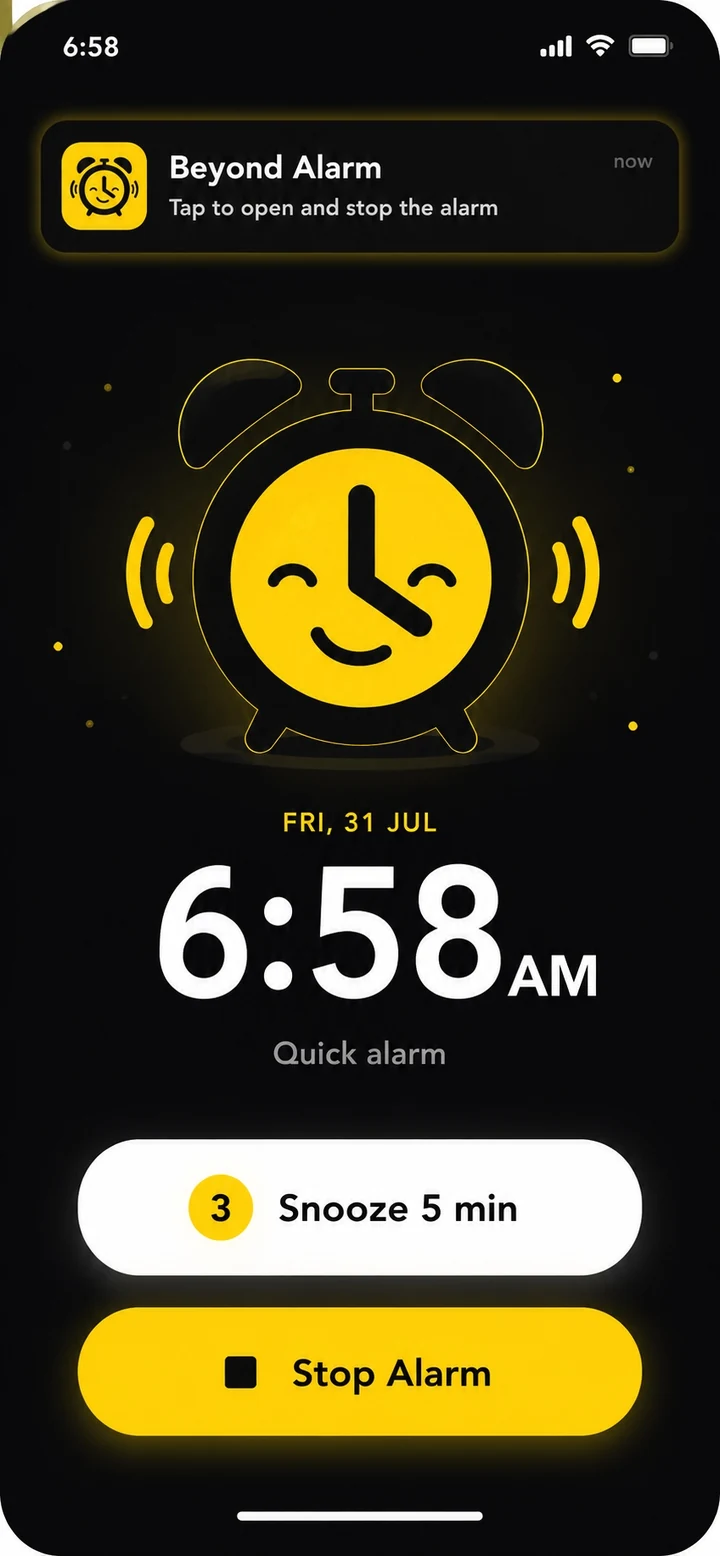
Beyond Alarm does this part for you: the alarm will not switch off until you have actually moved, and the apps you pick stay locked afterwards.
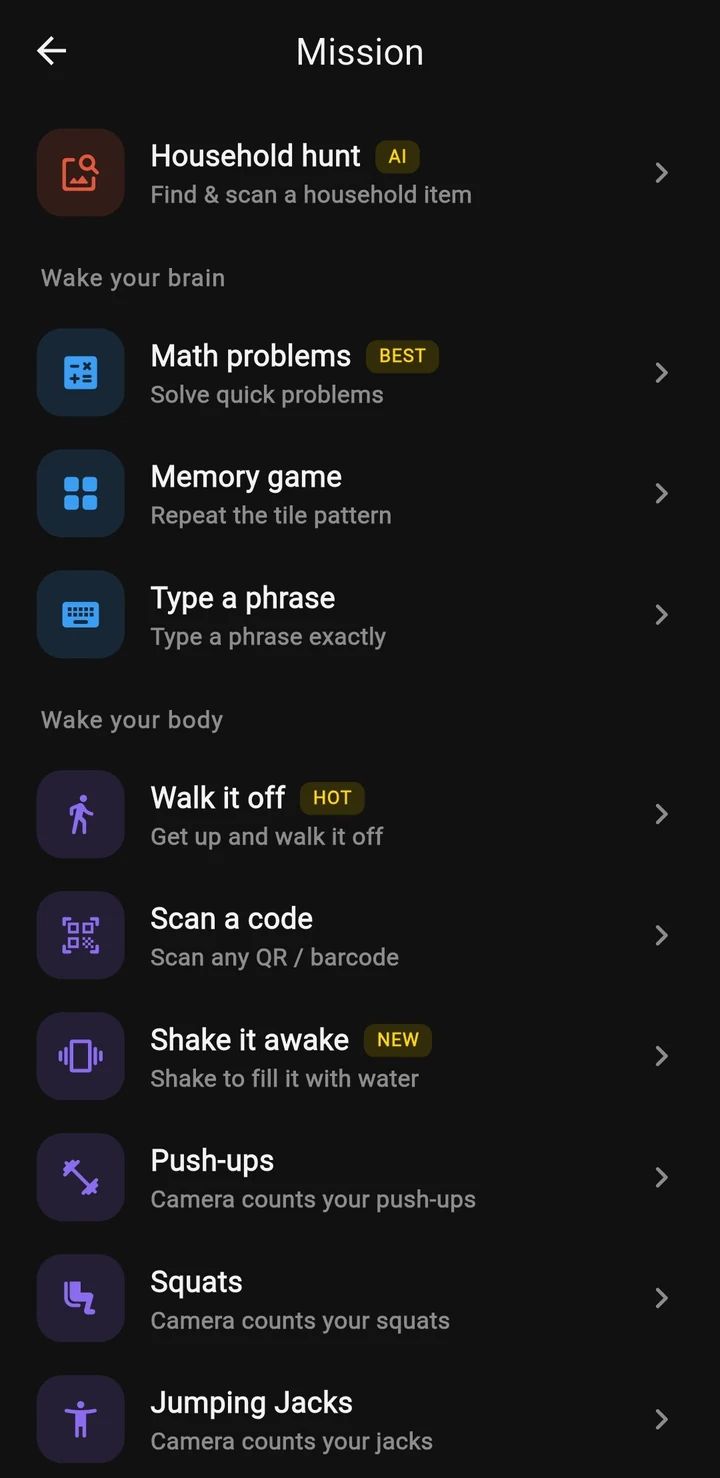
Beyond Alarm — strong after the alarm, weaker elsewhere
This is our app, so read this section as the biased one it is.
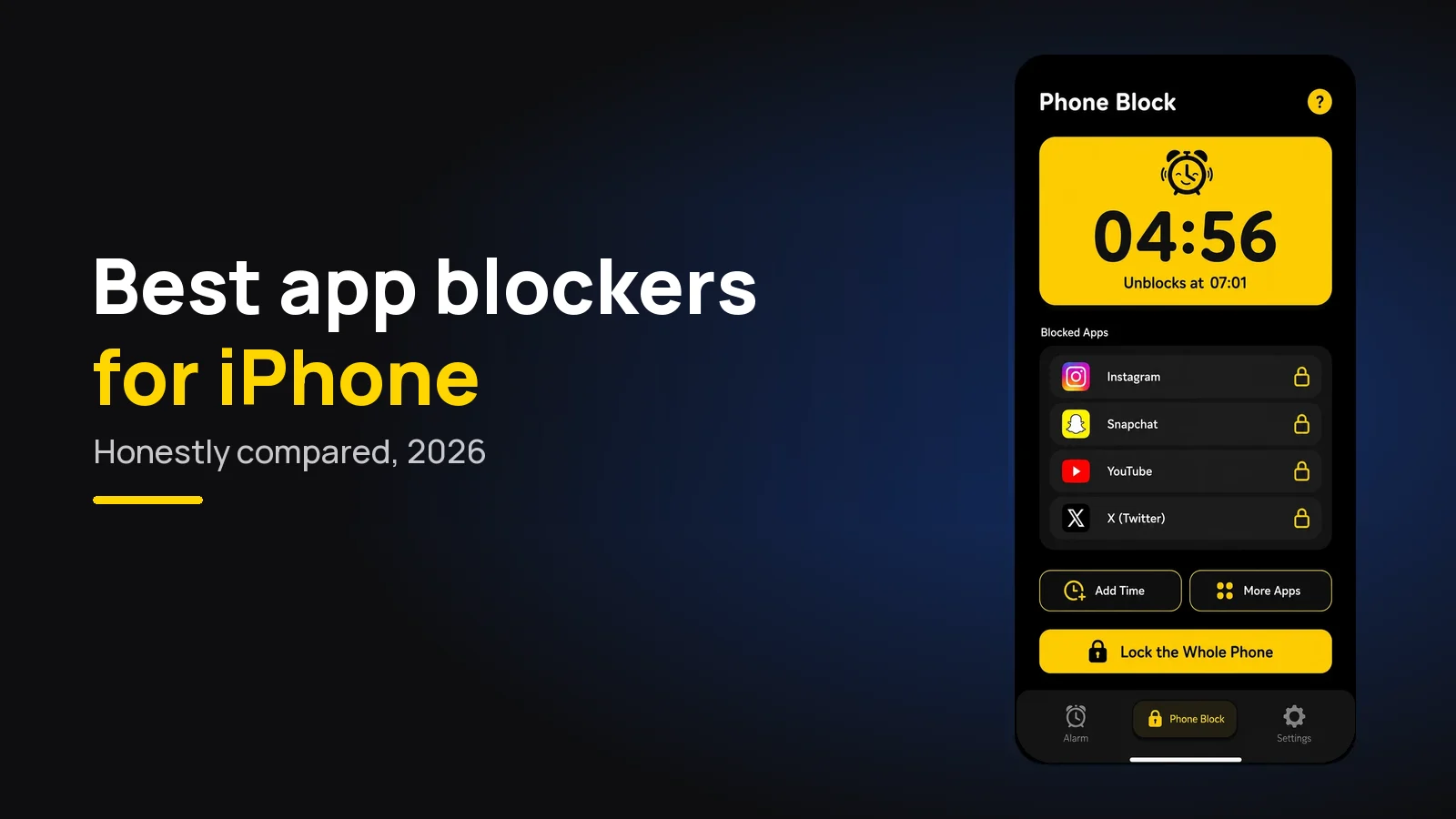
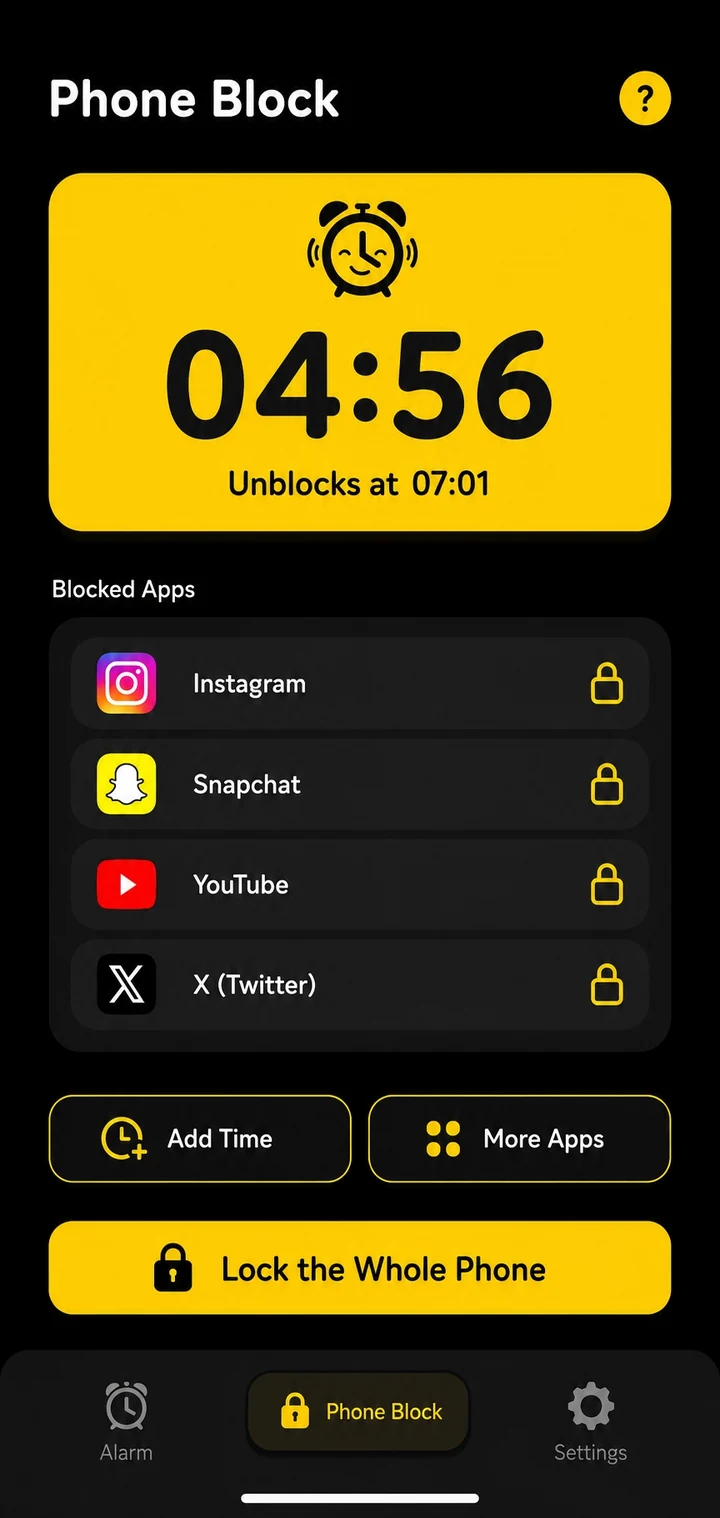
Beyond Alarm is an alarm app with wake-up missions that also blocks apps. On iPhone it has two kinds of block, both through Apple's Screen Time:
- Morning Lockout starts when you finish your alarm, so the apps you chose stay shut while you get up. A clock schedule can't do that, because it doesn't know when your alarm ended.
- Phone Block you start by hand: presets from 15 minutes to 2 hours, or Custom from 5 minutes to 8 hours. Block lists can be single apps or a whole Screen Time category, such as Social or Games.
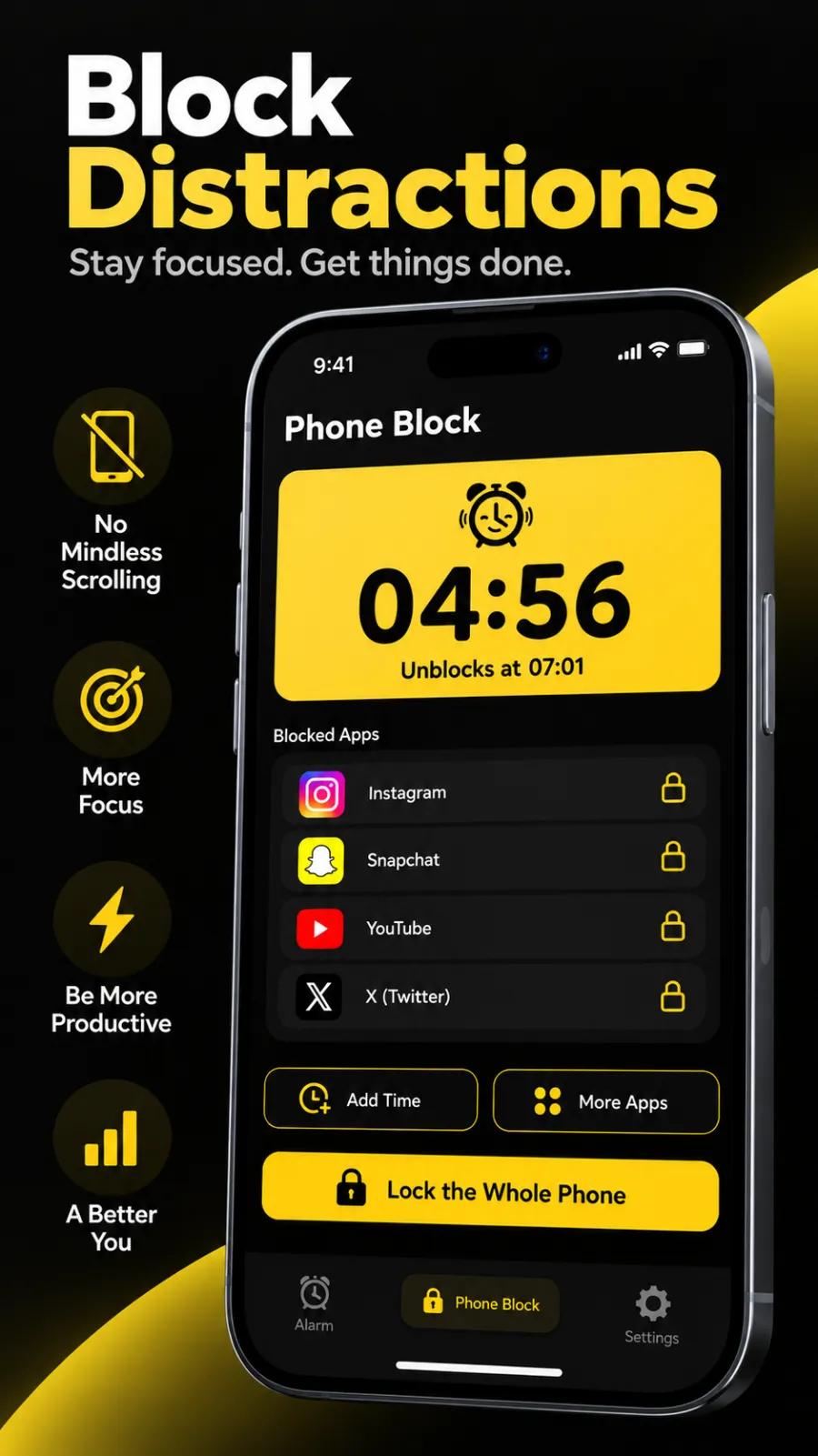
What it does well. Strict lets you leave early only after a short ad and a five-second hold. Hard mode has no stop button until the timer ends; it asks for one short ad when you turn it on, unless you have Pro. A block survives a restart, and switching the phone off doesn't pause it — it ends at the same clock time. An optional "Prevent app uninstall" setting uses Screen Time's own guard, which on iPhone stops any app being deleted while it is on.
Where it is weaker — honestly:
- No whole-phone lock on iPhone. In our own code that option is simply not offered on iOS; it is Android only.
- No scheduled or repeating blocks. Every block starts by hand or when an alarm finishes. If you want a block every weekday at 9am, Opal or Screen Time's Downtime does that and we don't.
- Switching off its Screen Time access ends a block, exactly as with every other blocker here.
- The free version has ads, including the one before leaving Strict early. Pro removes them.
- It is new on iPhone. The iOS app has been on the App Store since October 2026; the Android version is older and does more.
If you already like a blocker, you don't have to switch. We built Beyond Alarm for one gap: the minutes after the alarm, when the phone is already in your hand. See when an alarm app and a blocker together make sense. On Android the picture is different, with whole-phone blocking and more apps to choose from; that is covered in the best app blockers for Android.
How to choose
Answer three questions, in this order.
1. Have you tried Screen Time with someone else's passcode? If not, do that tonight. It is free, and it is the strongest lock on an iPhone.
2. When do you lose the time? During the working day, a scheduled blocker such as Opal fits. In the first minutes after waking, you want a block that knows when your alarm ended — the habit described in why you reach for your phone first thing.
3. Do you resent being told no? Some people delete a hard blocker within a week. If that is you, one sec's pause may change more than a wall.
Whichever you install, do this first
- Block fewer apps than you want to. A list of fifteen gets switched off by the weekend. The two you actually lose hours to survives.
- Use Apple's categories. Ticking Social or Games in the picker catches the new app you install next month, which a hand-picked list won't.
- Give it a week before you pay. Every option here has a free version good enough to tell whether you will leave it switched on.
Sources
Feature descriptions come from each app's App Store listing and website as of 23 October 2026 and will change. Beyond Alarm's details are checked against its own code as of October 2026.
- Apple's Family Controls and Managed Settings documentation — the framework every blocker here uses.
- one sec's study in PNAS.
- Beyond Alarm on the App Store.
Common questions
What is the best app blocker for iPhone?
Start with Apple's own Screen Time, because it is free and already installed. If you keep tapping Ignore Limit, move to a third-party blocker. Opal is the most polished, one sec suits people who want a pause rather than a wall, Freedom suits anyone who also needs a laptop blocked, and Beyond Alarm suits blocks tied to your alarm or a study session you cannot cancel.
Is there a free app blocker for iPhone?
Yes. Screen Time is free and built into iOS. one sec has a free tier for one app, Opal has a basic free tier, and Beyond Alarm's blocking is free with ads. Freedom is mostly paid. Free tiers change, so check each App Store listing at the time you install.
How do I lock apps on my iPhone without an app?
Open Settings, then Screen Time, and set App Limits for the apps or categories you want limited, or set Downtime for a fixed part of the day. Turn on a Screen Time passcode and, ideally, let someone else choose it. Without a passcode you can dismiss a limit with one tap.
Can you get around an app blocker on iPhone?
Yes. Nearly every third-party iPhone blocker runs on Apple's Screen Time, and switching off that app's Screen Time access in Settings ends its blocks. Strict modes make the in-app route slow or impossible, but the Settings route is always there. Choose a blocker for how much friction it adds, not for a promise it cannot be undone.
Can an iPhone app block the whole phone?
Not in the way Android blockers can. Apple's Screen Time lets apps shield the apps and categories you pick, and Downtime can restrict nearly everything on a schedule, but a third-party app cannot take over the screen. Calls and anything iOS itself refuses to block always stay usable.
We build Beyond Alarm, an Android alarm app that will not switch off until you have actually moved. Most of what we write here comes out of problems we hit building it.
Beyond Alarm
An alarm that keeps ringing until you’ve actually moved — then blocks the apps that pull you back to bed. Free to start, no account.
Keep reading
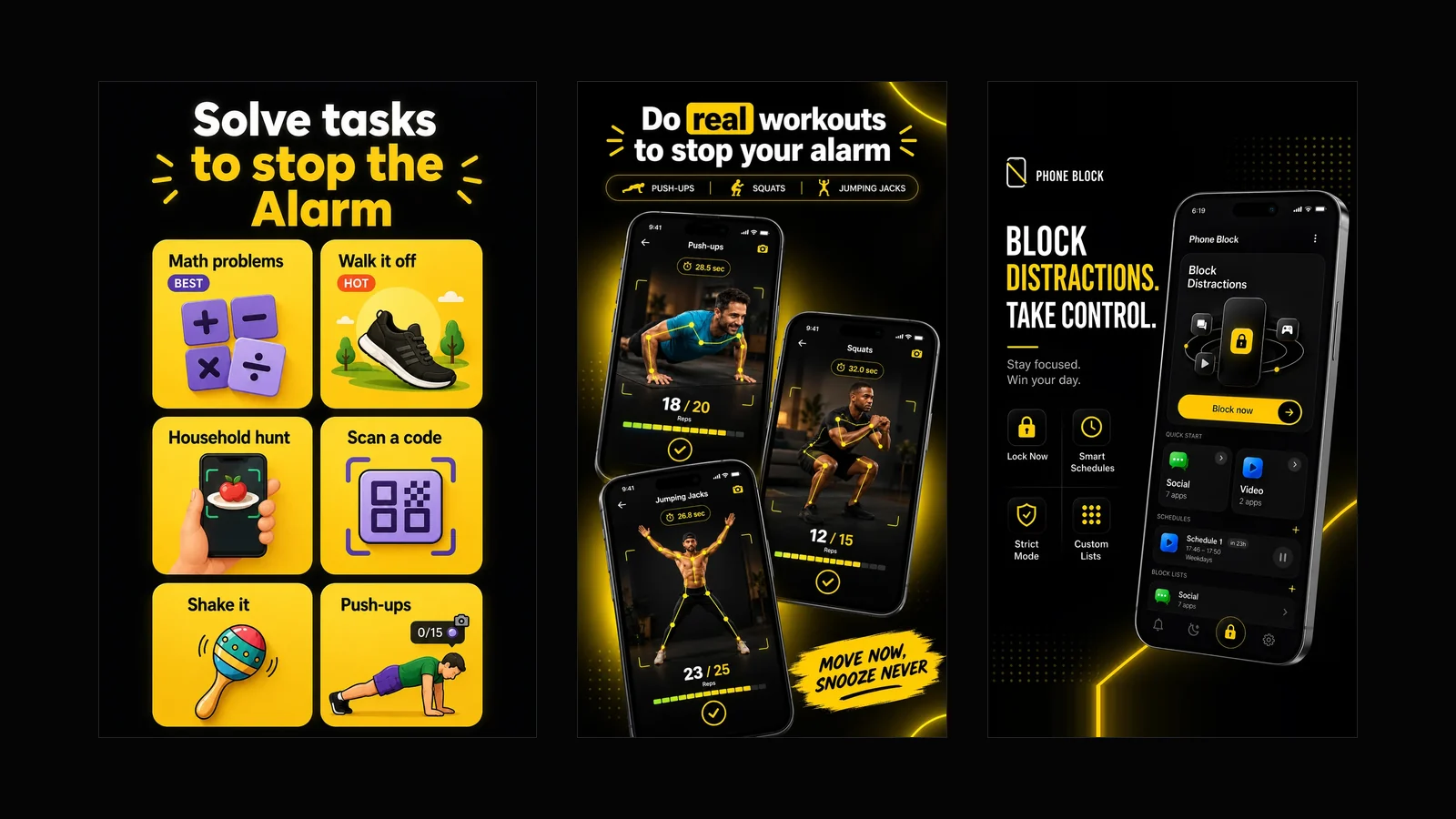
What Beyond Alarm does: wake-up missions and app blocking
The whole app on one page, for Android and iPhone — missions to stop the alarm, app blocking after it, Phone Block, and what it does not do.
Freedom vs Cold Turkey vs Free App Blockers (2026)
Freedom or Cold Turkey? Platforms, prices and locks compared from each maker's own site, plus the free blockers worth trying first and where each falls short.