How to Block TikTok on Android and iPhone (Free, 2026)
 Beyond Alarm19 November 2026 · 7 min read
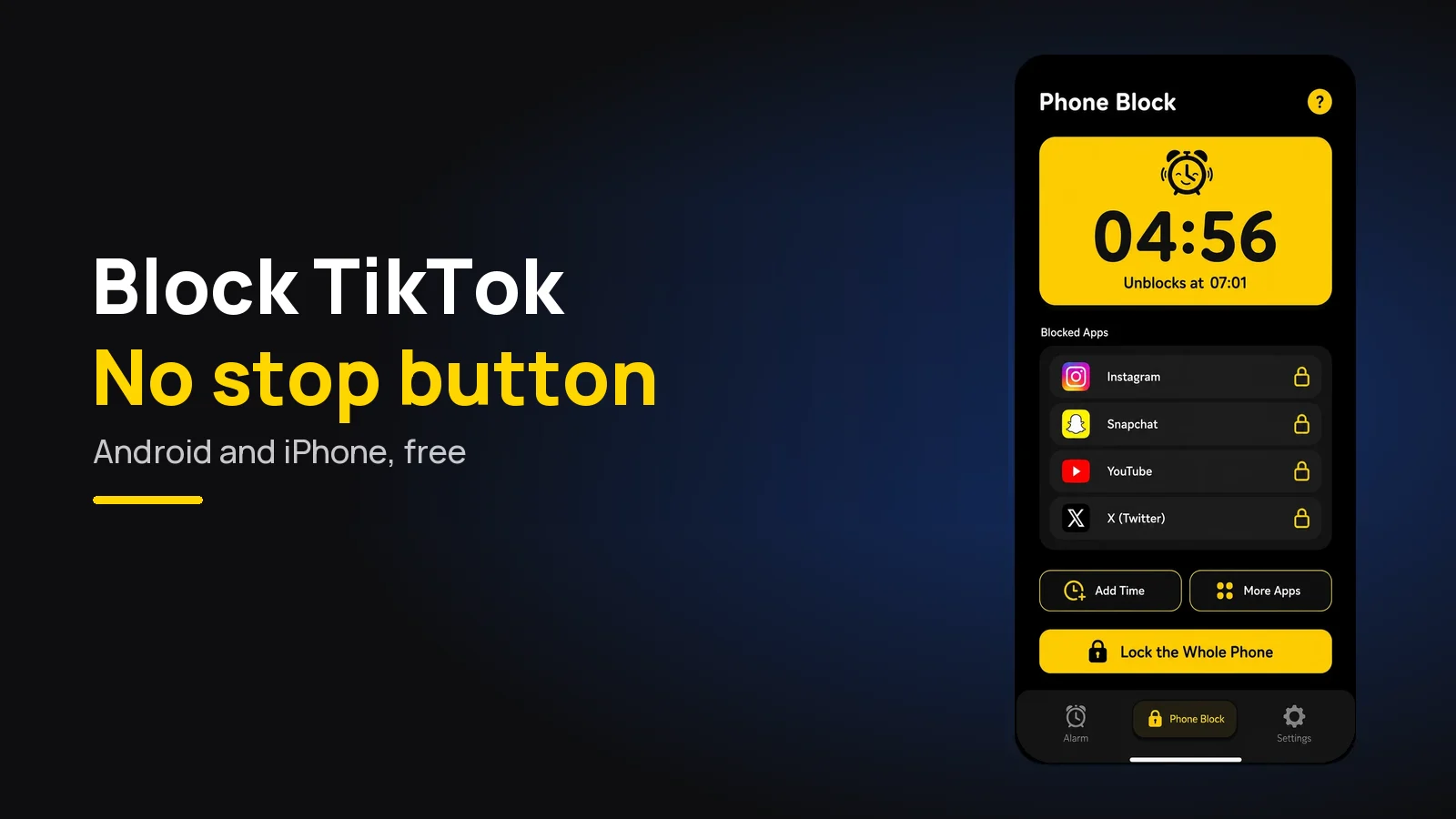
The most reliable way to block TikTok on Android or iPhone is Beyond Alarm's Phone Block in Strict mode: TikTok stays shut until the timer ends, with no stop button, free after one short ad. TikTok's own daily limit and your phone's timers help, but each one can be switched off in a few taps.
Block TikTok for the hours it costs you, with a block you can't tap past.
The short version:
- Beyond Alarm is our pick. Phone Block shuts TikTok (or every social app) for a length you choose. Strict mode has no stop button and is free after one ad, on Android and iPhone.
- TikTok's daily screen time limit is free and built in. On adult accounts it works as a reminder, not a lock.
- Digital Wellbeing (Android) and Screen Time (iPhone) can cap or pause TikTok, but the person who set the limit can always remove it.
- If mornings are the problem, Morning Lockout blocks TikTok the moment your alarm is finished.
Every way to block TikTok, compared
| Method | Android | iPhone | How easy to undo |
|---|---|---|---|
| Beyond Alarm Phone Block (Strict mode) | Yes | Yes | Not until the timer ends |
| Beyond Alarm Phone Block (Regular mode) | Yes | Yes | Watch an ad, then hold for 5 seconds |
| Beyond Alarm Morning Lockout | Yes | Yes | Starts by itself after your alarm |
| TikTok daily screen time | Yes | Yes | Close the prompt or change the limit |
| Digital Wellbeing app timer | Yes | No | Delete the timer in Settings |
| Digital Wellbeing Focus mode | Yes | No | "Take a break" or "Turn off now" |
| Screen Time App Limits / Time Allowances | No | Yes | Ignore Limit, unless a passcode is set |
| Delete the app | Yes | Yes | Reinstall in a minute |
The pattern is the same as with every short-video app. The tools inside TikTok and inside your phone settings are reminders with an exit built in. What actually holds is a block with no exit, set before the urge arrives.
Method 1 — block TikTok with Beyond Alarm
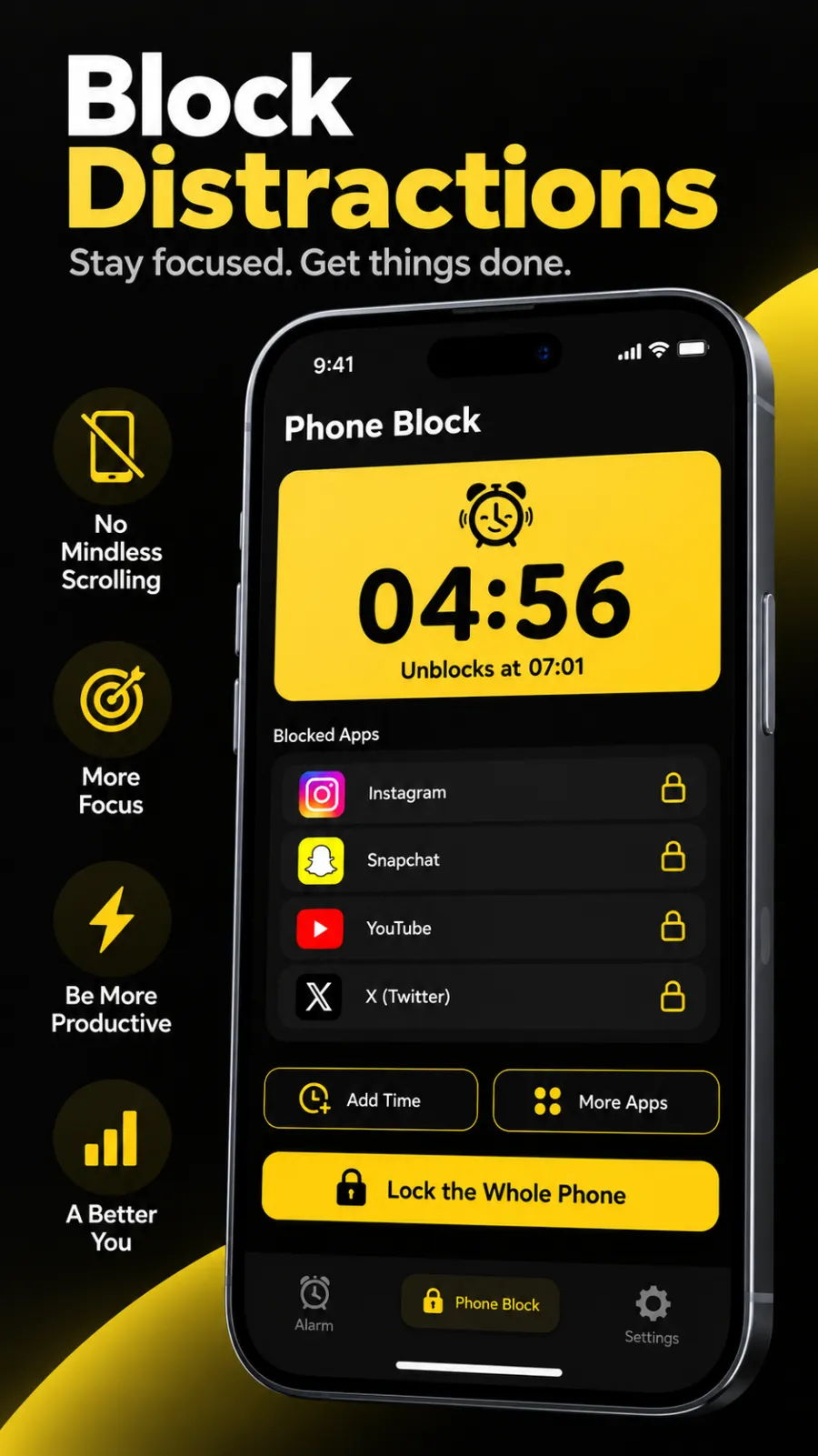
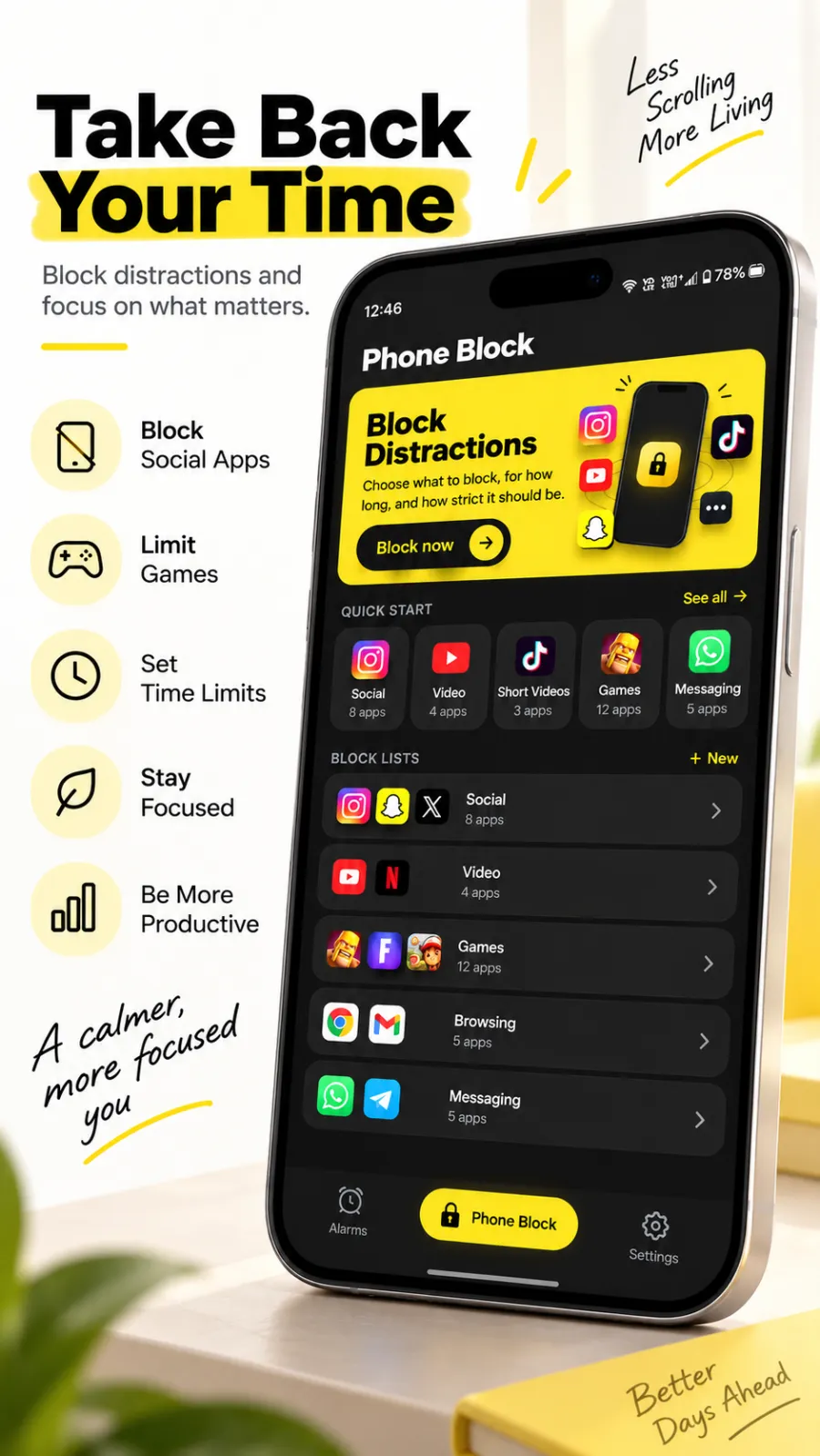
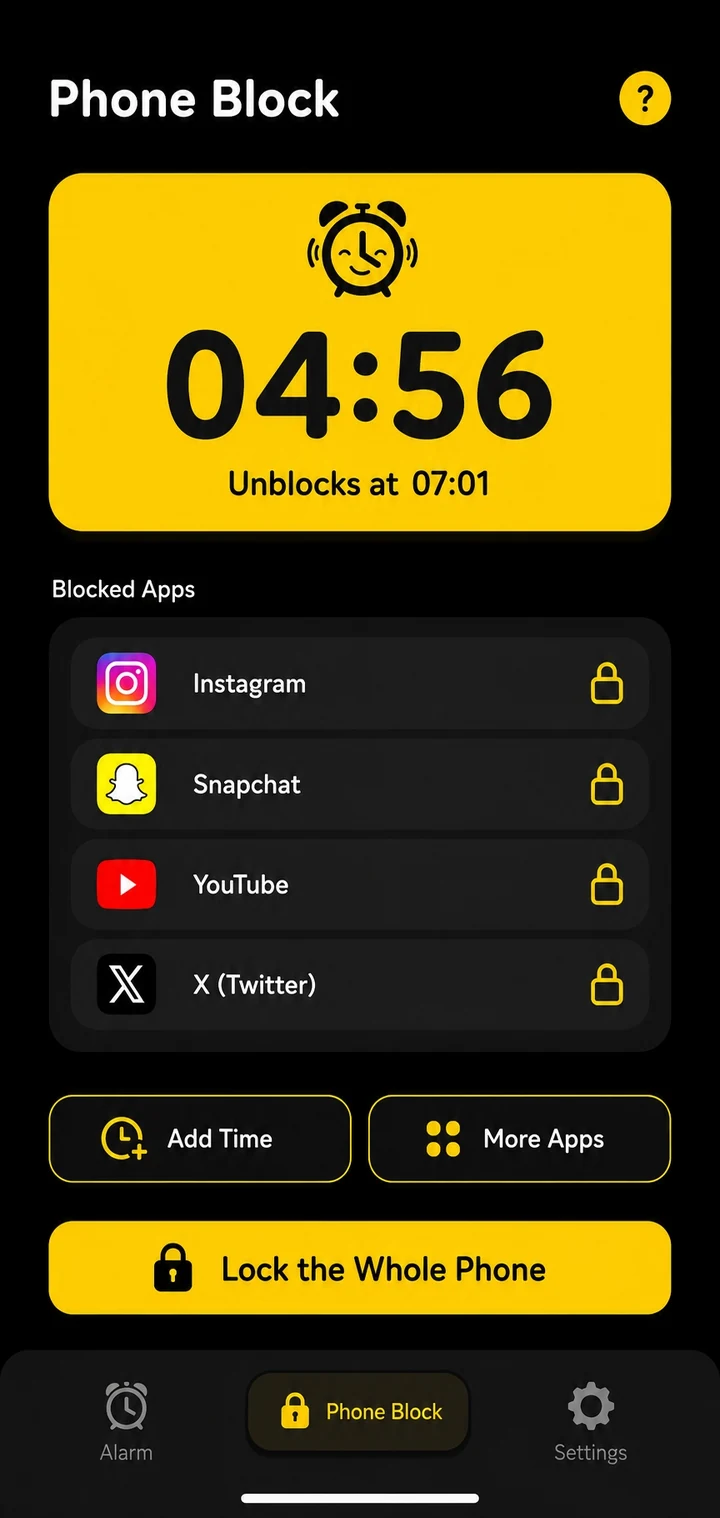
This is what we built Phone Block for. You pick the apps, pick a length, and pick how strict the block is.
On Android, TikTok sits in the ready-made Social list. On iPhone you can tick Apple's Social category, which covers Instagram, TikTok, Snapchat and X at once, even apps you install later.
- Open Beyond Alarm and go to Phone Block.
- Pick TikTok, or the whole Social list if Reels and Snapchat are next in line.
- Choose a length: presets from 15 minutes to 2 hours, or a custom length.
- Choose Strict mode for a block you cannot talk yourself out of. A free user turns it on by watching one short ad.
Regular mode is the gentler option. You can leave early, but only after watching an ad and then holding a button for 5 seconds. That small cost is often enough to break the reflex of "just one video".
Most blockers charge for their strictest mode. In Beyond Alarm, Strict mode is free after one short ad. Phone Block also has a Pomodoro mode: TikTok stays blocked during each focus round and opens again in the breaks, for 1 to 9 rounds. On Android, Phone Block can lock the whole phone, with calls still ringing through. On iPhone it uses Apple's Screen Time to shield the apps and categories you pick.
One gap to close: blocking the app does not block tiktok.com in a browser. On Android, add your browser to the same list, or block the whole phone for that stretch.
Method 2 — TikTok's own screen time limit
TikTok has a free daily limit built in.
Open your Profile, tap the menu (☰), then Settings and privacy. In November 2025 TikTok introduced a Time and Well-being space that replaced its older screen time page, so look for Time and Well-being; older versions call it Screen Time or Digital Wellbeing. The exact labels may differ by app version.
Inside you will find:
- Daily screen time — a daily limit, with presets or a custom length.
- Screen time breaks — a nudge to take a break after a set time.
- A weekly summary of how long you spent in the app.
Accounts aged 13 to 17 get a 60-minute daily limit by default, and parents can set limits through Family Pairing.
On an adult account, TikTok's help pages describe the limit as a prompt: you can close the app, or enter the passcode you set yourself and carry on. That is useful as a reminder. It is not a block, because you are the one who knows the code.
Method 3 — Digital Wellbeing on Android
Android's own tools are free and already on your phone. Google's Digital Wellbeing help page gives two options:
- App timer: Settings, then Digital Wellbeing, then App timers, then Set timer next to TikTok. When the time runs out, TikTok closes and its icon dims until midnight.
- Focus mode: Settings, then Digital Wellbeing, then Focus mode. Pick TikTok, then Turn on now or Set a schedule.
The catch is written into the same help page. To use the app again, you delete the timer. Focus mode has a Take a break button.
On Samsung and other phones the menu is often called Digital Wellbeing and parental controls, so the path may differ slightly by phone. Our guide to Android app timers covers each brand.
Beyond Alarm
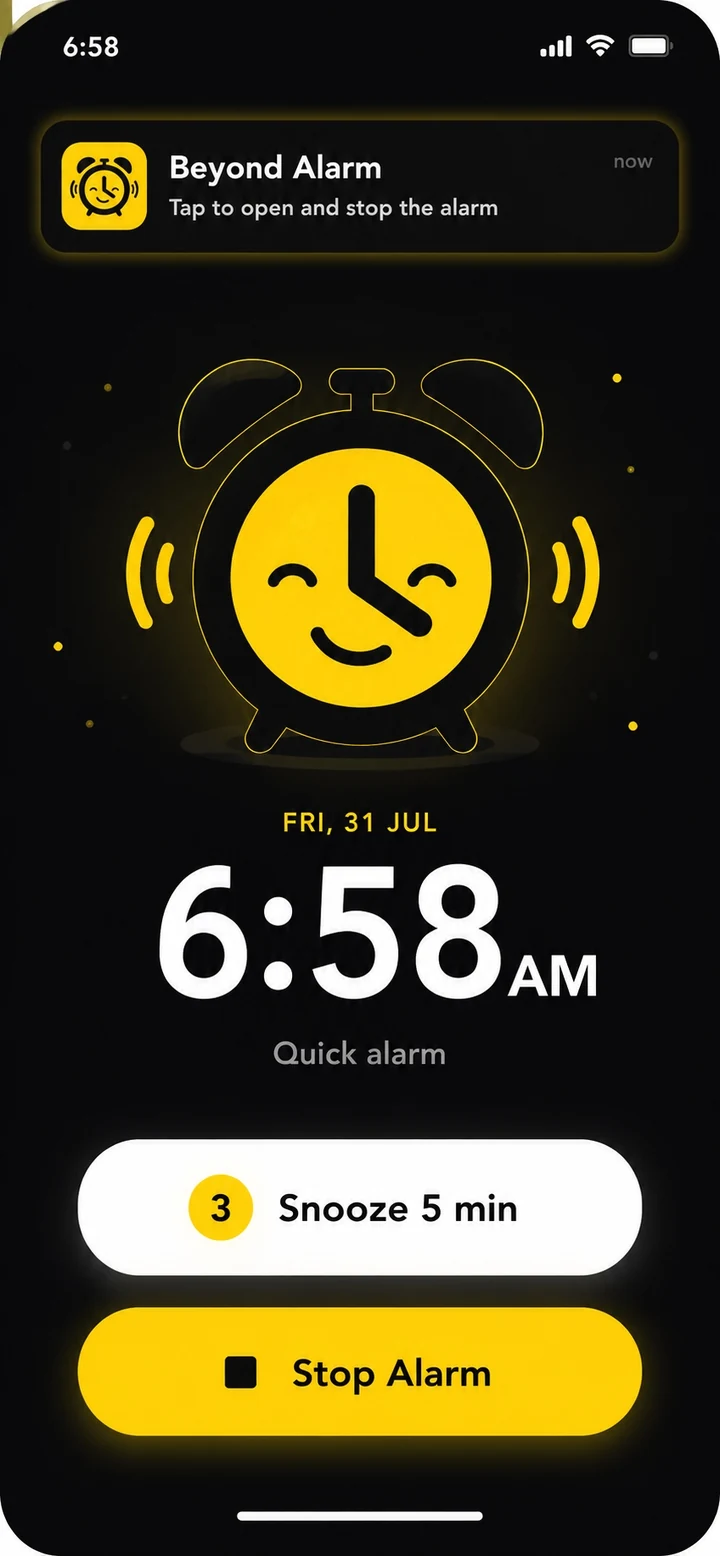
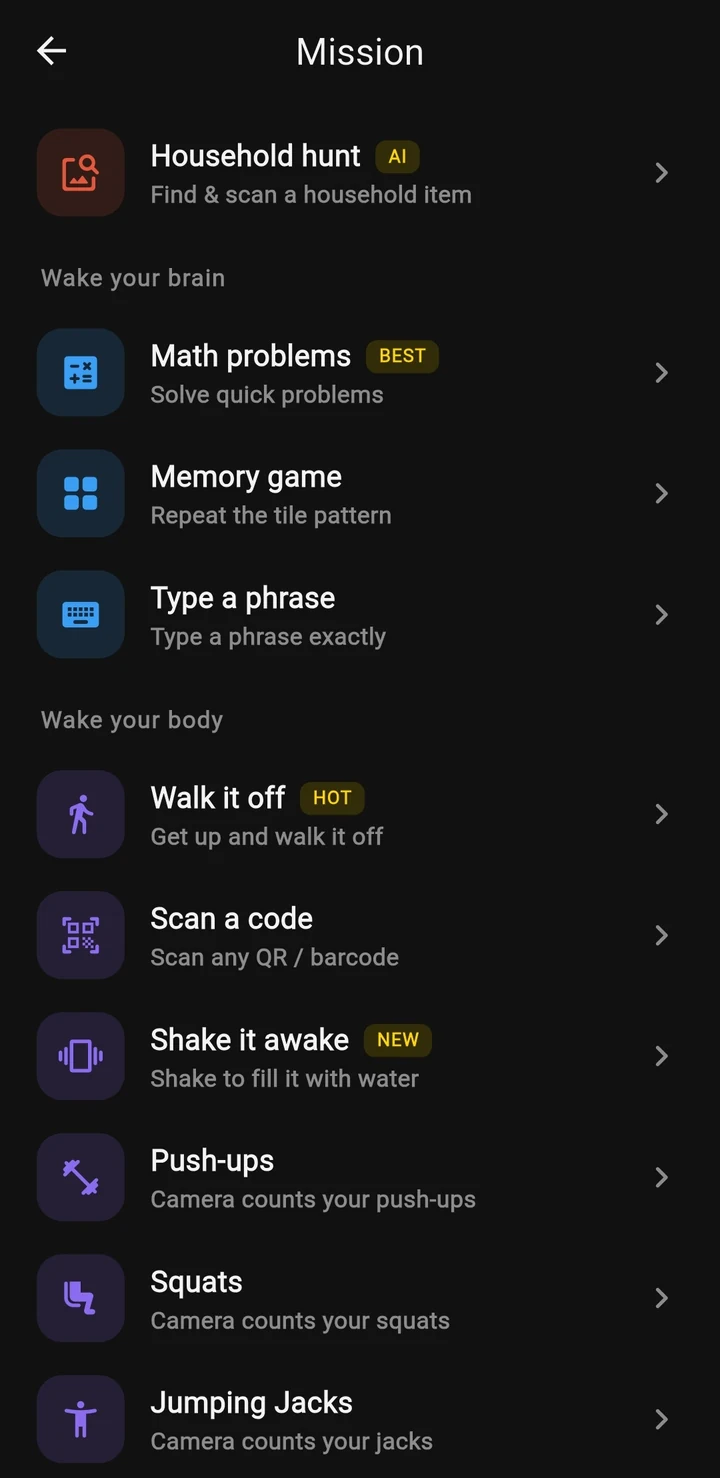
Beyond Alarm does this part for you: the alarm will not switch off until you have actually moved, and the apps you pick stay locked afterwards.

Method 4 — Screen Time on iPhone
On iOS 26 and earlier, go to Settings, then Screen Time, then App Limits, and add a limit for TikTok or the Social category. On iOS 27, Apple replaced App Limits with Screen Time Schedules and Time Allowances.
Without a Screen Time passcode, hitting the limit offers Ignore Limit, and "Ignore Limit for Today" undoes it in one tap. Our iPhone app time limits guide walks through both menus and how to close that loophole.
To stop tiktok.com in Safari too, open Content & Privacy Restrictions, then the Web Content setting, choose Limit Adult Websites and add tiktok.com under Never Allow. The menu names move a little between iOS versions.
Why TikTok's limits don't hold, and what does
TikTok's feed starts playing the second you open the app. There is no decision to make, so the moment you could stop is the moment before you open it, not the moment you are three videos in.
That is why limits with a "keep watching" button fail. They ask you to decide at the worst possible time, and the button wins. Why Screen Time limits stop working goes through that pattern in detail.
A block works because you make the decision earlier. Set it before bed, or before you sit down to study, and the next time your thumb opens TikTok it meets a wall instead of a feed.
The morning is where TikTok wins
For many people the worst stretch is the first half hour after the alarm. The phone is already in your hand, because it just woke you up, and TikTok is one tap away.
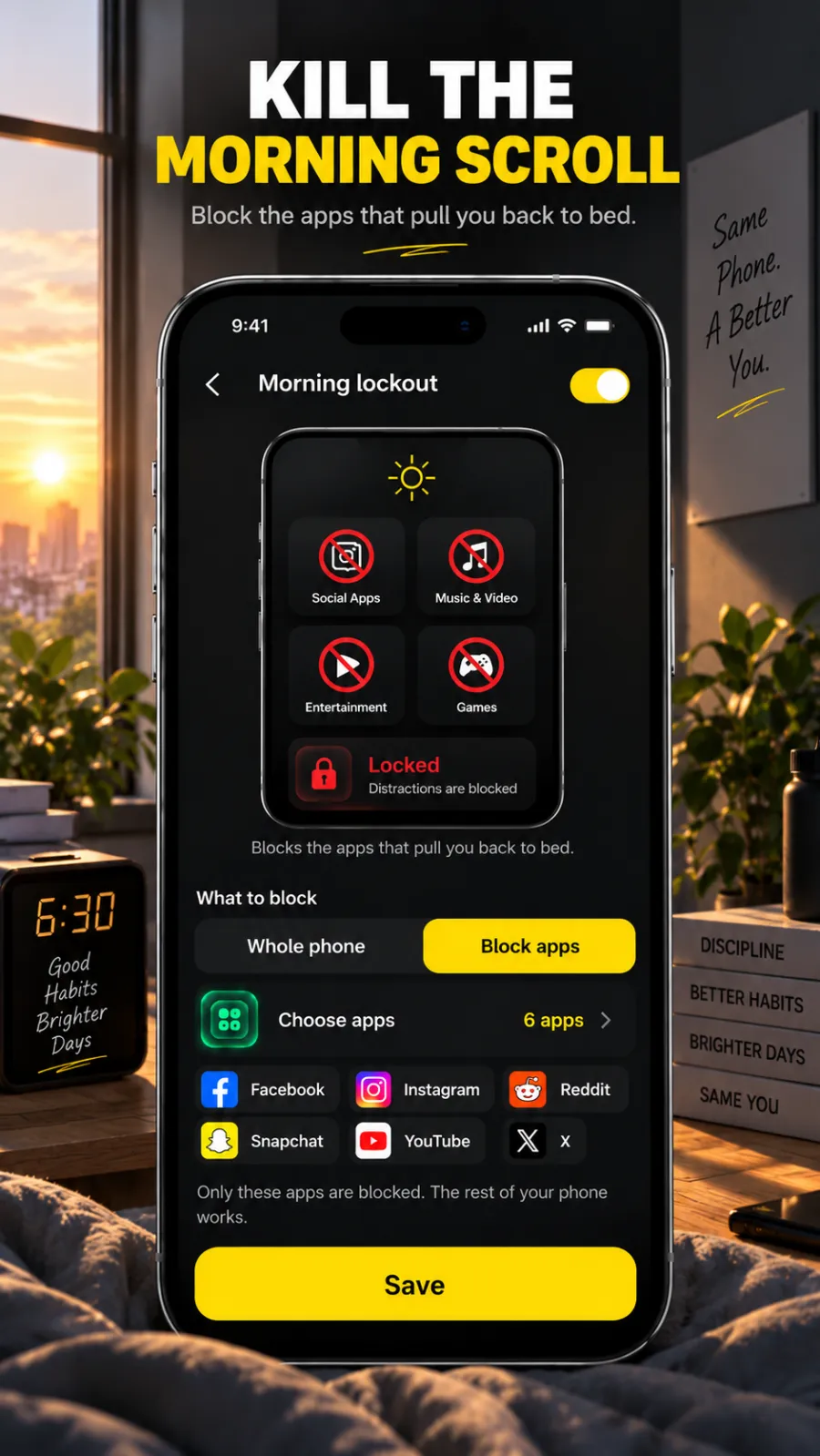
Beyond Alarm's Morning Lockout handles this on its own. Turn it on for an alarm, pick TikTok and anything else that pulls you back to bed, and choose how long. The block starts the moment you finish the alarm.
On iPhone it runs until its timer ends. If you also start a Phone Block, the two run side by side, and an app in both stays blocked until both end.
Which method to use
- You lose hours to TikTok at night or while studying: a Strict mode Phone Block in Beyond Alarm. No stop button until the timer ends, free after one ad.
- Mornings go wrong: Beyond Alarm's Morning Lockout, so TikTok is shut before you are properly awake.
- You only want a nudge: TikTok's daily screen time limit plus screen time breaks. Free, and enough for some people.
- You are setting limits for a teenager: TikTok's Family Pairing, alongside Screen Time or Digital Wellbeing on their phone.
- Shorts and Reels fill the gap once TikTok is gone: block them in the same Beyond Alarm list. Our guide to blocking YouTube Shorts covers YouTube's side.
Common questions
What is the best way to block TikTok?
Block the TikTok app with Beyond Alarm's Phone Block for the hours you scroll. Strict mode has no stop button until the timer ends, and it is free with one short ad. It works on Android and iPhone.
How do I block TikTok on Android for free?
Open Beyond Alarm, go to Phone Block, pick TikTok (or tick the Social list), choose a length and choose Strict mode. Android's own Digital Wellbeing app timer is also free, but you can delete the timer whenever you like.
Does TikTok have its own screen time limit?
Yes. In Settings and privacy, TikTok has a daily screen time limit, screen time breaks and a weekly summary. Recent versions group them under Time and Well-being; older ones call it Screen Time or Digital Wellbeing. Accounts under 18 get a 60-minute daily limit by default.
Can I block TikTok on iPhone?
Yes. Beyond Alarm's Phone Block uses Apple's Screen Time to shield the apps and categories you pick, including TikTok or the whole Social category. Apple's own App Limits (Time Allowances on iOS 27) also work, but they offer Ignore Limit unless a passcode is set.
How do I stop myself unblocking TikTok?
Use a block that has no off switch while it runs. Beyond Alarm's Strict mode has no stop button until the timer ends. Regular mode lets you leave early, but only after watching an ad and holding a button for 5 seconds.
Will blocking the TikTok app also block tiktok.com?
No, blocking an app does not block its website. On Android, add your browser to the same Phone Block list, or block the whole phone. On iPhone, Screen Time's Web Content settings can add tiktok.com to a Never Allow list.
We build Beyond Alarm, the alarm for Android and iPhone that will not switch off until you have actually moved, then blocks the apps that pull you back. Most of what we write here comes out of building it.
Beyond Alarm
An alarm that keeps ringing until you’ve actually moved — then blocks the apps that pull you back to bed. Free to start, no account.
Keep reading
Screen Time on Android: Check It, Then Set a Timer
How to see your screen time on Android in Digital Wellbeing, what the numbers mean, and how to set a timer that locks apps so the number goes down.
How to block YouTube Shorts on Android and iPhone
Stop YouTube Shorts on Android and iPhone: block the YouTube app with Beyond Alarm's Phone Block, plus what YouTube's own settings can hide.