
App Timer for Android That Actually Locks Your Apps
 Beyond Alarm13 November 2026 · 6 min read
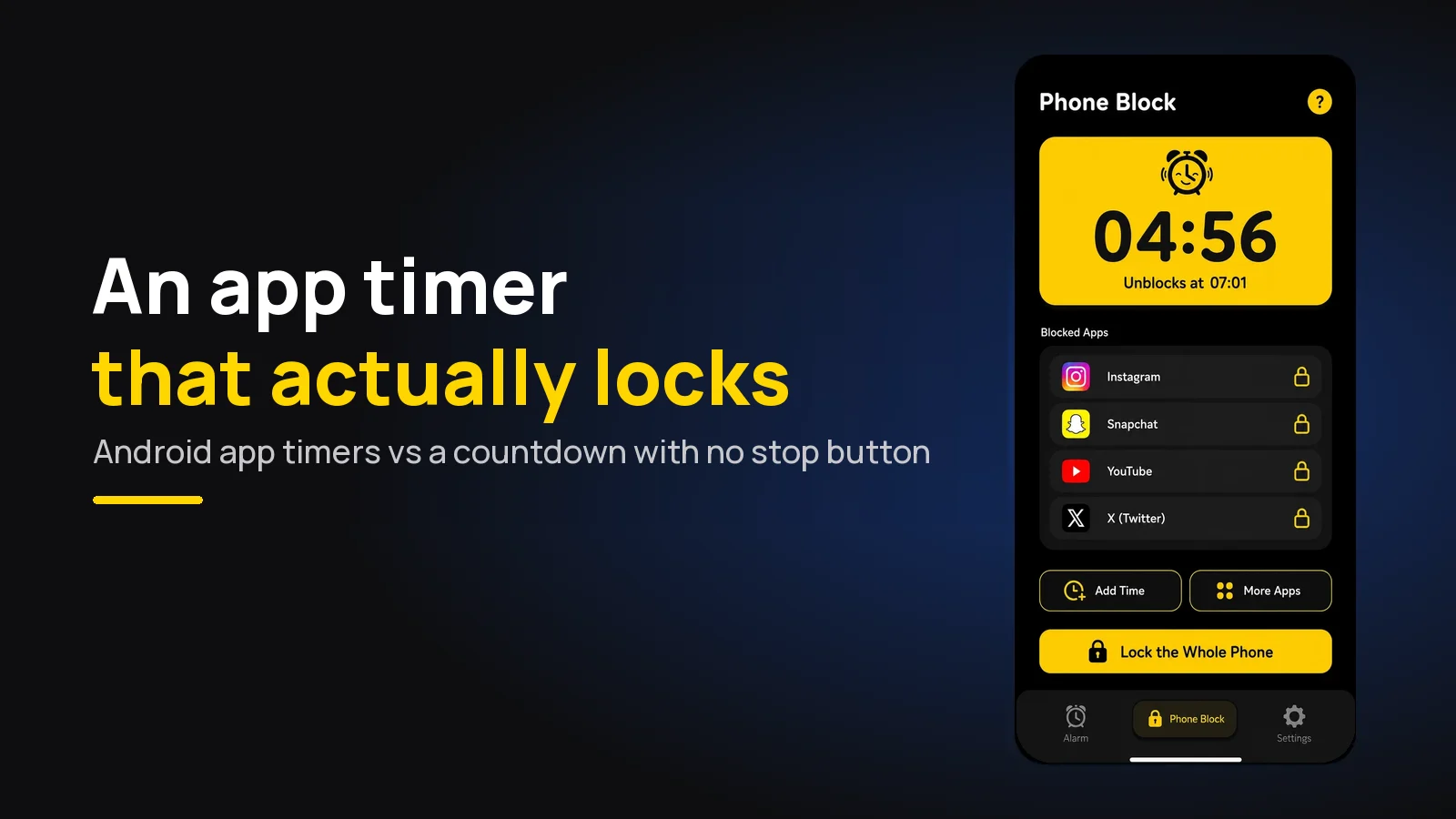
An app timer on Android usually means Digital Wellbeing's daily limit: use Instagram for 30 minutes, then its icon dims until midnight. If you want a timer that locks apps for a set time, starting now, use Beyond Alarm's Phone Block — pick a length, pick the apps, and they stay shut until zero.
The two sound alike and do very different jobs. One rations a day. The other protects the next hour.
The short version:
- Beyond Alarm's Phone Block is the app timer that actually locks: 5 minutes to 8 hours, your chosen apps or the whole phone, and in Strict mode no stop button until the countdown ends. Strict mode is free after one short ad.
- Digital Wellbeing app timers are daily allowances. They reset at midnight, and you can delete one in Settings whenever you like.
- Focus mode pauses apps for a while, but "Take a break" and "Turn off now" are one tap each.
- Use the built-in timer to ration a day; use a lock timer to get through a study session, a work block or an evening.
Android app timer vs a timer that locks
Here is how the options compare when the aim is "no Instagram for the next hour", not "less Instagram today".
| Beyond Alarm Phone Block | Digital Wellbeing app timer | Focus mode | |
|---|---|---|---|
| What the timer measures | A countdown from now | Minutes used per day | A pause you start or schedule |
| What it locks | Chosen apps, a saved list, or the whole phone | One app per timer | Chosen apps |
| When it ends | At the clock time you set | Midnight | When you turn it off, or at its end time |
| Ending it early | Strict mode: no stop button. Regular mode: one ad plus a five-second hold | Delete the timer in Settings | "Take a break" or "Turn off now" |
| Survives a restart | Yes, ends at the same time | Yes, it's a system setting | Yes, it's a system setting |
| Price | Free (Strict mode after one short ad) | Free, built in | Free, built in |
The built-in tools come from Google's Digital Wellbeing help page, read at the time of writing. Exact menu names differ between Pixel, Samsung, Xiaomi and the rest, so search Settings for "App timers" if the path below doesn't match your phone.
How Android's built-in app timer works
Open Settings → Digital Wellbeing → App timers, tap Set timer next to an app, choose a length and tap OK. Google's page puts the result plainly: "When you run out of time, the app closes and its icon dims."
Two details decide whether it will work for you. First, "App timers reset at midnight", so the allowance is per day, not per session. Thirty minutes of YouTube can all go at 9 am, and the timer has nothing to say about your 7 pm revision.
Second, the way out is built in. Google's instructions for using the app again before midnight are to go back to App timers and delete the timer. That's a few taps you can take in a weak moment — the same pattern we cover in why Screen Time limits stop working.
Focus mode is closer to a lock timer: it pauses the apps you choose and can run on a schedule. But Google's own help page lists Take a break and Turn off now right there, so it holds only as long as you want it to.
The app timer that locks: Beyond Alarm's Phone Block
Beyond Alarm is an alarm app with wake-up missions that also has Phone Block, on Android and iPhone. Phone Block is a countdown, not an allowance: what you lock stays locked until the clock you set runs out.
- Open Phone Block and tap Block now. The Focus session screen opens.
- Pick a length. Presets are 15, 30 and 45 minutes, 1 hour, 1 hour 30 and 2 hours. Custom goes from 5 minutes to 8 hours.
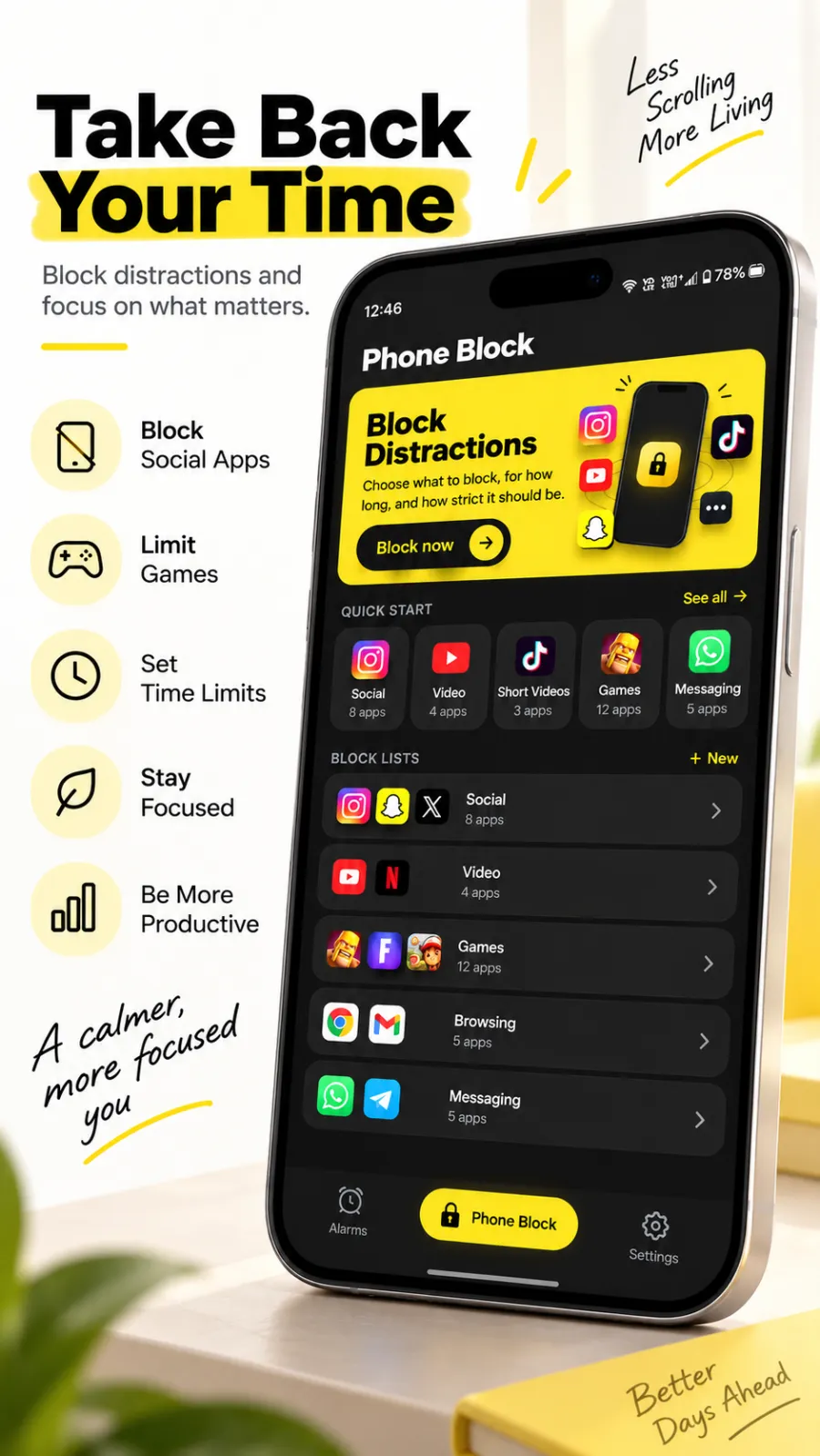
- Choose what to block. The whole phone, a saved list (Social, Video, Games and Shopping come ready-made from the apps you have installed), or a one-off pick of apps.
- Choose how strict. Regular mode: you can leave early by watching an ad and holding a button for five seconds. Strict mode: watch one short ad to start, and there is no stop button until it ends. Paid Pro users skip the ads.
- Tap Block for 1h (or whatever you set). The countdown starts.
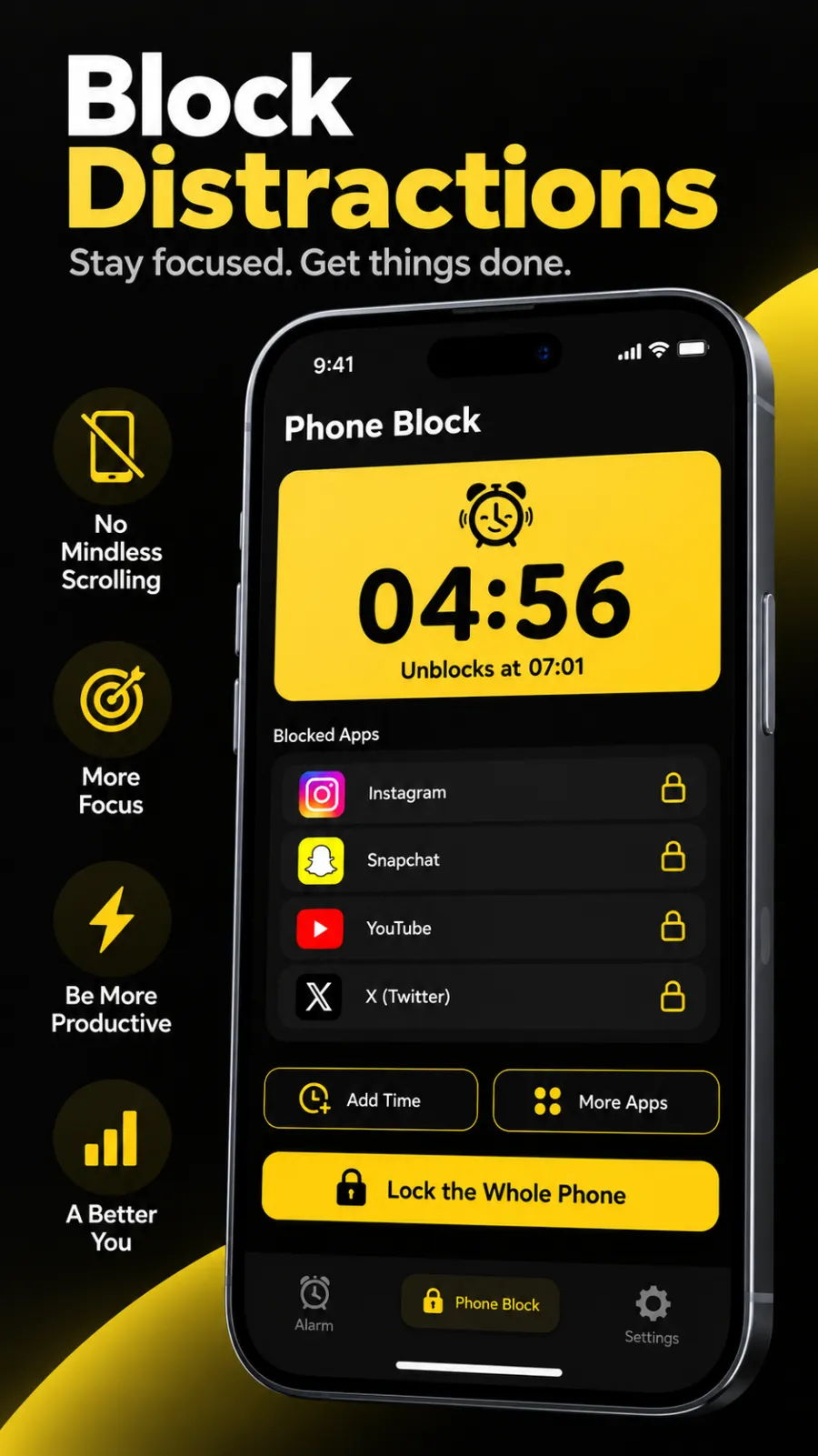
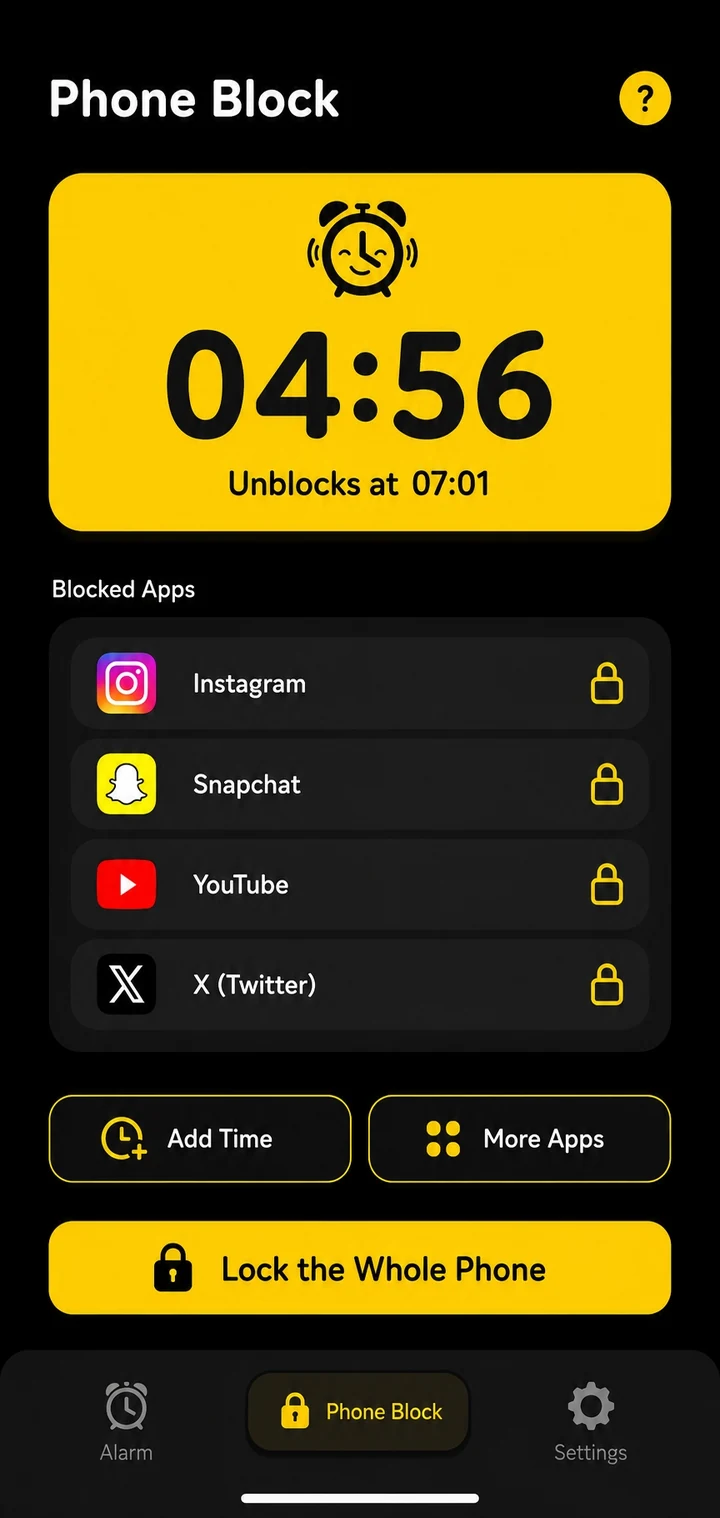
While it runs you see the countdown and the clock time it unblocks. You can add time (+5, +15 or +30 minutes, or +1 hour), add more apps, or turn it into a whole-phone lock — but the app's own rule is that a block "can be made longer or wider, never shorter."
A whole-phone block covers the screen with the countdown and still lets you make calls. Strict mode never silences calls or notifications.
Beyond Alarm
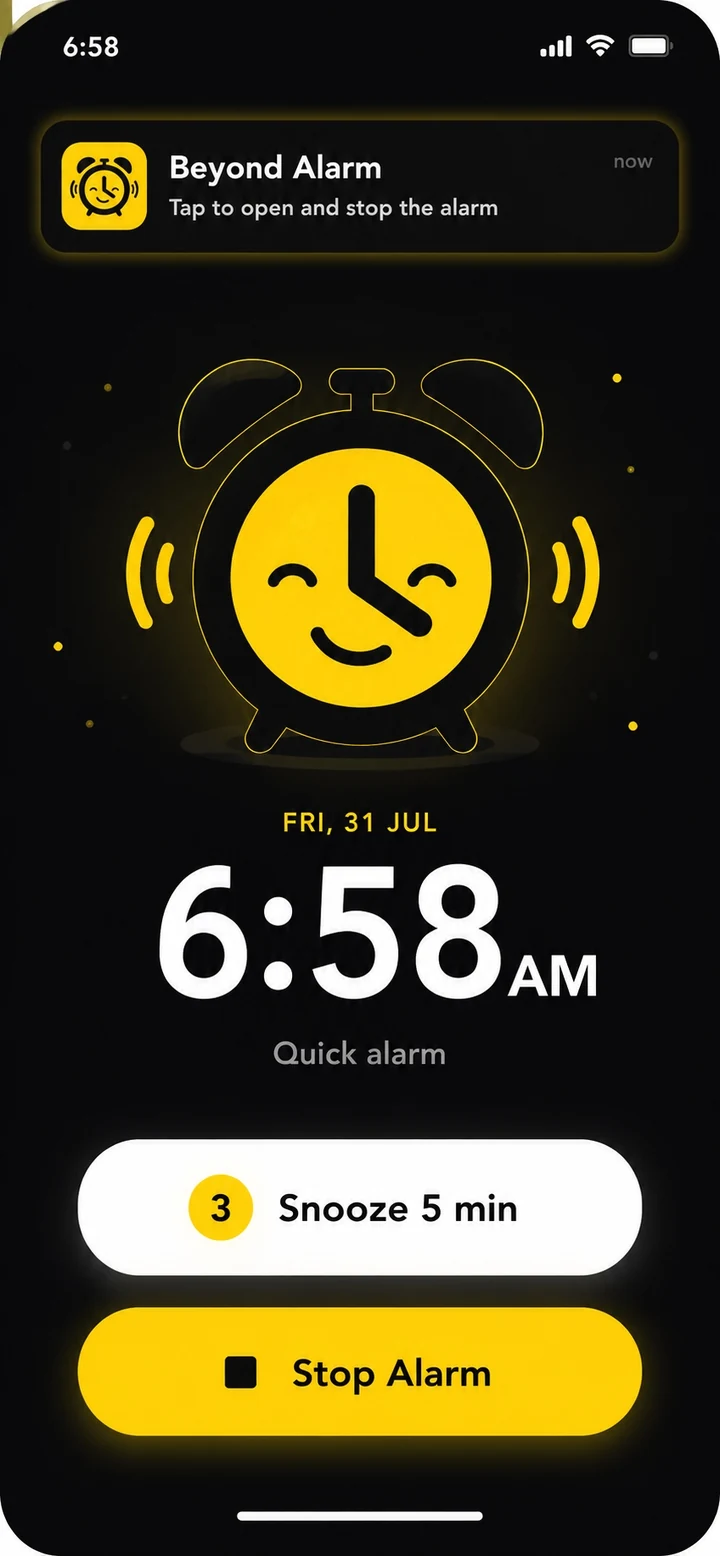
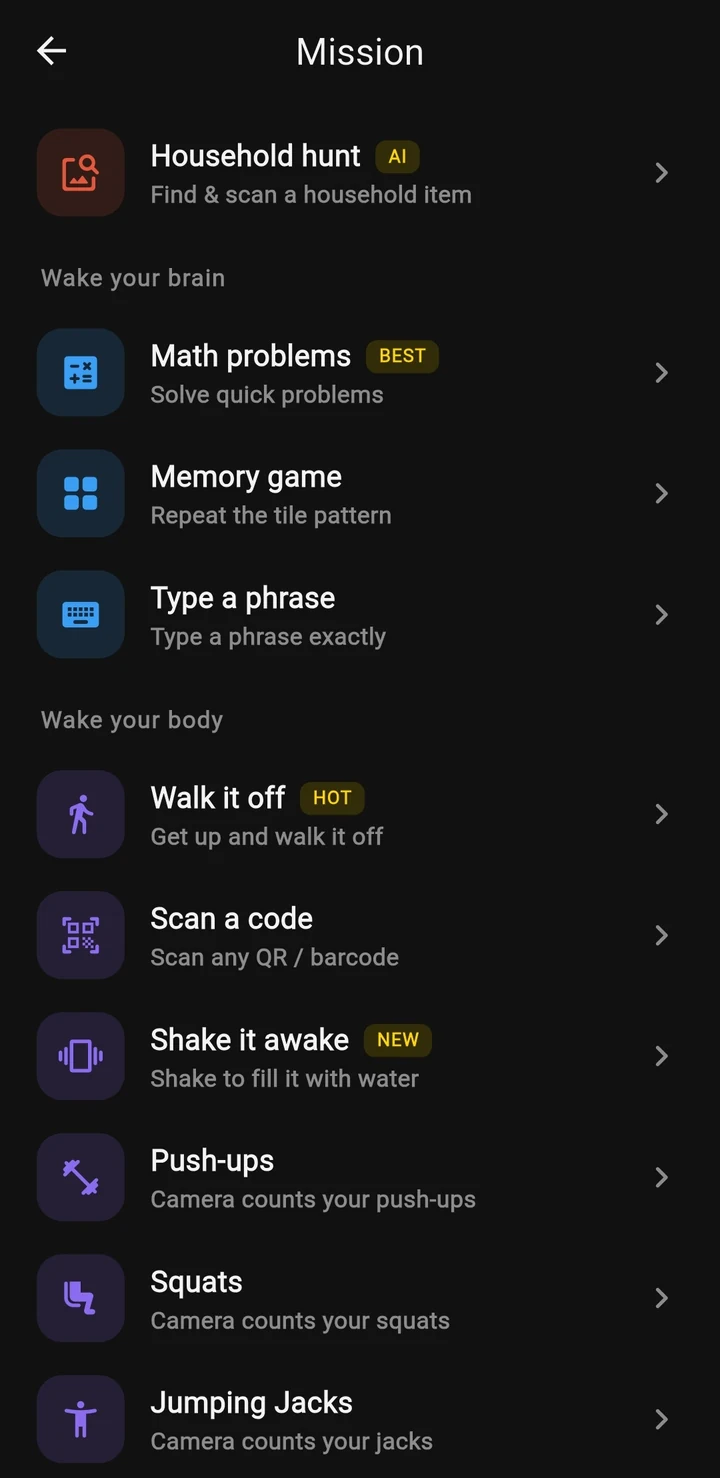
Beyond Alarm does this part for you: the alarm will not switch off until you have actually moved, and the apps you pick stay locked afterwards.


Why a lock timer beats a daily allowance
An allowance asks you to spend wisely all day. A lock timer asks you one question, once, while you're thinking clearly: how long do you need?
It matches how distraction actually happens. You don't lose an evening because you spent your daily 30 minutes of TikTok. You lose it because you opened it "for a second" during the one hour that mattered. A countdown covers that hour, whatever happened earlier.
The exit costs something. In Regular mode, leaving early means an ad and a deliberate five-second hold — lift your finger early and it starts again. On Android you can instead unblock for 5 to 10 minutes, and the block picks back up on its own at the same end time. In Strict mode there is nothing to tap at all.
A restart doesn't reset it. Phone Block stores the clock time the block ends, not a running count, so switching the phone off and on doesn't buy anything. Optional Prevent power-off and Prevent app uninstall in Beyond Alarm's settings close those two routes on Android.
Which timer should you use?
Pick by the problem, not the feature list.
- "I want to get through this hour without my phone." Beyond Alarm, Strict mode, 60 minutes. If studying is the reason, our study timer app guide walks through the setup.
- "I want a focus timer for work, not just study." The focus timer app guide covers lengths and setup on Android and iPhone.
- "Games eat my evenings." Use the ready-made Games list as a game timer.
- "I just want less YouTube overall." A Digital Wellbeing app timer is a fine, free rationing tool — paired with Phone Block for the hours that count.
If you want the whole phone gone rather than a few apps, our guide to locking your phone for an hour compares every way to do it, and the best app blockers for Android covers the wider field.
Want an app timer you can't talk your way out of? Open Phone Block in Beyond Alarm, set the length, pick the apps (or the whole phone) and choose Strict mode. One short ad, and the stop button is gone until the countdown ends. Beyond Alarm is free on Google Play and the App Store.
A note on iPhone
On iPhone the built-in equivalent is Screen Time's App Limits — set up and loopholes covered in iPhone app time limits. Beyond Alarm's Phone Block works there too, through Apple's Screen Time: it shields the apps and whole categories you pick for the length you set. Locking the whole phone is an Android option.
Common questions
How do I set an app timer on Android?
In Digital Wellbeing, open App timers, tap Set timer next to the app and choose a length. Menu names vary by phone. For a timer that locks apps for a set stretch of time instead of a daily allowance, use Beyond Alarm's Phone Block, set the length and pick the apps.
What is the best app timer app for Android?
Beyond Alarm. Its Phone Block is a countdown that locks the apps you choose, or the whole phone, for 5 minutes to 8 hours. In Strict mode there is no stop button until the timer ends, and free users turn it on by watching one short ad.
Can I get around the Android app timer?
Yes. Google's own help page says that to use the app again before the timer resets at midnight, you delete the app timer. That takes a few taps in Settings, which is why a lock you cannot cancel works better for self-control.
When do app timers reset on Android?
Digital Wellbeing app timers reset at midnight, according to Google's Android Help. Beyond Alarm's Phone Block works differently - it runs for the length you set, starting now, and ends at a fixed clock time.
Does restarting my phone stop an app timer?
Not with Beyond Alarm. A Phone Block saves the clock time it ends, so after a restart it picks back up and still finishes at the same time. Its Prevent power-off setting can also close the power menu while a block runs.
We build Beyond Alarm, the alarm for Android and iPhone that will not switch off until you have actually moved, then blocks the apps that pull you back. Most of what we write here comes out of building it.
Beyond Alarm
An alarm that keeps ringing until you’ve actually moved — then blocks the apps that pull you back to bed. Free to start, no account.
Keep reading
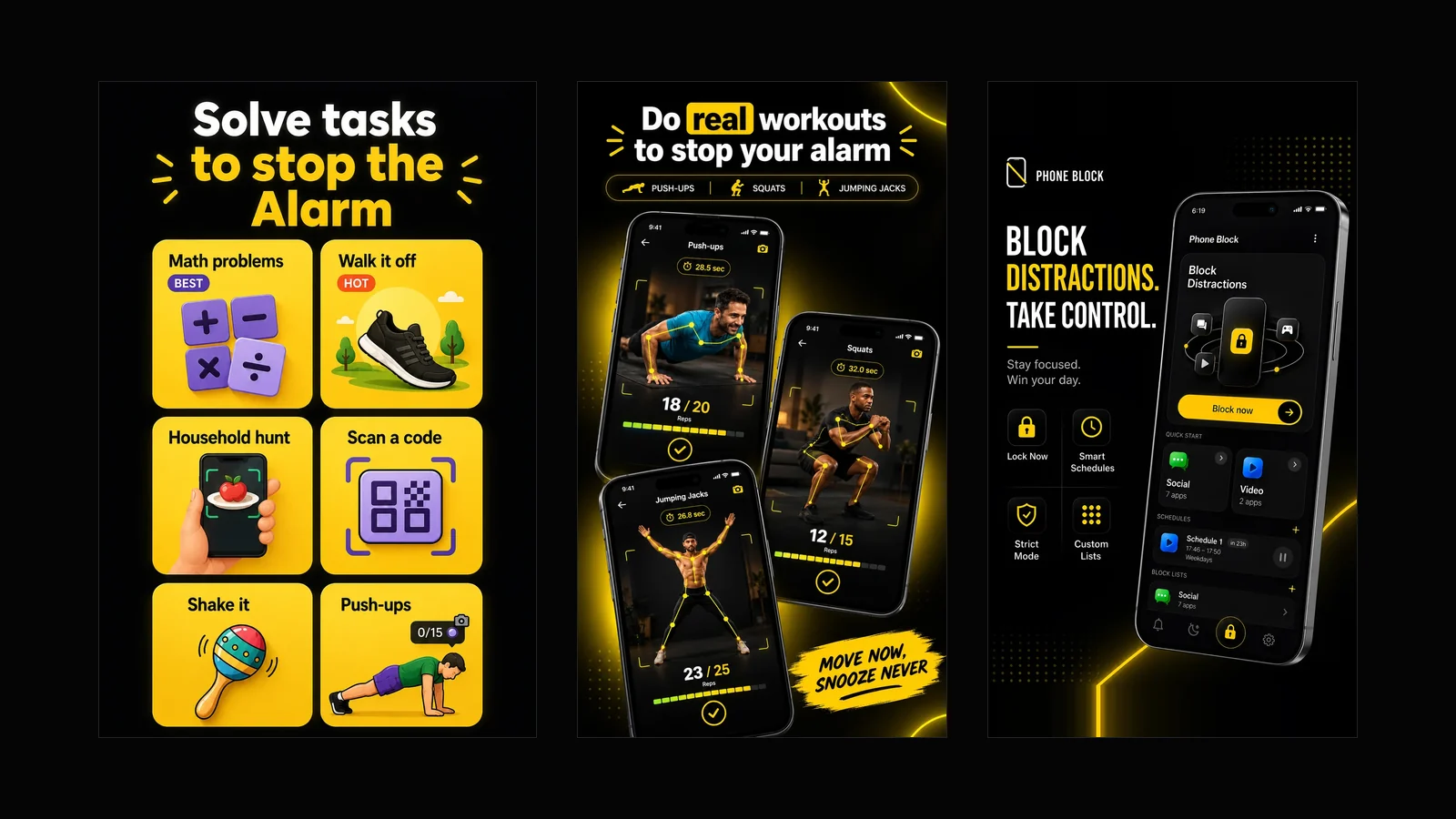
What Beyond Alarm does: wake-up missions and app blocking
The whole app on one page, for Android and iPhone — missions to stop the alarm, app blocking after it, and a free Strict mode Phone Block.
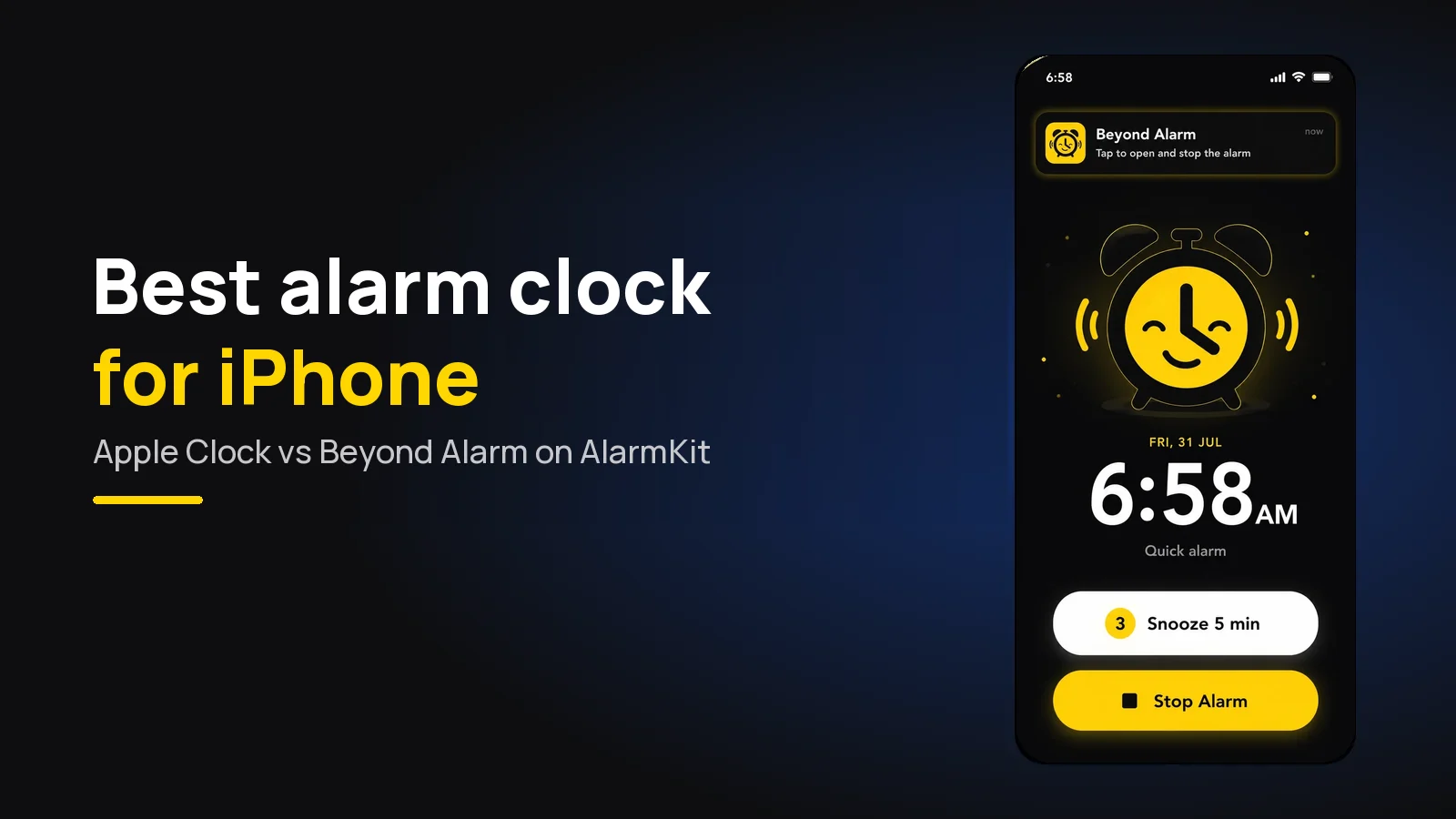
Best alarm clock app for iPhone: Apple Clock vs Beyond Alarm
The best alarm clock for iPhone in 2026. What the Apple alarm clock does, and why Beyond Alarm, built on AlarmKit with wake-up missions, goes further.