
Screen Time on Android: Check It, Then Set a Timer
 Beyond Alarm13 November 2026 · 5 min read
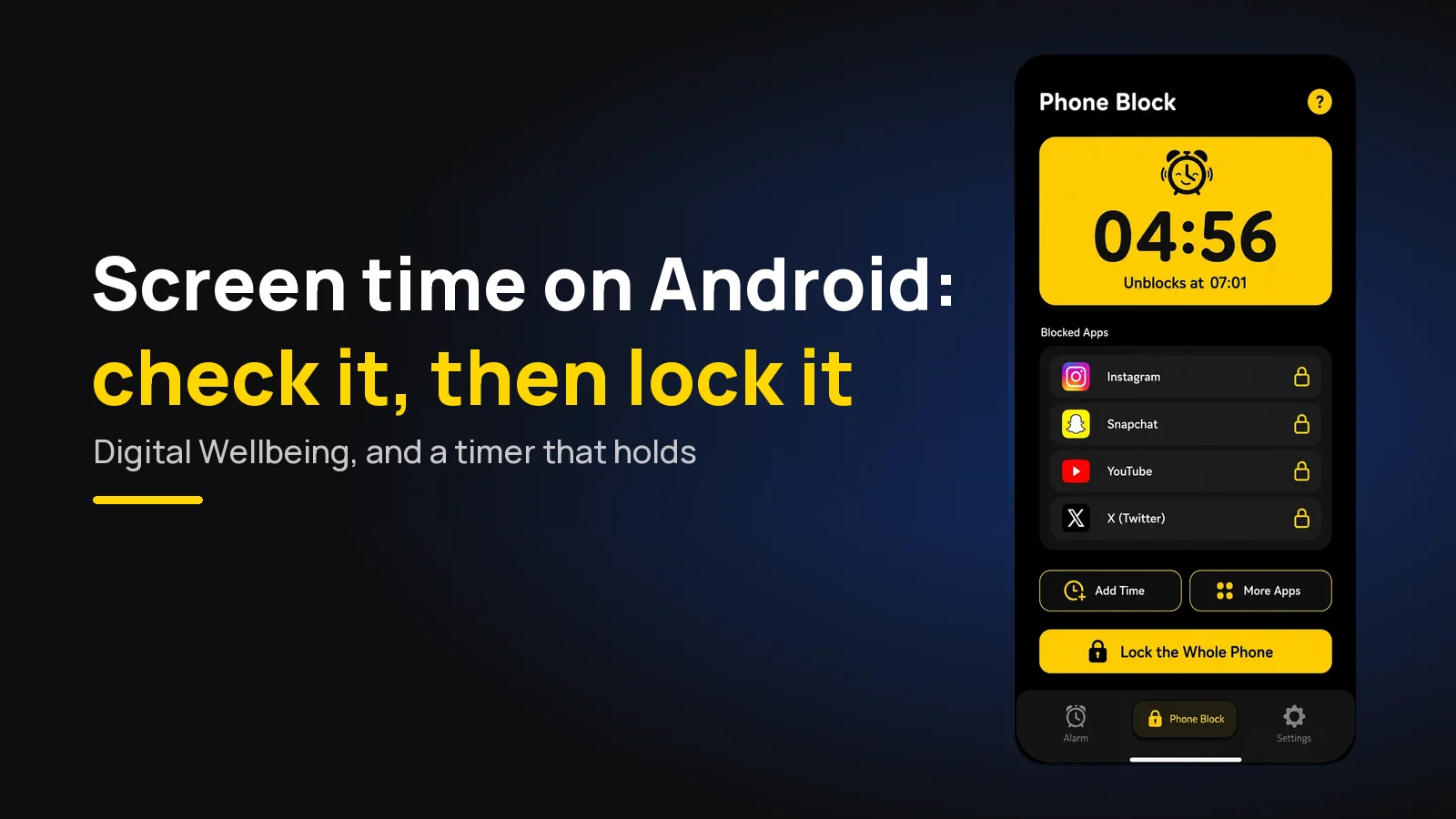
To check your screen time on Android, open Settings → Digital Wellbeing: the chart shows today's use, and tapping it breaks it down by app. To bring the number down, set a timer that locks apps — Beyond Alarm's Phone Block keeps your chosen apps shut until its countdown ends.
Seeing the number is step one. Most people check it, wince, and change nothing, because nothing in the dashboard stops the next hour going the same way.
The short version:
- Check it: Settings → Digital Wellbeing. Screen time, times opened and notifications, per app. Menu names vary by phone.
- Lock it: Beyond Alarm's Phone Block locks your top apps — or the whole phone — for 5 minutes to 8 hours. Strict mode has no stop button, free after one short ad.
- Built-in app timers ration each app per day and reset at midnight.
- Target the hours, not the total: the evening and the first hour of the morning are where most screen time hides.
How to see your screen time on Android
The steps below are from Google's Digital Wellbeing help page, read at the time of writing. Samsung, Xiaomi and other brands rename some menus, so search Settings for "Digital Wellbeing" or "screen time" if the path doesn't match.
- Open Settings and tap Digital Wellbeing.
- Look at the chart — Google's words: "The chart shows your device use today."
- Tap the chart for more: which apps were on screen and for how long.
Google's page lists three numbers worth knowing:
| What Android shows | What it tells you | What to do about it |
|---|---|---|
| Screen time | Which apps were on screen, and for how long | Your top two or three apps go on a Phone Block list |
| Times opened | How often you unlocked the phone and opened apps | High counts mean habit-checking — short locked blocks help most |
| Notifications received | How many notifications, from which apps | Turn off the noisiest ones; they start the checking |
To reach it faster, turn on Show icon in the app list in Digital Wellbeing. On Android 9 and later there's also a screen time widget for the home screen.
From number to timer: lock the apps behind it
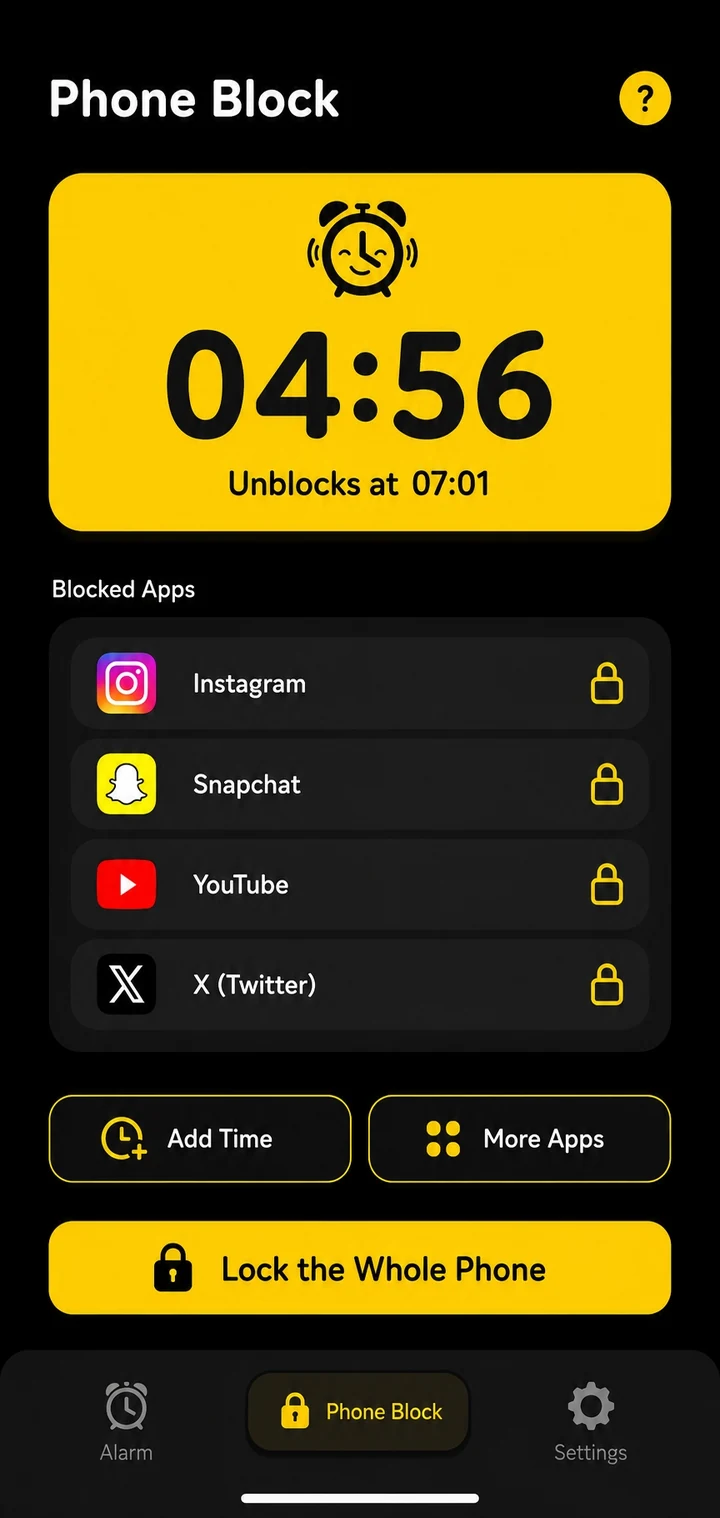
Once you know which apps take the time, the fix is a lock on those apps for the hours you want back. That's what Beyond Alarm's Phone Block is: a timer that locks apps.
- Open Phone Block and tap Block now.
- Set the length. Presets are 15, 30 and 45 minutes, 1 hour, 1.5 and 2 hours. Custom goes from 5 minutes to 8 hours.
- Choose what to block. Your top apps from the dashboard, a ready-made list (Social, Video, Games, Shopping — filled from the apps you have installed), or the whole phone.
- Pick Strict mode — one short ad, then no stop button until it ends — or Regular mode, which lets you leave early with an ad and a five-second hold.
- Start. You see the countdown and the exact time it unblocks.
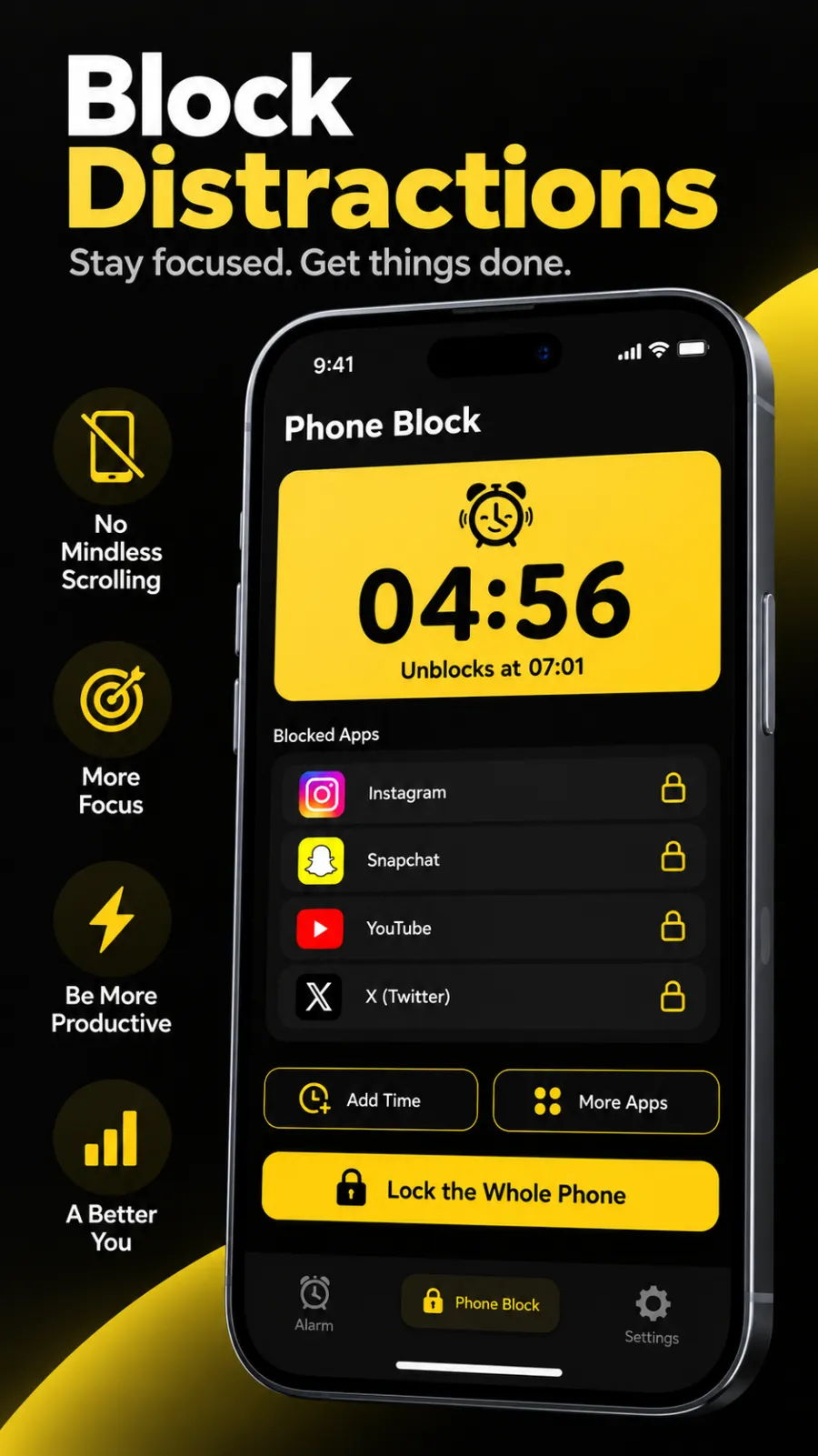
During a block you can add time (+5, +15, +30 minutes or +1 hour) or more apps, never take time off. Calls still come through, even with the whole phone locked. Restarting the phone doesn't end it: the block saves its end time and picks back up.
Beyond Alarm
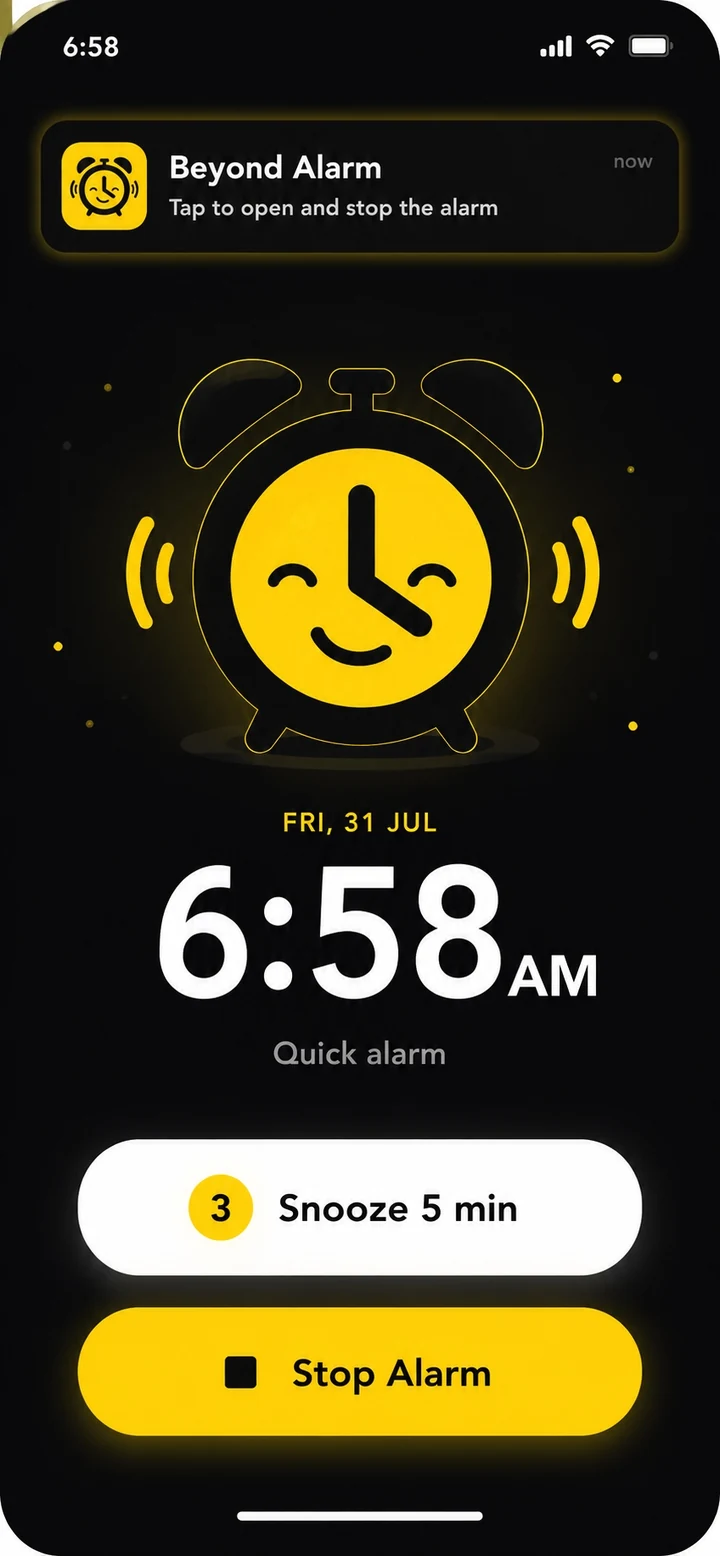
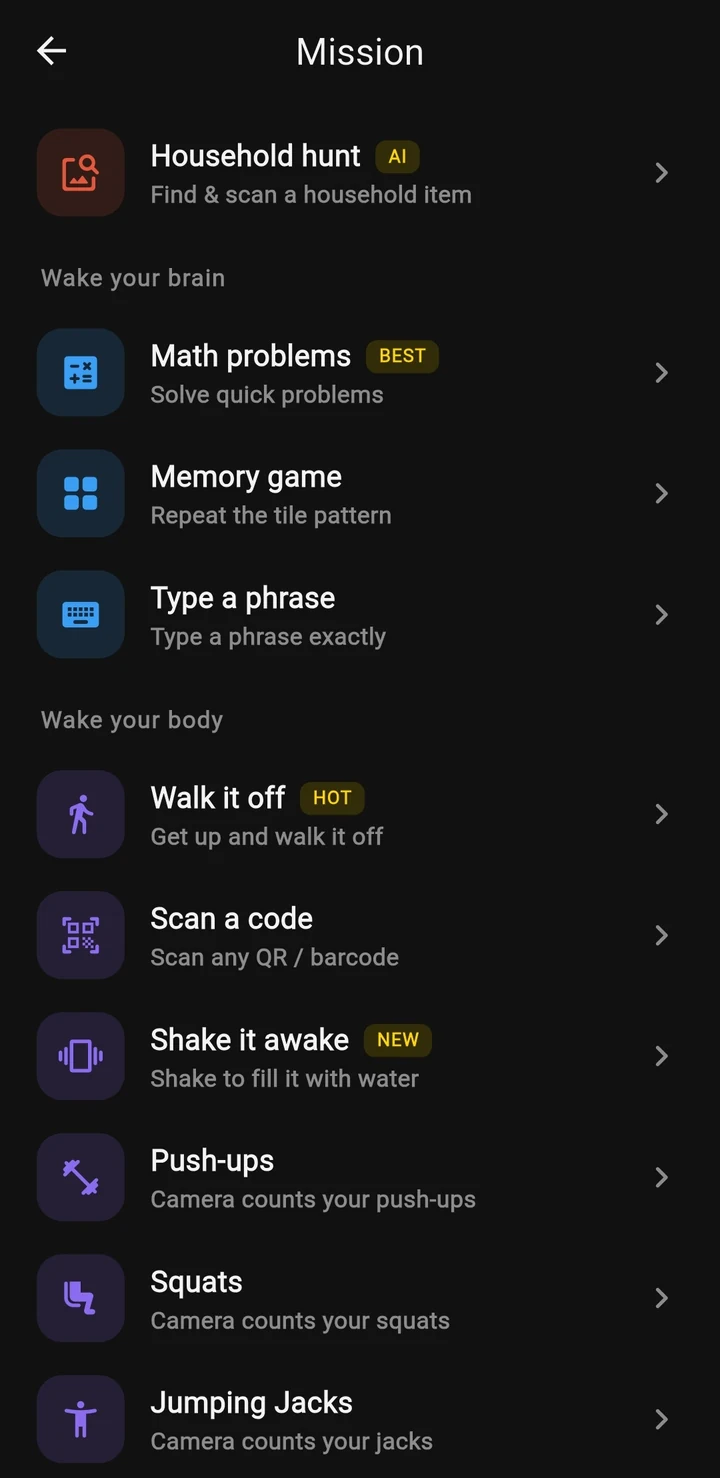
Beyond Alarm does this part for you: the alarm will not switch off until you have actually moved, and the apps you pick stay locked afterwards.


App timers vs a lock timer
Android's own app timers are the obvious next step after the dashboard. They're free and worth knowing, but they solve a different problem.
| Beyond Alarm Phone Block | Digital Wellbeing app timer | |
|---|---|---|
| Measures | A countdown from now | Minutes per app per day |
| Resets | Ends at the time you set | At midnight |
| Locks | Chosen apps, lists, or the whole phone | One app per timer |
| Way out | Strict mode: none. Regular mode: ad plus five-second hold | Delete the timer in Settings |
Google's page says that when an app timer runs out, "the app closes and its icon dims" — and that to use it again before midnight you delete the timer. We compare the two in more depth in app timer for Android.
Where to put your timers
Your dashboard usually shows the pattern. For most people it's one of these.
The first hour of the morning. If the alarm is on your phone, the feed is one swipe away. A short Phone Block straight after waking — or Beyond Alarm's alarm missions, which get you out of bed first — keeps that hour. See why you reach for your phone first thing.
The evening. A two-hour Strict block after dinner covers the stretch where "five minutes" becomes the night.
Work and study. Run Phone Block as a focus timer or a study timer that blocks apps for each session.
Games. If the dashboard is mostly games, the game timer app guide shows the one-list setup.
Turn today's screen time number into a plan: open Phone Block in Beyond Alarm, add the top apps from your Digital Wellbeing dashboard, set two hours and switch on Strict mode. One short ad, and those apps stay shut until the countdown ends. Beyond Alarm is free on Google Play and the App Store.
Is my screen time normal?
That depends on what's in it — eight hours of navigation and work calls is not the same as eight hours of short video. We look at the averages, and what's worth worrying about, in how much screen time is normal, and the wider plan is in how to reduce screen time.
Check the dashboard again after a week of locked blocks. The number that matters is not the total, but whether the hours you protected stayed yours.
Common questions
How do I check my screen time on Android?
Open Settings and tap Digital Wellbeing. The chart shows today's use; tap it for screen time per app, how often you unlocked and opened apps, and notifications received. Menu names vary by phone, so search Settings for Digital Wellbeing if you can't find it.
How do I set a screen time limit on Android?
Digital Wellbeing's app timers set a daily allowance per app that resets at midnight. To lock apps for a set time starting now, use Beyond Alarm's Phone Block - choose a length and the apps, or the whole phone, and they stay locked until the countdown ends.
What is a good screen time timer app for Android?
Beyond Alarm. Its Phone Block is a countdown from 5 minutes to 8 hours that locks chosen apps or the whole phone. In Strict mode there is no stop button until the timer ends, unlocked by watching one short ad.
Can I put the Digital Wellbeing icon on my home screen?
Yes. Google's help page says to open Settings, tap Digital Wellbeing and turn on Show icon in the app list. It also offers a screen time widget on Android 9 and later.
Does checking screen time reduce it?
Not on its own. The number tells you where the time goes; a timer that locks the worst apps for the hours that matter is what changes it.
We build Beyond Alarm, the alarm for Android and iPhone that will not switch off until you have actually moved, then blocks the apps that pull you back. Most of what we write here comes out of building it.
Beyond Alarm
An alarm that keeps ringing until you’ve actually moved — then blocks the apps that pull you back to bed. Free to start, no account.
Keep reading
How to block YouTube Shorts on Android and iPhone
Stop YouTube Shorts on Android and iPhone: block the YouTube app with Beyond Alarm's Phone Block, plus what YouTube's own settings can hide.
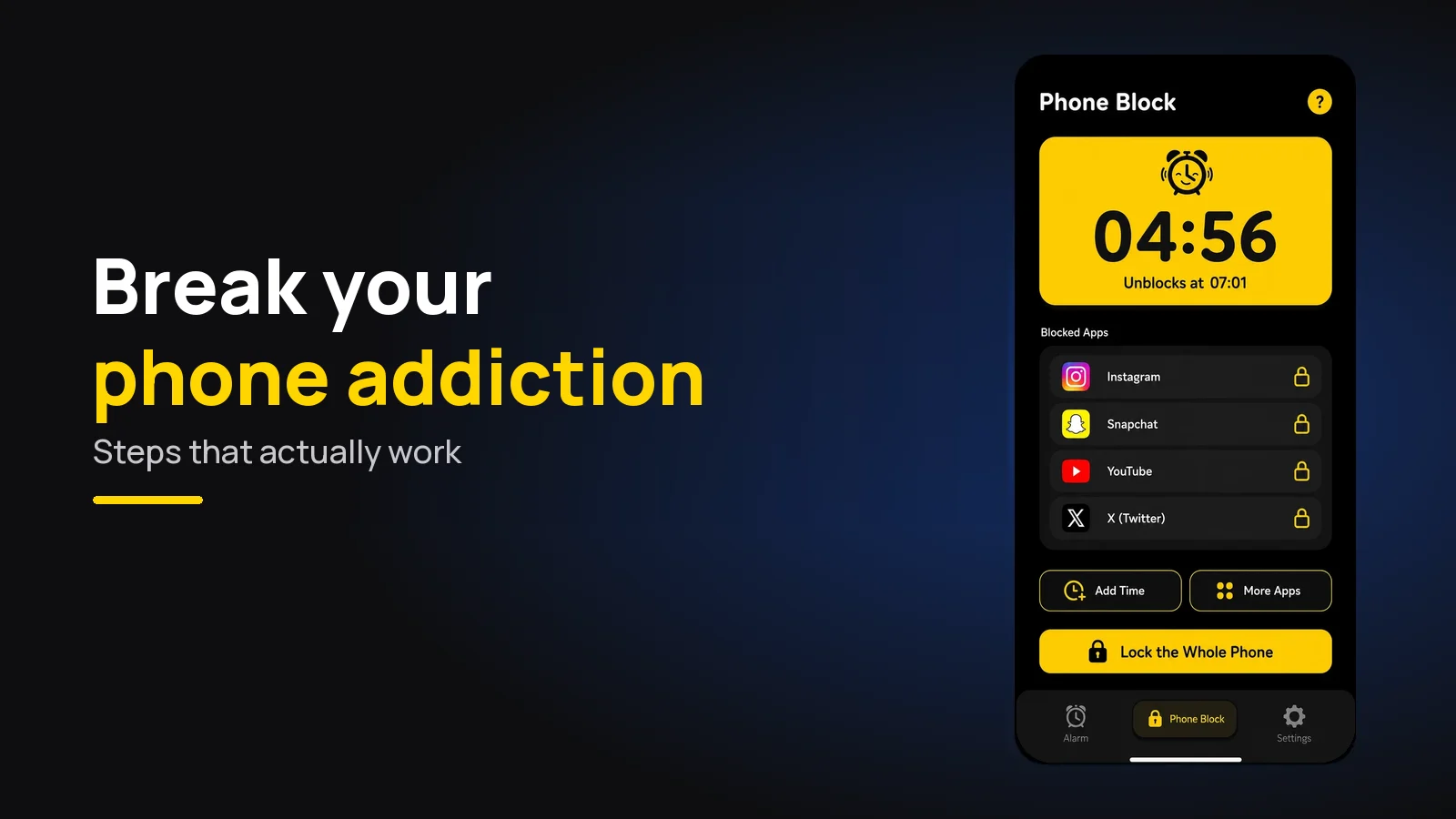
How to break phone addiction - 8 changes that work
Willpower alone rarely breaks a phone habit. Eight changes to your surroundings that do, how long it takes, and what to skip.