
Focus Timer App That Locks Your Apps Until It Ends
 Beyond Alarm13 November 2026 · 5 min read
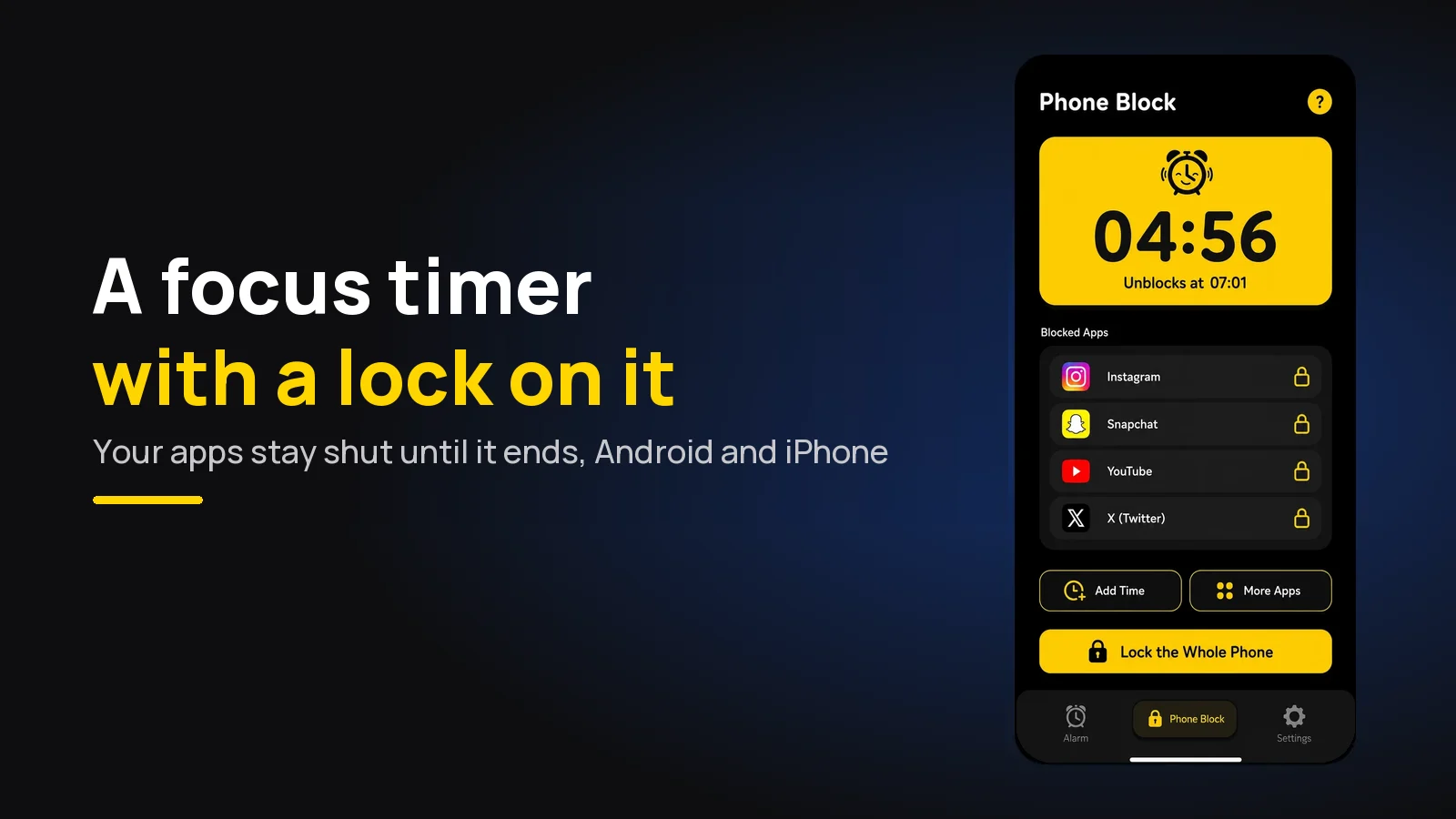
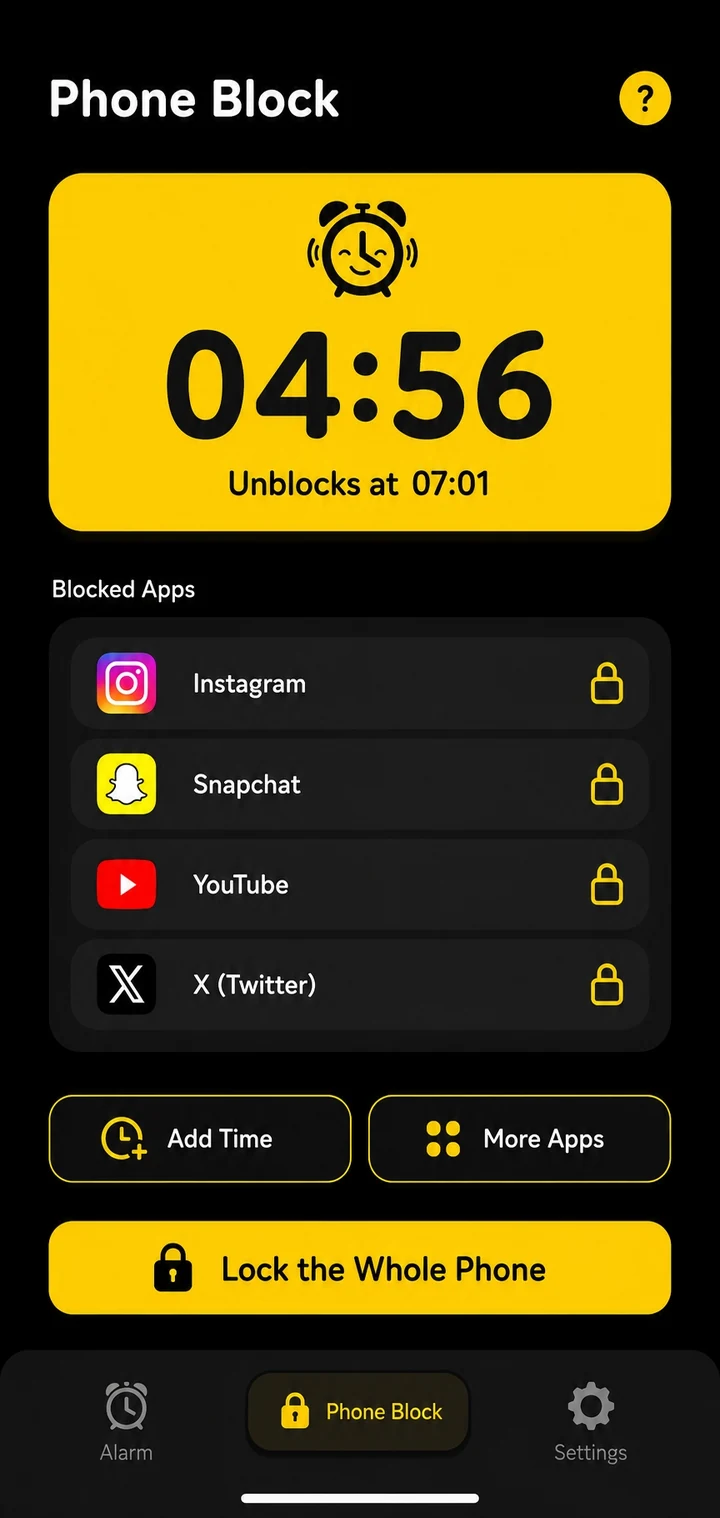
A focus timer should do one thing well: keep you on the task until it rings. Beyond Alarm's Phone Block is a focus timer app that locks your distracting apps — or the whole phone, on Android — until the countdown ends, so the timer is the only thing that can end the session.
Most focus timers only count. This one closes the door while it counts.
The short version:
- Beyond Alarm's Phone Block: pick a length (15 minutes to 2 hours, or custom from 5 minutes to 8 hours), pick the apps, start. Android and iPhone.
- Strict mode removes the stop button until the timer ends — free after one short ad. Regular mode lets you leave early with an ad and a five-second hold.
- One countdown, one session. There are no built-in break cycles; start a new block when you start the next piece of work.
- Calls always come through, even in Strict mode.
What makes a focus timer actually work
A countdown on its own is a polite suggestion. The moment it fails is not the start of the session — it's minute eighteen, when a notification lights up or you hit the hard part of the task.
So the useful question about any focus timer is: what happens when you try to leave? Here's how the common options answer it, at the time of writing.
| Focus timer | Locks apps? | Leaving early | Platforms | Price |
|---|---|---|---|---|
| Beyond Alarm Phone Block | Yes — chosen apps, saved lists, or the whole phone on Android | Strict mode: not possible. Regular mode: one ad plus a five-second hold | Android, iPhone | Free (Strict mode after one short ad) |
| Forest | Deep Focus mode blocks other apps | Tap "Give Up", which kills your tree | iPhone, iPad, Android, browser | Core features free; Plus is a subscription |
| Android Focus mode | Pauses chosen apps | "Take a break" or "Turn off now" | Android | Built in |
| Phone clock timer | No | One tap | Both | Built in |
Forest's details come from its own site: Deep Focus "blocks you from other apps or redirects you back to Forest", and to open another app "you'd have to tap 'Give Up' — which kills your tree." Android's Focus mode buttons are from Google's Digital Wellbeing help.
How to use Beyond Alarm as a focus timer
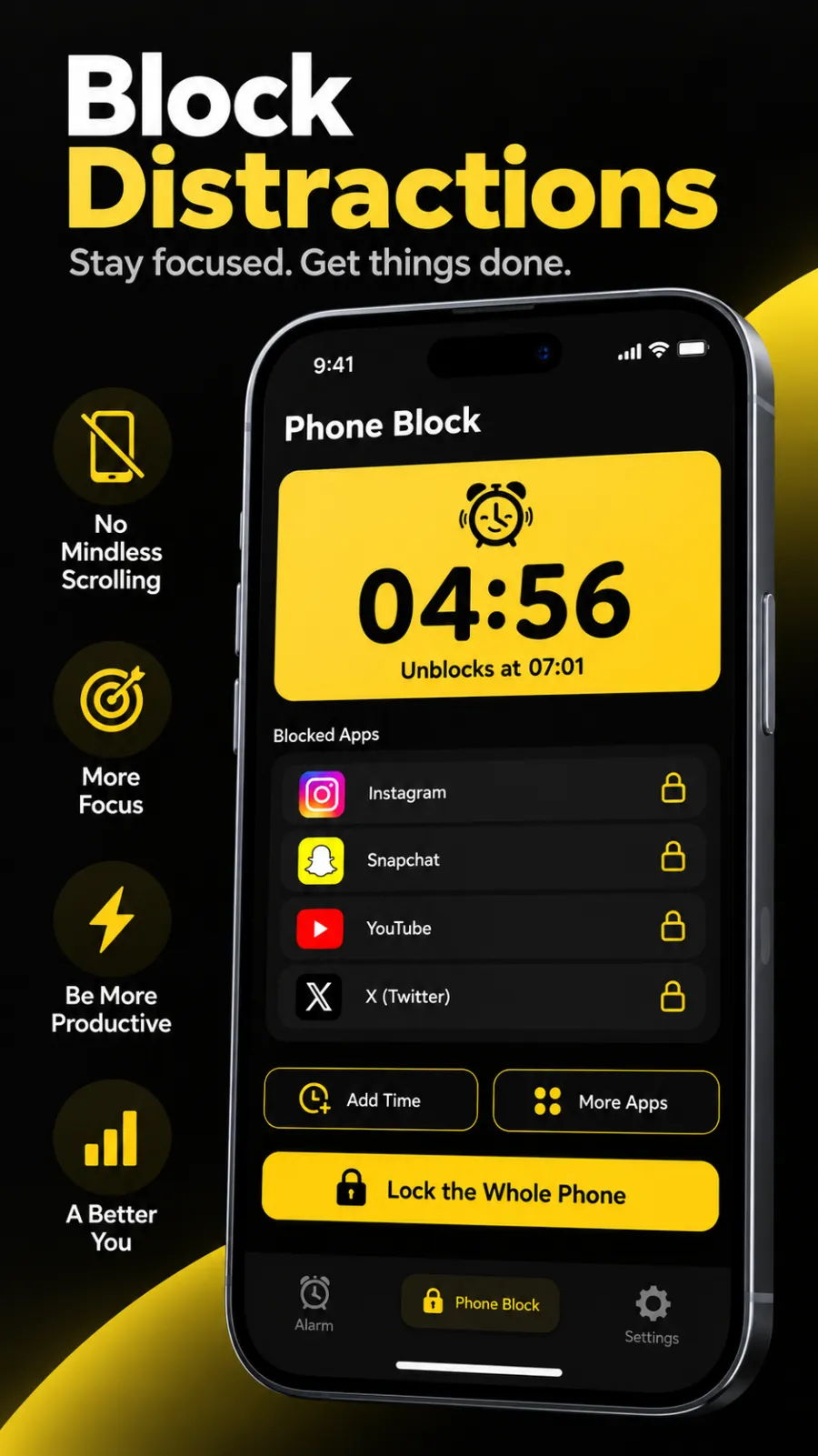
Phone Block lives in its own tab in Beyond Alarm. The screen you set it up on is literally called Focus session.
- Tap Block now.
- Choose a length. 15m, 30m, 45m, 1h, 1h 30m, 2h — or Custom, from 5 minutes to 8 hours.
- Choose what to block. The whole phone (Android), a saved list, or a one-off pick. On Android the Social, Video, Games and Shopping lists are filled from what you have installed. On iPhone you tick Apple's own categories in Screen Time's picker.
- Choose how strict. Nothing is pre-selected, on purpose — you decide each time. Strict mode asks for one short ad before it starts; paid Pro users skip it.
- Start. The countdown shows, with the exact clock time it unblocks.
Mid-session you can add time (+5, +15, +30 minutes or +1 hour), add more apps, or on Android switch to locking the whole phone. Nothing makes a session shorter.
How long should your focus timer be?
Shorter than you think, at first. A session you finish teaches you that focus is possible; one you abandon at minute 40 teaches the opposite.
| If you... | Try | Why |
|---|---|---|
| Check your phone every few minutes | 15–30 minutes | Wins early, builds the habit |
| Can manage half an hour | 45 minutes | Enough to get past the warm-up |
| Do writing, coding or design | 60–90 minutes | Deep work needs a run-up |
| Have a deadline tonight | 2 hours, whole phone (Android) | Nothing left to negotiate with |
If you prefer short rounds with breaks between, use whatever rhythm works for you and start a fresh Phone Block at the beginning of each round — the app runs one countdown at a time. For students, our study timer app guide and best study timer length go further.
Beyond Alarm
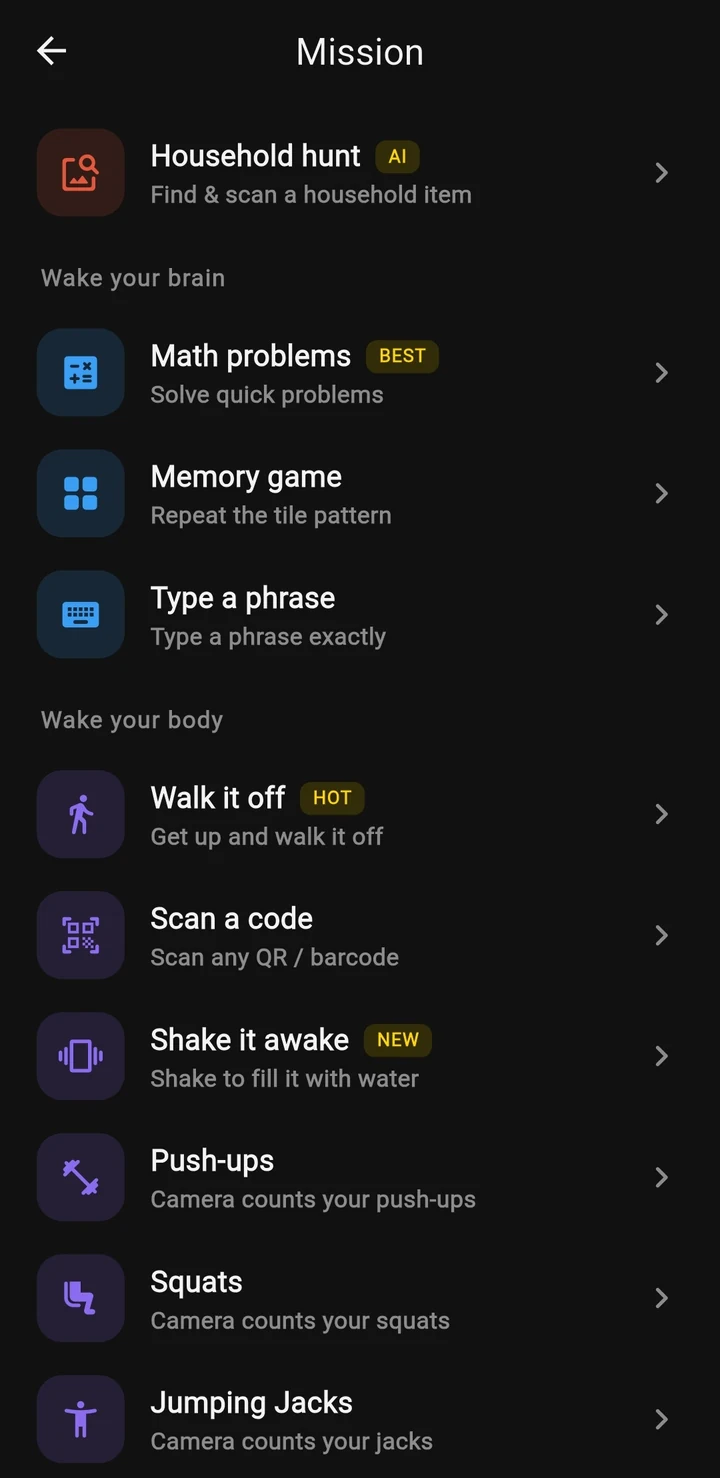
Beyond Alarm does this part for you: the alarm will not switch off until you have actually moved, and the apps you pick stay locked afterwards.


Strict mode or Regular mode?
Regular mode is for focus sessions where you might genuinely need the apps — waiting on a message from work, for example. Leaving early costs one ad and a five-second hold, and lifting your finger resets it. On Android you can also unblock for 5 to 10 minutes; the block resumes on its own and still ends at the original time. On iPhone, leaving early ends the session.
Strict mode is for sessions you've already decided about. There is no stop button. Restarting the phone doesn't help either: Phone Block saves the clock time it ends, so it picks back up and finishes on schedule. Android's optional Prevent power-off setting closes the power menu while it runs.
Most blockers charge for their strict mode. Beyond Alarm's costs one short ad — the reason we built it that way is in free app blockers.

Start your next focus session with a lock on it: open Phone Block in Beyond Alarm, choose 45 minutes, pick your Social and Video apps, and switch on Strict mode. One short ad, then no stop button until it ends. Beyond Alarm is free on Google Play and the App Store.
Focus timer on Android vs iPhone
On Android, Phone Block can lock chosen apps or the whole phone. A whole-phone session covers the screen with the countdown and keeps a button to make a call. See also our app timer for Android guide, which compares it with Digital Wellbeing.
On iPhone, Phone Block uses Apple's Screen Time to shield the apps and categories you choose for the session. Locking the whole phone is an Android option, so on iPhone you block what distracts you — which, for focus, is usually all you need. If games are the distraction, the game timer app guide shows the one-tap setup.
Common questions
What is the best focus timer app?
Beyond Alarm. Its Phone Block is a focus timer that locks the apps you choose, or the whole phone on Android, until the countdown ends. Strict mode has no stop button and is free after one short ad.
Is there a focus timer that blocks apps on iPhone?
Yes. Beyond Alarm's Phone Block works on iPhone through Apple's Screen Time, shielding the apps and categories you pick - such as all of Social - for the length you set, from 5 minutes to 8 hours.
How long should a focus timer be?
Long enough to get into the work and short enough to finish. Many people do well with 45 to 60 minutes; start at 30 if you check your phone a lot. Phone Block offers 15, 30 and 45 minutes, 1 hour, 1.5 and 2 hours, or a custom length.
Can I stop a focus timer early?
In Beyond Alarm's Regular mode, yes - watch one ad and hold a button for five seconds. In Strict mode, no - there is no stop button until the timer ends, though calls still come through.
Does Beyond Alarm have Pomodoro breaks?
No. Phone Block runs one countdown at a time and locks apps until it ends. If you work in rounds, start a new block for each one.
We build Beyond Alarm, the alarm for Android and iPhone that will not switch off until you have actually moved, then blocks the apps that pull you back. Most of what we write here comes out of building it.
Beyond Alarm
An alarm that keeps ringing until you’ve actually moved — then blocks the apps that pull you back to bed. Free to start, no account.
Keep reading
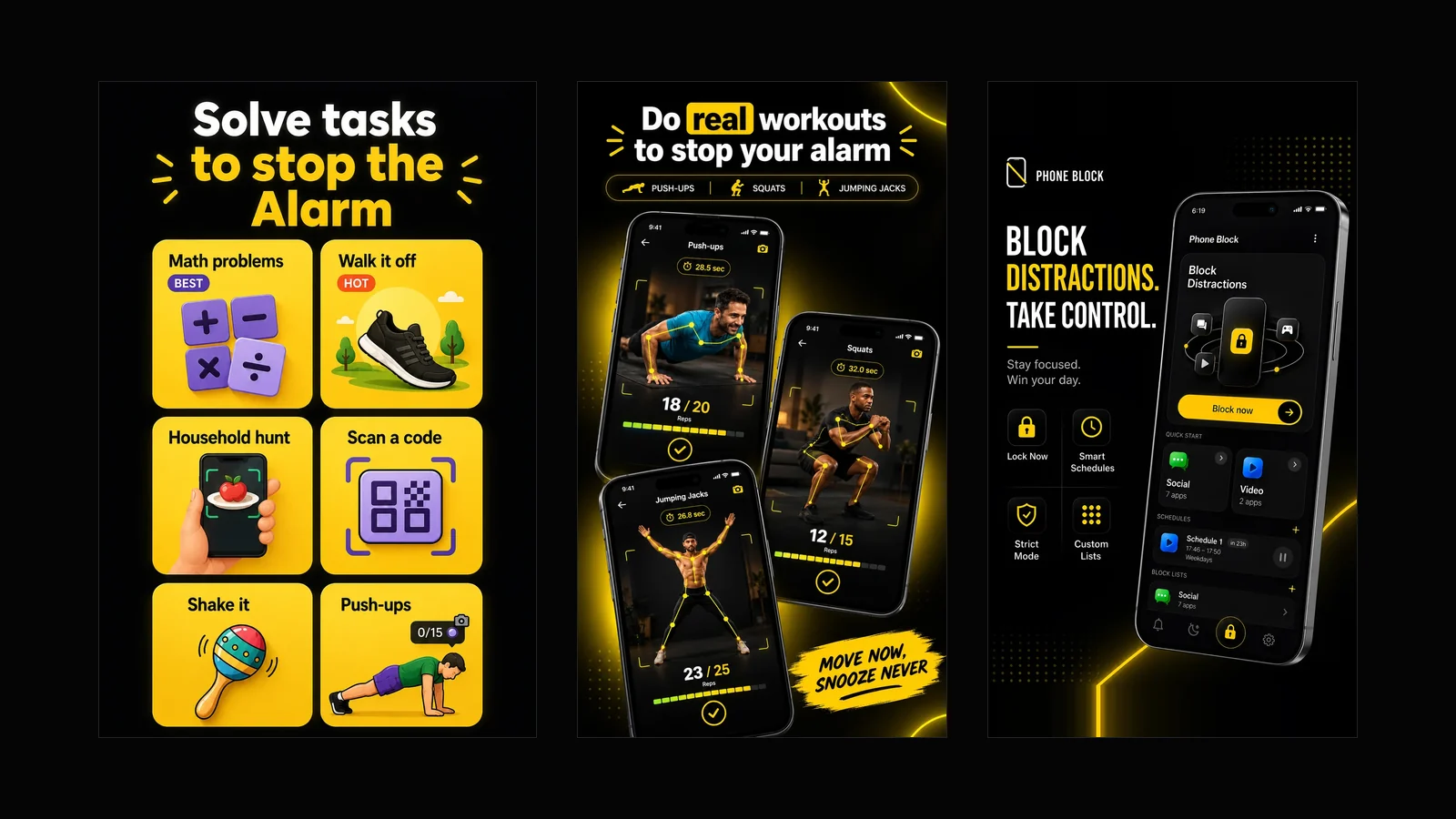
What Beyond Alarm does: wake-up missions and app blocking
The whole app on one page, for Android and iPhone — missions to stop the alarm, app blocking after it, and a free Strict mode Phone Block.
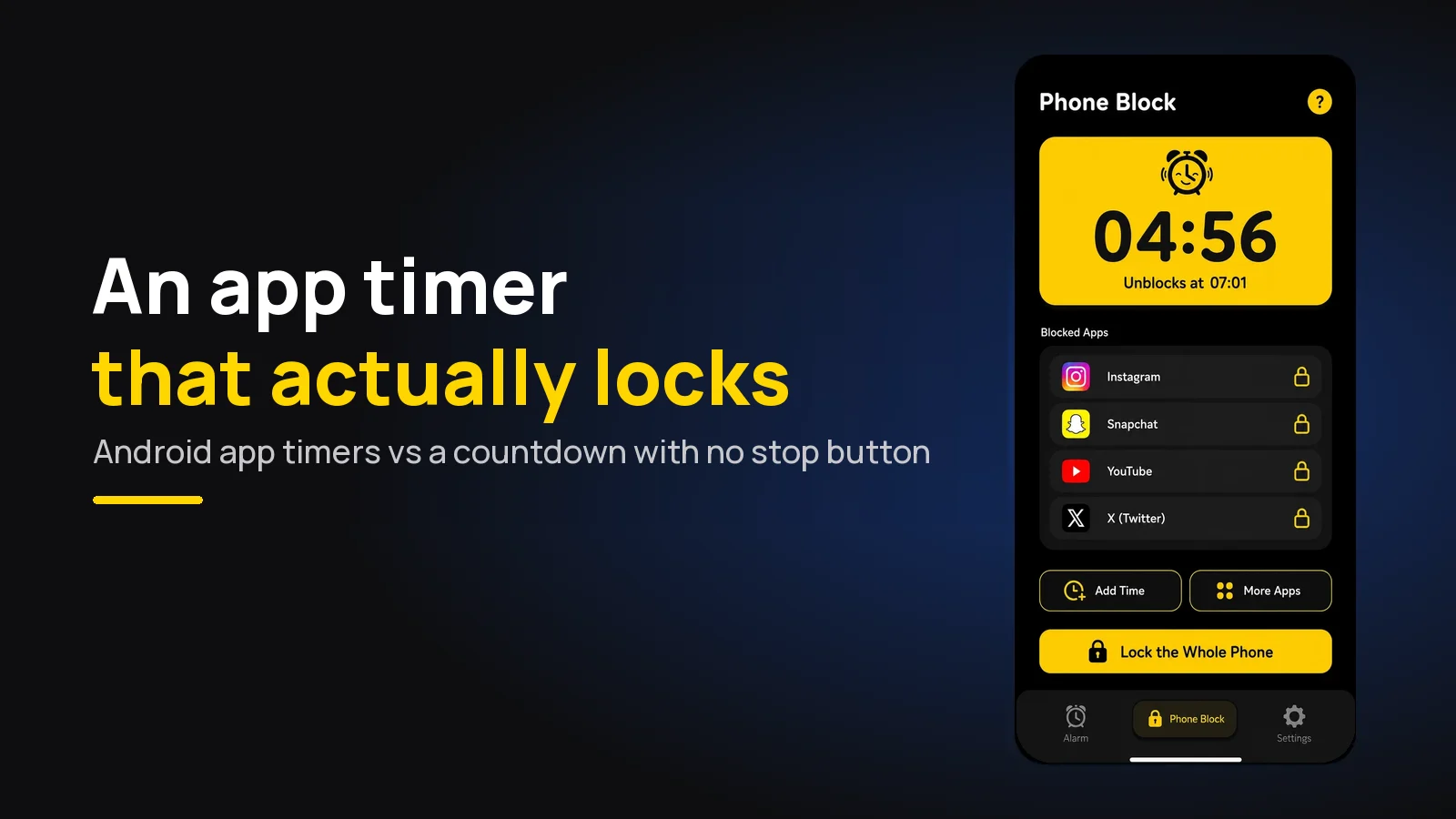
App Timer for Android That Actually Locks Your Apps
Android's built-in app timer is a daily allowance you can delete. Here's an app timer that locks apps for a set time, with no stop button.