
Game Timer App: Lock Your Games for a Set Time
 Beyond Alarm13 November 2026 · 4 min read
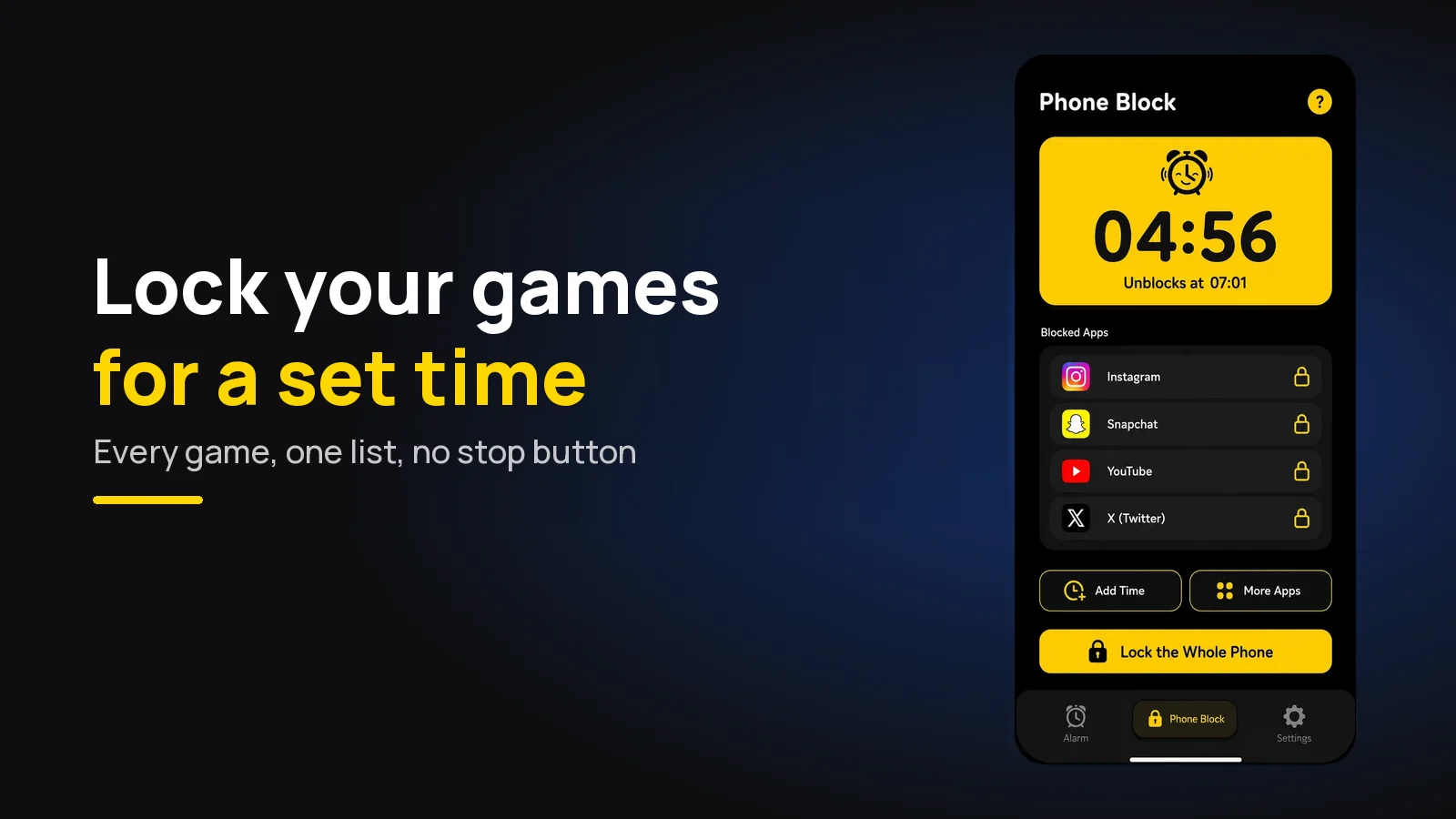
A game timer app that works has to lock the games, not just time them. Beyond Alarm's Phone Block does that: choose the Games list, set a length — an hour, an evening, up to 8 hours — and every game on it stays shut until the countdown ends.
"One more match" is a promise nobody keeps. A lock doesn't ask you to.
The short version:
- Beyond Alarm's Phone Block locks your games for 5 minutes to 8 hours, on Android and iPhone.
- On Android, a ready-made Games list is filled from the games you have installed — Free Fire, BGMI, Call of Duty, Clash of Clans, Roblox, Minecraft and more.
- On iPhone, tick Apple's Games category once and every game is covered, including ones you install later.
- Strict mode has no stop button until the timer ends. It's free after one short ad.
Game timer vs game lock: what each option does
A timer that counts how long you've played is useful information. A timer that stops you playing is a different tool. Here's how the options compare at the time of writing.
| Beyond Alarm Phone Block | Digital Wellbeing app timer (Android) | A countdown on the phone clock | |
|---|---|---|---|
| What it does | Locks all chosen games until the countdown ends | Gives each game a daily allowance | Rings when time is up |
| Covers all games at once | Yes — Games list (Android) or Games category (iPhone) | No, one timer per app | No |
| Timing | A set length, starting now | Per day, resets at midnight | A set length |
| Ending it early | Strict mode: not possible. Regular mode: ad plus five-second hold | Delete the timer in Settings | One tap |
| Price | Free (Strict mode after one short ad) | Built in | Built in |
The Digital Wellbeing details are from Google's Android Help: when an app timer runs out, "the app closes and its icon dims", and "App timers reset at midnight". To play again before then, Google's instructions are to delete the timer.
How to lock your games with Beyond Alarm
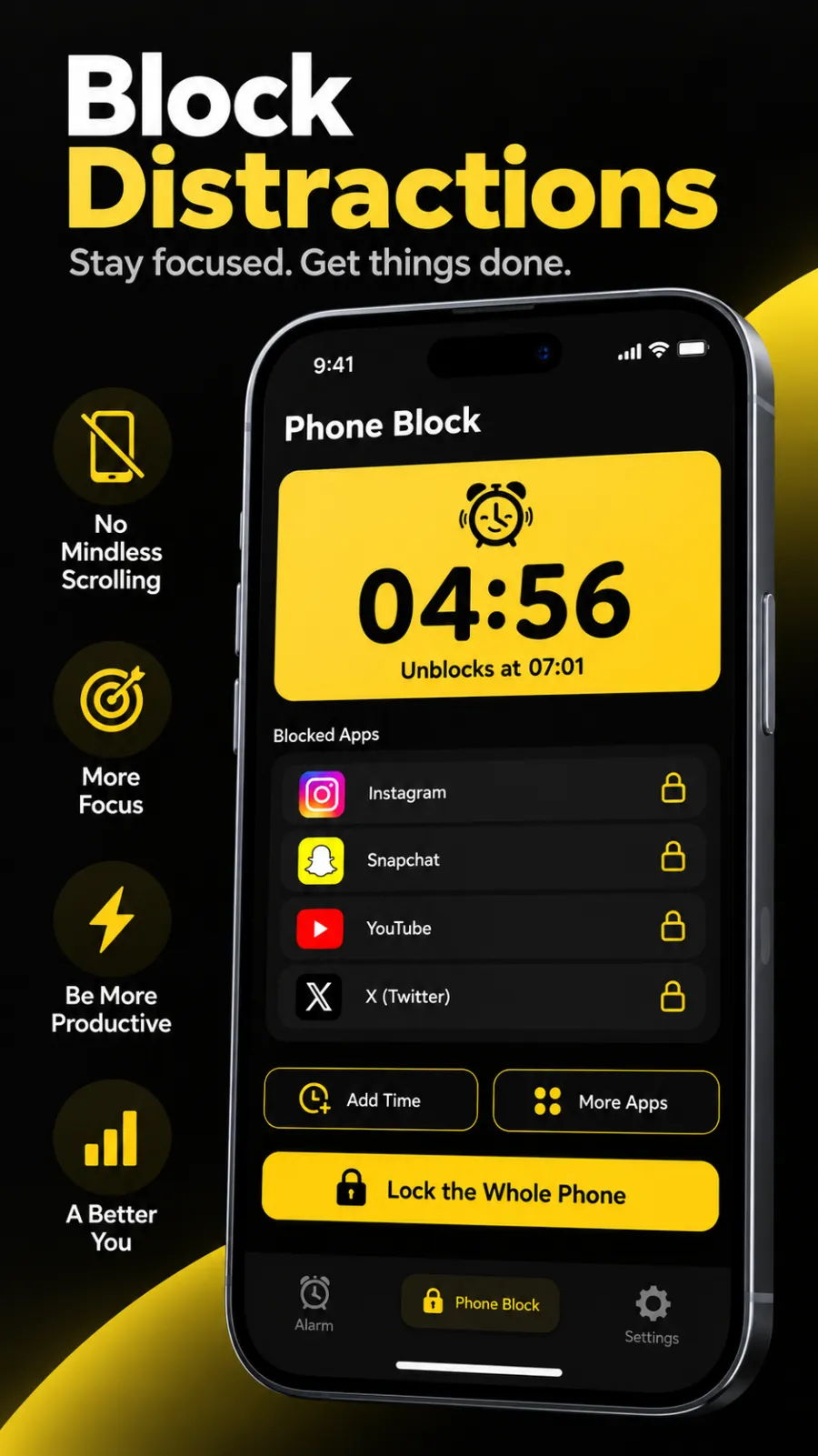
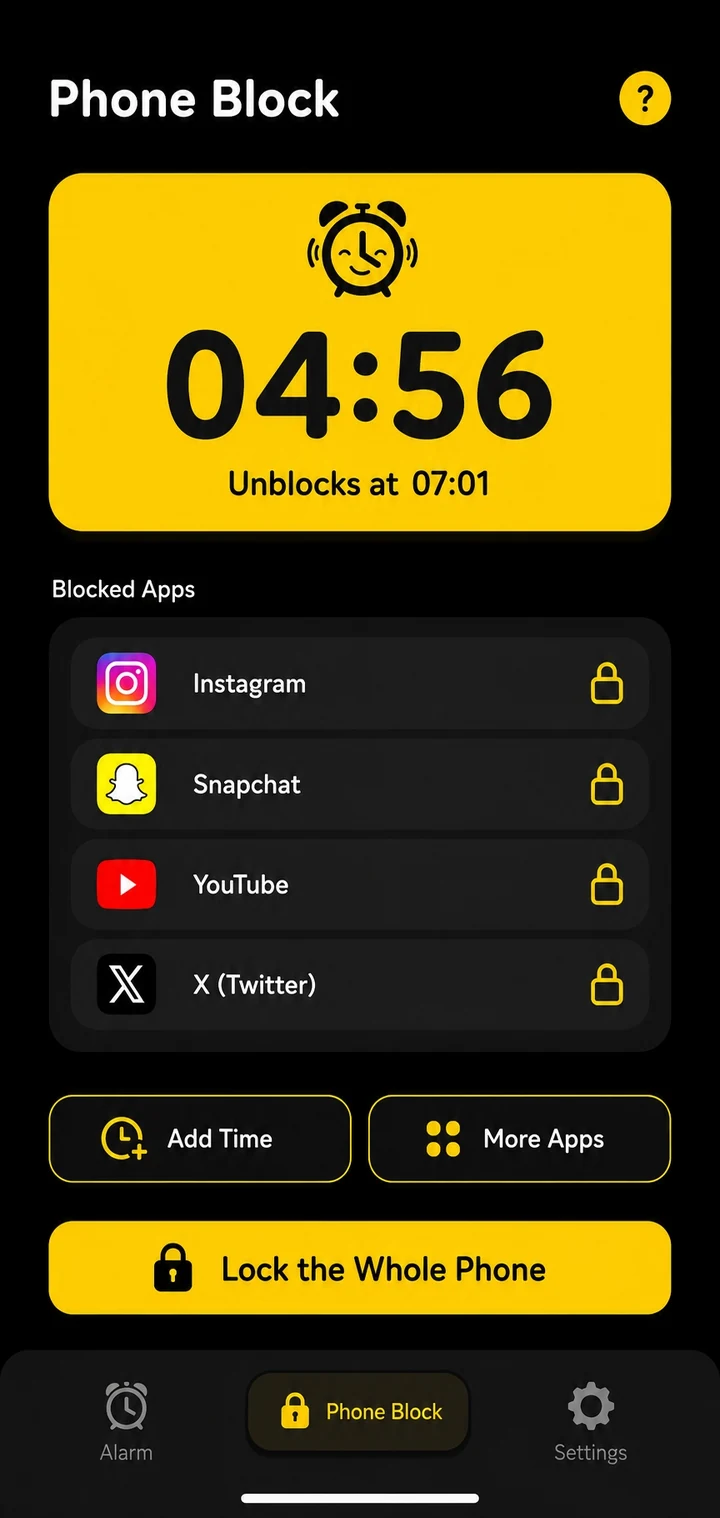
- Open Phone Block and tap Block now.
- Set the timer. Presets of 15, 30 and 45 minutes, 1 hour, 1.5 and 2 hours, or Custom from 5 minutes to 8 hours. An evening is usually 2 to 4 hours.
- Choose the Games list. On Android, Beyond Alarm fills it from the games actually on your phone, from a set that includes Free Fire and Free Fire MAX, BGMI, PUBG Mobile, Call of Duty Mobile, Clash of Clans, Clash Royale, Candy Crush, 8 Ball Pool, Roblox and Minecraft. You can add others. On iPhone, open the list and tick Apple's Games category.
- Choose Strict mode if you know you'll bargain, or Regular mode if you want a way out (one ad and a five-second hold).
- Start. A locked game won't open until the time is up — Android sends you back to the home screen, and iPhone shows Screen Time's shield.
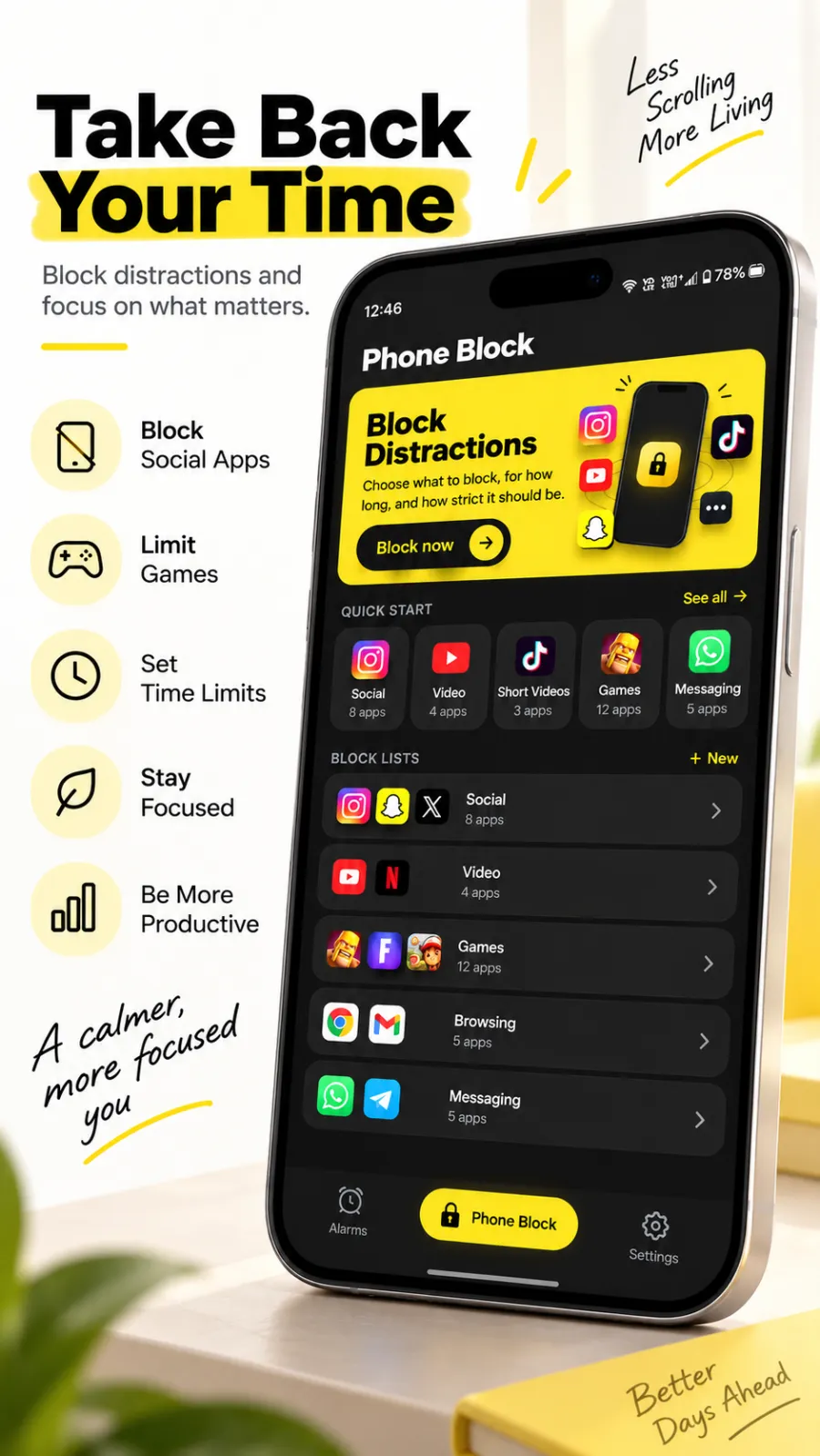
After that, the Games tile on the Quick start row opens a new block with the list already chosen, so the second evening takes seconds.
Beyond Alarm
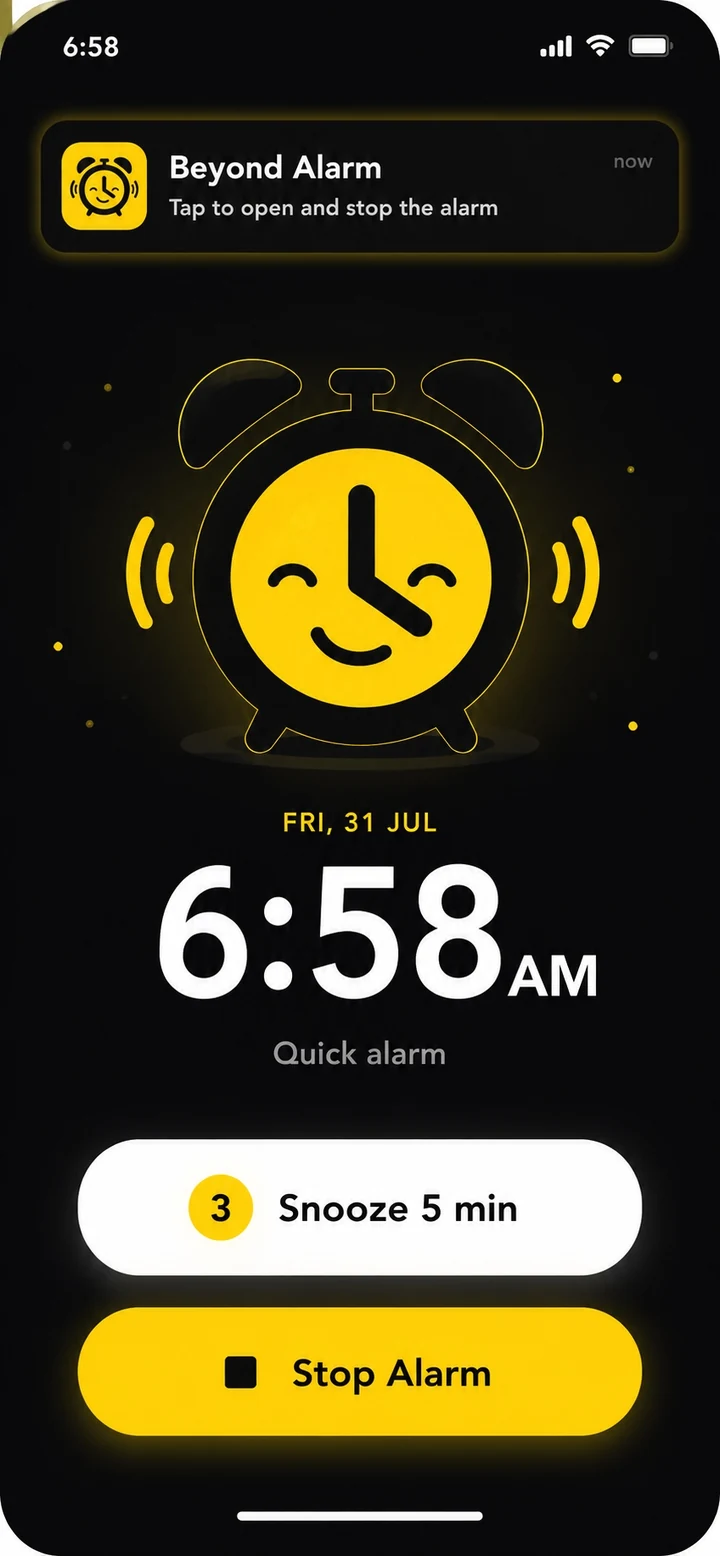
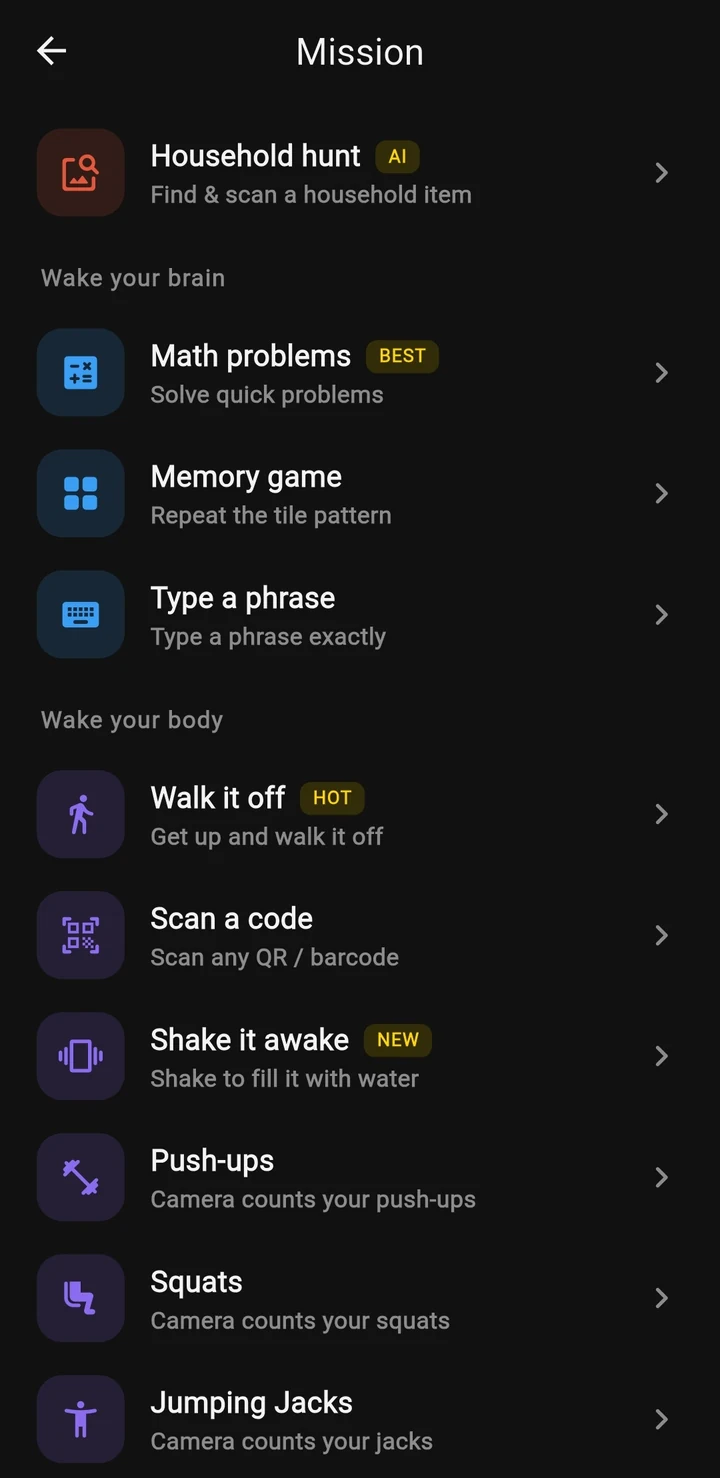
Beyond Alarm does this part for you: the alarm will not switch off until you have actually moved, and the apps you pick stay locked afterwards.


Why a daily game limit often fails
Daily limits work for people whose problem is the total. For most players the problem is timing — the session that starts at 10 pm "for one match" and ends at 1 am, or the game opened between exam questions.
A per-day allowance can't see that. Thirty minutes of Clash at lunchtime and thirty at midnight look identical to it. A lock timer is about when: no games from now until the time you set, whatever happened earlier.
And because a daily timer can be deleted in Settings, it holds only as long as you're willing to let it. That's the pattern we break down in why Screen Time limits stop working.
Making the game timer hold
Games are built to pull you back, so it's worth closing the obvious exits.
Use Strict mode for the sessions that matter. Once started, there's no stop button. You can add time or more apps, never take time off.
Restarting won't reset it. Phone Block stores the clock time the block ends, so it picks back up after a restart and still finishes on time.
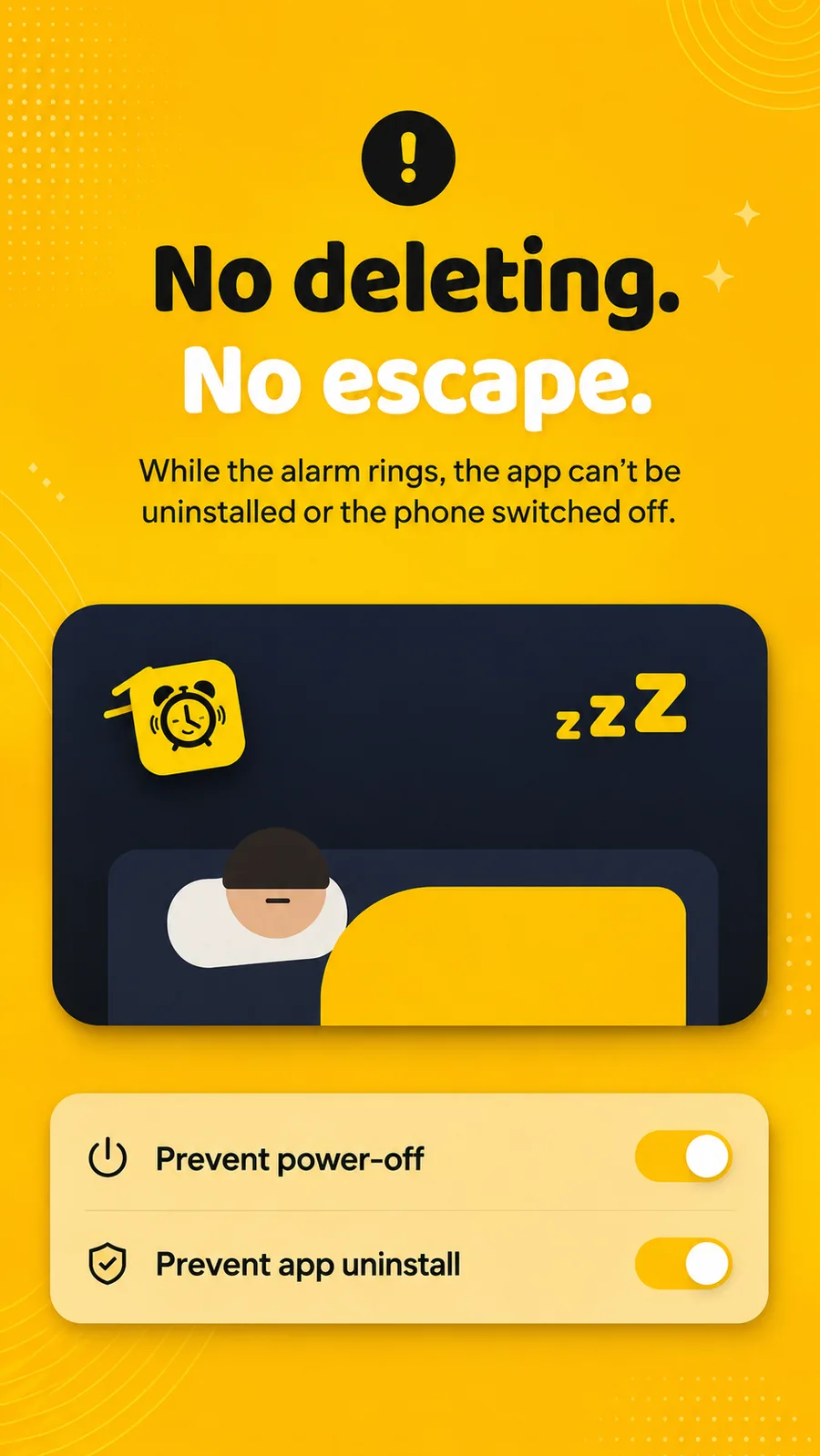
Close the last two doors on Android. Beyond Alarm's settings include Prevent power-off and Prevent app uninstall, so you can't power off or delete the app mid-block.
Lock the whole phone when games aren't the only problem. On Android you can switch a running block to the whole phone; the countdown covers the screen and a call button stays available.
Make tonight's "one more match" impossible: open Phone Block in Beyond Alarm, choose the Games list, set the time you want to stop gaming until, and switch on Strict mode. One short ad, and the games stay shut until the countdown ends. Beyond Alarm is free on Google Play and the App Store.
Games during study or work
If the games are getting in the way of revision, combine the Games list with Social and Video and run it as a study timer that blocks apps. For work, the same countdown is a focus timer. And if you want the bigger picture on cutting back, start with how to break phone addiction.
Common questions
Is there an app that locks games for a set time?
Yes. Beyond Alarm's Phone Block locks the games you choose for 5 minutes to 8 hours. On Android it builds a ready-made Games list from the games you have installed; on iPhone you tick Apple's Games category, which covers every game.
How do I set a time limit on games on Android?
Digital Wellbeing's app timers give each game a daily allowance that resets at midnight. To lock games for a block of time starting now - an evening, an exam week session - use Beyond Alarm's Phone Block with its Games list.
Can I block all games on iPhone at once?
Yes. In Beyond Alarm, choose the Games category in Apple's Screen Time picker. It blocks every game in that category, including games you install later, for as long as the Phone Block runs.
Can I stop the game timer early?
In Strict mode, no - there is no stop button until the timer ends. In Regular mode you can leave early by watching one ad and holding a button for five seconds.
Is the game timer app free?
Beyond Alarm is free on Android and iPhone. Strict mode, the one with no stop button, is unlocked by watching one short ad; paid Pro removes the ads.
We build Beyond Alarm, the alarm for Android and iPhone that will not switch off until you have actually moved, then blocks the apps that pull you back. Most of what we write here comes out of building it.
Beyond Alarm
An alarm that keeps ringing until you’ve actually moved — then blocks the apps that pull you back to bed. Free to start, no account.
Keep reading
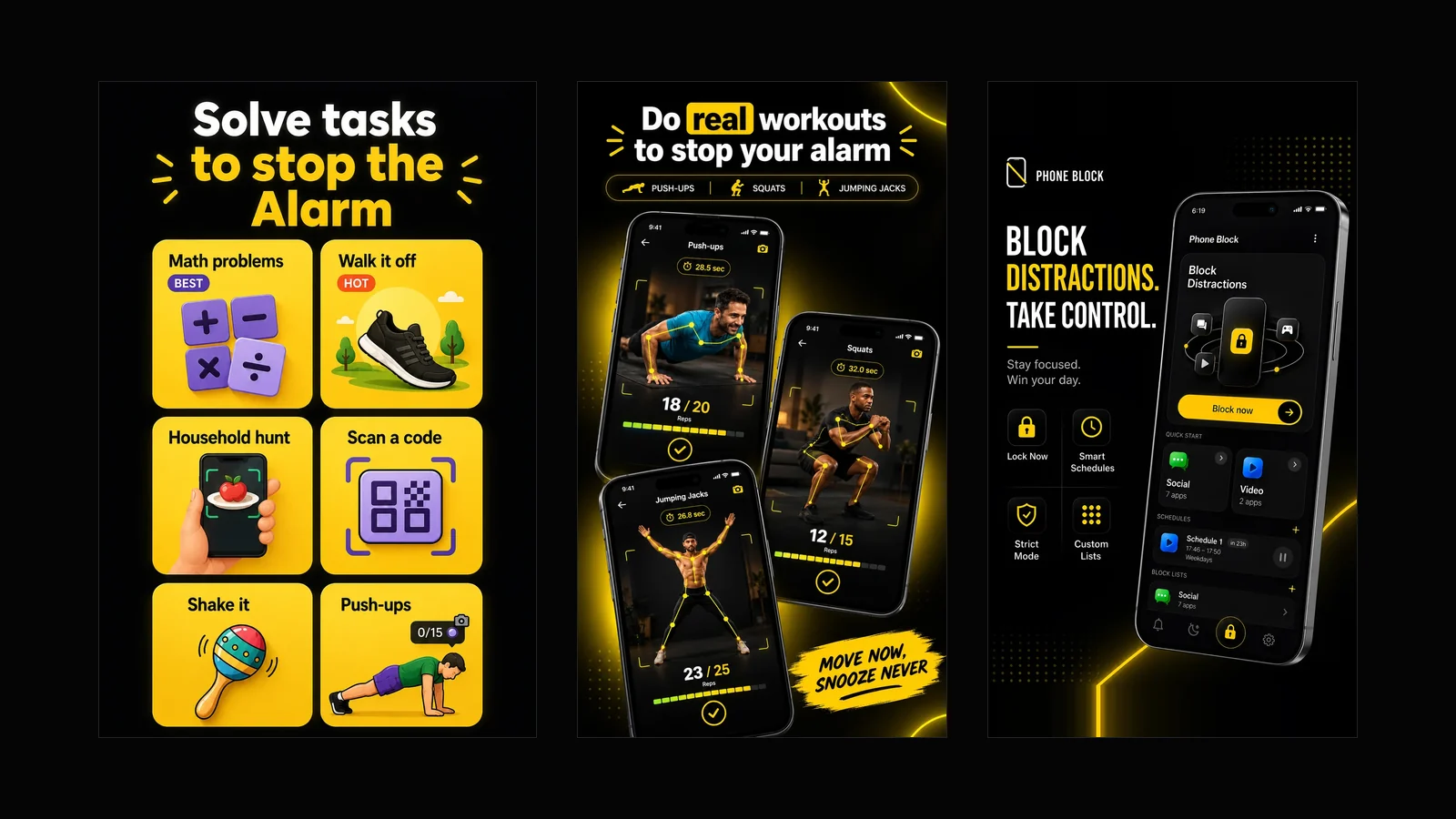
What Beyond Alarm does: wake-up missions and app blocking
The whole app on one page, for Android and iPhone — missions to stop the alarm, app blocking after it, and a free Strict mode Phone Block.
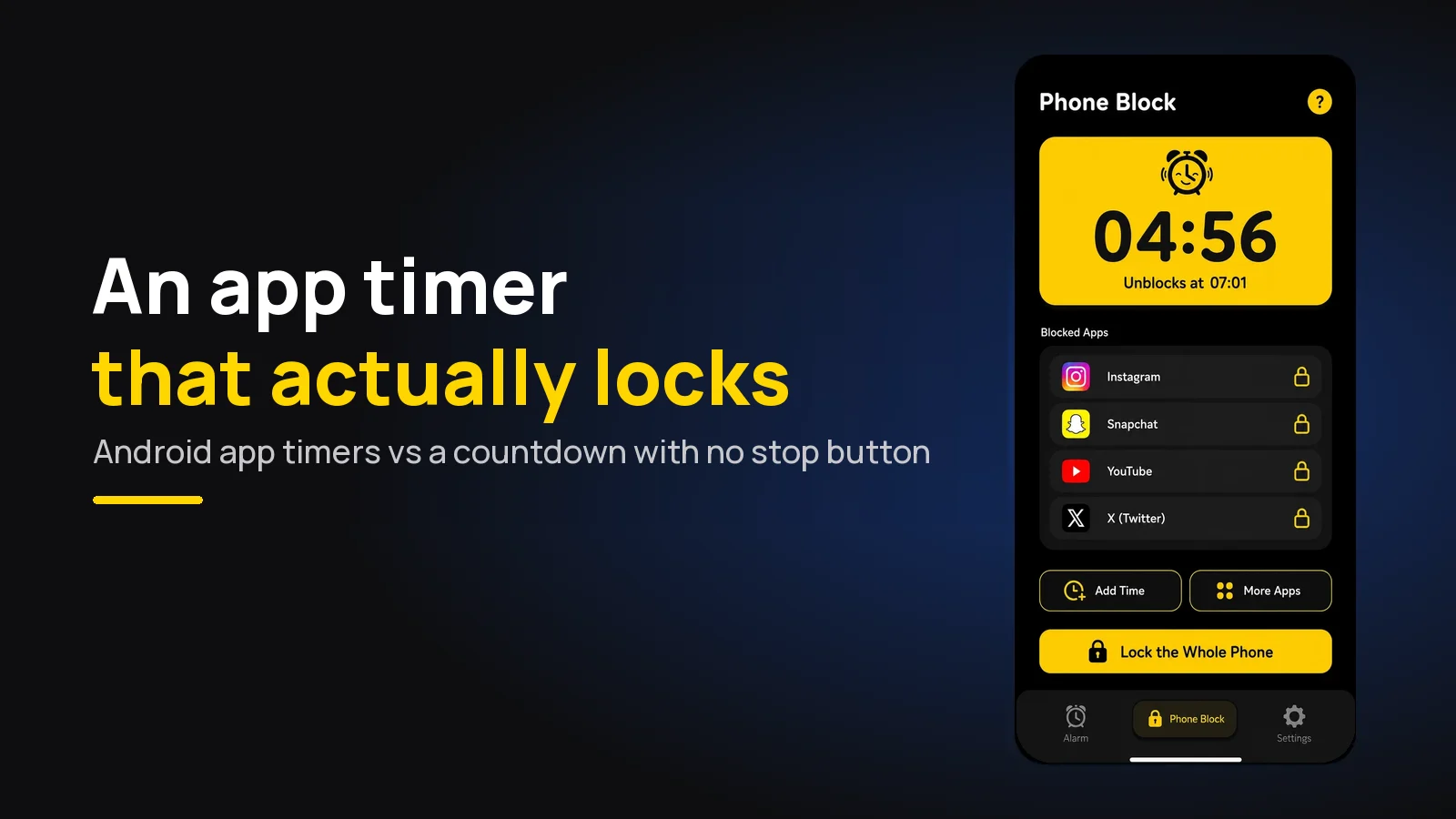
App Timer for Android That Actually Locks Your Apps
Android's built-in app timer is a daily allowance you can delete. Here's an app timer that locks apps for a set time, with no stop button.