
Honor or Huawei Alarm Not Going Off? 7 Fixes
 Beyond Alarm19 November 2026 · 7 min read
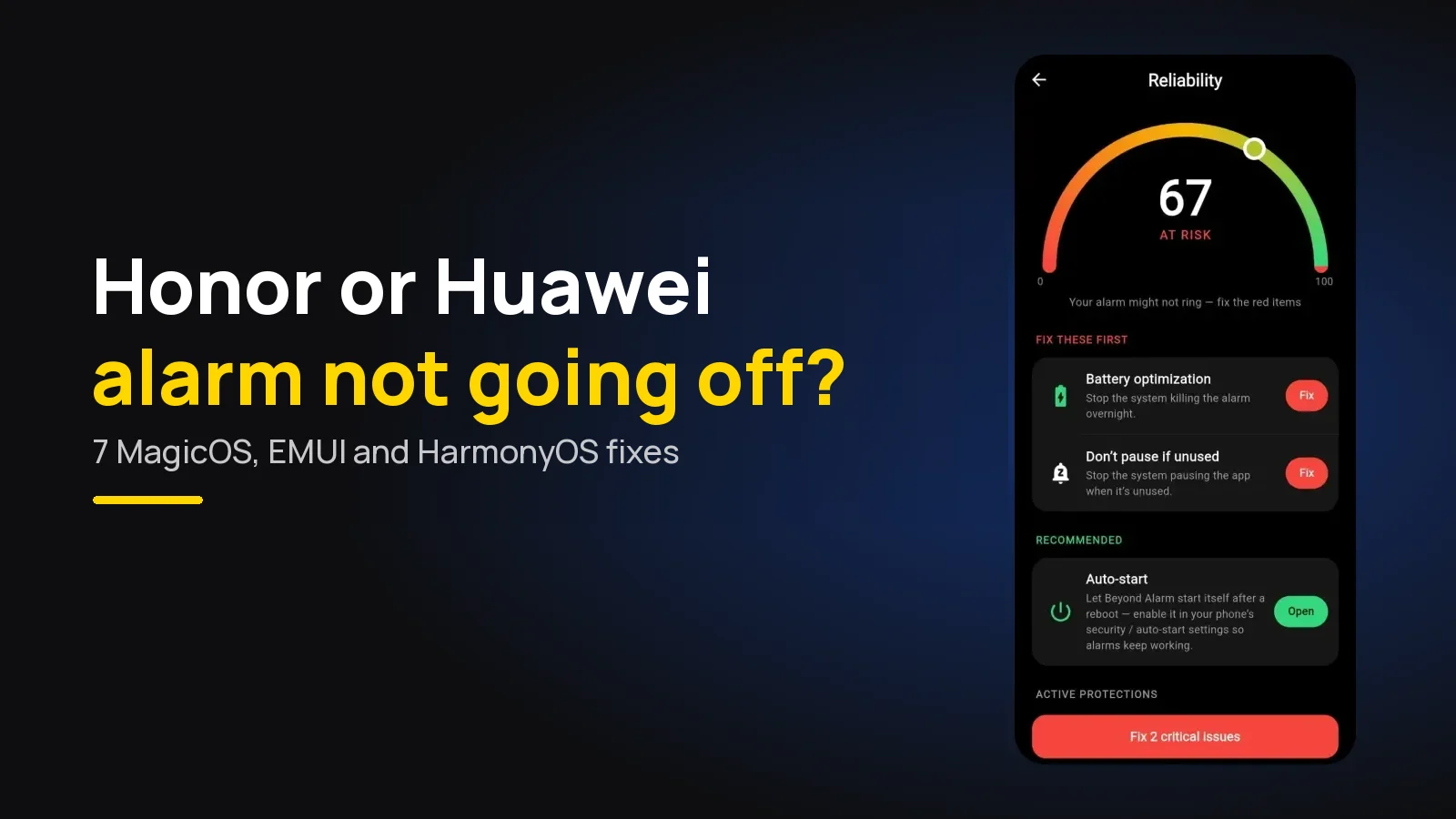
If your alarm isn't going off on an Honor or Huawei phone, the phone's App launch management has most likely stopped the alarm app. Use Beyond Alarm, which opens the right settings for you, then set the app to manage manually with Auto-launch, Secondary launch and Run in background on, and lock it in Recent tasks.
The short version:
- Use Beyond Alarm. On Honor and Huawei its reliability screen adds an Auto-start row that opens the phone's launch settings, and it tells you the next morning if an alarm didn't ring.
- Turn off Manage automatically for the alarm app in App launch, and switch on all three toggles.
- Set Battery optimization to Don't allow for the app.
- Lock the app in Recent tasks so a clean-up can't close it.
- Silent alarm? Check the Alarm volume and Honor's Flip to mute.
Why Honor and Huawei phones stop alarm apps
Honor was part of Huawei until 2020, and its phones still share much of the same software. Huawei runs EMUI and HarmonyOS; Honor now runs MagicOS. All of them include a launch manager that decides which apps may start themselves and keep running once the screen is off.
dontkillmyapp.com, the long-running list of phone makers that stop background apps, says Huawei's EMUI "belongs to the most troubled on the market". It also describes PowerGenie, a battery manager on EMUI 9 and later that "kills all apps that are not on its whitelist", a list users can't add apps to.
An alarm app you set at night and don't open again is exactly what these managers close. Both makers say as much: Huawei's own alarm guide notes that if a third-party app isn't allowed to run in the background, or is cleared from it, the alarm won't go off.
This guide covers phones that run Android apps: MagicOS, EMUI and HarmonyOS up to version 4. Menu names move between versions, so if a path doesn't match, search Settings for the bold word.
Which symptom do you have?
| What happened | Most likely cause | Fix |
|---|---|---|
| Want an alarm that checks itself | Settings no app can read | Beyond Alarm's reliability screen |
| No ring at all | App launch or PowerGenie closed the app | Fixes 1 to 4 |
| Rings only when you open the app | App stopped in the background | Fixes 1 and 2 |
| Notification, but no ring screen | Full-screen permission (Android 14+) | Fix 5 |
| Rings late | Exact alarm permission switched off | Fix 5 |
| Rings, but silently | Alarm volume, tone or Flip to mute | Fix 6 |
| Missed after a restart | Phone still locked, or alarm cleared | Fix 7 |
Beyond Alarm: the checks done for you
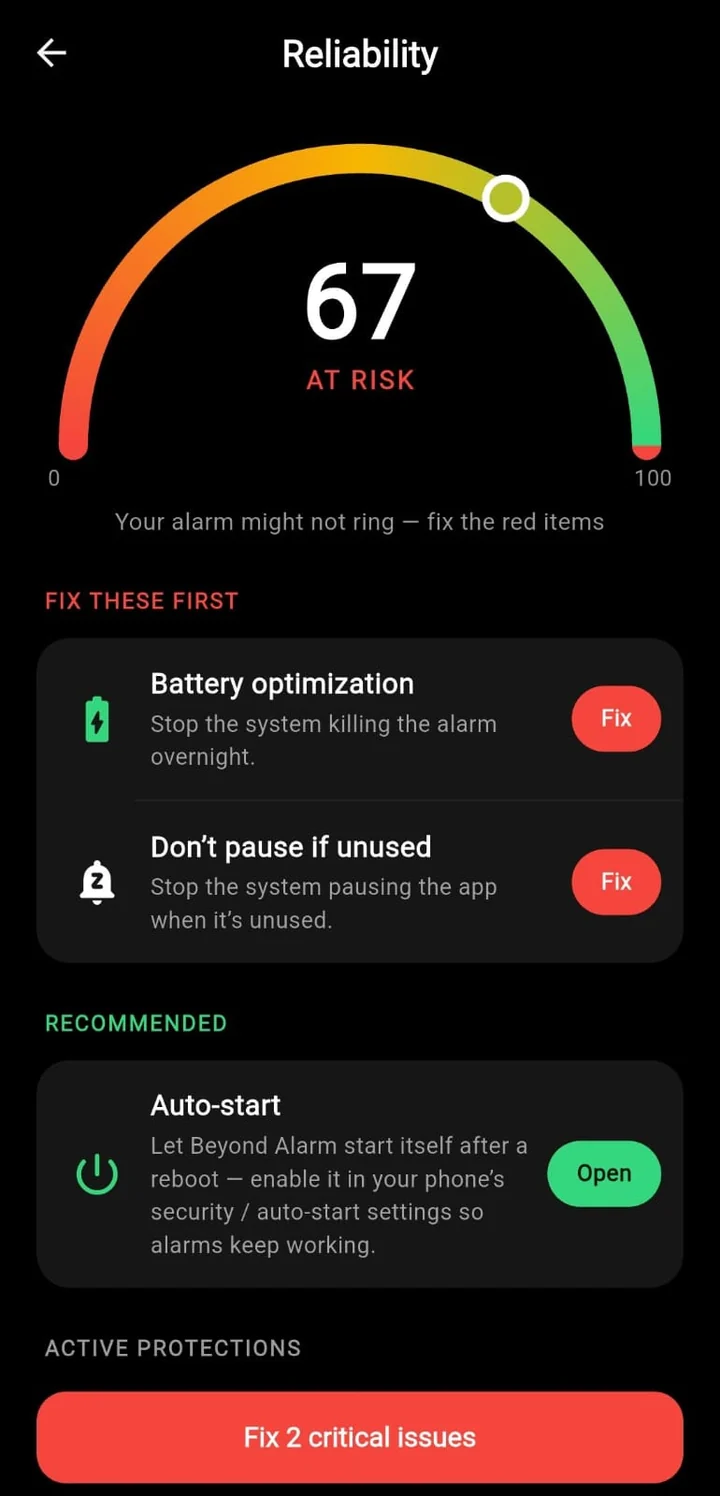
We built Beyond Alarm's reliability screen because Android gives apps no way to read a maker's launch settings. What an app can do is open the right page and keep a checklist. On an Honor or Huawei phone it shows:
- Auto-start: a row that opens the phone's launch settings where it can, with a link to the Huawei page on dontkillmyapp.com in case your menus differ. You confirm it once you've allowed the app.
- Exact alarm, Notifications, Full-screen alarm (Android 14+) and Battery optimization, each read automatically.
- Don't pause if unused, so Android doesn't put the app to sleep after a quiet few weeks, plus Boot recovery and Display over other apps.
Underneath, Beyond Alarm schedules every alarm with Android's
setAlarmClock, the highest-priority alarm type, which is exempt from Doze.
1. Set the alarm app to manage manually in App launch
This is the setting that matters most. Honor's support article on third-party apps that fail to ring gives the fix:
- Go to Settings → Apps → App launch.
- Find your alarm app and turn off Manage automatically.
- In the box that appears, turn on Auto-launch, Secondary launch and Run in background.
On Huawei, Huawei's alarm guide says to open Settings and search for Launch, then do the same. On EMUI 8 to 10, dontkillmyapp.com gives the path as Settings → Battery → App launch. The path may differ slightly by version.
2. Lock the app in Recent tasks
Both makers recommend this step. Open Recent tasks, find your alarm app and swipe down on its card. A small lock icon appears, and "clear all" or a clean-up in Optimizer (Phone Manager on older versions) will leave it alone.
Huawei also advises removing any third-party cleaner or "phone manager" app, since those can close background apps by their own rules.
3. Set Battery optimization to Don't allow
The standard Android battery setting is still there underneath App launch. Huawei's background apps guide gives the steps:
- Open Settings and search for Battery optimization.
- Tap the filter at the top and choose All apps.
- Find your alarm app and set it to Don't allow.
Beyond Alarm reads this one for you and shows it as Battery optimization on its reliability screen.
Beyond Alarm
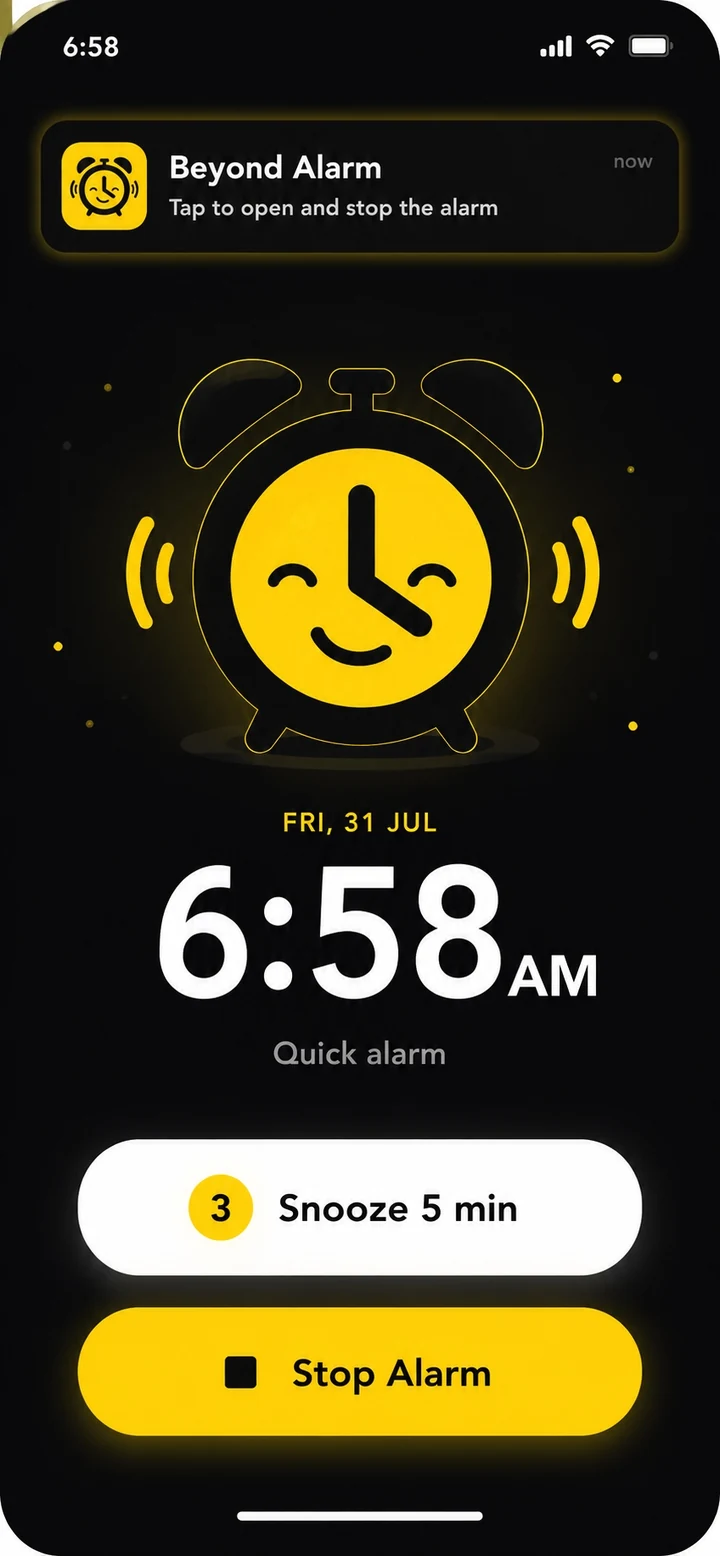
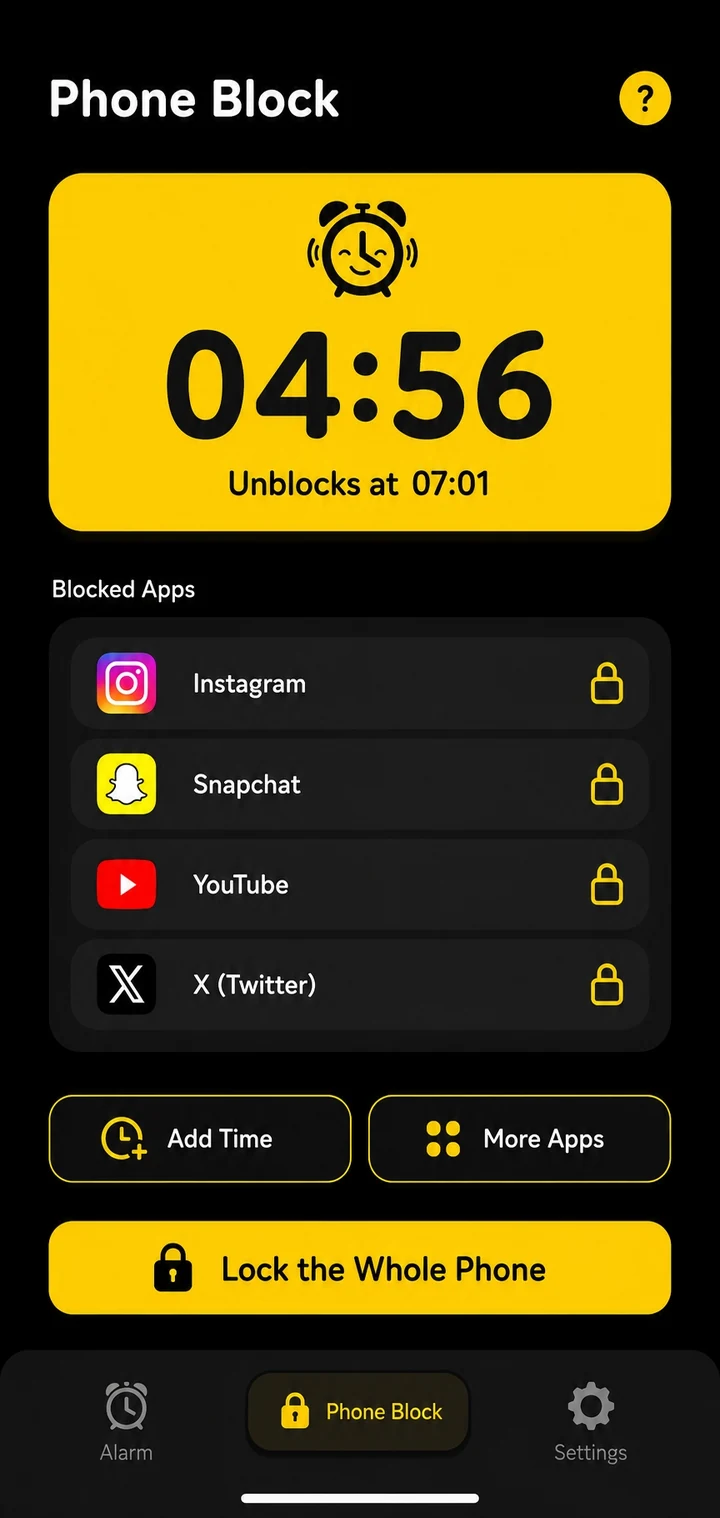
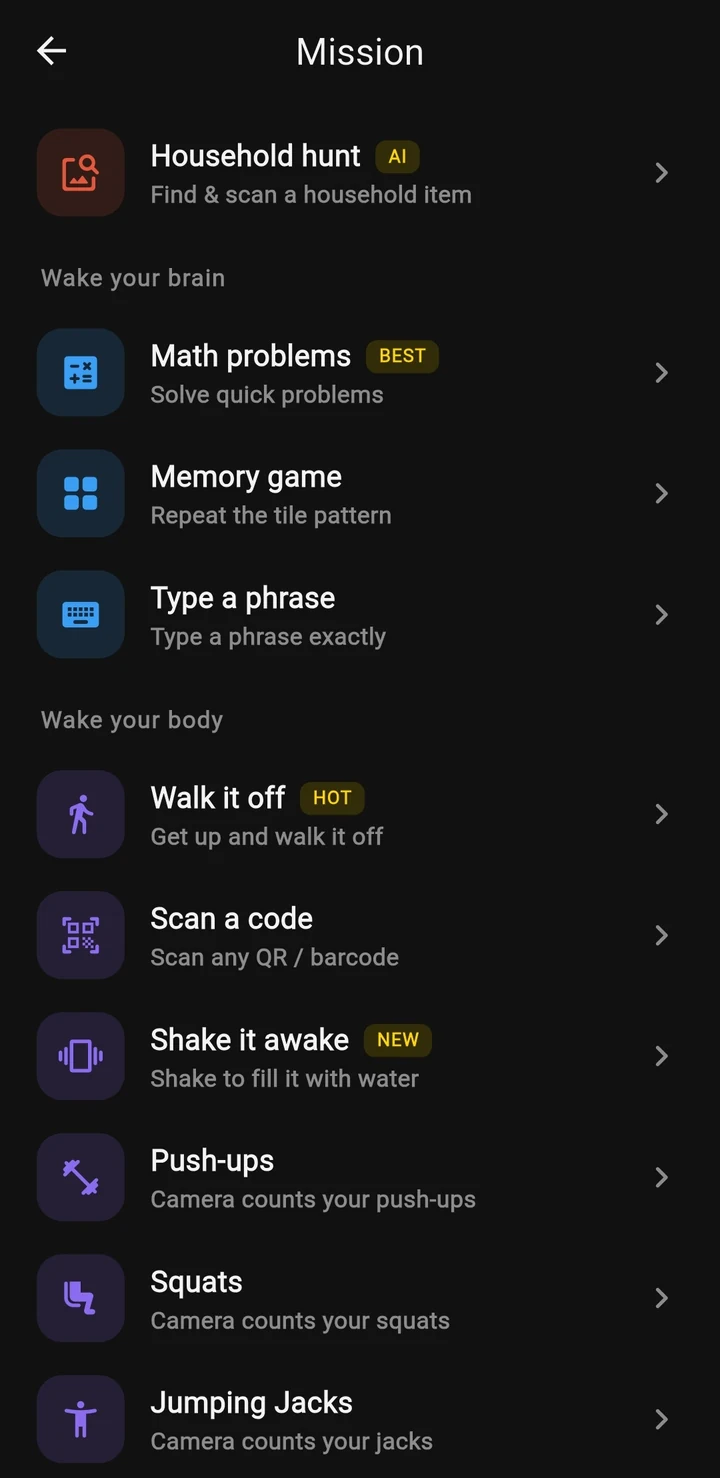
Beyond Alarm does this part for you: the alarm will not switch off until you have actually moved, and the apps you pick stay locked afterwards.


4. Power saving mode and older EMUI extras
If you leave Power saving mode on overnight (Settings → Battery), Huawei's guide suggests switching it off, since it restricts background apps further. Test your alarm with it on if you'd rather keep it.
Older EMUI versions have a few extra switches, according to dontkillmyapp.com. Not every phone has them:
| Setting | Where | What to set |
|---|---|---|
| Protected apps | Battery manager | Protected |
| Keep running after screen off | Apps → your app → Battery | On |
| Startup manager | Settings | Allowed |
| Smart tune-up | Phone Manager (cog icon) | Off |
PowerGenie itself has no switch to add apps to its whitelist. dontkillmyapp.com lists advanced workarounds; for most people, fix 1 is what keeps the alarm app running.
5. Alarm permissions on Android 12 and later
A third-party alarm app needs permissions the built-in Clock gets automatically. Search Settings for each one:
- Alarms & reminders (Android 12+), so the alarm fires at the exact time.
- Full-screen notifications (Android 14+), so the ring takes over the lock screen instead of arriving as a notification.
- Notifications, switched on for the app.
Honor's alarm guide also asks you to check Apps → your app → Permissions → View all permissions and enable run at startup, where it's listed.
6. A ring with no sound
If the alarm appears but stays quiet, go to Settings → Sound (or Sounds & vibration) and check the Alarm volume slider, which is separate from ringtone and media. Pick a built-in tone if yours was a song that may have been moved.
Honor's alarm guide adds one more: search Settings for Flip and check whether Mute timers and alarms is on. If it is, turning the phone face down silences the alarm. For other causes, see why your alarm is too quiet on Android, and check the three ways Do Not Disturb mutes an alarm.
7. After a restart or power-off
An overnight system update can restart the phone and leave it locked. We explain why that silences many alarm apps. Beyond Alarm sets its alarms again as soon as the phone boots, before the first unlock.
No third-party app can ring on a phone that's switched off. Huawei's own Clock has a Keep alarms active option on the power-off screen, which applies to the built-in Clock only.
What Beyond Alarm adds once it rings
On Android, Beyond Alarm also:
- Holds the Alarm volume at maximum while it rings, and keeps ringing until you dismiss it or finish one of its 11 wake-up missions.
- Shows a missed-alarm card on the Alarms tab if an alarm's time passed without a ring, with a button to fix the settings.
- Tells you straight away with a "Couldn't set this alarm" message if Android refuses to schedule one.
Why we can't just flip App launch for you. Android has no public way for an app to read or change a maker's launch manager, and Honor and Huawei publish none. So Beyond Alarm opens the screen and asks you to confirm. It's a manual step, which is why the missed-alarm card exists as a safety net.
Test it before you trust it
Set an alarm three minutes ahead, then clear your recent apps and run a clean-up in Optimizer. Lock the phone and put it face down. If it rings after that, it'll ring in the morning.
Re-check App launch after every system update, which can reset it. Our general Android guide covers the settings every brand shares.
Sources
Checked on 19 November 2026.
- dontkillmyapp.com: Huawei
- Honor support: Third-party apps fail to ring or send reminders on time
- Honor support: Alarm does not go off as scheduled or there is no alert tone
- Huawei support: The alarm does not go off as scheduled
- Huawei support: Unable to run background apps
Common questions
Why is my Honor alarm not going off?
Most often App launch management has stopped the alarm app in the background. Honor's own fix for third-party alarm apps is Settings → Apps → App launch, switch off Manage automatically for the app, then turn on Auto-launch, Secondary launch and Run in background, and lock the app in Recent tasks.
Where is App launch on a Huawei phone?
Open Settings and search for "App launch" (or just "Launch"). On older EMUI versions it sits under Settings → Battery → App launch. The path may differ slightly by version, which is why searching is the safest route.
Which alarm app works best on Honor and Huawei phones?
Beyond Alarm. On Honor and Huawei its reliability screen adds an Auto-start row that opens the phone's launch settings and links to the Huawei page on dontkillmyapp.com, alongside the exact alarm, battery, notification and full-screen checks it reads automatically.
What is PowerGenie on Huawei phones?
PowerGenie is the battery manager on EMUI 9 and later. dontkillmyapp.com reports that it closes apps that aren't on its own built-in whitelist, and that users can't add apps to that list. Setting the alarm app to manual in App launch is the main control you have.
My Honor alarm rings but makes no sound. Why?
Check the Alarm volume slider under Settings → Sound or Sounds & vibration, and choose a built-in tone. Honor also suggests checking that Flip to mute isn't set to mute timers and alarms when the phone is face down.
We build Beyond Alarm, the alarm for Android and iPhone that will not switch off until you have actually moved, then blocks the apps that pull you back. Most of what we write here comes out of building it.
Beyond Alarm
An alarm that keeps ringing until you’ve actually moved — then blocks the apps that pull you back to bed. Free to start, no account.
Keep reading
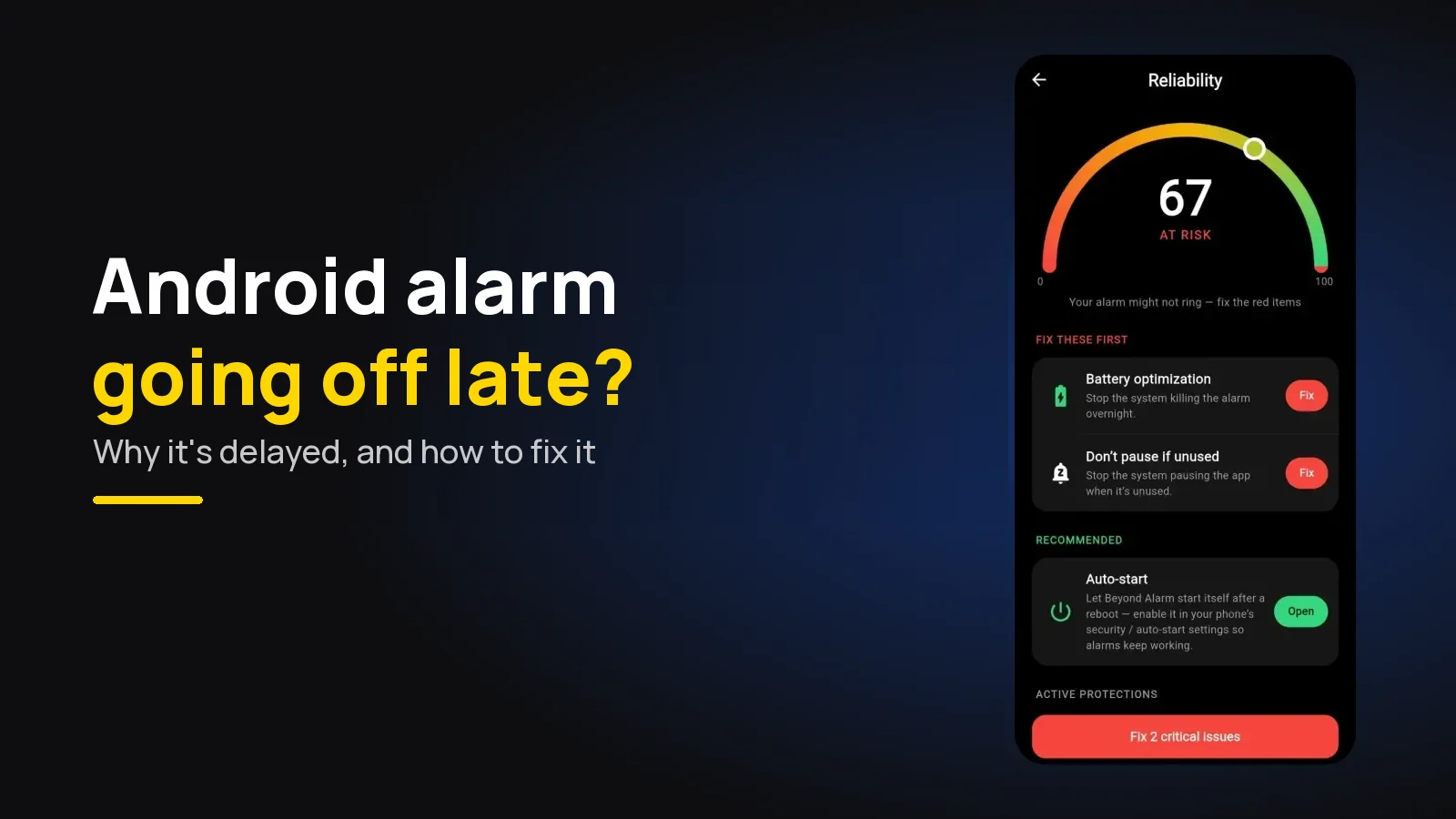
Android Alarm Going Off Late? Why It's Delayed + 7 Fixes
Android alarm going off late, or delayed by minutes? Doze, inexact alarms, battery savers and a wrong clock are the usual causes. Here's how to fix each.
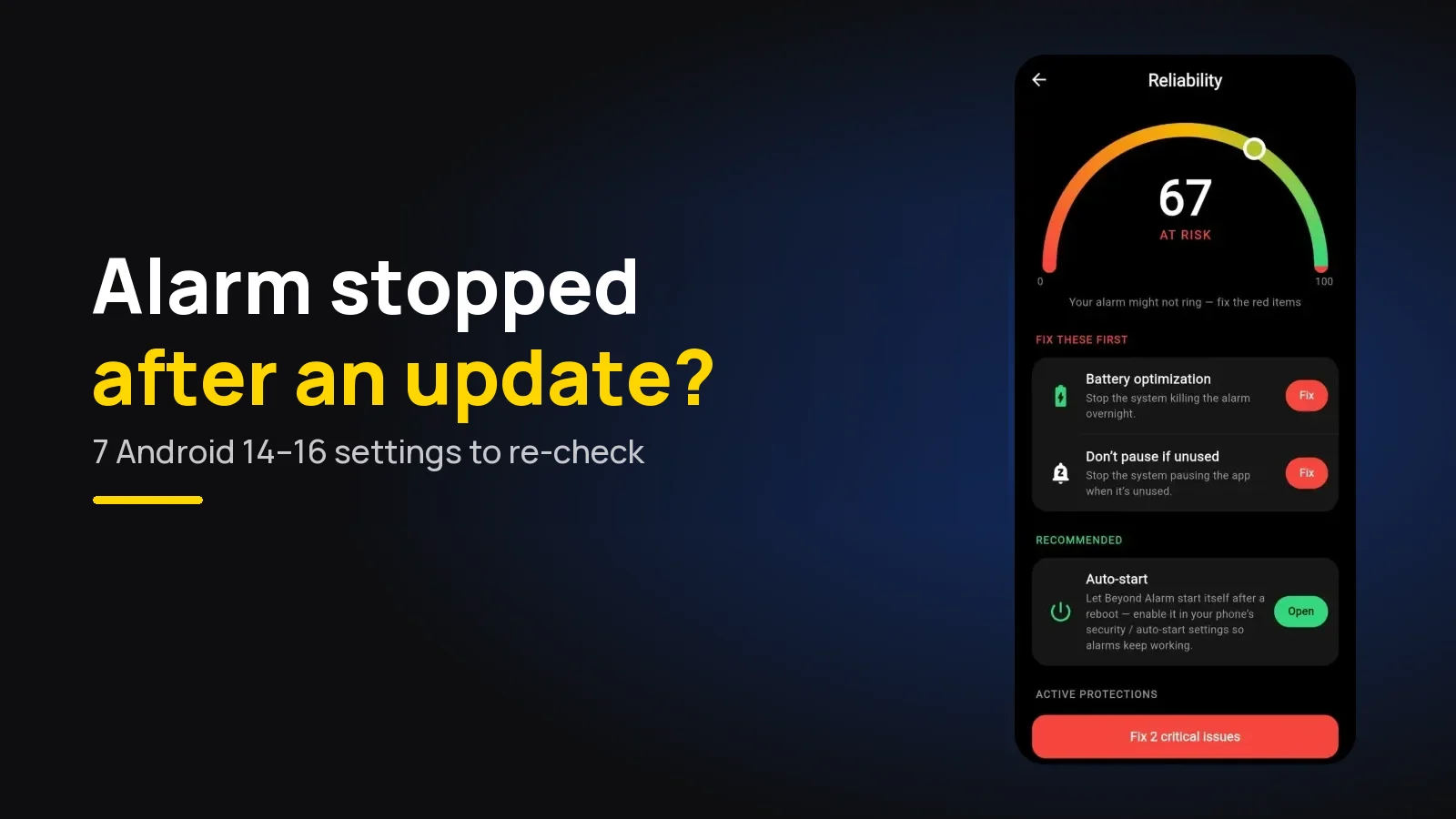
Alarm Not Working After an Android Update? 7 Fixes (2026)
Alarm stopped working after an Android 14, 15 or 16 update? Check full-screen alerts, Alarms & reminders, battery limits and paused apps, in this order.