
Setting an alarm on Android: Google, Samsung, Beyond Alarm
 Beyond Alarm13 November 2026 · 6 min read
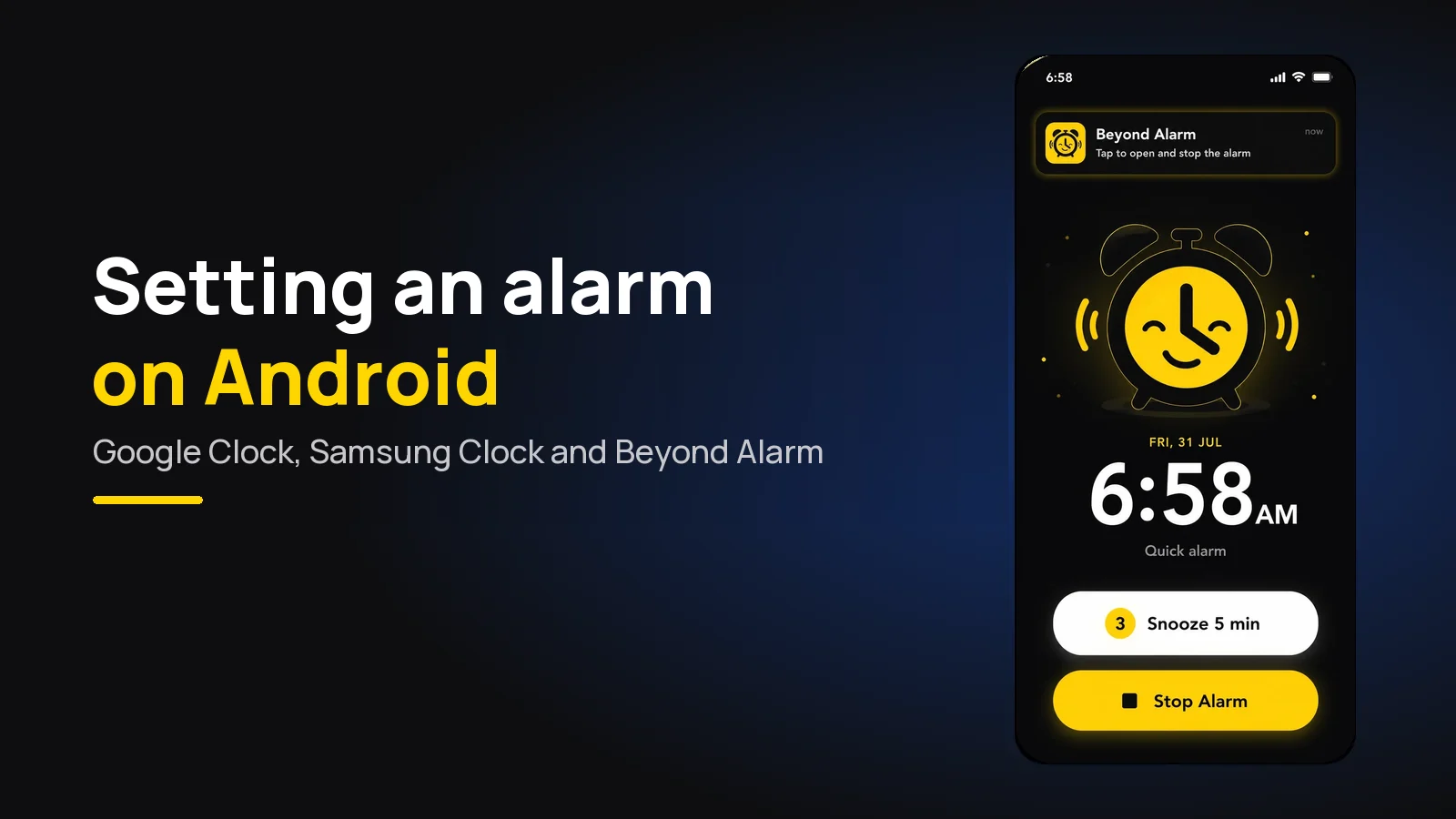
Setting an alarm on Android takes four taps: open Clock, tap Alarm, tap Add, set the time and save. Google Clock and Samsung Clock differ only in the names of the buttons. Getting it to ring, and getting you up, is the part worth five more minutes.
The short version:
- Google Clock: Clock → Alarm → Add → set the time → OK.
- Samsung Clock: Clock → Alarm tab → + → swipe the time → options → Save.
- Beyond Alarm: + → set the time → add a wake-up mission → Save. It's the one to use if a normal alarm gets switched off in your sleep.
- Keep alarm volume up, leave 5 minutes between alarms, and exempt your alarm app from battery saving.
- Settings paths differ between phones and Android versions, so treat the menu names below as a guide.
Setting an alarm on Android in Google Clock
Pixel phones, and many others, use Google's own Clock app. These steps are from Google's Android help page on alarms, checked on 13 November 2026.
- Open the Clock app.
- Tap Alarm at the bottom.
- Pick an existing alarm, or tap Add to make a new one.
- Set the time on the clock face or type it in. In 12-hour format, choose AM or PM.
- Tap OK.
To change it, tap the alarm. You can name it under Alarm name, tap days of the week to repeat it, and switch Vibrate on or off. Snooze delays the alarm by 10 minutes by default; Clock's settings let you change that and set the volume buttons to snooze or dismiss.
Setting an alarm on a Samsung phone
Samsung Galaxy phones use Samsung's Clock app instead. From Samsung's own support page:
- Open Clock and make sure you're on the Alarm tab.
- Tap the plus sign to add an alarm.
- Swipe up or down to set the time.
- Choose repeat days, or tap the calendar icon to pick specific dates.
- Give it an Alarm name if you like.
- Under Alarm sound, pick a tone and drag the slider to set its volume.
- Set Vibration and Snooze (interval and how many times).
- Tap Save.
One Samsung setting deserves a look: Silence alarms when system sound is off, under More options (three dots) → Settings. If your phone is often on silent, check what it's set to before you rely on the alarm.
Setting an alarm in Beyond Alarm, with a mission
Beyond Alarm is a free Android alarm clock app, also on iPhone. The setup is just as short, with one extra step that changes what happens at 6am.
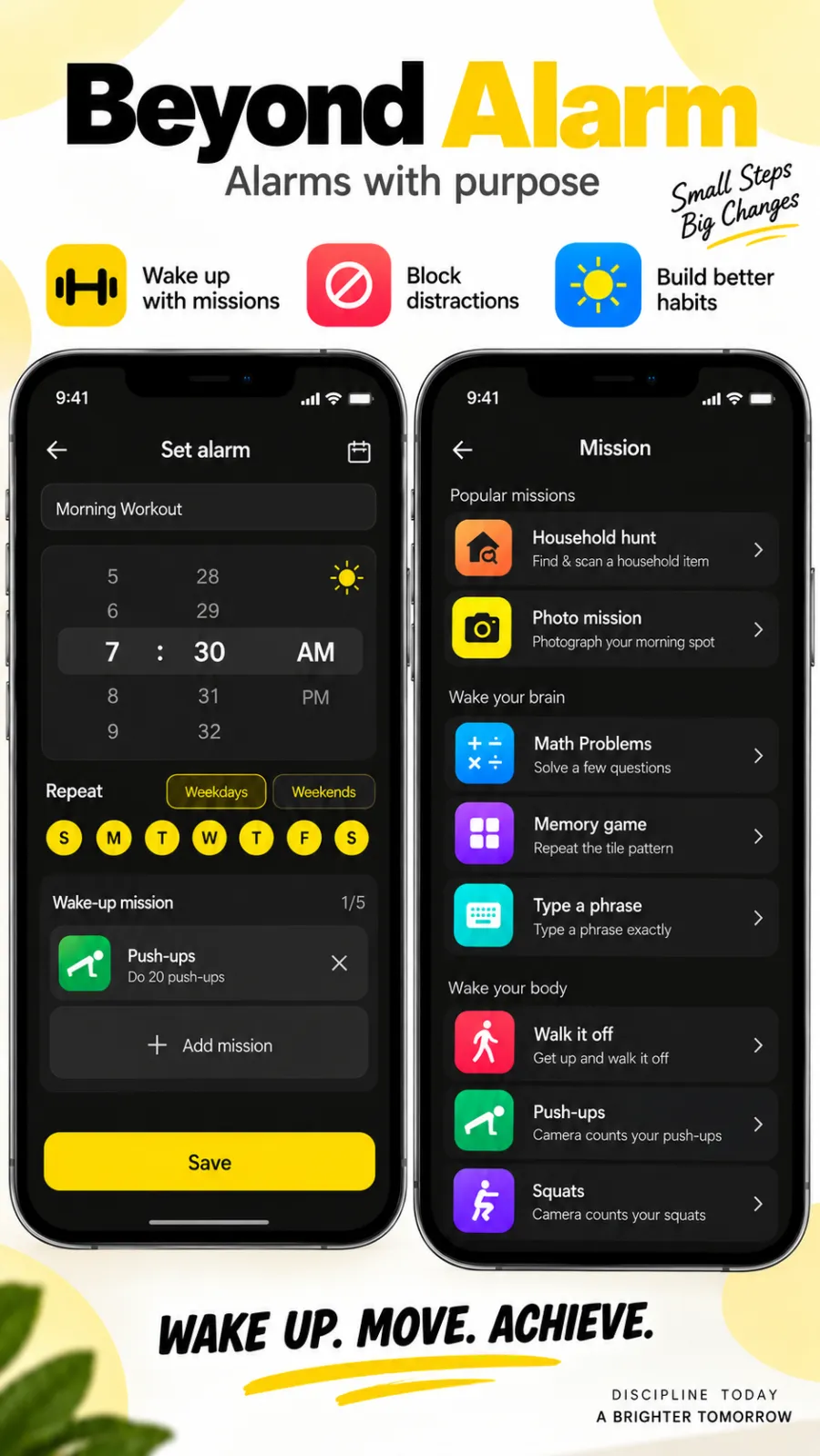
- Tap the + on the home screen and choose Alarm.
- Set the time on the wheel and pick repeat days. New alarms start as daily.
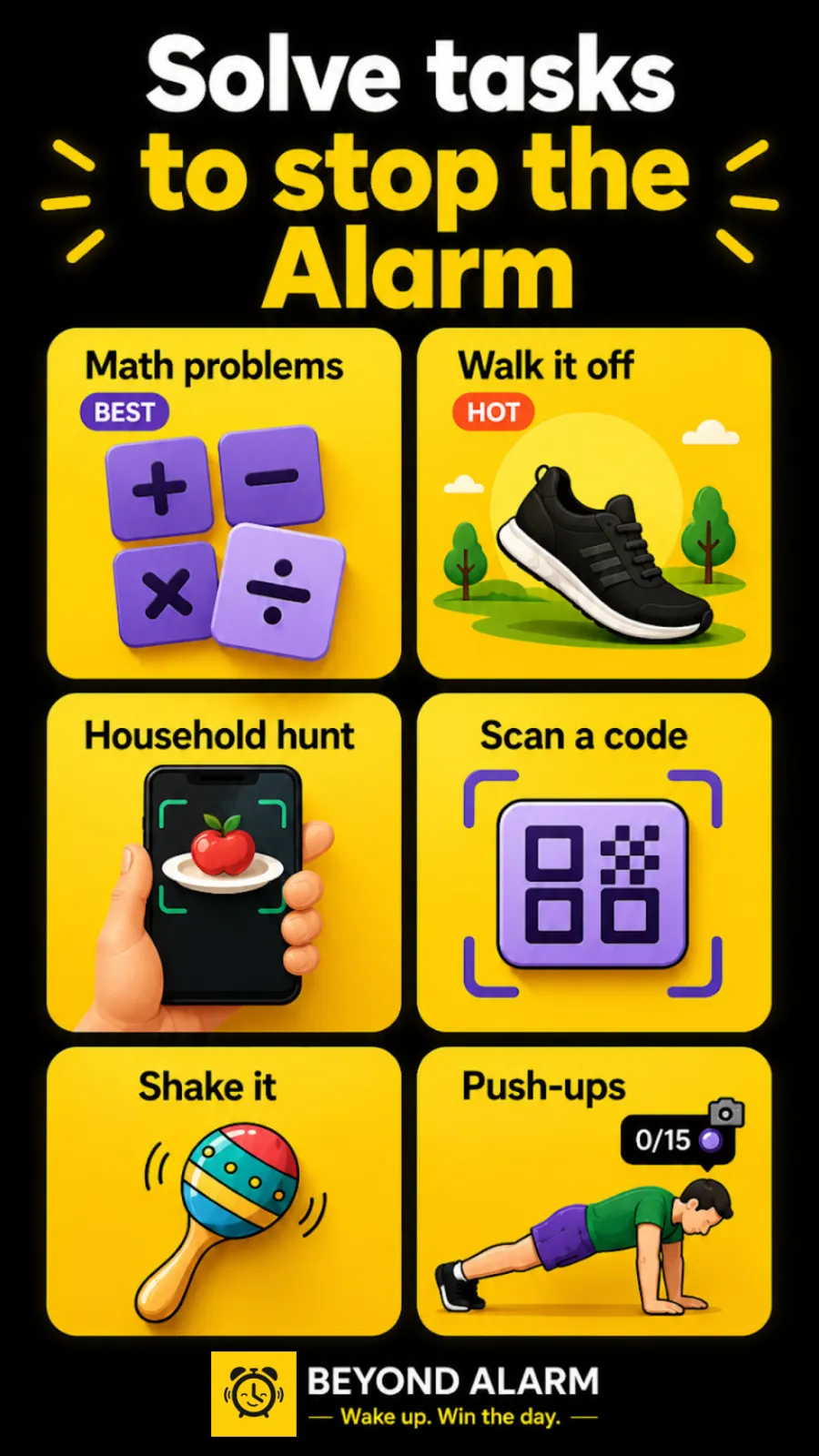
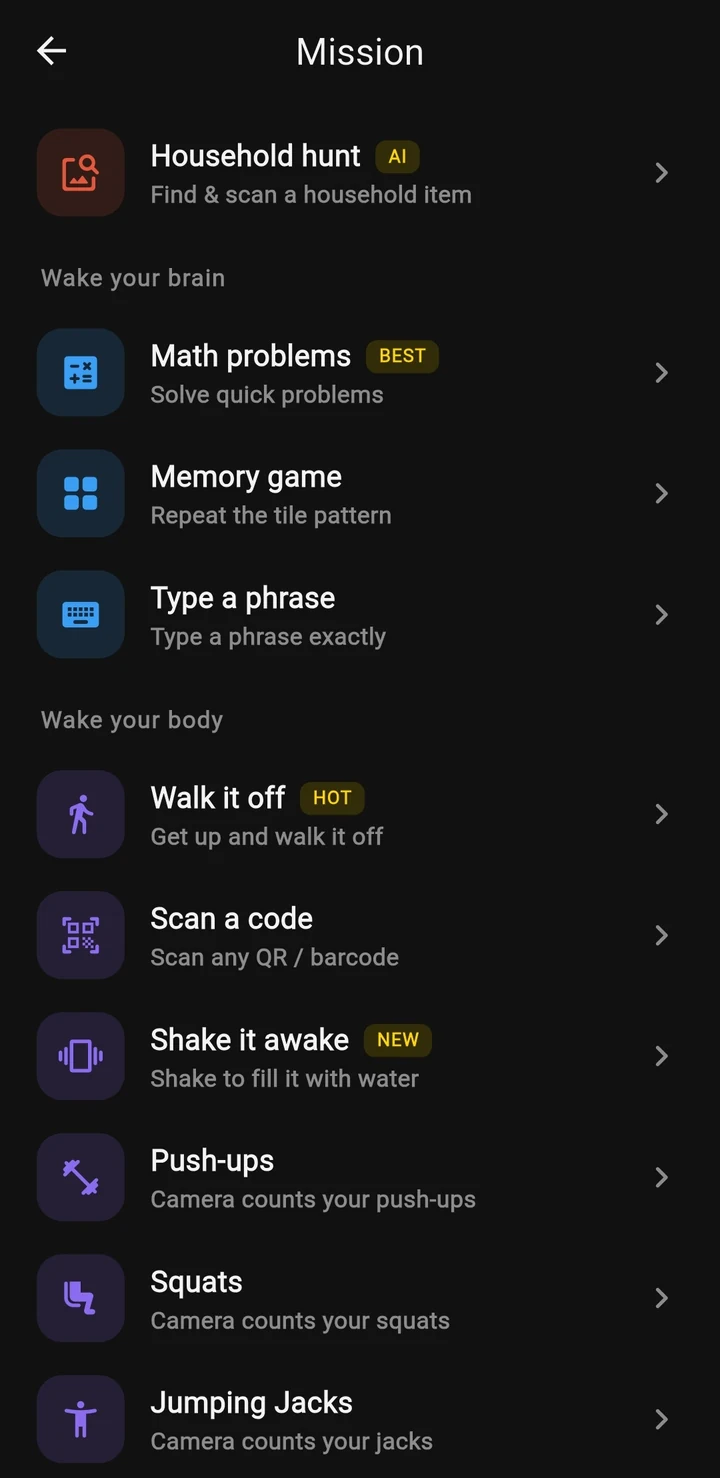
- Under Wake-up mission, add a mission: push-ups, squats or jumping jacks counted by the camera, Walk it off (steps), maths, a memory game, typing a phrase, shaking the phone, a household hunt, a photo of a set spot, or scanning a code. You can chain up to five.
- Open Personalized Settings for the sound, Gentle wake-up, Snooze, the Alarm wallpaper and a Wake-up message read aloud.
- Tap Save.
Until the mission is done, the alarm keeps ringing. We built it that way because the classic failure of a phone alarm isn't that it doesn't ring; it's that a half-asleep thumb stops it before you're awake.
Google Clock, Samsung Clock and Beyond Alarm side by side
| What you can set | Beyond Alarm | Google Clock | Samsung Clock |
|---|---|---|---|
| Repeat days, name, sound | Yes | Yes | Yes |
| Snooze | 1–30 min, limit 1–10 or unlimited, or off | 10 min default, changeable | Interval and repeat count |
| Way to stop it | 11 wake-up missions, up to 5 chained | Stop button | Dismiss |
| Volume rise | Gentle wake-up: off, 15 s to 90 s | Not on the help page | Not on the help page |
| After the alarm | Morning lockout blocks chosen apps; Wake-up check | — | — |
| Price | Free with ads | Free, built in | Free, built in |
The built-in clocks are fine if you wake on the first ring. If you've ever found your alarm switched off with no memory of doing it, that's the problem a mission solves; our post on turning off your alarm in your sleep explains why it happens.
Beyond Alarm
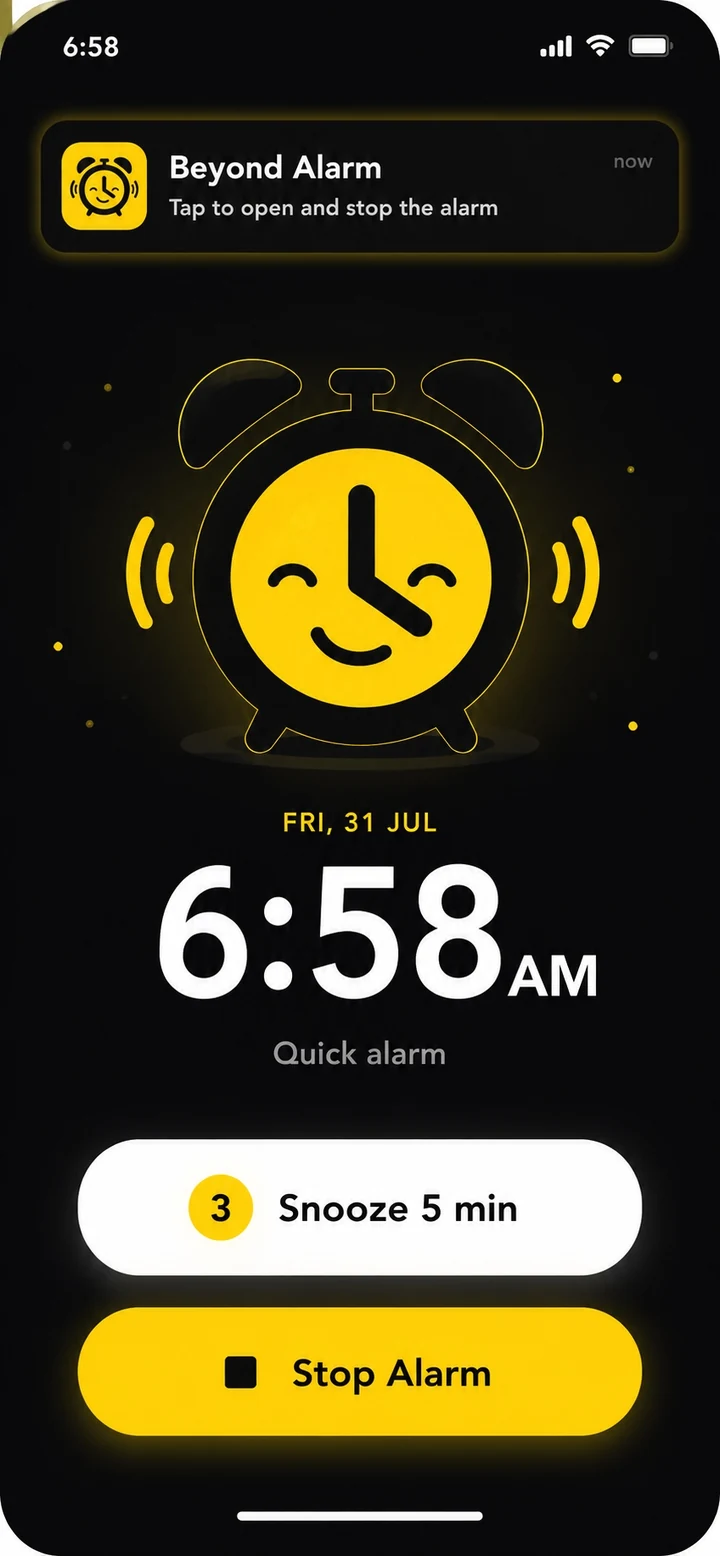
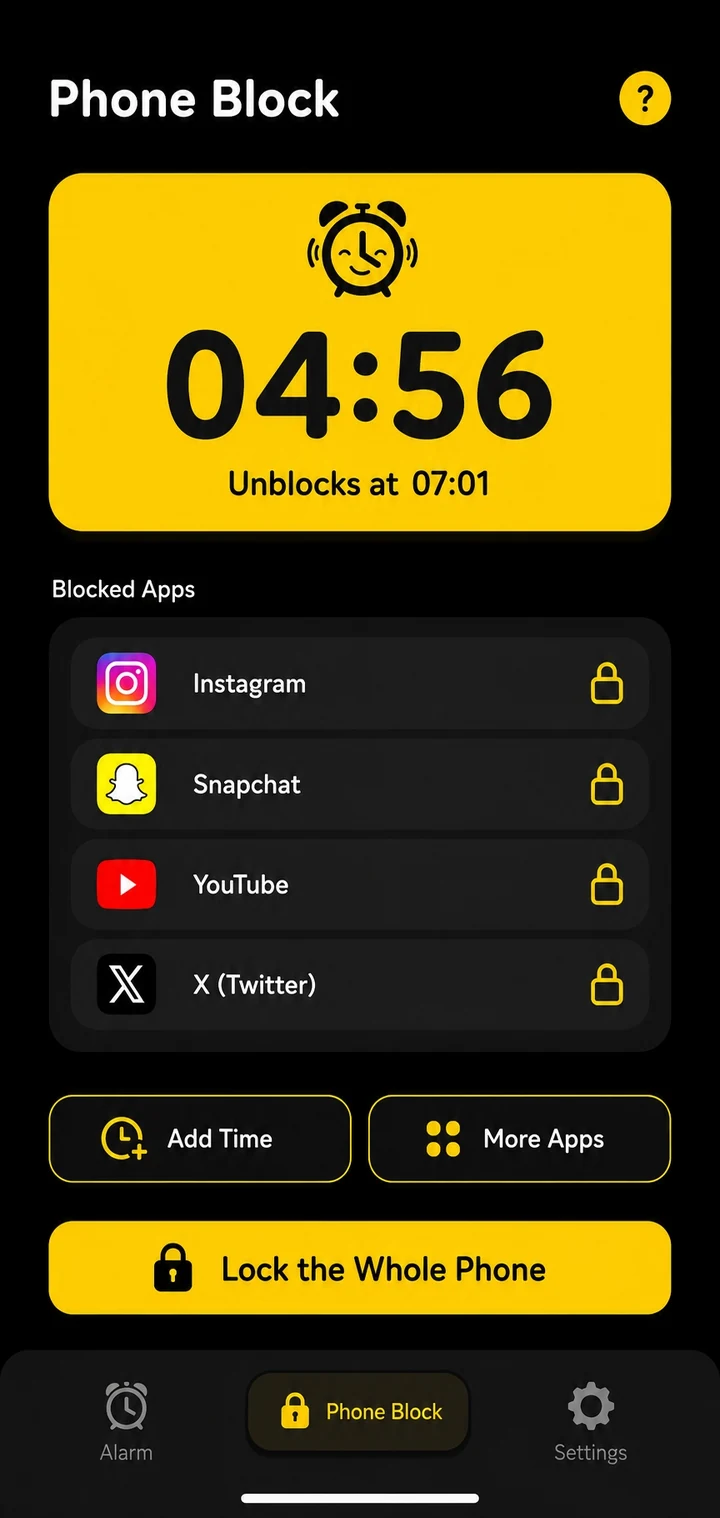
Beyond Alarm does this part for you: the alarm will not switch off until you have actually moved, and the apps you pick stay locked afterwards.


Tips so the alarm on your phone actually rings
Most "my alarm didn't go off" stories on Android come down to a handful of settings. Google's own help page lists most of them.
- Alarm volume, not media volume. Google says an alarm below 30% volume may be too quiet. On Samsung, the slider under Alarm sound is the one that counts. Our quiet alarm guide goes further.
- Leave 5 minutes between alarms. Google warns that if two alarms are set too close together, the first may be cancelled.
- Battery Saver. Google notes it can block alarms. For a third-party alarm app, also set its battery use to unrestricted.
- Do Not Disturb. Make sure it allows alarms. The details are in our Do Not Disturb guide.
- Silent with vibration off. Google's page says that if your ringtone is silent and vibration is off, the alarm won't go off. Check both.
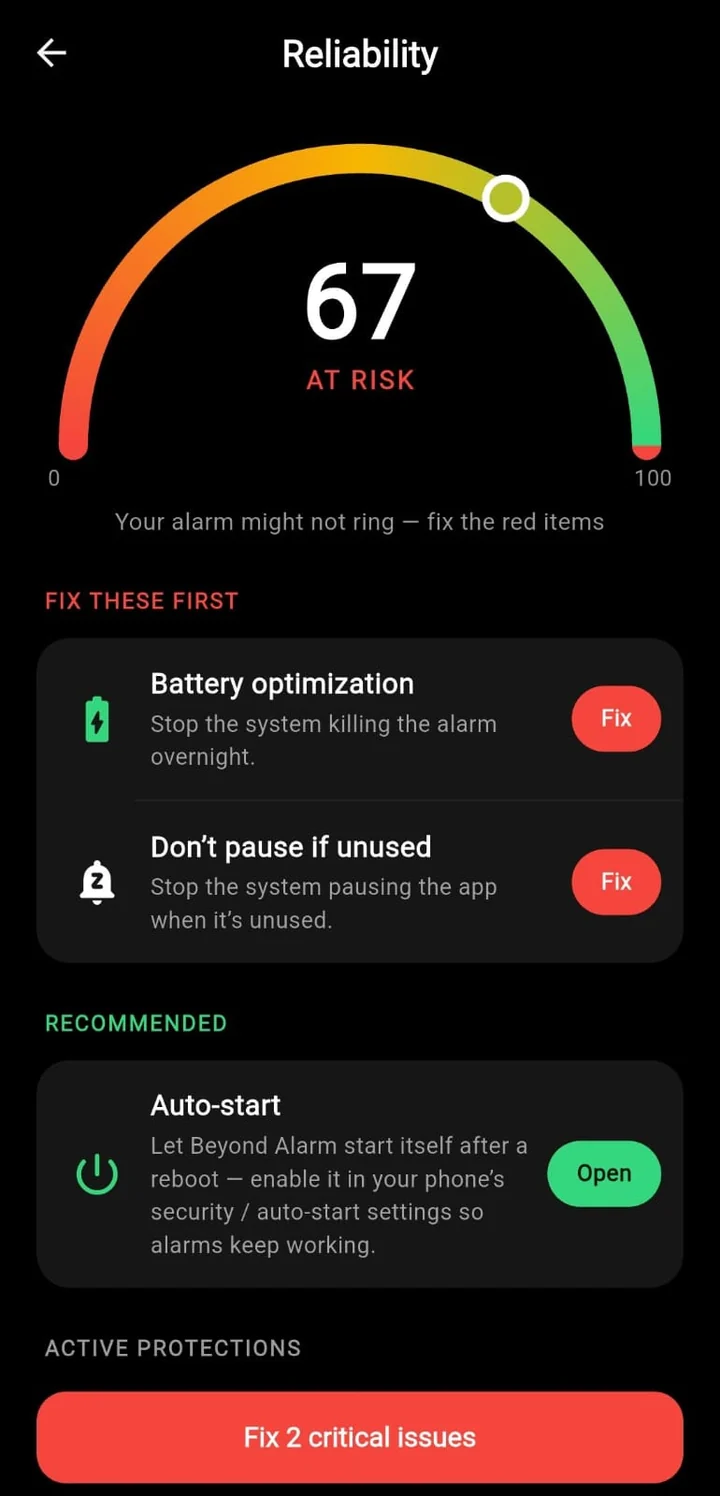
Phone makers such as Xiaomi, vivo and OPPO add their own background limits on top. In our app, the Reliability screen checks battery optimisation, the "pause if unused" setting and autostart, and opens each one for you. The full list is in why your alarm isn't going off on Android.
What Beyond Alarm does on Android that a clock app doesn't
Beyond Alarm's Android version has no ring time-out: it rings until you dismiss it or finish its mission. While it rings, it holds the alarm stream at full volume, so turning it down with the volume keys doesn't work.
Two more settings sit on each alarm:
- Wake-up check (Android only). One, three, five or ten minutes after you dismiss, an "Are you awake?" prompt appears. Miss it and the alarm rings again.
- Morning lockout. Once the mission is done, the apps that pull you back to bed stay blocked for 15, 30, 45 or 60 minutes, or a custom time. On Android it can lock the whole phone instead.
Our suggested first alarm: set Gentle wake-up to 30 seconds, add a squats mission with 10 reps, then a Scan a code mission on a barcode in the kitchen. Test it once in daylight. If it rings on time and you finish both, you're standing in another room before you've decided whether to get up.
Setting an alarm by voice
Samsung's page notes you can hold the side button and tell Bixby the time, and the alarm appears in Clock for you to edit. Voice alarms land in the Clock app, so the same volume and battery checks apply. They can't add a mission, so for an alarm you need to get up for, set it in Beyond Alarm once and leave it on repeat.
Sources
Common questions
How do I set an alarm on my Android phone?
Open the Clock app, tap Alarm, tap Add (the plus), set the time and tap OK or Save. In Beyond Alarm, tap the plus on the home screen, set the time, add a wake-up mission if you want one, and tap Save.
How do I set an alarm on a Samsung phone?
Open Clock, stay on the Alarm tab and tap the plus. Swipe to set the time, pick repeat days, a name, Alarm sound and its volume slider, Vibration and Snooze, then tap Save, per Samsung's own support page.
Why didn't the alarm on my phone go off?
On Android the usual causes are a low alarm volume, Battery Saver or battery optimisation stopping the app, and two alarms set too close together. Google says to leave five minutes between alarms. Beyond Alarm's Reliability screen checks the battery and autostart settings for you.
Can I set an alarm on Android that I can't turn off in my sleep?
Yes. Beyond Alarm puts a wake-up mission on the alarm, such as squats counted by the camera, a photo of your kitchen or a code scan, and the alarm keeps ringing until it's done. All eleven missions are free.
How do I make my Android alarm louder?
Raise the alarm volume itself, not the media volume. Google suggests keeping it above 30%. On Samsung the alarm has its own volume slider under Alarm sound. Beyond Alarm pins the alarm stream to maximum while it rings.
We build Beyond Alarm, the alarm for Android and iPhone that will not switch off until you have actually moved, then blocks the apps that pull you back. Most of what we write here comes out of building it.
Beyond Alarm
An alarm that keeps ringing until you’ve actually moved — then blocks the apps that pull you back to bed. Free to start, no account.
Keep reading
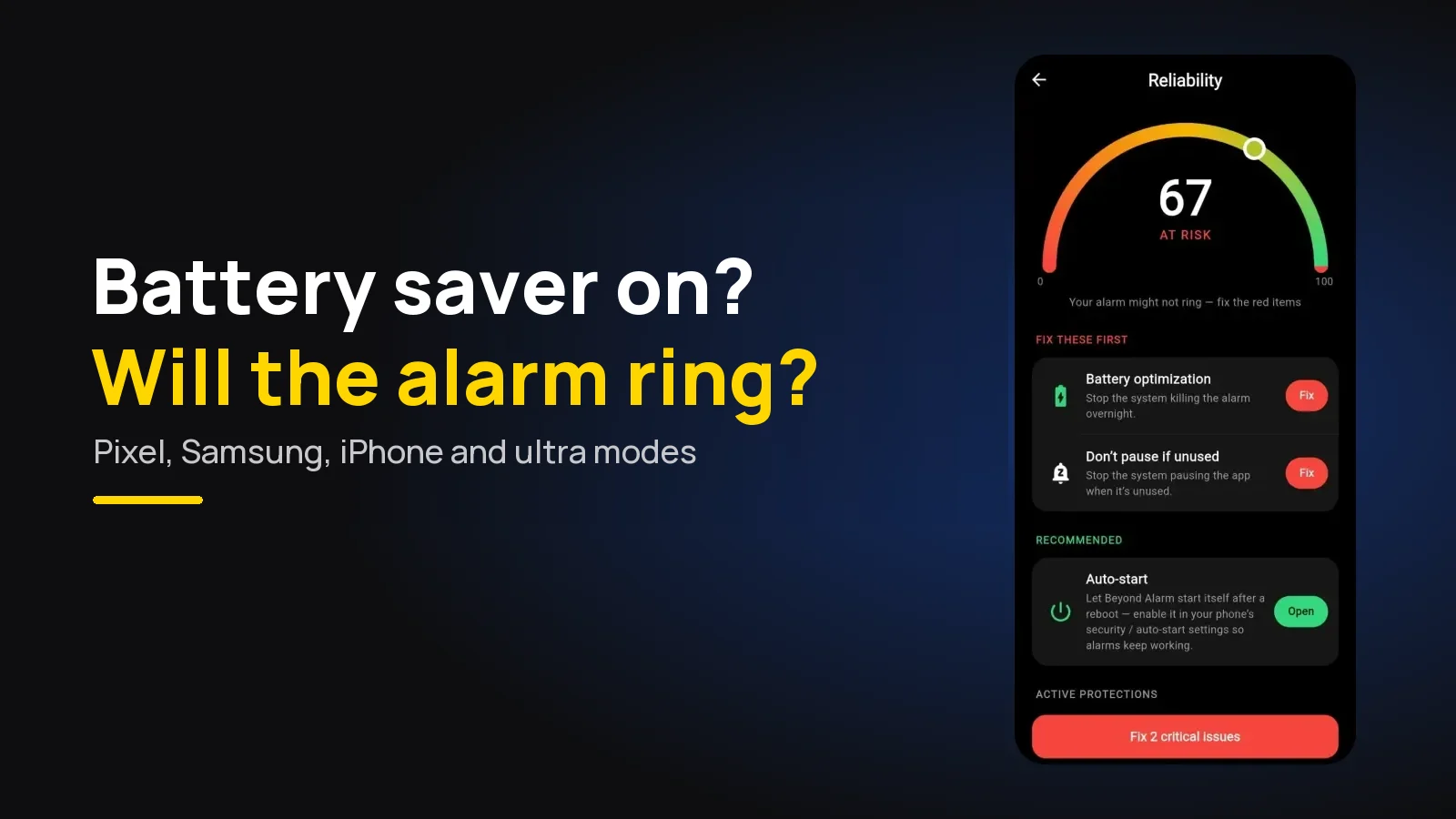
Does Your Alarm Work in Battery Saver Mode?
Does your alarm ring in battery saver or ultra power saving mode? What each mode really pauses on Pixel, Samsung and iPhone, and how to keep alarms safe.
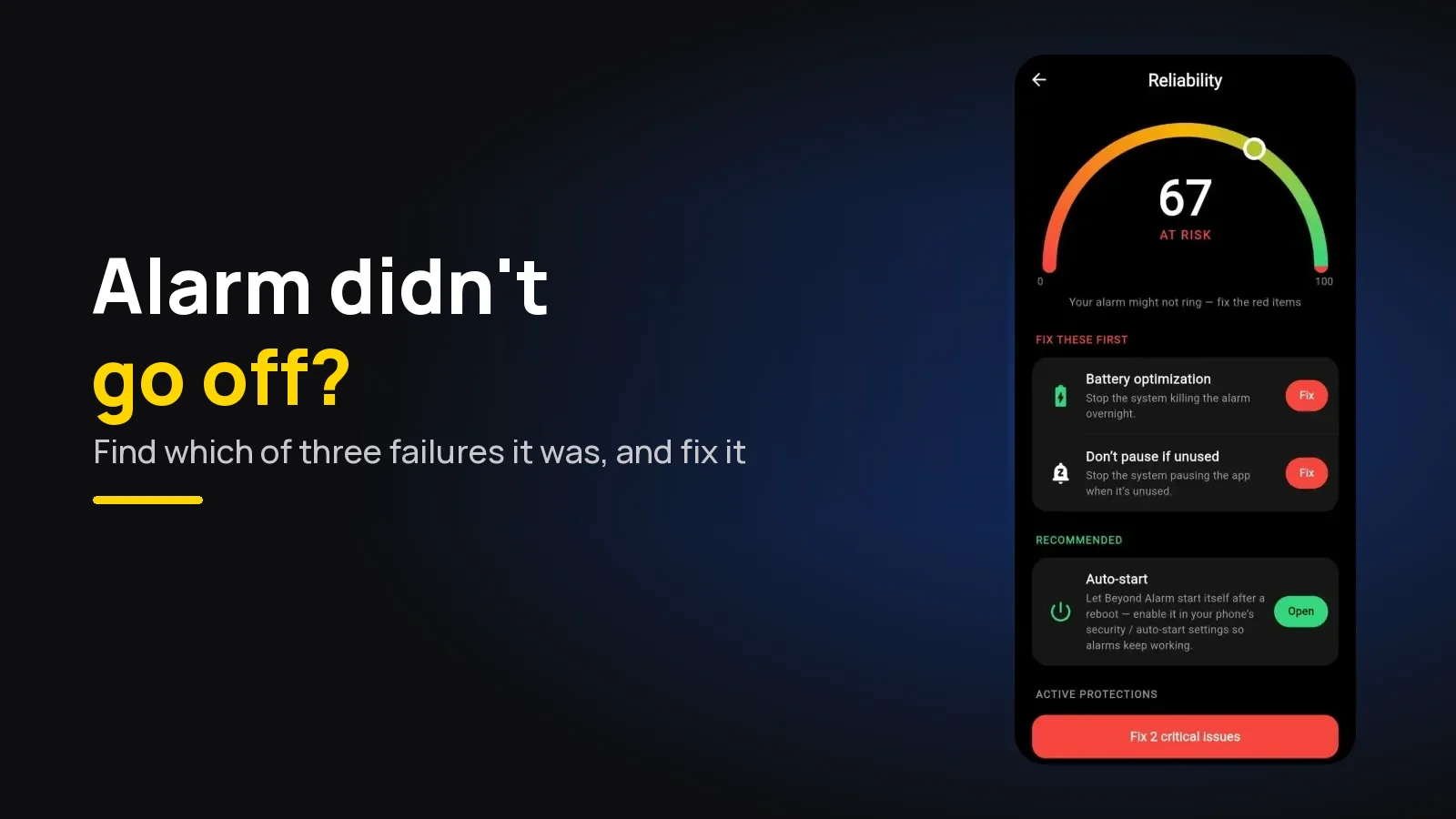
Alarm Didn't Go Off? Why It Happens and How to Fix It
Alarm didn't go off on Android or iPhone? Work out which of three failures you had, check what happened overnight, and make sure tomorrow's alarm rings.