
Samsung Alarm Not Making Sound? 8 Fixes for One UI
 Beyond Alarm9 November 2026 · 7 min read
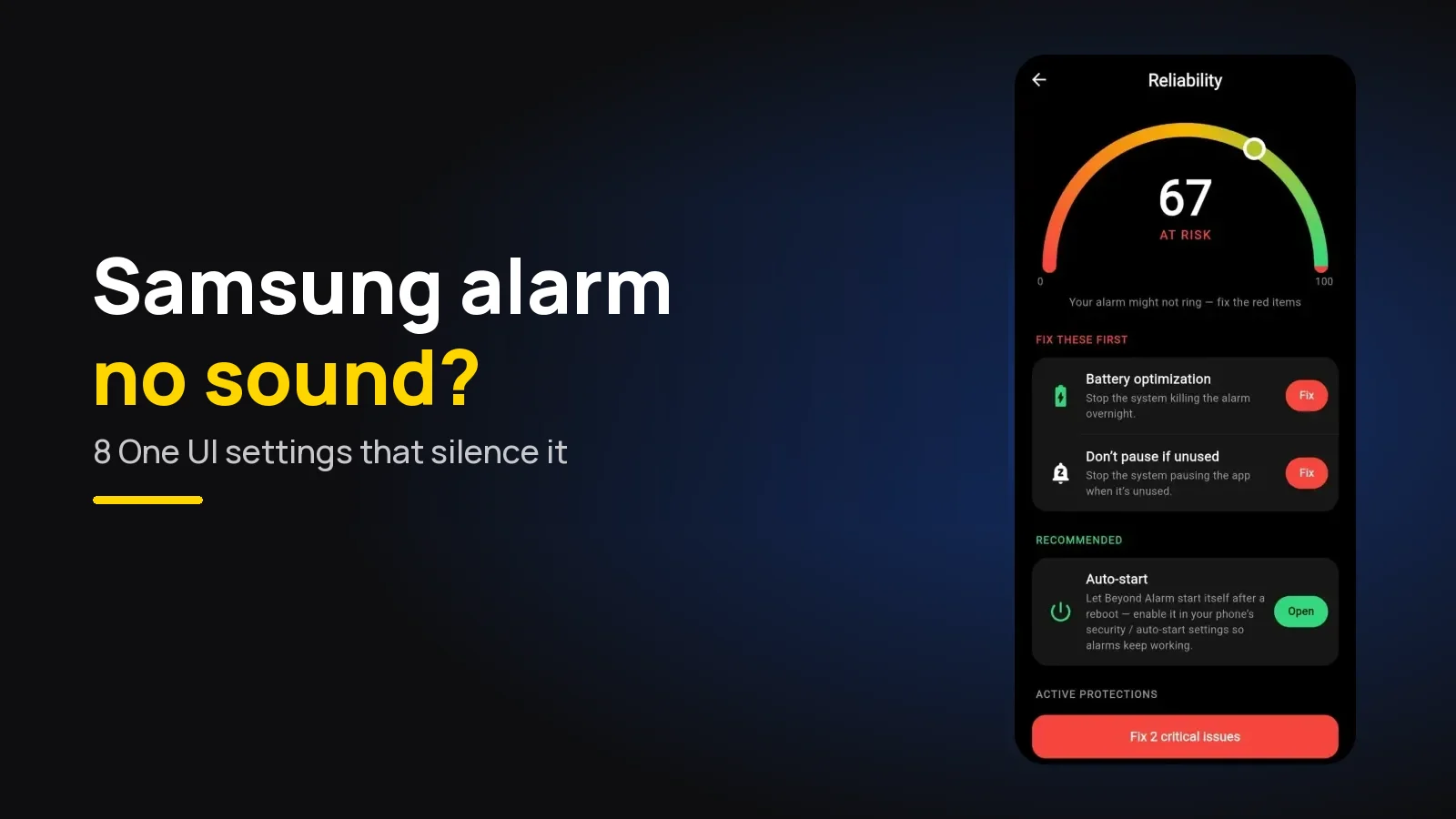
A Samsung alarm that makes no sound is almost always one of four settings: the alarm's own sound and volume in Clock, Clock's Silence alarms when system sound is off switch, a deleted tone, or Sleep mode. Beyond Alarm sidesteps most of them by holding the alarm volume at maximum.
The short version:
- Use Beyond Alarm: it rings on Android's alarm volume and holds it at maximum while it rings, and its reliability screen warns you if the alarm volume is at zero.
- In Clock, tap the alarm → Alarm sound: make sure it's on, pick a built-in tone, and drag the volume slider up.
- In Clock → ⋮ → Settings, turn off Silence alarms when system sound is off.
- Check Sleep mode and any Modes and Routines that run at night.
- Disconnect Bluetooth earbuds before bed, or test with them connected.
Which no-sound problem do you have?
Each symptom points at a different setting. Start with the row that matches your morning.
| Symptom | Most likely cause | Section |
|---|---|---|
| Want it loud however the sliders are set | A slider left low the night before | Beyond Alarm (section 8) |
| Vibrates, no sound | Alarm sound off, or Silence alarms when system sound is off | Sections 1 and 2 |
| Silent only on Mute or Vibrate | Silence alarms when system sound is off | Section 2 |
| Silent with a song or downloaded tone | The file was moved or deleted | Section 3 |
| Silent on the speaker, earbuds in the bed | Bluetooth routing | Section 4 |
| Silent only at night or on weekends | Sleep mode, a Mode or a Routine | Sections 5 and 6 |
| Sound plays, but too quiet | The alarm's own volume, or a gradual start | Section 1, then the volume guide |
If the alarm doesn't go off at all, not even a vibration or a screen, that's a different problem: see why a Samsung alarm doesn't go off.
A note on menu names
The paths below follow Samsung's own support pages and One UI 6 and 7. Samsung renames and moves things between versions, so if a path doesn't match, use the search bar at the top of Settings, or the ⋮ menu inside Clock, and look for the words in bold.
1. The alarm's own sound and volume, in Clock
On a Samsung phone the alarm's loudness lives in the Clock app, not the main volume sliders. Samsung's guide to Settings → Sounds and vibration → Volume describes sliders for "call ringtones, notifications, media, and system sounds". Turning those up doesn't reach a Clock alarm.
- Open Clock, tap the alarm, and check Alarm sound is switched on. If it's off, the alarm only vibrates.
- Tap the words Alarm sound (not the switch). Samsung's alarm guide says to "choose a sound to play for the alarm and drag the slider to set the volume".
- Tap Save. Each alarm keeps its own volume, so check every alarm you rely on, not just one.
Newer phones add a shortcut. Samsung's Galaxy S25 page shows Clock → ⋮ → Settings → Volume, where you can set one volume for every alarm instead of one per alarm.
Third-party alarm apps work differently: they play on Android's alarm volume. If that's at zero, their alarms are silent. If yours rings but is too quiet, why alarms are too quiet on Android covers gradual volume and the other causes.
2. "Silence alarms when system sound is off"
This is the Samsung-specific one, and it explains most "it only rings when the phone isn't on Vibrate" stories. Samsung's support page says you "can also silence your alarms when your device's sound is turned off".
- Open Clock and stay on the Alarm tab.
- Tap ⋮ (More options) → Settings.
- Turn off Silence alarms when system sound is off.
With it on, switching the phone to Mute or Vibrate at bedtime also silences every Clock alarm. Samsung suggests changing the sound mode rather than using the volume buttons to keep your levels, which is the habit that makes this switch matter.
3. A deleted or moved tone
If the alarm tone is a song or a file you downloaded, it depends on that file still being there. Move it, delete it, or clear out your music app's offline downloads, and the alarm can point at nothing.
- In Clock, tap the alarm → Alarm sound.
- Pick one of Samsung's built-in tones.
- Set a test alarm two minutes ahead and listen.
4. Bluetooth earbuds and speakers
Samsung's volume guide notes that "an additional volume level will show for audio devices connected through Bluetooth". With earbuds or a speaker connected overnight, the sound may not go where you expect: one owner in the Samsung Community reports "still hearing notification and alarm sounds in my earbuds".
How this behaves depends on the phone, the earbuds and the One UI version, so don't guess. Either turn Bluetooth audio off before bed, or set a test alarm with your earbuds connected and listen to where it plays.
If you wear a Galaxy Watch, Samsung says that when the two are connected, "alarms set on your phone will sound on both devices", so the watch shouldn't take the sound away from the phone.
Beyond Alarm
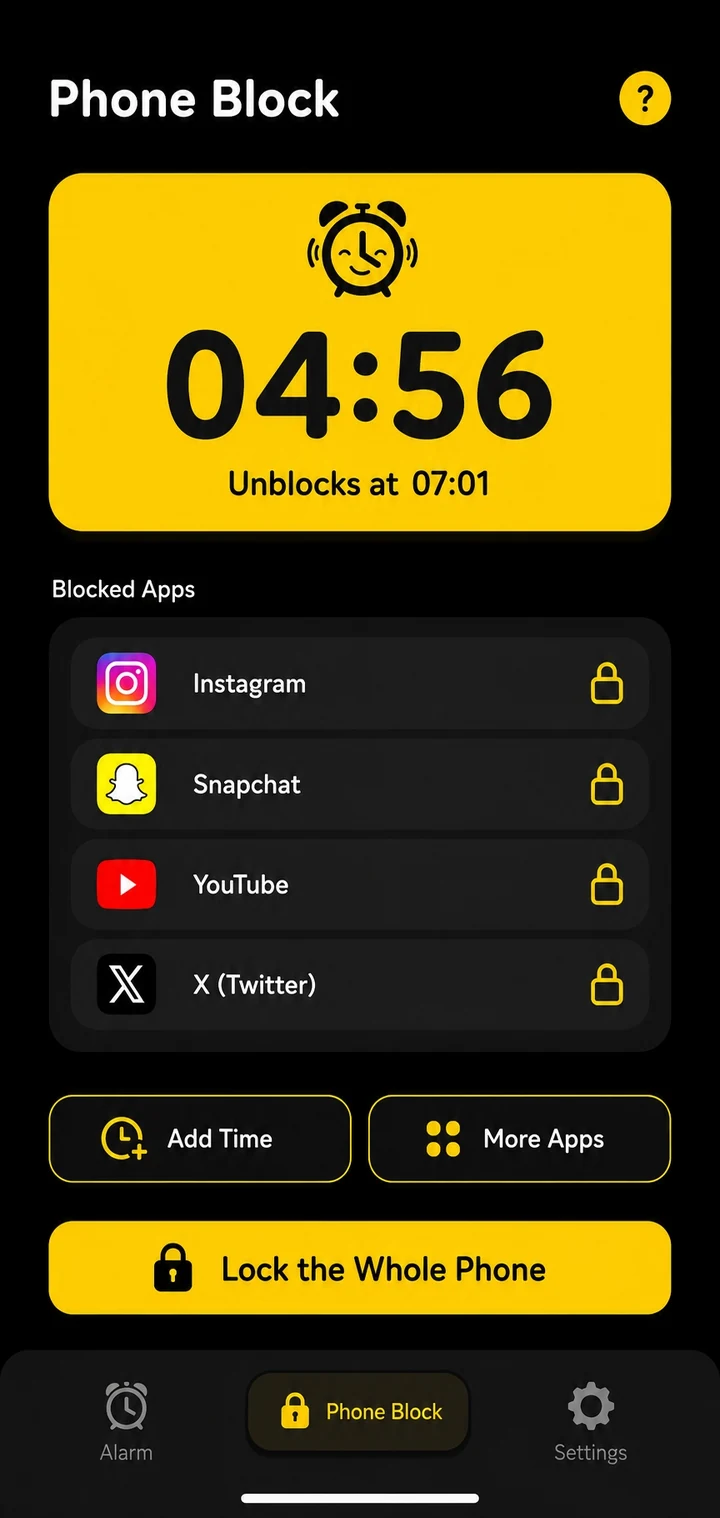
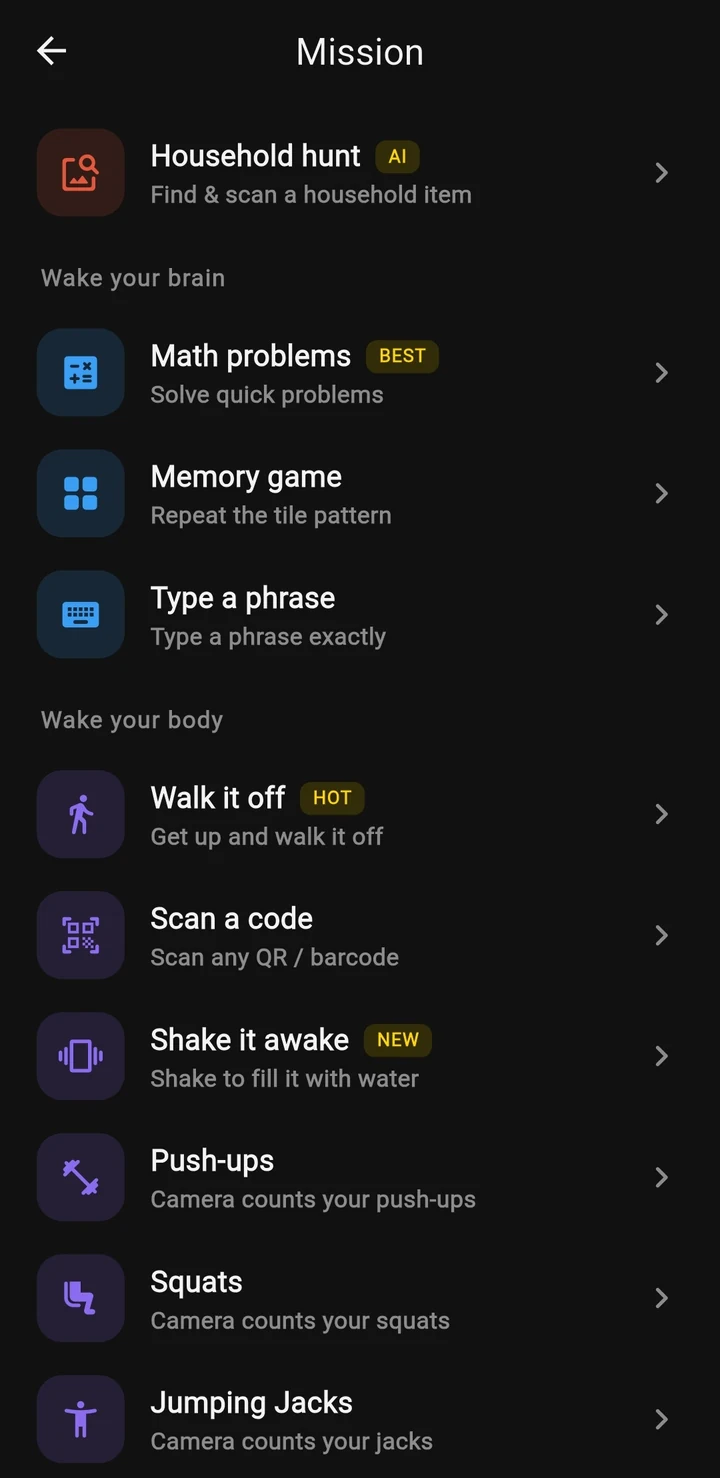
Beyond Alarm does this part for you: the alarm will not switch off until you have actually moved, and the apps you pick stay locked afterwards.


5. Sleep mode
Sleep mode can switch on by schedule every night, and it carries its own Do Not Disturb settings. Samsung's alarm guide sets it up from Clock → ⋮ → Set Sleep mode schedule, and it can turn on automatically.
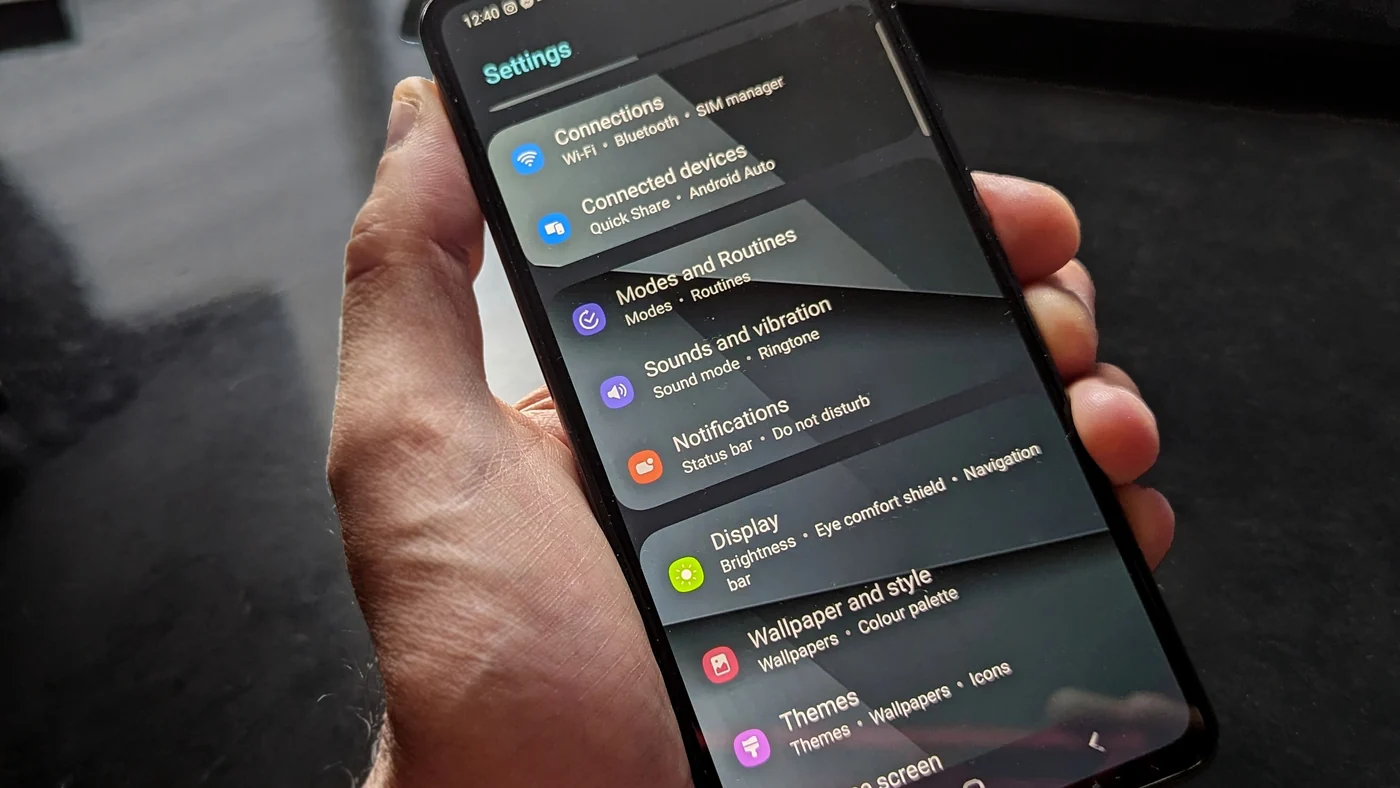
- Open Settings → Modes and Routines → Modes → Sleep.
- Open its Do Not Disturb settings and make sure Alarms is allowed.
- Do the same for any other Mode that runs at night.
Even with alarms allowed, owners in the Samsung Community have reported silent alarms in Sleep mode after updates. Samsung's suggested next step there was testing in Safe Mode to rule out another app. The three ways Do Not Disturb silences an alarm covers the rest.
6. Routines (Bixby Routines) that change the sound
Modes and Routines, called Bixby Routines on older phones, can lower volumes, change the sound mode to Mute or turn on Do Not Disturb at a set time. Combined with section 2, a bedtime routine that mutes the phone also mutes the alarm.
Open Settings → Modes and Routines → Routines and read every routine that runs at night. Check what it changes, and whether it switches back in the morning.
7. If it's Samsung's own Clock: update it
If the sound stopped after a software update, members of the Samsung Community report that updating Clock from the Galaxy Store fixes it. Open Galaxy Store → Menu → Updates and update Clock if it's listed.
8. Beyond Alarm: a Samsung alarm that can't ring silently
If you've been caught by any of the above, the simplest fix is an alarm that doesn't depend on how the sliders were left. That's what we built Beyond Alarm to do.
Here is what our own code does on Android when the alarm fires. It plays on the alarm stream and sets the alarm volume to maximum, and if anything turns it down while it rings, it goes straight back up. When you add your own sound, the app copies it into its own storage, so deleting the original later doesn't leave the alarm pointing at nothing. If a sound still fails to play, it falls back to its built-in tone, on the alarm stream at full volume. There's no time-out: it rings until you dismiss it or finish your wake-up mission.
Beyond Alarm's reliability screen also checks the alarm volume, exact-alarm permission, notifications, full-screen alerts, battery optimisation and Display over other apps, and opens the right page for each. On Samsung, also add it to Never sleeping apps, as our Samsung alarm checklist explains. Not sure which failure you had? Start with why your alarm didn't go off.
Test it before you rely on it
Set an alarm for three minutes from now, put the phone on Vibrate the way you would at bedtime, lock it and put it face down. If it rings out loud, the Clock settings are right.
Then check what a three-minute test can't: that no Mode or Routine switches on at night, and that your earbuds aren't connected. Re-check after any One UI update.
Sources
Checked on 9 November 2026.
Common questions
Why does my Samsung alarm vibrate but make no sound?
Usually the alarm's own sound is switched off or turned right down in Clock, Clock's Silence alarms when system sound is off setting is on while the phone is on Vibrate or Mute, or the tone was a file that's been deleted. Check those three first.
Where is the alarm volume on a Samsung phone?
In Samsung's Clock app, not the main volume sliders. Tap the alarm, then Alarm sound, and drag the slider at the bottom. On newer phones such as the Galaxy S25, Clock → ⋮ → Settings → Volume lets you set one volume for every alarm.
Does Mute or Vibrate mode silence alarms on Samsung?
Not normally, but it can. Samsung's Clock has a setting called Silence alarms when system sound is off. With it on, putting the phone on Mute or Vibrate also silences your alarms. Turn it off in Clock → ⋮ → Settings.
Why does my Samsung alarm play in my earbuds?
With Bluetooth earbuds or a speaker connected, some owners report alarm sounds going to the earbuds. Disconnect Bluetooth audio at night, or set a test alarm with the earbuds connected to see where yours plays.
Will a third-party alarm app make sound on Samsung?
Yes, as long as Android's alarm volume is up and Do Not Disturb allows alarms. Beyond Alarm raises the alarm volume to maximum while it rings and holds it there, so a slider left low the night before doesn't matter.
We build Beyond Alarm, the alarm for Android and iPhone that will not switch off until you have actually moved, then blocks the apps that pull you back. Most of what we write here comes out of building it.
Beyond Alarm
An alarm that keeps ringing until you’ve actually moved — then blocks the apps that pull you back to bed. Free to start, no account.
Keep reading
Tecno or Infinix Alarm Not Going Off? 7 Fixes
Alarm not going off on a Tecno, Infinix or itel phone? Phone Master is usually why. The 7 settings to change in HiOS and XOS, in order, to make it ring.
Alarm Automatically Silenced on Android? What It Means
"Alarm automatically silenced" means it rang and timed out while you slept. Why Pixel and Samsung clocks stop alarms, and how to keep yours ringing.