How to Block Instagram (and Reels) on Android and iPhone
 Beyond Alarm19 November 2026 · 7 min read
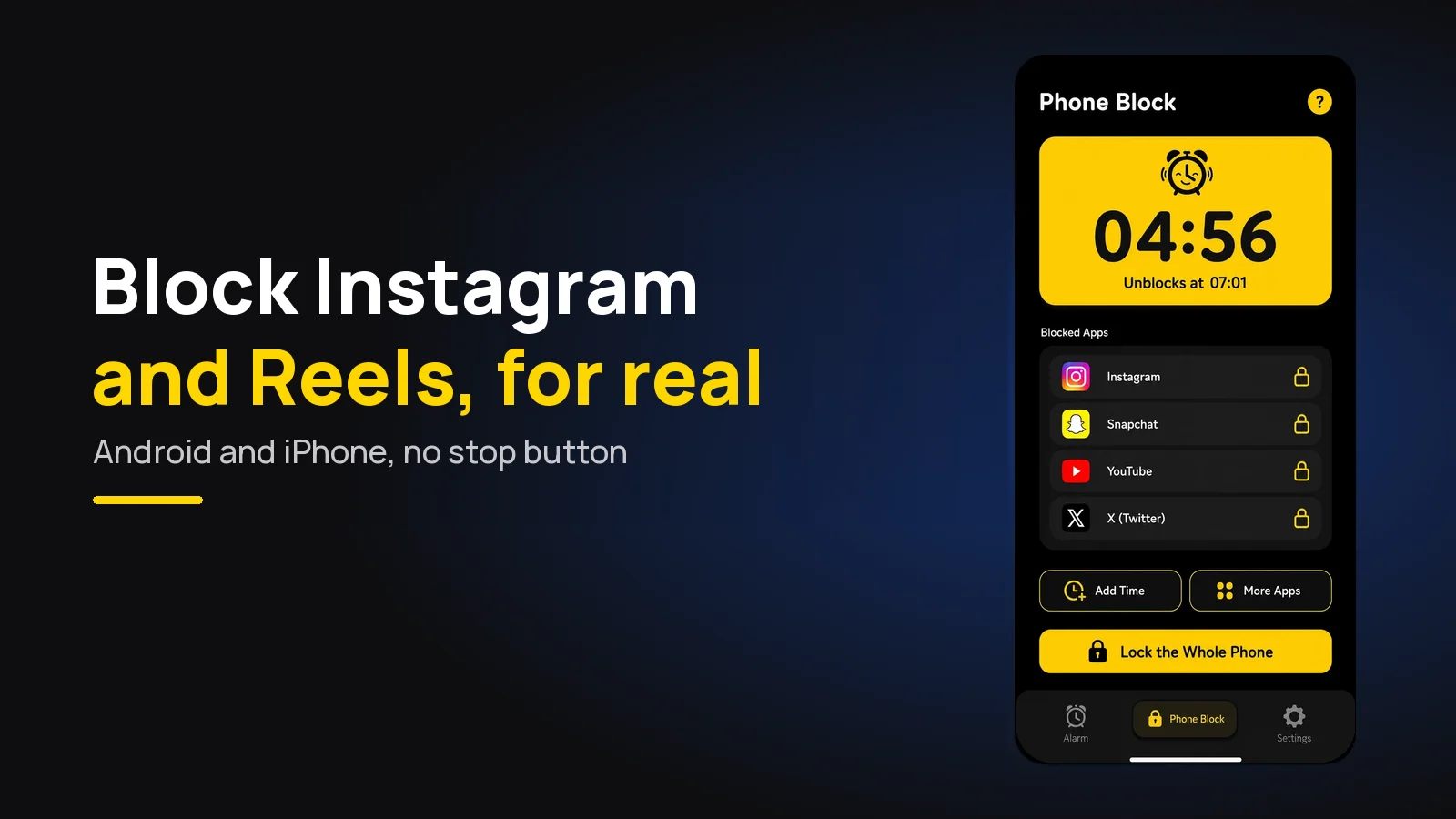
To block Instagram on Android or iPhone, start a Phone Block in Beyond Alarm, pick Instagram and set a length. In Strict mode there is no stop button until the timer ends, and it is free after one short ad. Instagram's own daily limit is only a reminder.
Choose the block by when Instagram gets you — not by how much you use it.
The short version:
- Beyond Alarm's Phone Block blocks Instagram for 5 minutes to 8 hours. Strict mode is free with one short ad and cannot be stopped early.
- Reels cannot be switched off inside the app. Block Instagram at the hours Reels eats, not all day.
- Instagram's daily limit and Sleep mode are reminders and mutes. One tap past them and you are back in the feed.
- Digital Wellbeing and Screen Time are free, but you are the person who can turn them off.
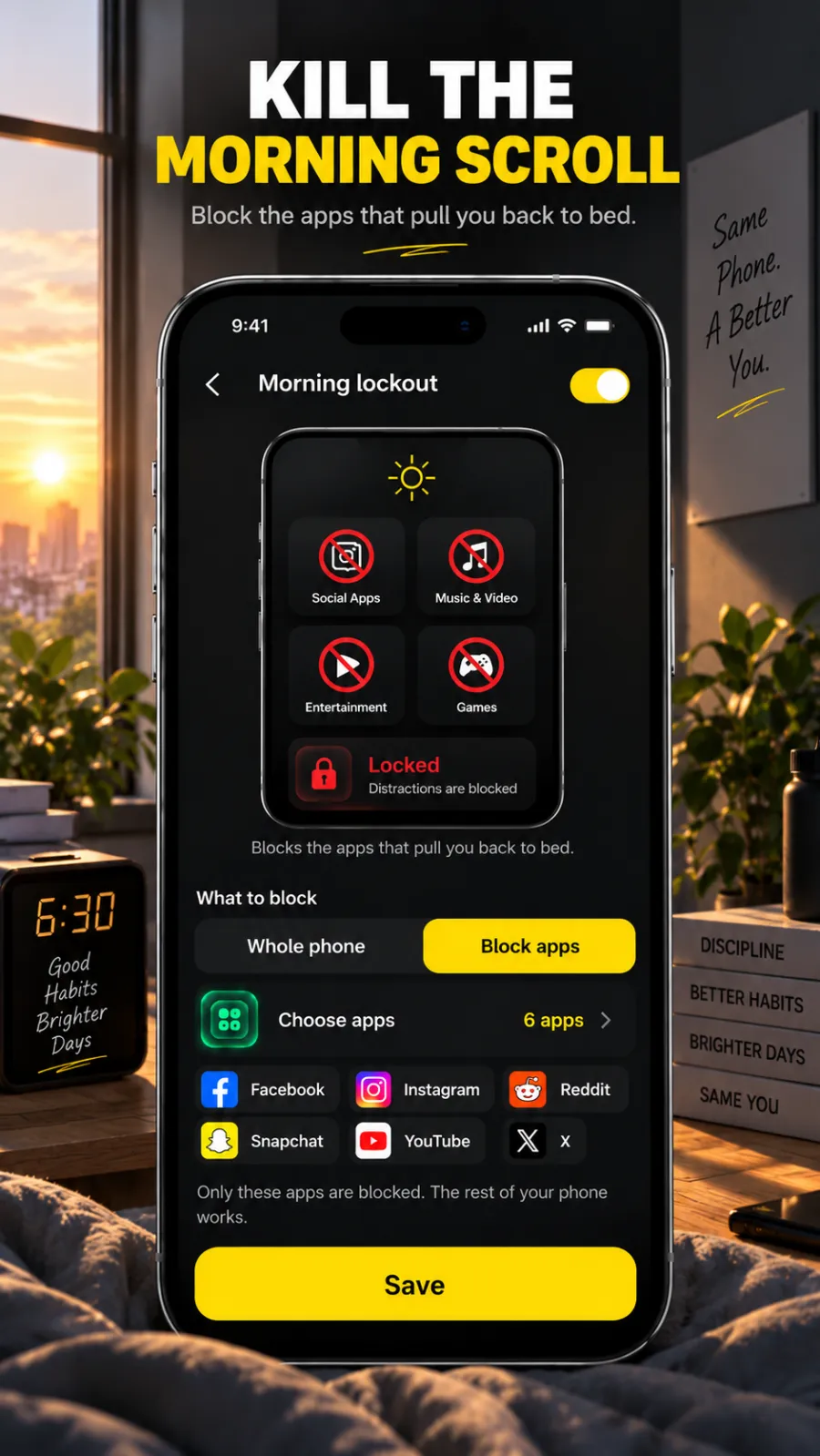
- Mornings: Beyond Alarm's Morning Lockout blocks Instagram the moment your alarm ends.
Every way to block Instagram, compared
The question behind every option is the same: what does it take to get back in before the time is up?
| Method | Android | iPhone | Blocks Reels? | How easy to undo |
|---|---|---|---|---|
| Beyond Alarm Phone Block (Strict mode) | Instagram, or the whole phone | Instagram, or the whole Social category | Yes — blocks the app | Not until the timer ends |
| Beyond Alarm Morning Lockout | Yes | Yes | Yes — blocks the app | Starts on its own after your alarm |
| Instagram daily limit | Yes | Yes | No — a reminder | Dismiss it |
| Instagram Sleep mode | Yes | Yes | No — mutes notifications | Keep scrolling |
| Digital Wellbeing app timer | Yes | — | Whole app, once a day's allowance is used | Delete the timer |
| Digital Wellbeing Focus mode | Yes | — | Whole app | "Take a break" or "Turn off now" |
| Screen Time limit / schedule | — | Yes | Whole app | Your own Screen Time passcode |
| Delete the app | Yes | Yes | Whole app | Reinstall in a minute |
Everything Instagram builds in is a nudge. The phone's own tools do block the app, but the off switch sits one menu away. Beyond Alarm is the one in the table that holds until the time is up.
Block Instagram with Beyond Alarm (Android and iPhone)
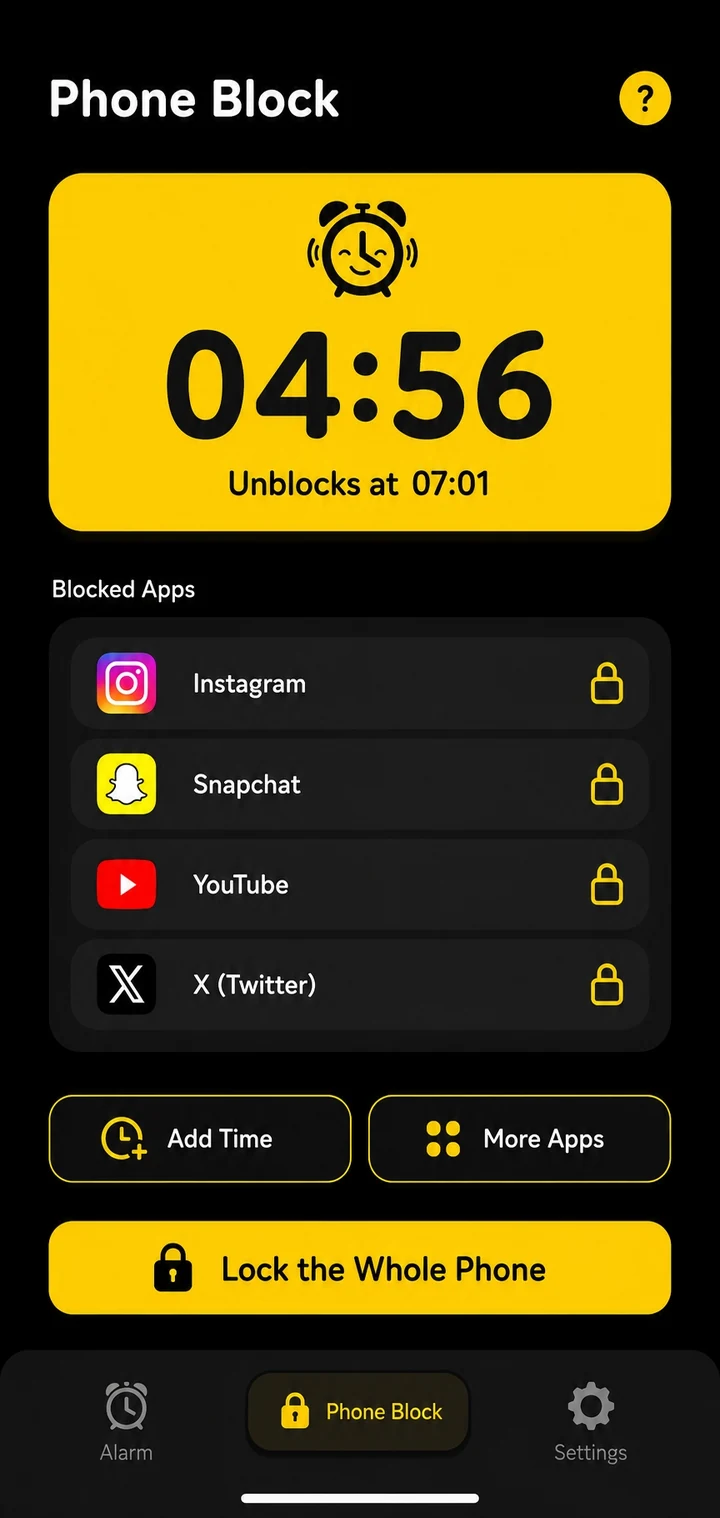
We built Phone Block for exactly this: shutting the two or three apps you lose hours to, for a length you choose. Beyond Alarm is an alarm app with wake-up missions that also blocks apps.
- Open Phone Block and pick a length: 15, 30, 45, 60, 90 or 120 minutes, or Custom from 5 minutes to 8 hours.
- Choose Instagram. On iPhone you can tick the whole Social category instead, which also covers TikTok, Snapchat and X — even ones you install later. On Android you can lock the whole phone.
- Pick how strict. Regular mode lets you leave early by watching an ad, then holding a button for 5 seconds. Strict mode has no stop button until the timer ends.
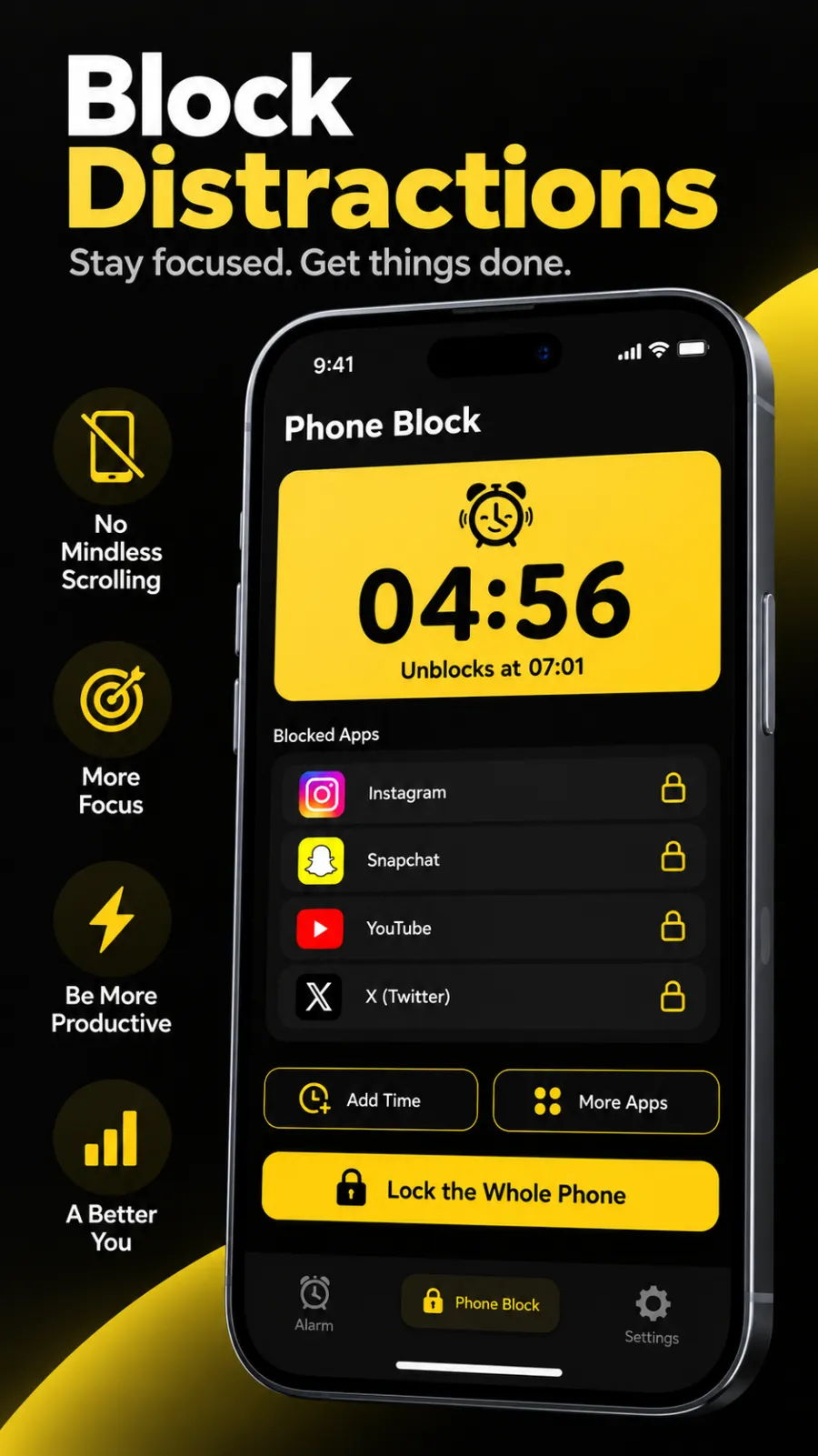
Most blockers charge for their strictest mode. In Beyond Alarm, Strict mode is free: you switch it on by watching one short ad.
In our own code a Phone Block saves the clock time it ends, not a countdown, so restarting the phone does not reset it. On iPhone, Beyond Alarm uses Apple's Screen Time to shield the apps and categories you pick.
Block Instagram for a set time
"Block Instagram for an hour" is the most common version of this search, and the built-in tools handle it badly. An app timer is a daily allowance: it only bites once you have used it up, which is no help when you want Instagram shut for the next hour.
A Phone Block is a timer for right now. Set 60 minutes, choose Strict mode, and Instagram stays shut for exactly that hour. If you want the phone locked rather than one app, locking your phone for an hour covers the whole-phone options.
Block Instagram while you study or work
For study and work sessions, Beyond Alarm's Phone Block also has a Pomodoro mode: focus blocks of 25, 30, 45 or 50 minutes (or Custom), breaks of 5, 10 or 15 minutes, and 1 to 9 rounds. Instagram is blocked during focus and opens again in the breaks, with a notification at each switch.
That break matters. A block you know ends in 25 minutes is far easier to start than an open-ended one. Blocking apps while studying covers which apps to put on the list with Instagram.
Block Instagram right after you wake up
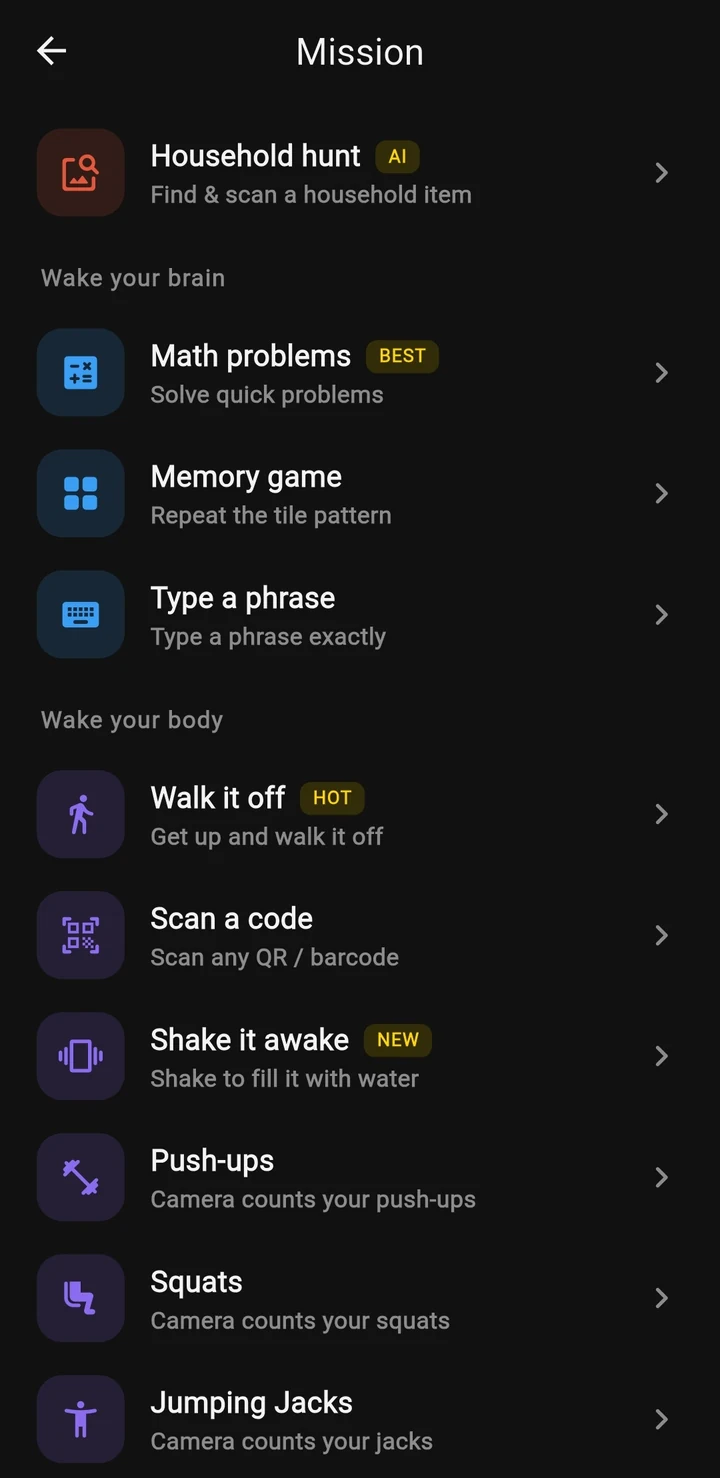
The first scroll of the day usually happens before you are properly awake — the phone that just woke you is already in your hand. That is the moment Morning Lockout is for.
Turn on Morning Lockout on your alarm and choose Instagram. Once the alarm is finished, the block starts by itself. On Android it runs in Regular mode; on iPhone it runs until its timer ends.
Beyond Alarm
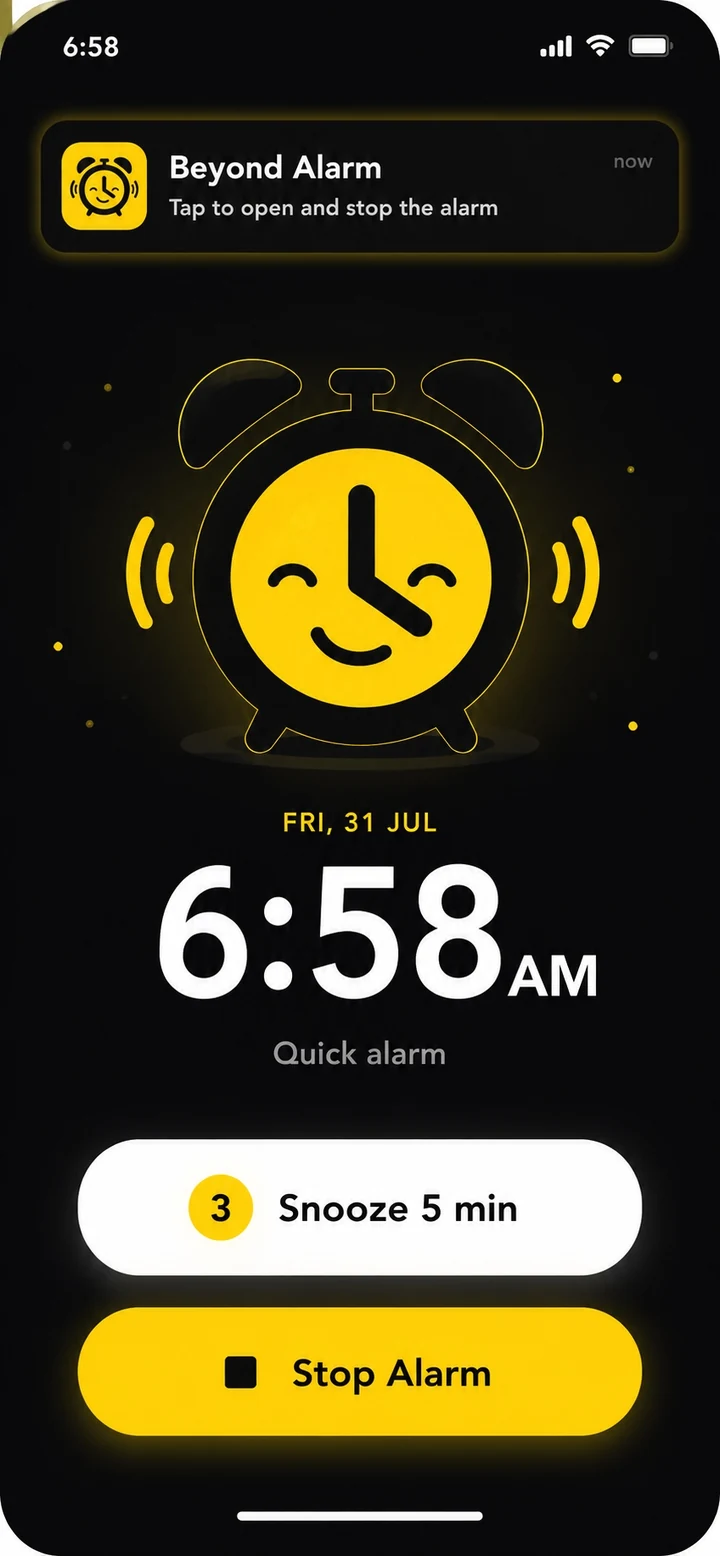
Beyond Alarm does this part for you: the alarm will not switch off until you have actually moved, and the apps you pick stay locked afterwards.
How to block Instagram Reels
Reels is the part most people actually mean. At the time of writing, Instagram has no setting that turns the Reels tab off, and neither Android nor iPhone can block one tab inside an app.
So there are two honest options:
- Lower the pull: mark Reels you don't want as Not interested, and set Instagram's daily limit as a nudge. Reels stays one tap away.
- Block Instagram at the hours Reels takes over — in bed, after the alarm, during study. That is where Beyond Alarm's Phone Block does the work, and you keep Instagram the rest of the day.
If YouTube Shorts is next in line once Reels is gone, blocking YouTube Shorts uses the same approach. Add YouTube to the same Phone Block list.
Instagram's own settings: daily limit and Sleep mode
Instagram has two built-in tools under Settings and activity → Time management (names may differ slightly by app version):
- Daily limit — set a daily time limit and Instagram reminds you to close the app when you reach it. It is a reminder, not a lock.
- Sleep mode (formerly Quiet mode) — mutes notifications for set hours and sends auto-replies to messages. The feed still opens.
Teen Accounts get these on by default, and a supervising parent can change them. For an adult running their own account, both are free and worth switching on — they just don't stop you.
Android: Digital Wellbeing app timers and Focus mode
Google's Digital Wellbeing tools give you two ways to limit Instagram:
- App timers: Settings → Digital Wellbeing → App timers → Set timer next to Instagram. When the time runs out, the app closes and its icon dims until midnight. To get it back, you delete the timer.
- Focus mode: pause Instagram now or on a schedule. The notification offers Take a break and Turn off now, one tap each.
Menu names vary between Samsung, Pixel, Xiaomi and others. How to block apps on Android walks through each one in more detail.
iPhone: Screen Time
On iOS 26, Settings → Screen Time → App Limits caps Instagram per day, and Downtime shuts it for set hours. On iOS 27, Apple renamed these Time Allowances and Screen Time Schedule, and allowances are set by category — make one that holds Instagram.
The weakness is the passcode. Unless someone else holds your Screen Time passcode, the person asking for more time and the person approving it are both you — the core of why Screen Time limits stop working.
If Instagram is what you lose your evenings and mornings to, Beyond Alarm's Phone Block is the fix we built. Choose Instagram (or the whole Social category on iPhone), set the length, and switch on Strict mode for one short ad. On Android, a whole-phone block also sends browsers back to the block screen, so instagram.com is not a back door. Beyond Alarm is free on Google Play and the App Store.
Which one should you use?
- You want Instagram shut for a set time, with no way back in: Beyond Alarm's Phone Block in Strict mode.
- You lose study or work time to it: Phone Block's Pomodoro mode, so Instagram opens only in the breaks.
- You scroll the moment the alarm stops: Morning Lockout.
- You only want a gentle nudge: Instagram's daily limit and Sleep mode, alongside a Beyond Alarm block for the hours that count.
Common questions
How do I block Instagram for a certain amount of time?
Start a Phone Block in Beyond Alarm, pick Instagram, and choose a length — presets from 15 minutes to 2 hours, or Custom from 5 minutes to 8 hours. Switch on Strict mode and there is no stop button until the timer ends. Free users turn Strict mode on by watching one short ad.
Can I block Instagram Reels but keep the rest of Instagram?
Not inside the official app, at the time of writing. Instagram has no setting that removes the Reels tab, and Android and iPhone block whole apps, not tabs. The practical answer is to block Instagram at the times Reels takes over, and use it freely the rest of the day.
Does Instagram's daily limit actually block the app?
No. Instagram's daily limit shows a reminder to close the app once you reach the time you chose. It is a reminder, not a lock, so you can dismiss it and keep scrolling. Teen Accounts have extra parent controls.
How do I block Instagram on my iPhone?
Screen Time can cap it (App Limits on iOS 26, Time Allowances on iOS 27) or shut it for set hours (Downtime, now called Screen Time Schedule), but you hold the passcode. Beyond Alarm's Phone Block shields Instagram through Apple's Screen Time, and its Strict mode has no stop button until the timer ends.
How do I block Instagram on Android?
Digital Wellbeing's app timer closes Instagram after a daily allowance, and Focus mode pauses it — but deleting the timer or tapping "Turn off now" undoes both. Beyond Alarm's Phone Block in Strict mode cannot be stopped early, and on Android it can lock the whole phone, browsers included, with calls still ringing through.
Can I block Instagram automatically when I wake up?
Yes. Turn on Beyond Alarm's Morning Lockout on your alarm and choose Instagram. The block starts by itself once the alarm is finished, so the first thing you open in the morning is not the feed.
We build Beyond Alarm, the alarm for Android and iPhone that will not switch off until you have actually moved, then blocks the apps that pull you back. Most of what we write here comes out of building it.
Beyond Alarm
An alarm that keeps ringing until you’ve actually moved — then blocks the apps that pull you back to bed. Free to start, no account.
Keep reading
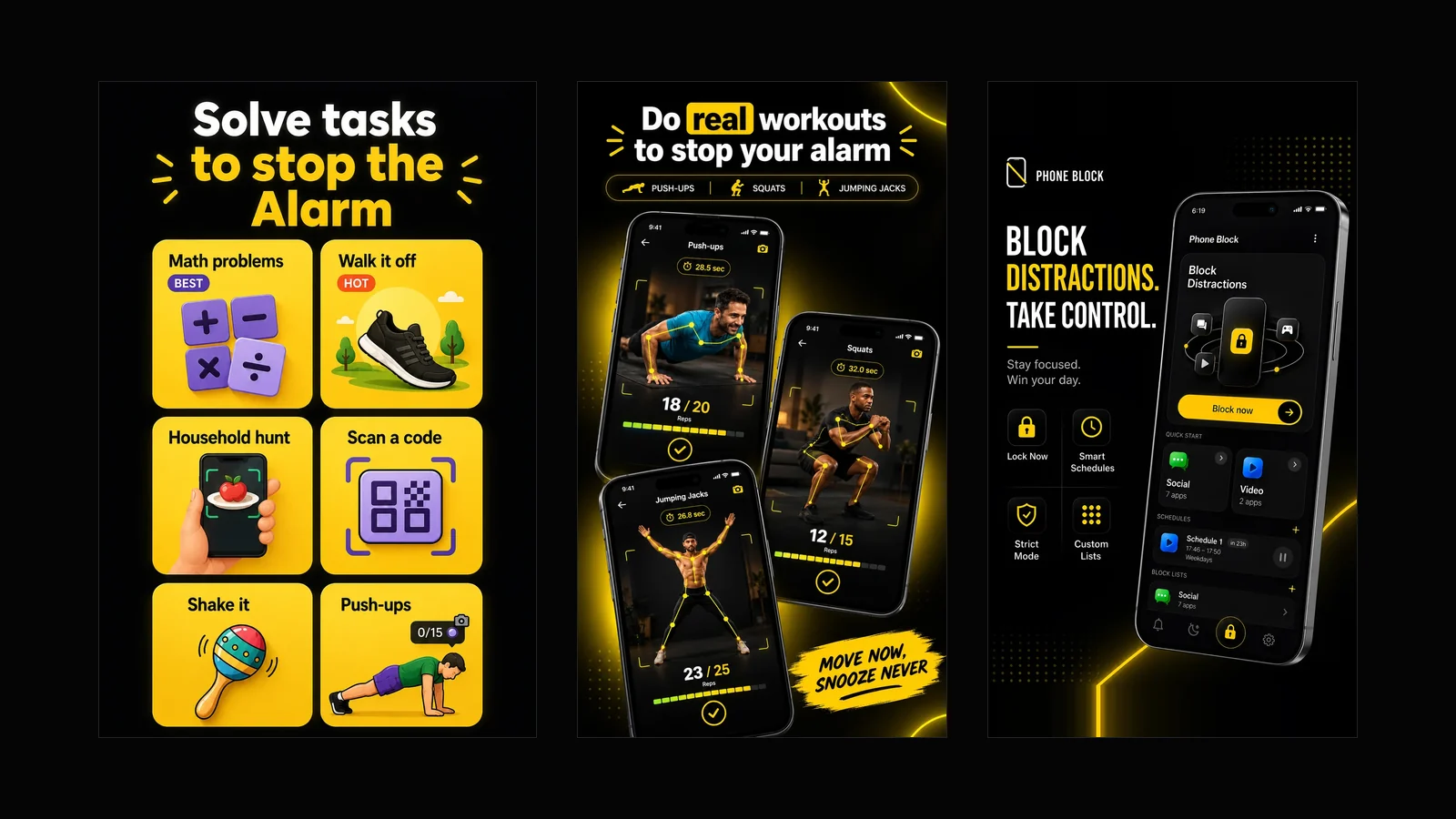
What Beyond Alarm does: wake-up missions and app blocking
The whole app on one page, for Android and iPhone — missions to stop the alarm, app blocking after it, and a free Strict mode Phone Block.
Best Alarmy alternatives for iPhone in 2026
The best Alarmy alternative for iPhone is Beyond Alarm, a mission alarm on Apple's AlarmKit that also blocks apps after you wake. What's on the App Store.