
How to Block Apps on Android: Built-in vs an App
 Beyond Alarm13 November 2026 · 6 min read
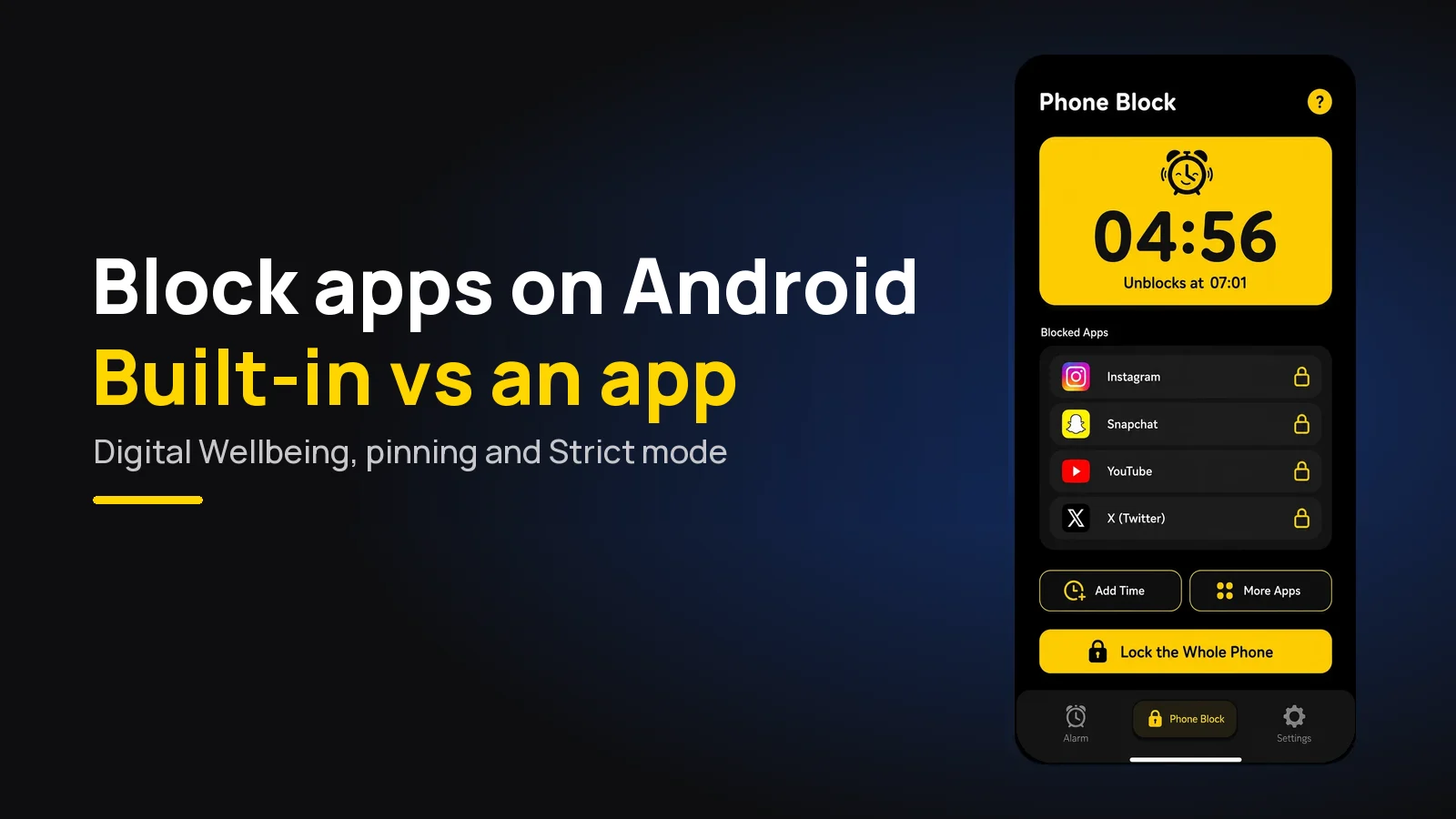
To block apps on Android, either use the built-in Digital Wellbeing (App timers and Focus mode) or install a blocker. The built-in tools are easy to undo. For a block you can't talk yourself out of, use Beyond Alarm's Phone Block: free, no root, and Strict mode has no stop button.
The short version:
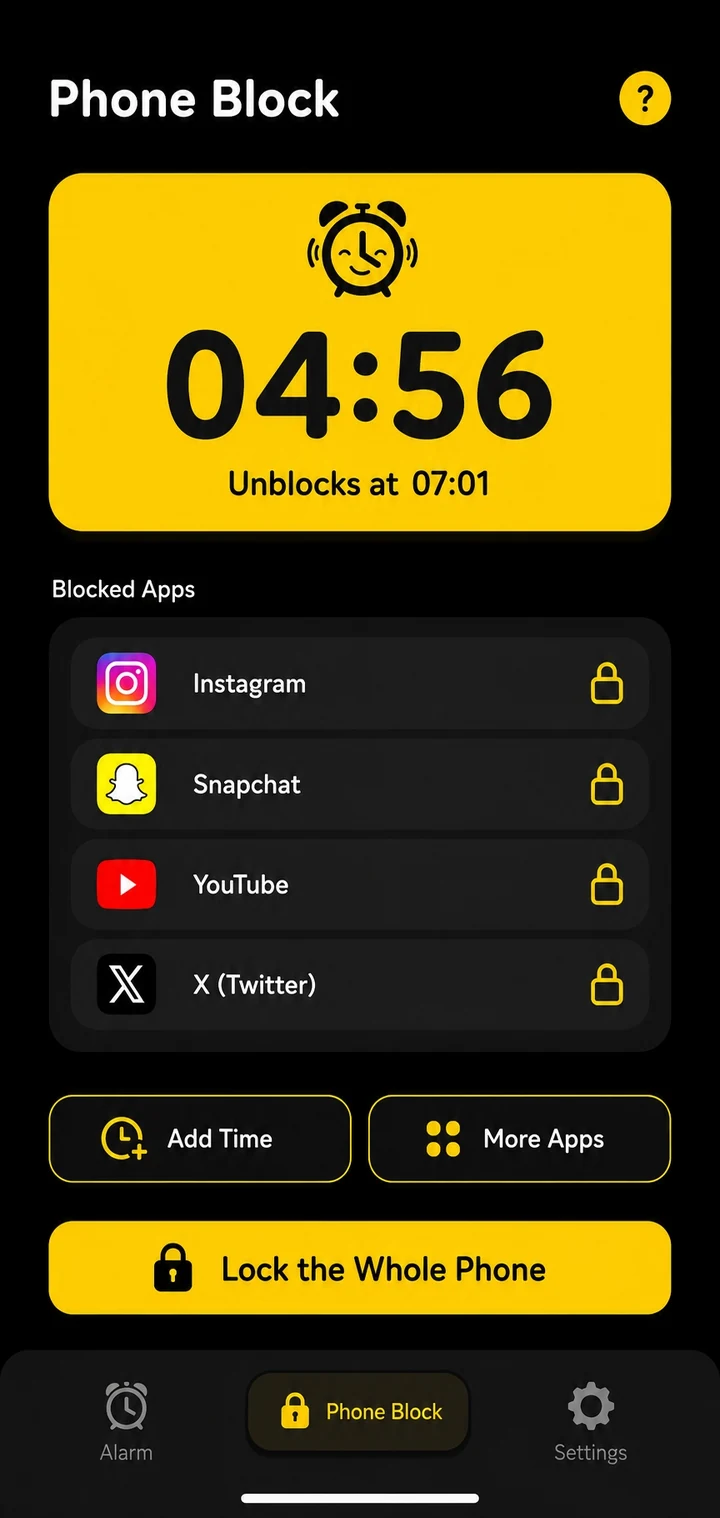
- Beyond Alarm blocks chosen apps, or the whole phone, for as long as you set. Strict mode has no stop button until the timer ends, and starting it costs one short ad. Calls still come through.
- App timers (Digital Wellbeing) close an app once you hit a daily limit, and reset at midnight.
- Focus mode (Digital Wellbeing) pauses chosen apps, but has a Take a break button.
- App pinning locks the phone to one app, which is useful when you hand it to someone else.
- No root is needed for any of these.
Every way to block apps on Android, compared
| Method | What it blocks | How easy to undo | Cost |
|---|---|---|---|
| Beyond Alarm, Strict mode | Chosen apps or the whole phone, for a set time | No stop button until the timer ends | Free; one short ad to start |
| Beyond Alarm, Regular mode | Chosen apps or the whole phone | Watch an ad, then hold for 5 seconds | Free |
| Digital Wellbeing App timers | One app, after a daily limit | Delete the timer on the same screen | Built in |
| Digital Wellbeing Focus mode | Chosen apps, now or on a schedule | Take a break, or Turn off now | Built in |
| App pinning | Everything except the pinned app | Gesture plus your PIN | Built in |
The column that matters is the third one. A block you can lift in two taps is a reminder, and a reminder works right up until the moment you most want the app.
Option 1: Beyond Alarm's Phone Block (the one that holds)
We built Phone Block for the moment Digital Wellbeing gives way: when you've already decided to scroll and only a harder wall would stop you.
- Install Beyond Alarm, open Phone Block and tap Block now.
- Under What to block, choose Chosen apps and tick the ones you want gone, or choose Whole phone.
- Pick how long: a quick chip or Custom.
- Under How strict, choose Regular mode or Strict mode.
- Tap Block for your chosen time.
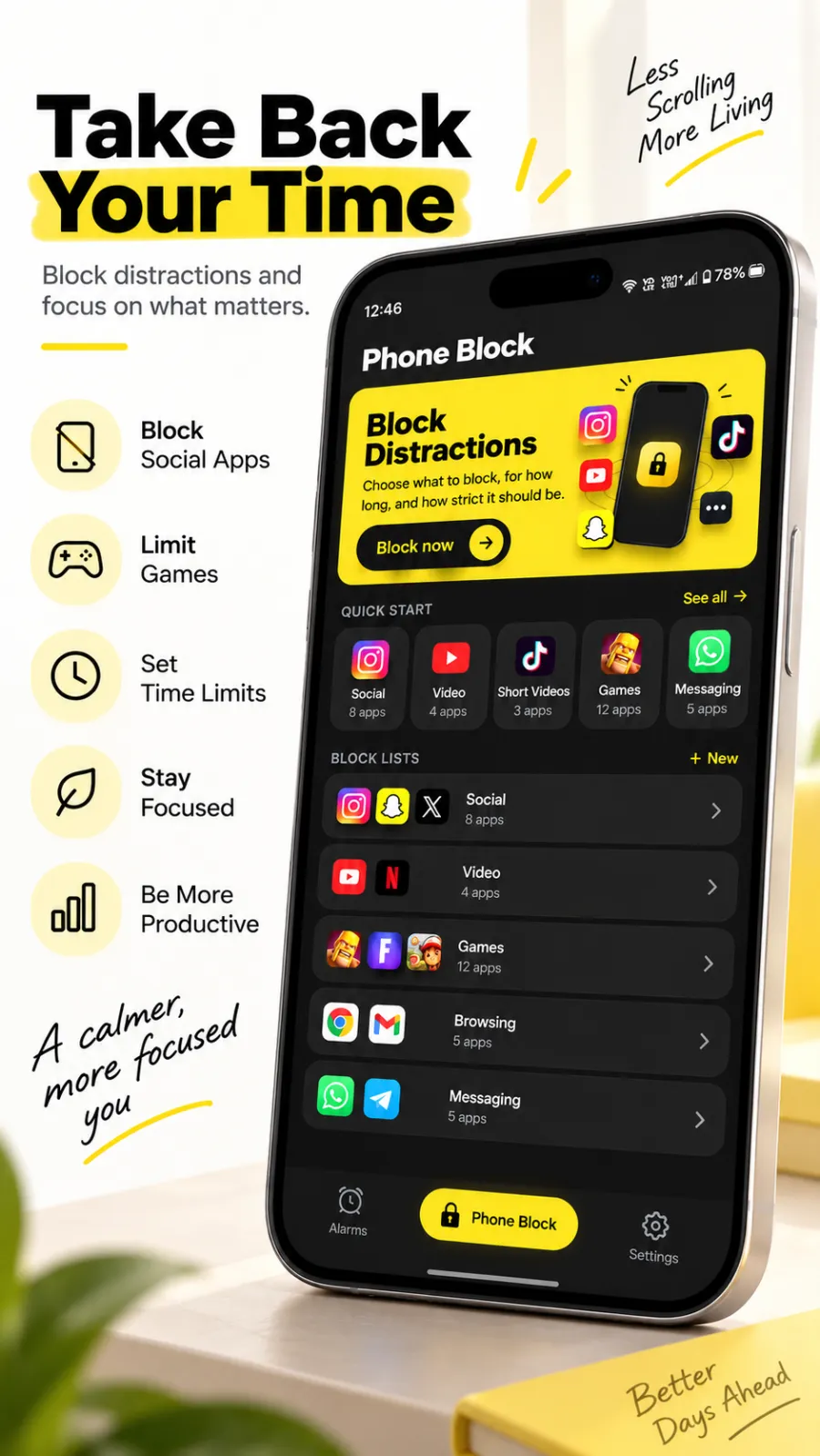
The two modes are named in the app exactly as they work:
- Regular mode: "To leave early, watch an ad." Then you hold the button for five seconds. Lift early and it starts again from zero.
- Strict mode: "Watch an ad to start. No stop button until it ends." The running block shows "Runs to the end".
Once a block is running, you can add time but not take it off: the app's own line is "Time only ever gets added, never taken off." On a whole-phone block, calls still come through and there's a Make a call button.
Turn on Prevent app uninstall in Settings as well. While a block is running, the app won't let you switch that guard off, so deleting the blocker isn't a quick way out either.
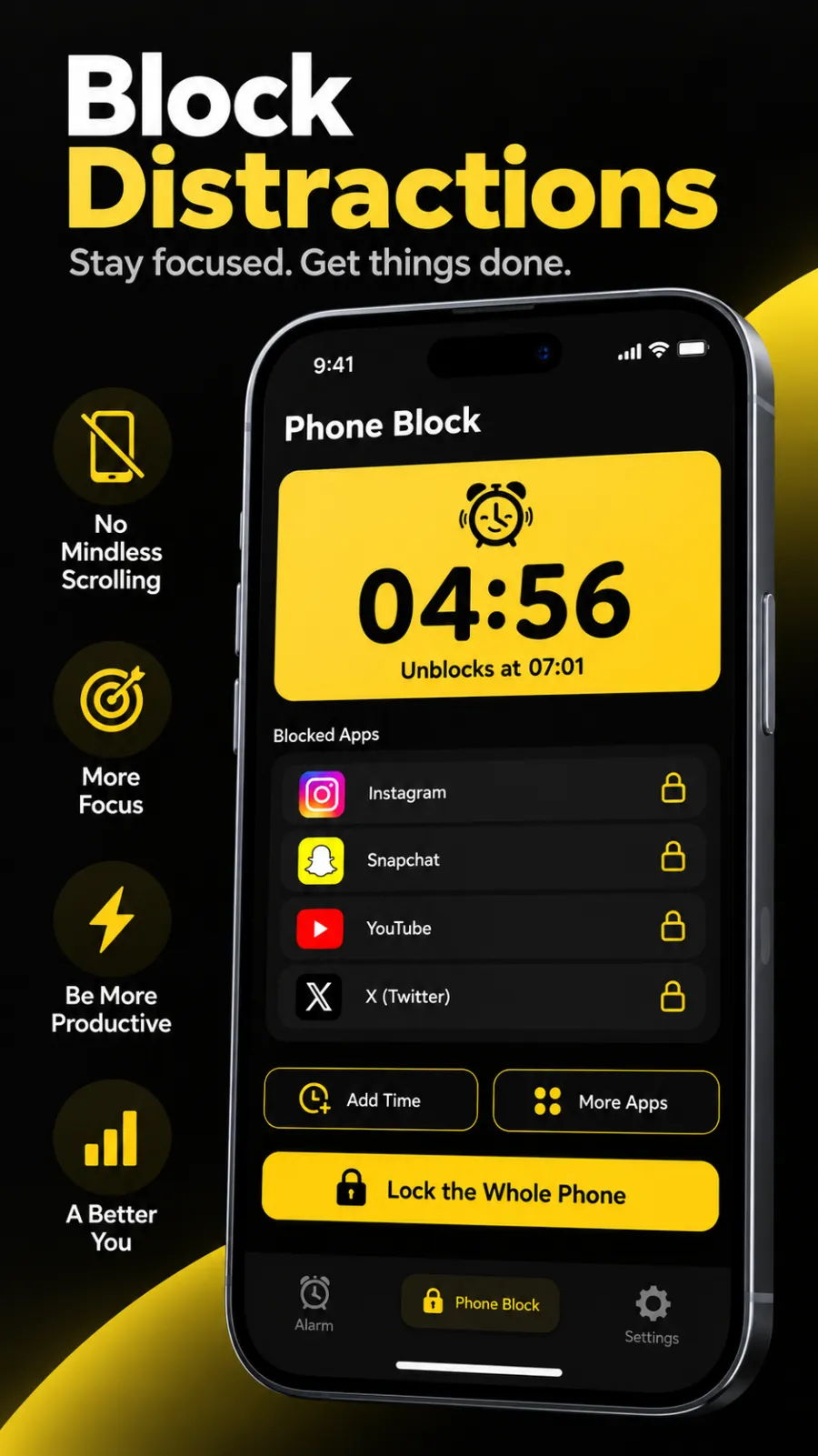
How it blocks without root. On Android, Beyond Alarm uses the accessibility service for one job here: if you open an app you chose to block, it sends you back to the home screen. In the app's own words, it "acts at no other time" and "nothing on your screen is read, stored, or shared". It's the same service that stops the power menu being used to escape a ringing alarm.
Option 2: Digital Wellbeing App timers
Good for a daily cap on one app. Google's Digital Wellbeing guide gives the steps:
- Open Settings → Digital Wellbeing → App timers.
- Next to the app, tap Set timer, choose a time and tap OK.
"When you run out of time, the app closes and its icon dims," Google says, and "app timers reset at midnight." The catch is in the same guide: to use the app again early, you "delete the app timer", which takes seconds. There is a PIN for app time limits option, but a PIN you set yourself is a PIN you know.
Steps vary by phone; Google notes "some of these steps may vary based on your device". On Samsung, Digital Wellbeing sits under Settings → Digital Wellbeing and parental controls. Why limits like these tend to fail is covered in why screen time limits don't work.
Beyond Alarm
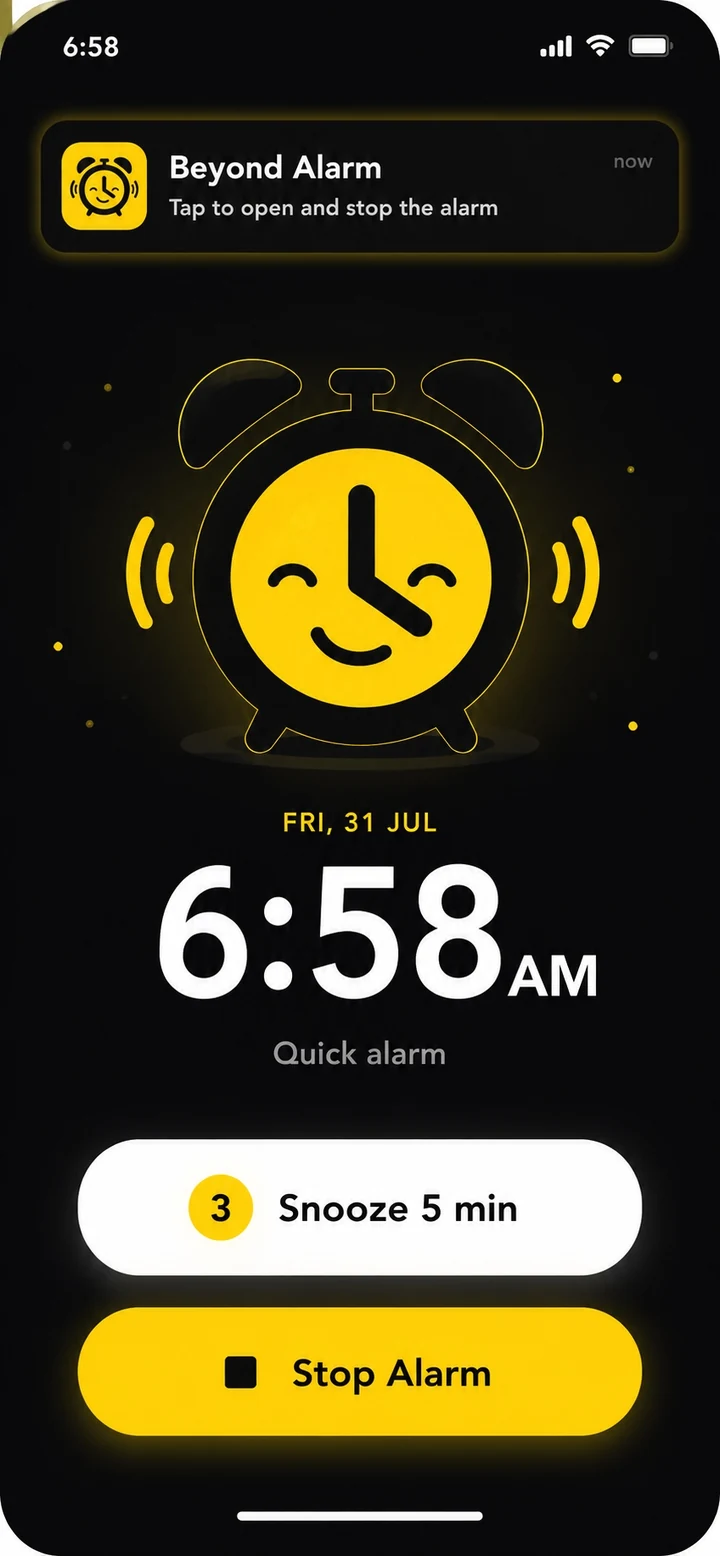
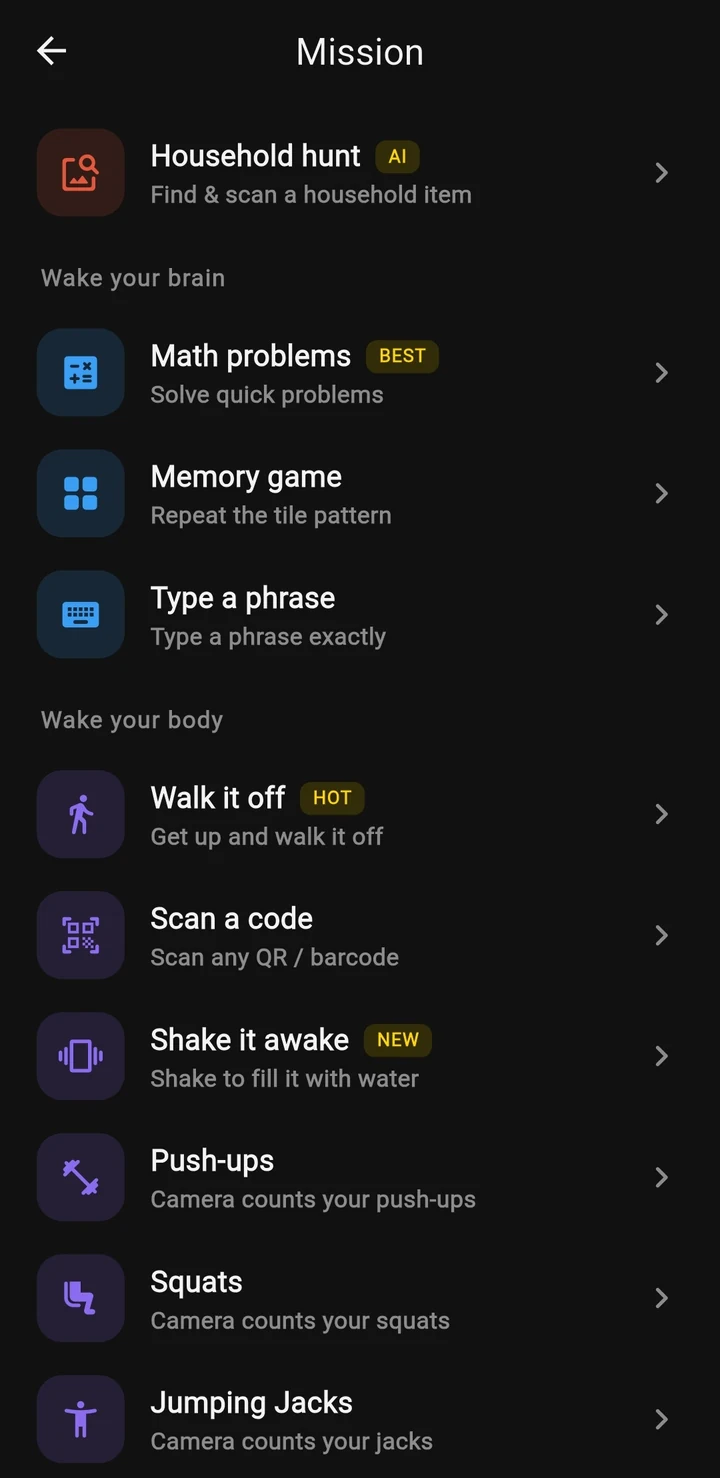
Beyond Alarm does this part for you: the alarm will not switch off until you have actually moved, and the apps you pick stay locked afterwards.


Option 3: Digital Wellbeing Focus mode
Better when you want several apps gone at once, such as during work or revision.
- Open Settings → Digital Wellbeing → Focus mode.
- Choose the apps to pause.
- Tap Turn on now, or Set a schedule for it to start on its own.
Google says "you can't use these apps and won't get notifications from them" while it's on. It also offers Take a break "to temporarily unpause apps", and Turn off now ends it. That button is one tap from the app you wanted.
For a schedule of your own at night, see how to block apps at night automatically.
Option 4: App pinning
App pinning isn't a blocker, but it's the strongest built-in lock. Google's app pinning page says you can "pin an app's screen to keep it in view until you unpin it."
Turn it on under Settings → Security → Advanced → App pinning (the path varies), then pin an app from the Overview screen. With it on, "you need to enter your PIN, pattern, or password before you can unpin." It's ideal for handing a phone to a child with one game open, and of little use against yourself, since you know the PIN.
Which one should you use?
| If you want to… | Use |
|---|---|
| Block apps and mean it | Beyond Alarm, Strict mode |
| Block apps but keep an emergency exit | Beyond Alarm, Regular mode |
| Lock the whole phone for an hour | Beyond Alarm, Whole phone (more here) |
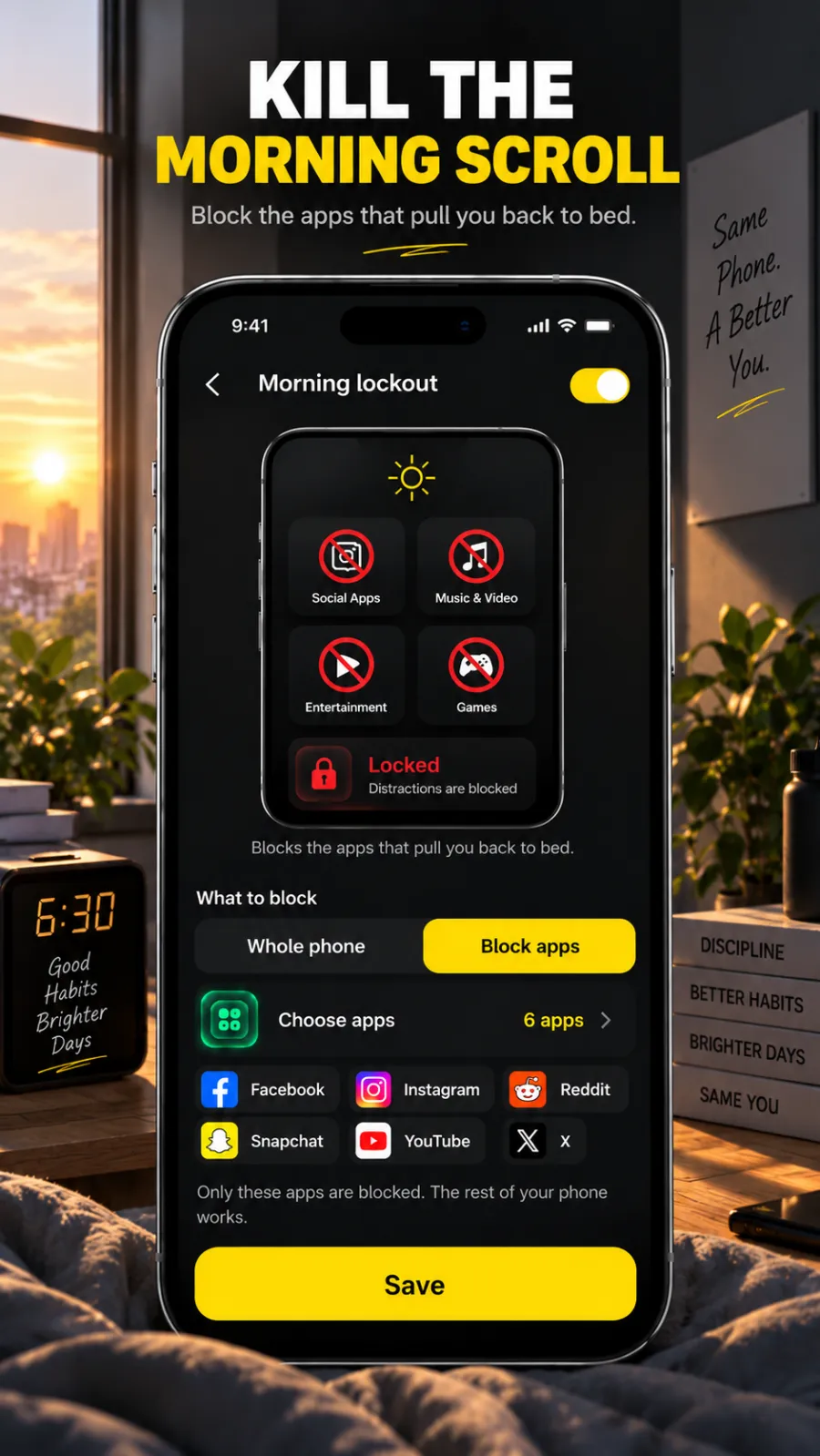
| Keep social apps shut after your alarm | Beyond Alarm, Morning lockout |
| Cap one app at 30 minutes a day | Digital Wellbeing App timers |
| Lend the phone with one app open | App pinning |
Morning lockout is the one most blockers don't have. You attach it to an alarm, choose the apps, and they stay blocked for the time you set after the alarm rings, every morning that alarm goes off. Blocking social media after your alarm explains why that first half-hour matters.
Before you rely on any blocker
Test it the way you'll actually use it. Start a short block, open a blocked app, and try every exit you know: the Recents screen, Settings, a restart.
Also open the blocker after any big system update, since some phones reset permissions. Why app blockers stop working after an update lists what to recheck. For more free options side by side, see our free app blocker for Android guide.
Sources
Checked on 13 November 2026.
- Android Help: Manage how you spend time on your Android phone with Digital Wellbeing
- Android Help: Pin & unpin apps on your Android device
Common questions
How do I block apps on Android without downloading anything?
Use Digital Wellbeing. In Settings → Digital Wellbeing, App timers close an app and dim its icon once you hit a daily limit, and Focus mode pauses chosen apps until you turn it off. Both are easy to undo, so they work best as reminders rather than locks.
What is the best free app to block apps on Android?
Beyond Alarm. Its Phone Block blocks chosen apps or the whole phone for a set time, free. In Strict mode there is no stop button until the timer ends; it takes one short ad to start. Calls still come through.
Can Digital Wellbeing block apps completely?
Not in a way you can't undo. Focus mode has a Take a break button, an app timer can be deleted from the same screen, and the PIN option for app time limits only helps if someone else keeps the PIN.
How do I block an app on Android at certain times?
Focus mode in Digital Wellbeing can run on a schedule. For a block you can't switch off halfway, start a Phone Block in Beyond Alarm for the time you need, or use Morning lockout to block chosen apps after your alarm.
Can I block apps on Android without root?
Yes. Digital Wellbeing needs no root, and neither does Beyond Alarm. It uses Android's accessibility service to send you back to the home screen when you open an app you chose to block, and nothing on screen is read or stored.
We build Beyond Alarm, the alarm for Android and iPhone that will not switch off until you have actually moved, then blocks the apps that pull you back. Most of what we write here comes out of building it.
Beyond Alarm
An alarm that keeps ringing until you’ve actually moved — then blocks the apps that pull you back to bed. Free to start, no account.
Keep reading
What Beyond Alarm does: wake-up missions and app blocking
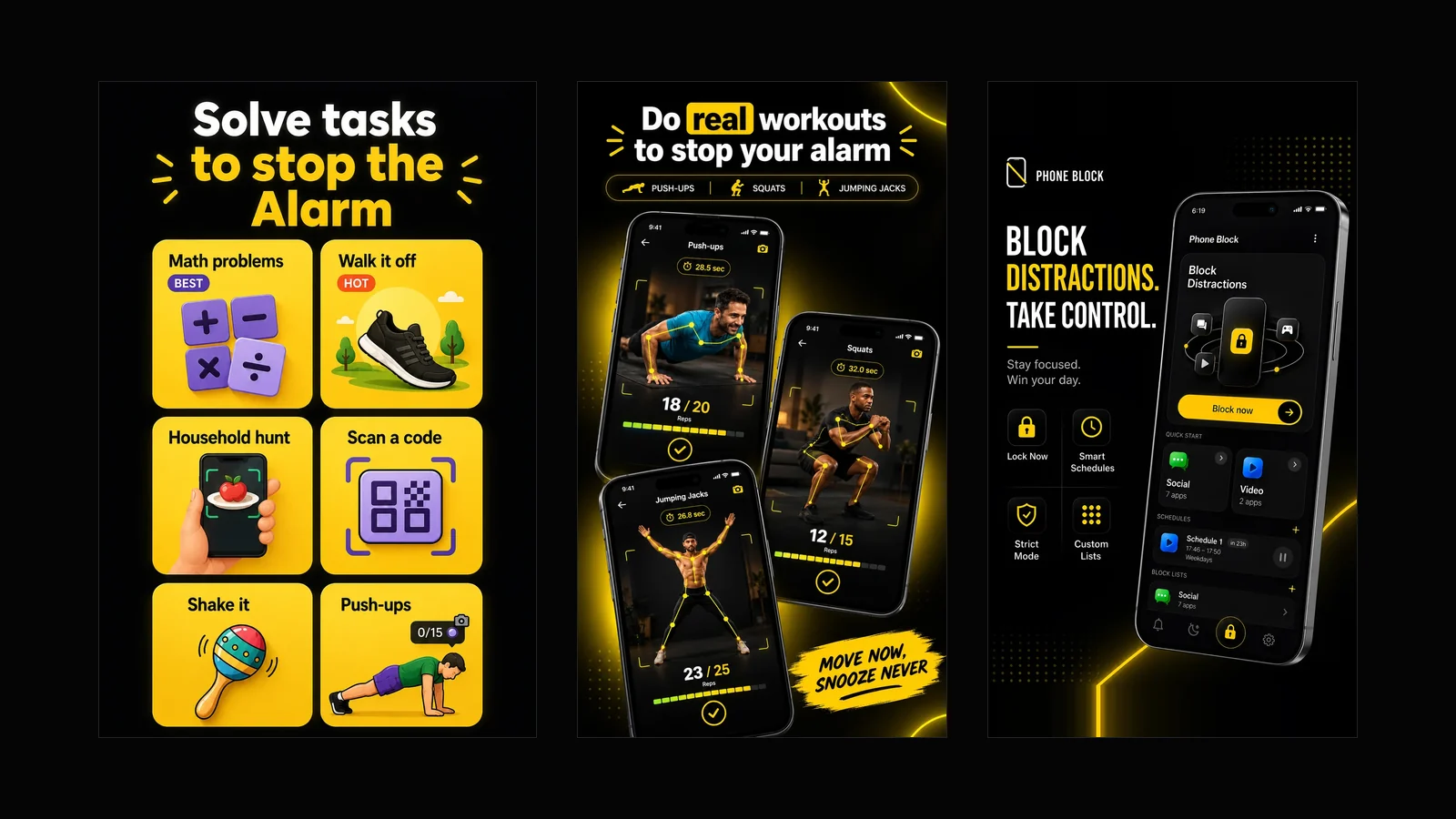
The whole app on one page, for Android and iPhone — missions to stop the alarm, app blocking after it, and a free Strict mode Phone Block.
App Timer for Android That Actually Locks Your Apps
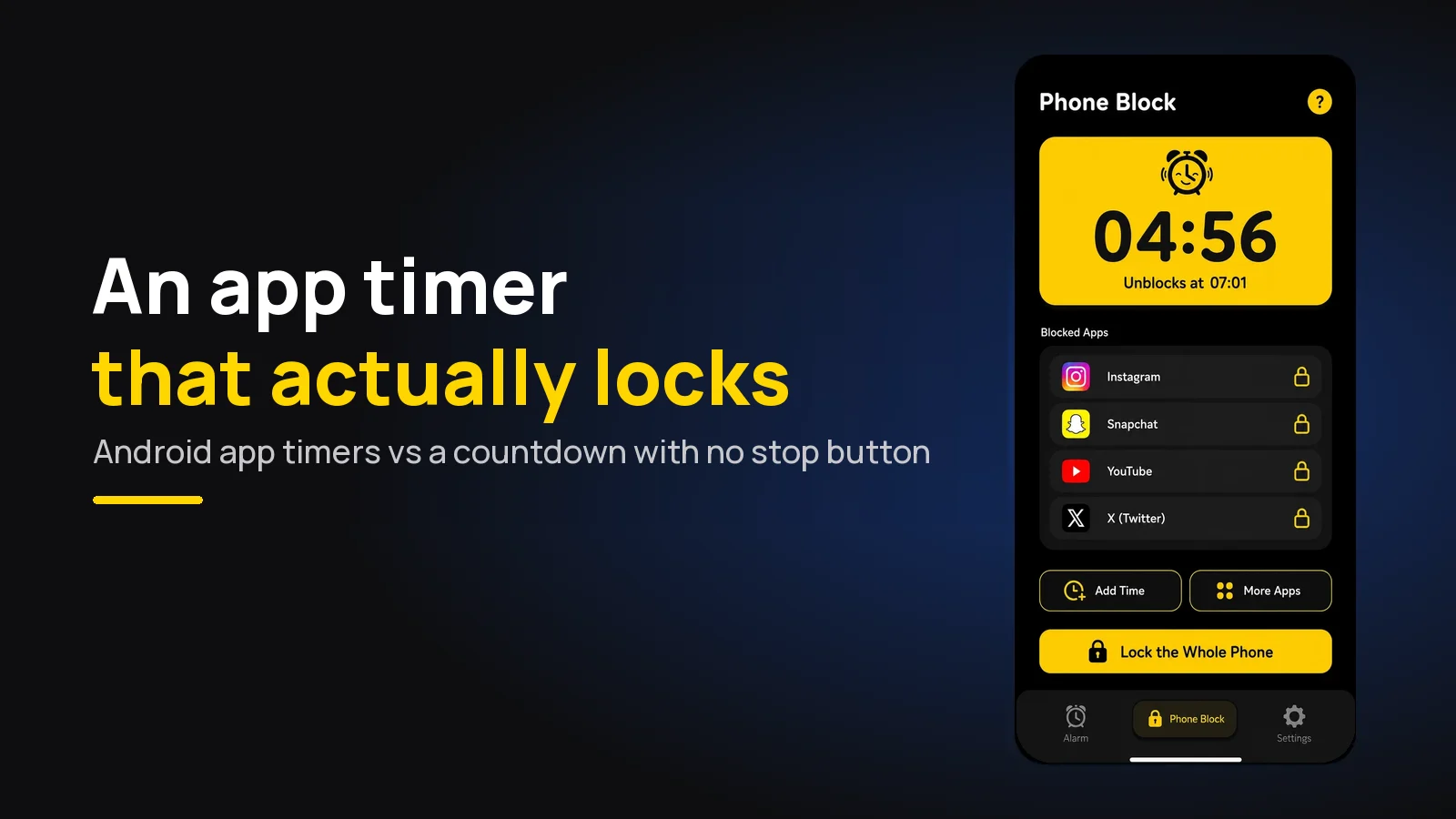
Android's built-in app timer is a daily allowance you can delete. Here's an app timer that locks apps for a set time, with no stop button.