
I can't focus at work because of my phone
You sit down to work, and ten minutes later you're on your phone without remembering picking it up. Here's why it keeps happening, and how to put the phone out of play for a fixed stretch.


The phone doesn't need to ring to break your focus. Just knowing it's there is enough. Beyond Alarm's Phone Block locks the apps that pull you away for a fixed stretch, and with free Strict mode there's no way back in until the timer ends.
Why it happens
Work that matters is usually slow to start and uncomfortable in the middle. The phone is the easiest escape in the room. Each pick-up feels harmless, but it costs you more than the time on screen.
Switching has a price. When you leave a task and come back, part of your attention stays behind. Sophie Leroy called this attention residue. A quick check in the middle of a report leaves you working at less than full focus for a while afterwards.
Notifications make it worse. In a 2016 study, Kostadin Kushlev and colleagues found people reported more inattention and hyperactivity in weeks with phone alerts switched on than in weeks with them off.
Turning on Do Not Disturb helps with the buzzing, but not with the habit. The pick-up is a reflex, and a reflex is beaten by something that physically stops it, not by a reminder.
The fix: Beyond Alarm
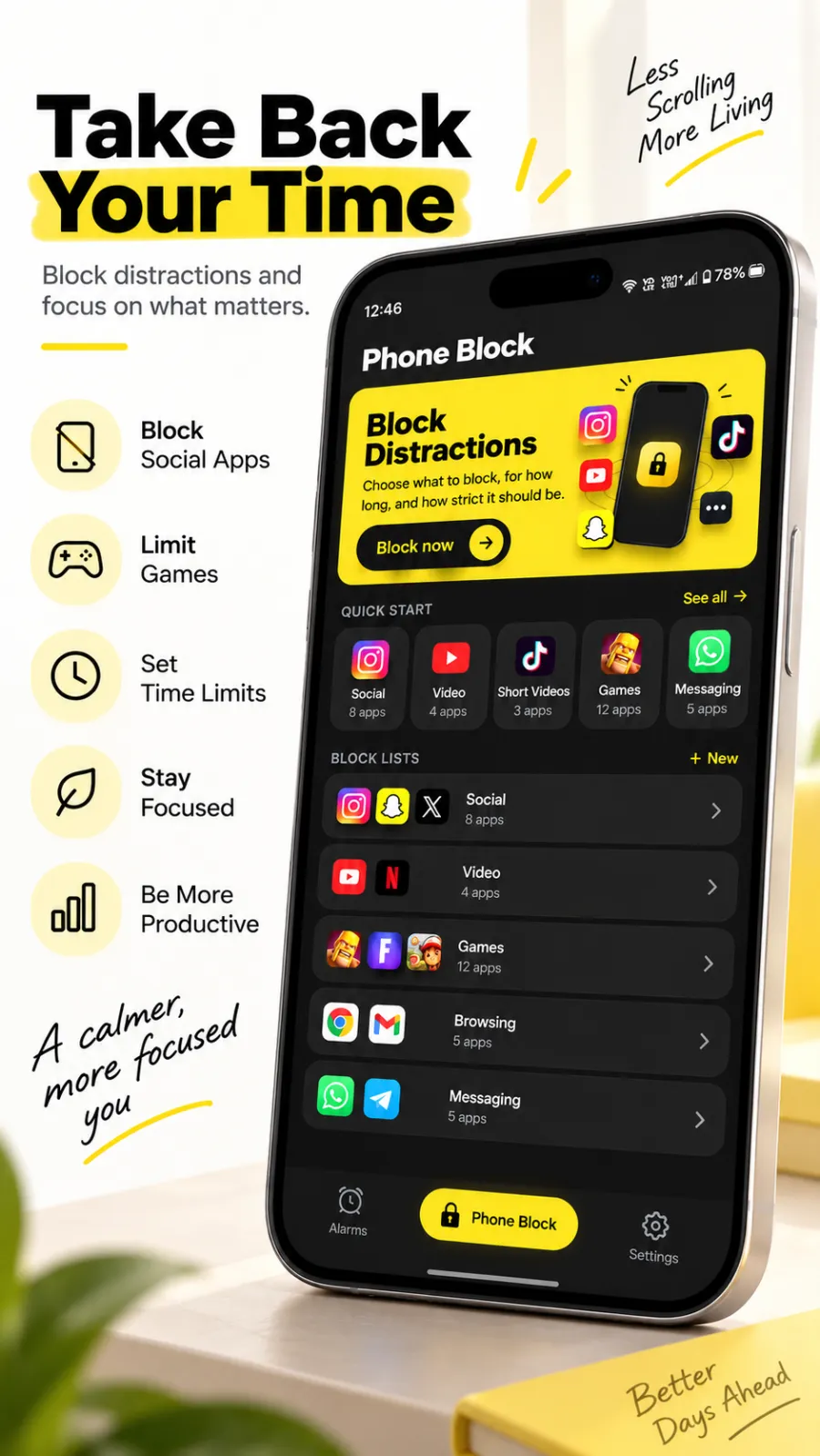
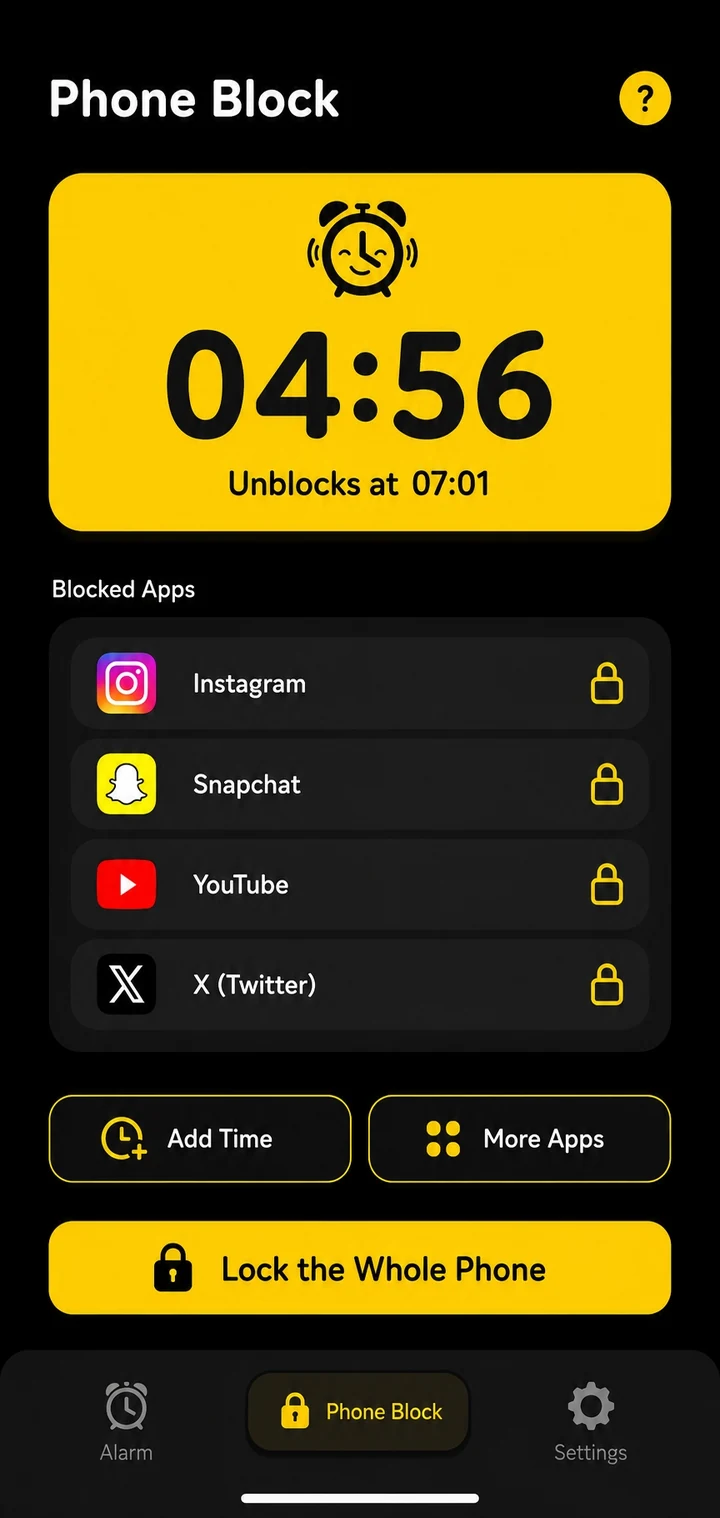
Phone Block for a fixed stretch. Choose what to block, choose how long, and start. Until the timer ends, the apps you blocked don't open.
- Android: chosen apps, a saved list, or the whole phone. Calls still come through.
- iPhone: the apps and categories you choose through Apple's Screen Time. Your work apps keep working.
Strict mode: no stop button. Choose Strict mode and the timer is the only thing that ends the block. It's free: one short ad turns it on. Many blockers charge for their strict mode. Regular mode, the default, lets you out early only after holding a button for five seconds, which is enough to break the reflex if you'd rather keep an exit.
Still reachable. Calls get through. When you block chosen apps, the phone app still works. On Android, a whole-phone block has its own button for making a call. If you need longer, Add time extends the block. Time only ever gets added, never taken off.
One tap, every day. Save a "Work" list once, then start it from Quick start. After your first block, Beyond Alarm sends a daily reminder an hour before the time you usually start one, so the habit sticks.
Everything here is free during the current promotion. Pro removes the ads.
Beyond Alarm
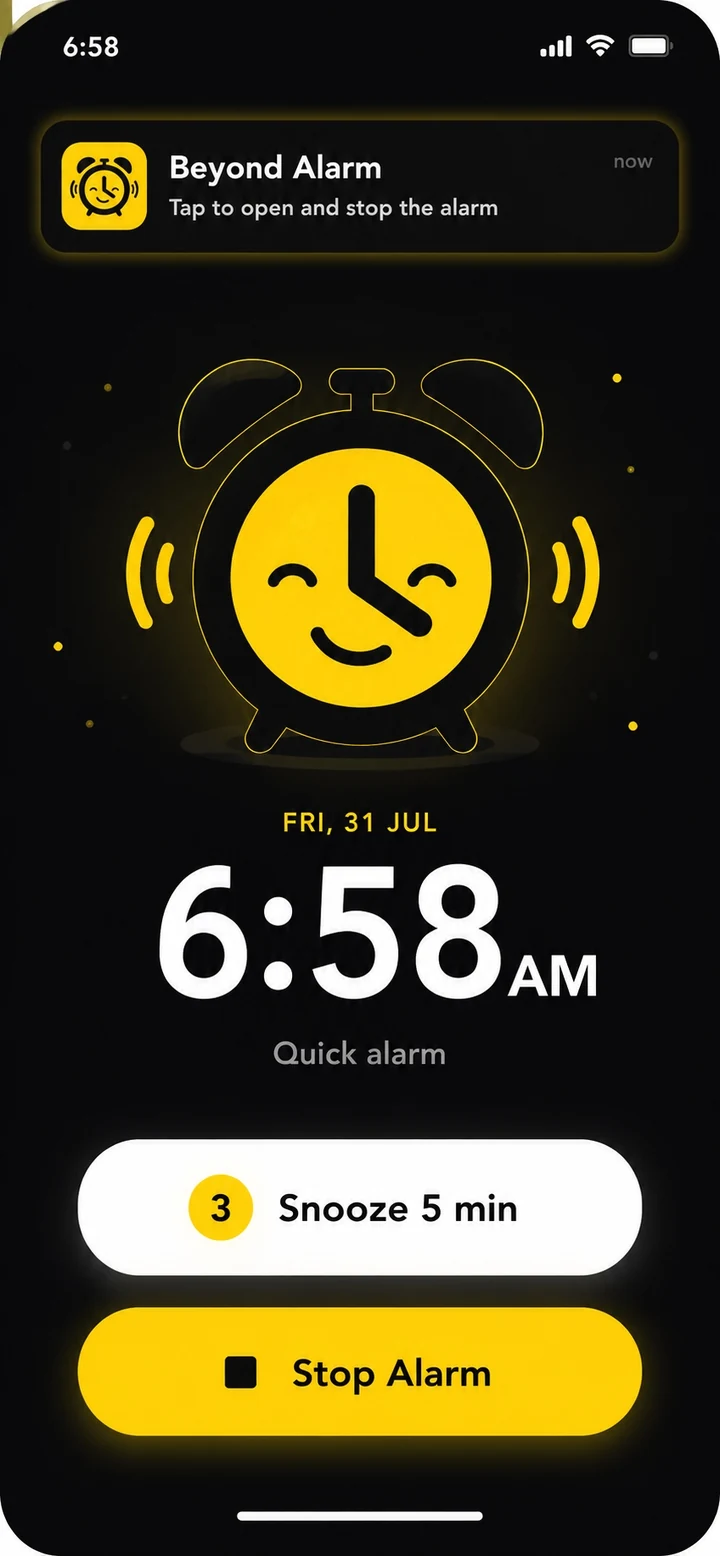
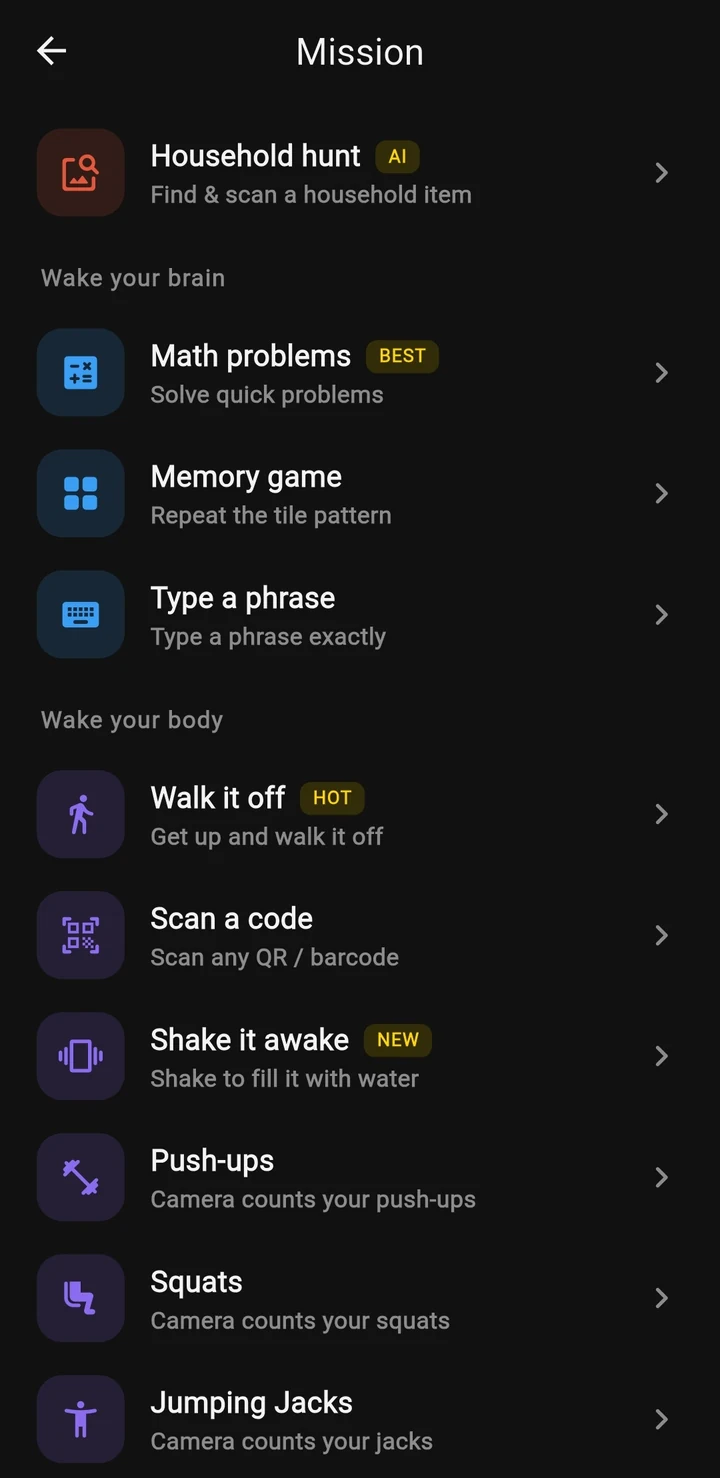
Beyond Alarm does this part for you: the alarm will not switch off until you have actually moved, and the apps you pick stay locked afterwards.
Set it up tonight
- Open Beyond Alarm and go to the Phone Block tab.
- Under Block lists, tap New. Name it "Work" and add the apps that distract you, like social media, video, news and games. On iPhone, allow Screen Time access and pick apps or categories.
- When you sit down to work, tap the Work tile under Quick start, or tap Block now and choose the list.
- Set the length. Presets run from 15 minutes to 2 hours, and Custom goes up to 8 hours.
- Under How strict, choose Strict mode for no way out, or keep Regular mode.
- Tap Block for…. For Strict mode, watch the short ad on the Turn on Strict Mode? card.
Related
Common questions
How do I stop checking my phone at work?
Put a lock on it for a fixed stretch. In Beyond Alarm, start a Phone Block on your distracting apps, or on the whole phone on Android, and choose Strict mode so there's no stop button until the timer ends. Strict mode is free after one short ad.
Will I miss calls from my boss or family?
No. Calls still come through during a Phone Block. If you block only chosen apps, your phone app works as normal. On Android, a whole-phone block has its own button for making a call.
Which apps should I block at work?
The ones you open without deciding to, usually social media, short video, news and games. Save them as a list in Beyond Alarm once, and start the block in one tap each day.
Can I block only some apps and keep the ones I need for work?
Yes. Pick just the apps that pull you away, or save them as a list. Everything else on the phone keeps working.
Beyond Alarm
An alarm that keeps ringing until you’ve actually moved — then blocks the apps that pull you back to bed. Free to start, no account.
More fix your morning
I snooze ten times every morning
You hit snooze over and over and get up late anyway. Cap it, then make the alarm need a mission.
I sleep through every alarm
Five alarms and you still sleep through them. Make waking up mean standing up, not just hearing a sound.
I turn off my alarm in my sleep
You wake late with no memory of switching it off. Put a task between your thumb and the off button.
I scroll in bed every morning
Alarm off, one app open, thirty minutes gone. Get out of bed first, with the apps shut when you do.
I lose my first hour to my phone
You're up on time, then an hour vanishes into feeds and messages. Lock that first hour in for yourself.
It's exam week and I can't stop checking my phone
Notes open, phone in hand every five minutes. Lock it for the whole session, with no stop button.
My alarm didn't go off
You set it, it never rang. Usually a battery setting on Android, and a two-minute check finds it.
I work nights and can't wake up in the afternoon
You sleep by day and the 3pm alarm feels like 3am. An alarm and block setup built around your shifts.
I stay up scrolling at night
Tired at 11pm, still scrolling at 1am. Give the night an ending you don't have to enforce yourself.