
Daily Phone Block reminder
A block works best when it starts before you've opened the app. Once you've used Phone Block a few times, Beyond Alarm learns when you usually start one and reminds you an hour before.


The hard part of blocking distracting apps isn't the block. It's remembering to start one before the evening disappears into a feed. Beyond Alarm's daily Phone Block reminder learns when you usually block and sends "Time to block your distracting apps" an hour before, every day. Tap it and you're on the Phone Block tab, ready to start.
What it does
Once you've started your first Phone Block, Beyond Alarm schedules a daily notification:
Time to block your distracting apps Start a Phone Block and keep the next hour for you.
- Timed from your habits. It arrives an hour before the time you usually start a block, worked out from your recent blocks.
- Hard to knock off course. It uses the middle of your last five start times, so one unusual late-night block doesn't move it.
- Quiet once you've blocked. If you've already started a Phone Block today, today's reminder is skipped.
- One tap to act. Tapping the notification opens Beyond Alarm on the Phone Block tab.
It works on Android and iPhone, and there's nothing to configure.
How it works
- You start a Phone Block. Beyond Alarm notes the time of day, and keeps the last five.
- It finds your usual time. It sorts those start times and takes the middle one.
- It sets the reminder an hour earlier. If your blocks usually start around 9pm, the reminder comes at about 8pm.
- It plans the next week. Reminders are laid out a week ahead and refreshed every time you open the app or start a block, so they keep rolling as long as you use it.
- It skips today once you've blocked, because the reminder has nothing left to do.
Why an hour before
The moment you want to scroll is the worst moment to decide not to. An hour earlier you're still the person who planned the evening, and choosing a block length and a strictness takes a few seconds. You can start the block right then, or come back to it when it's time. Either way the decision has been made before the pull starts.
If you want the decision taken out of your hands entirely, start that block in Strict mode. There's no stop button until the timer ends, and free users switch it on with one short ad.
Beyond Alarm
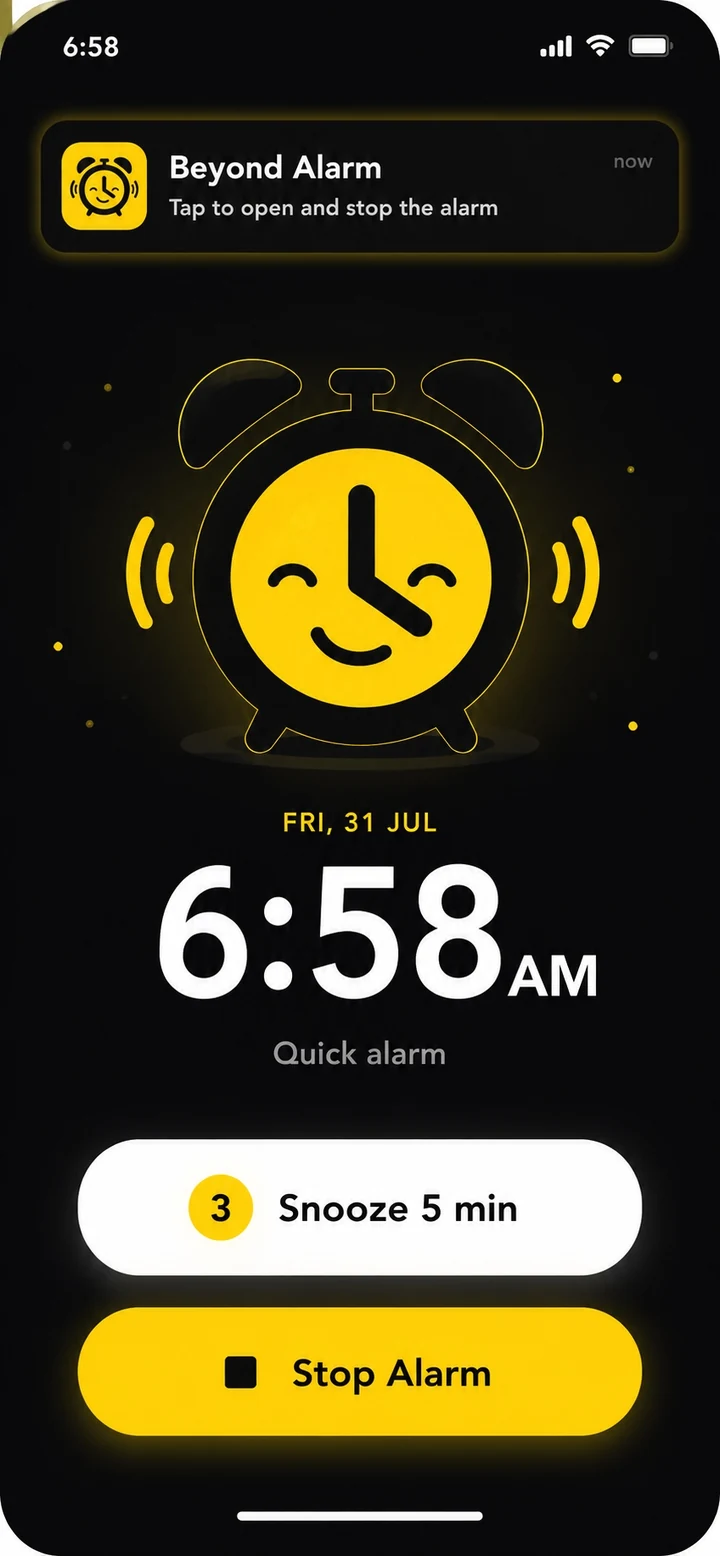
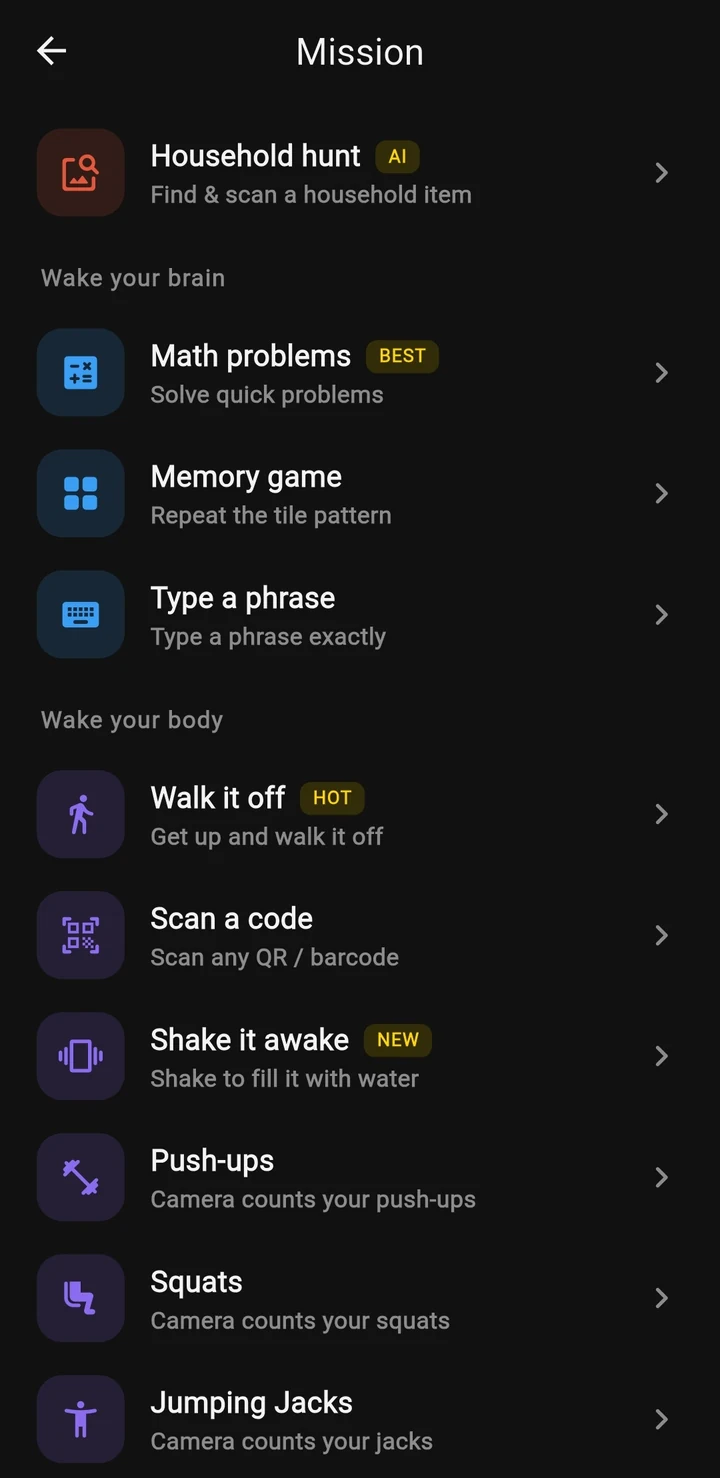
Beyond Alarm does this part for you: the alarm will not switch off until you have actually moved, and the apps you pick stay locked afterwards.
When it helps most
- Evening scrolling: the block you mean to start after dinner and never do.
- Study nights: a regular revision slot that keeps sliding.
- Work-from-home afternoons, when the same hour goes missing every day.
- Building the habit: a few weeks of reminders and the block starts to feel like part of the routine.
Set it up
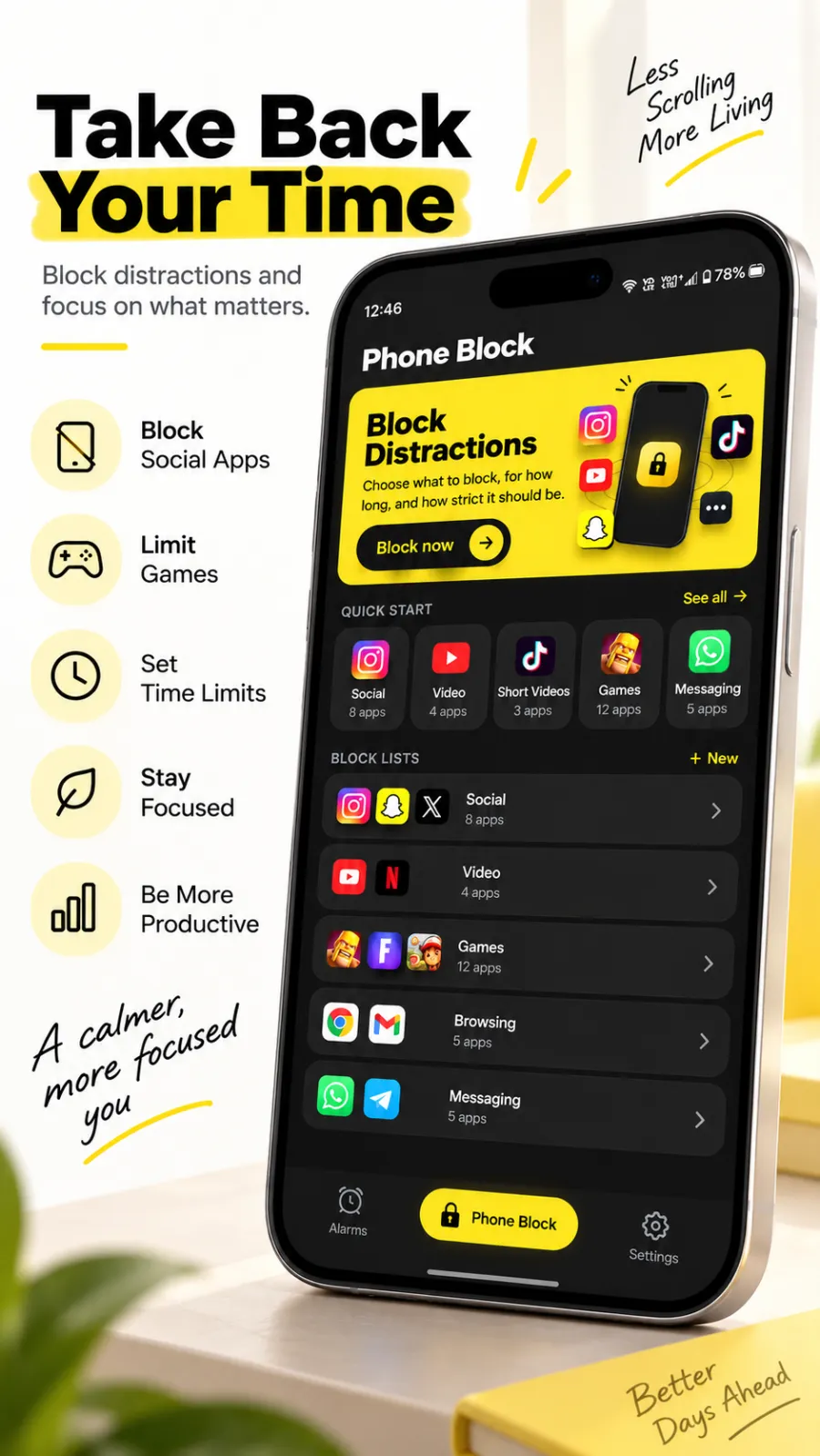
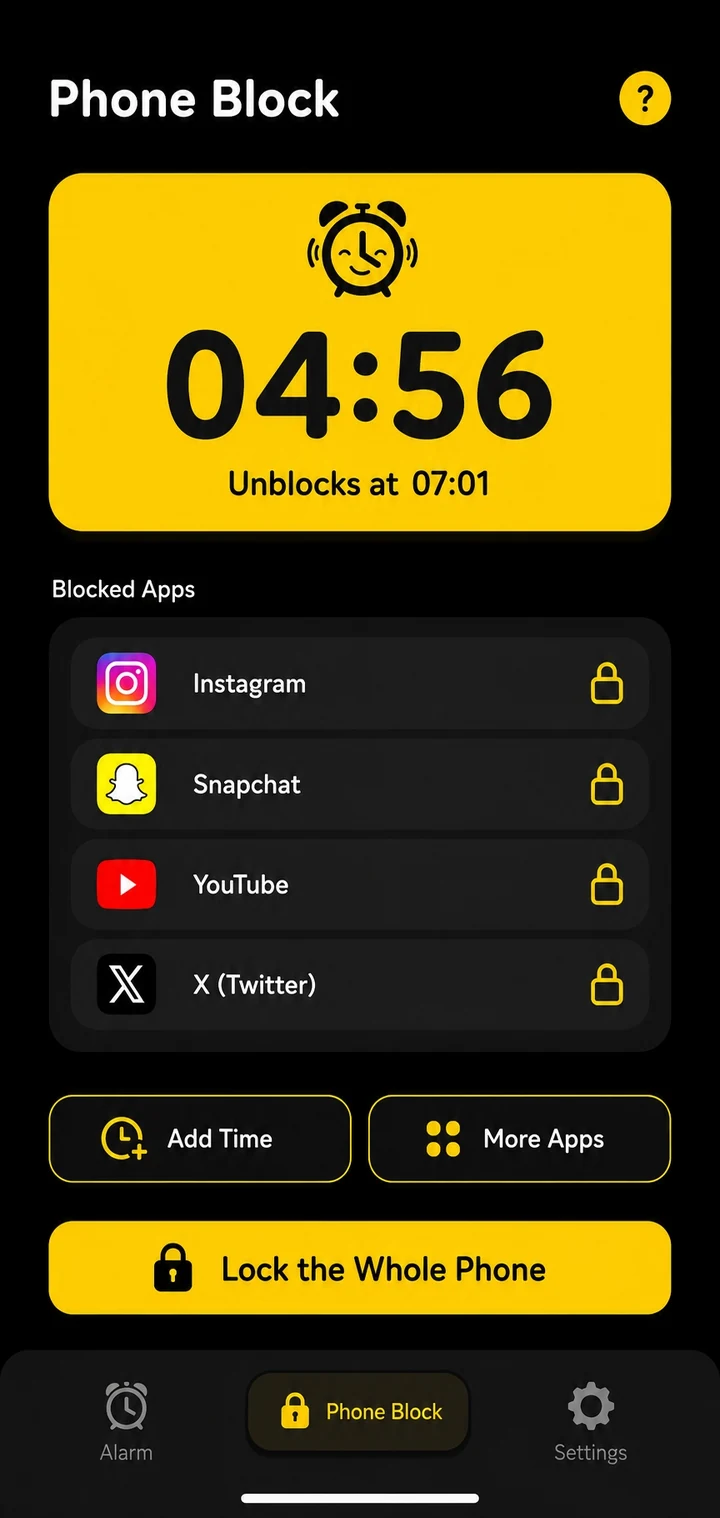
- Open the Phone Block tab and tap Block now.
- Choose what to block, how long and how strict, and tap Block for …. Allow notifications if you're asked.
- That's it. From now on, the reminder arrives an hour before your usual block time.
- Keep blocking at your real time of day and the reminder will follow you.
Related
Common questions
When does the Phone Block reminder arrive?
An hour before the time you usually start a Phone Block. Beyond Alarm works out that time from your recent blocks, so it follows your real routine rather than a time you guessed.
How does Beyond Alarm know my usual block time?
It remembers the start times of your last five Phone Blocks and takes the middle one, so a single late-night block doesn't drag the reminder around.
Will I get a reminder if I've already blocked today?
No. Once you've started a Phone Block today, that day's reminder is skipped.
Do I need to set the reminder up?
No. It starts after your first Phone Block. Until then there's no usual time to remind you of, so you won't get one.
What happens when I tap the reminder?
Beyond Alarm opens on the Phone Block tab, so starting a block is one tap away.
Beyond Alarm
An alarm that keeps ringing until you’ve actually moved — then blocks the apps that pull you back to bed. Free to start, no account.
More features
Free Strict mode
No stop button until the timer ends. Free with one short ad, on Android and iPhone.
Phone Block
Block chosen apps or the whole phone for a set time. Regular mode or free Strict mode.
Whole-phone block
Android: every app locked until the timer ends. Calls still come through.
Push-up alarm
Push-ups, squats or jumping jacks, counted by the camera on your phone. Fake reps don't count.
QR and barcode alarm
The alarm stops only when you scan a QR code or barcode. Keep one a room away from bed.
Photo alarm
Register a place the night before. The alarm stops only when you photograph it again.
Alarm reliability check
Checks battery, auto-start, exact-alarm and full-screen settings, with one tap to each fix.
Prevent power-off
Android: the power menu closes while the alarm rings. Optional uninstall protection.
Wake-up streaks
A run of kept wake-ups for each repeating alarm, plus a warning before you break it.
Beyond Alarm on iPhone
AlarmKit alarms, wake-up missions, and Screen Time blocking with free Strict mode.