
Phone Block
Pick what to block, how long and how strict, then put the phone down. Phone Block holds the line until the timer ends, and it can only get stricter while it runs.


When you reach for your phone without deciding to, willpower is the wrong tool. A block works better. Beyond Alarm's Phone Block shuts the apps you pick (or, on Android, the whole phone) for a length you choose. You decide how hard it is to leave early, right down to Strict mode, which has no stop button and is free with one short ad.
What it does
Phone Block has its own tab in Beyond Alarm. Each block comes down to three choices:
- What to block. On Android: the whole phone, a saved block list, or apps you pick for this block only. On iPhone: a saved list or apps and categories you pick through Apple's Screen Time.
- How long. Quick choices from 15 minutes to 2 hours, or Custom for anything from 5 minutes to 8 hours.
- How strict. Regular mode lets you leave early after a short ad and a five-second hold. Strict mode has no stop button until the timer ends.
Nothing is pre-selected for strictness. You choose, so nobody ends up in a stricter block than they meant to start.
How it works
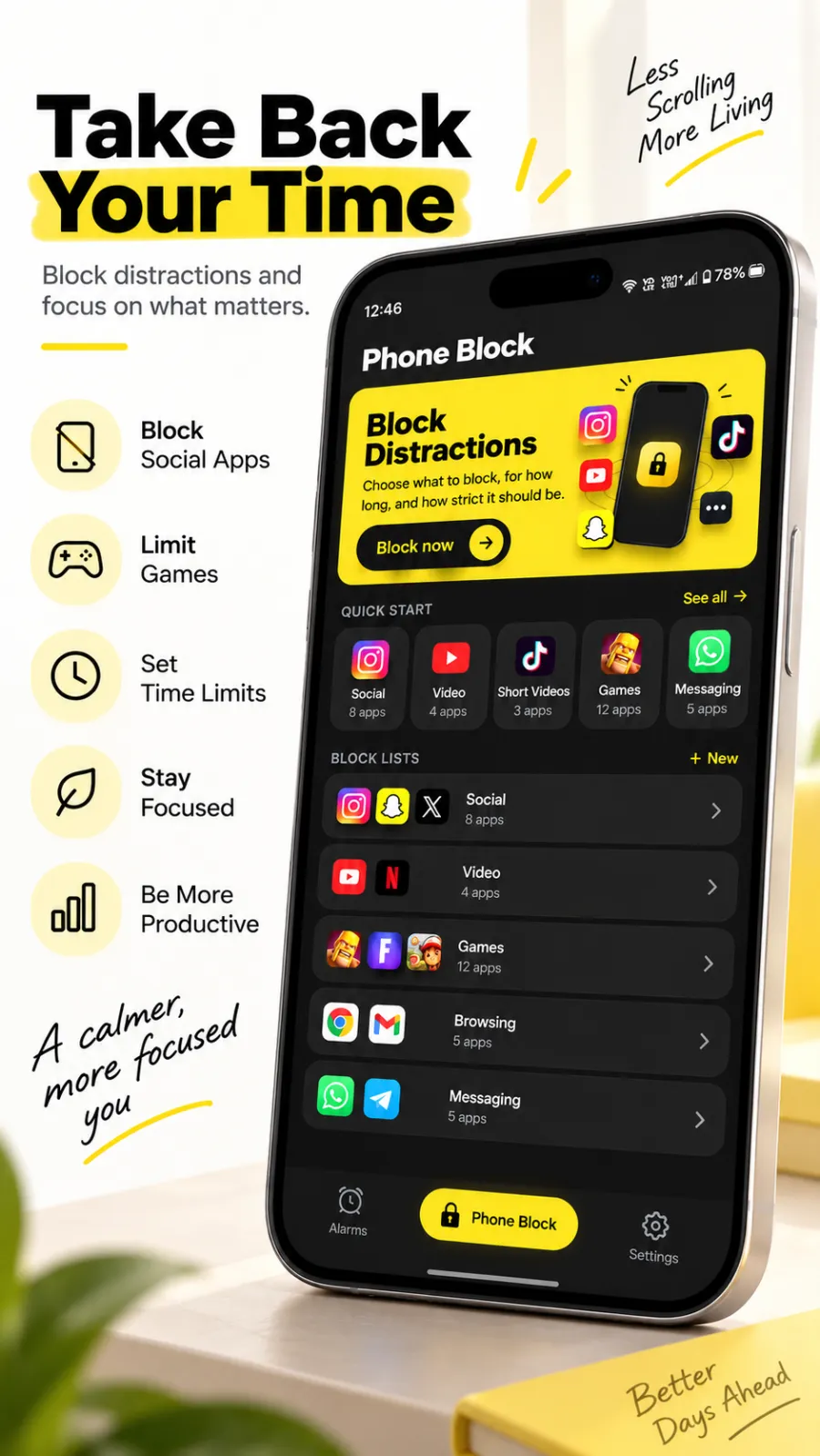
- You start a block. Tap Block now, or tap one of your lists under Quick start to open the setup with that list already chosen.
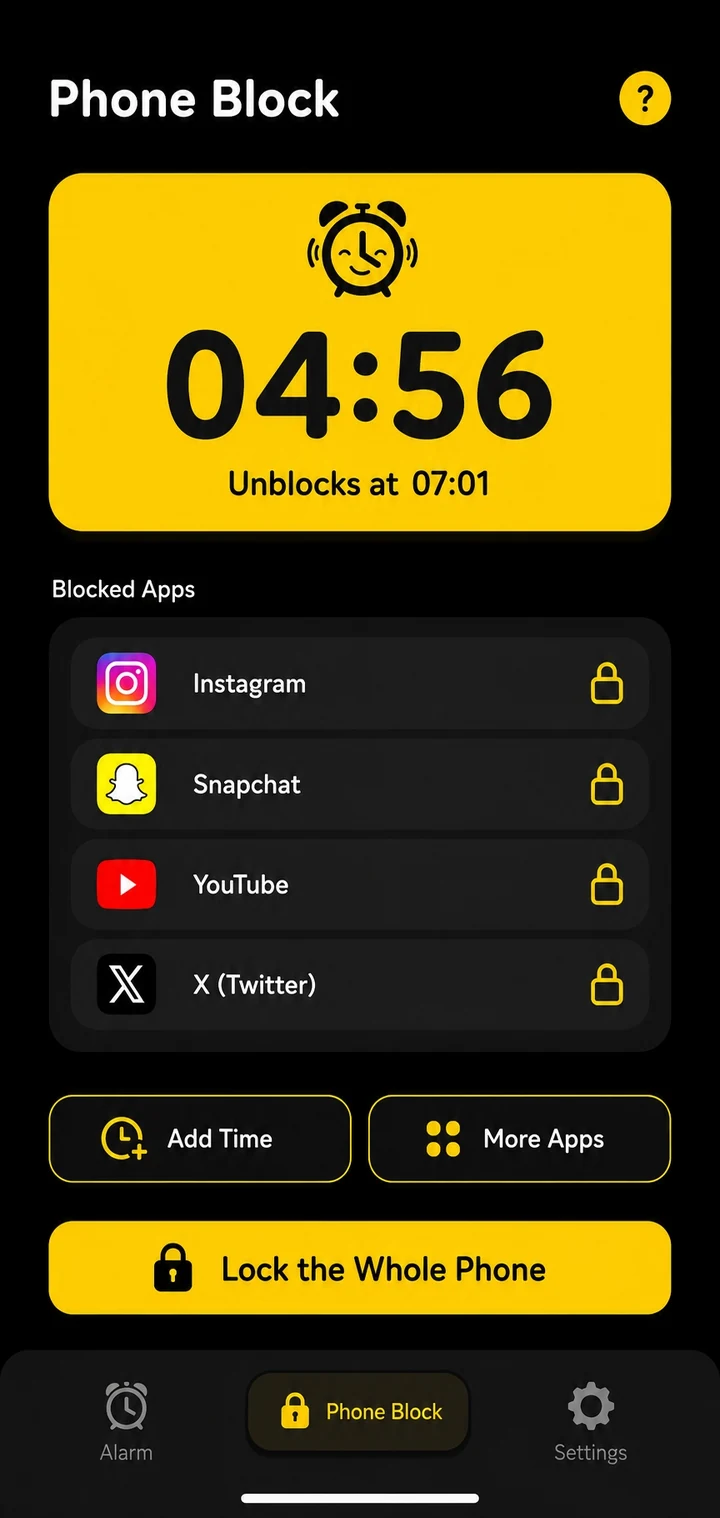
- Phone Block turns into the status page. It shows the countdown, the time it unblocks and every blocked app.
- Blocked apps bounce. On Android, opening a blocked app brings up a card with the app's name and the time left, and sends you back to the home screen. On iPhone, Screen Time shields the app.
- You can make it stricter, never weaker. Add Time adds 5, 15, 30 or 60 minutes. More Apps adds apps. On Android, Lock the Whole Phone widens the block to every app and keeps its strictness.
- Leaving early depends on the level you chose. A Regular mode block has a Leave early button. You can end it, or, on an app block, unblock the apps for 5 to 10 minutes and let the block resume. Either way it costs a short ad and a five-second hold. A Strict mode block has no such button.
- The timer ends it. Your apps come back on their own.
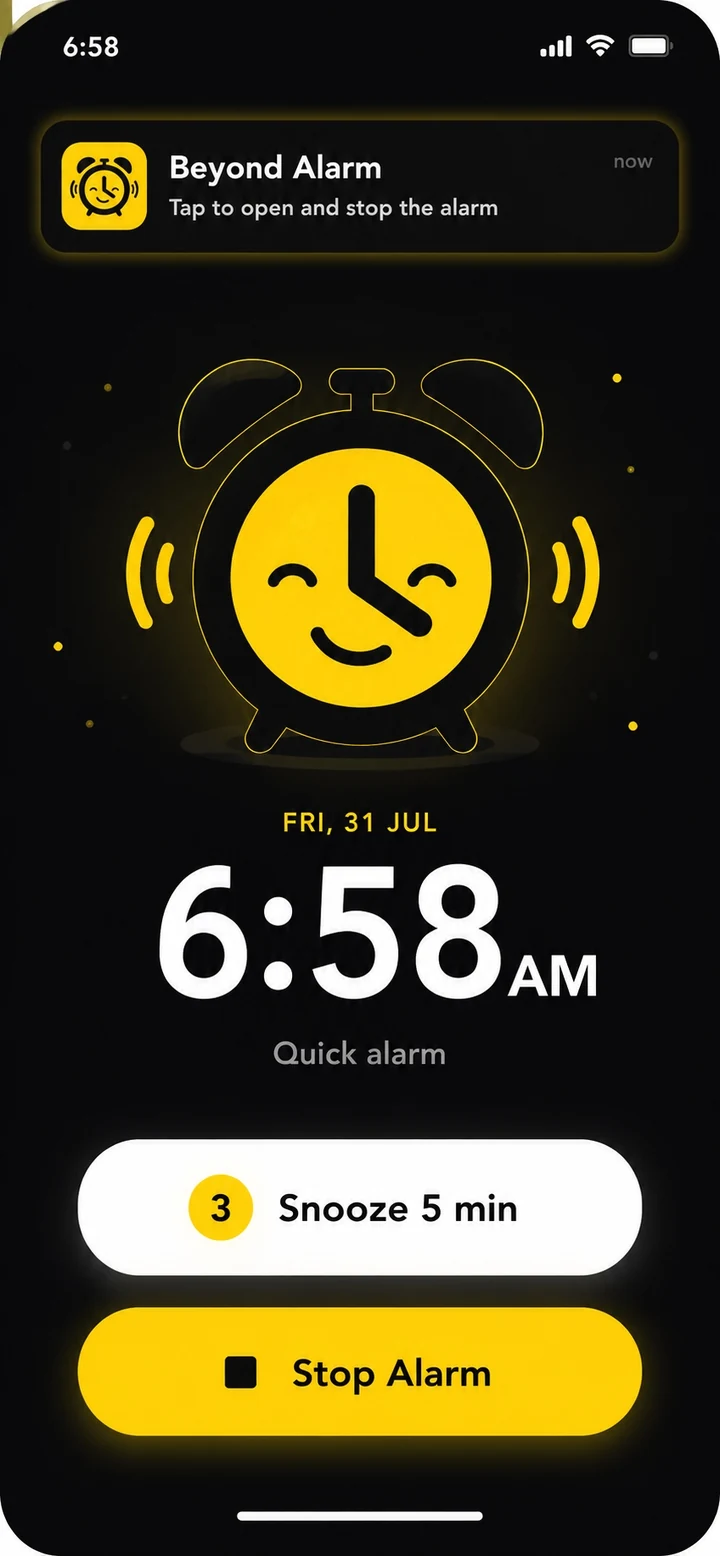
Calls always come through, and an alarm that's due during a block still rings.
Block lists
Save a set of apps once and block them with one tap after that. On Android, Beyond Alarm starts you with Social, Video, Games and Shopping lists, filled with whichever of those apps you have installed. Add your own with New under Block lists. Every saved list shows up as a tile under Quick start.
While a block runs, Focus home lets you view and edit your lists without ending the block.
Beyond Alarm
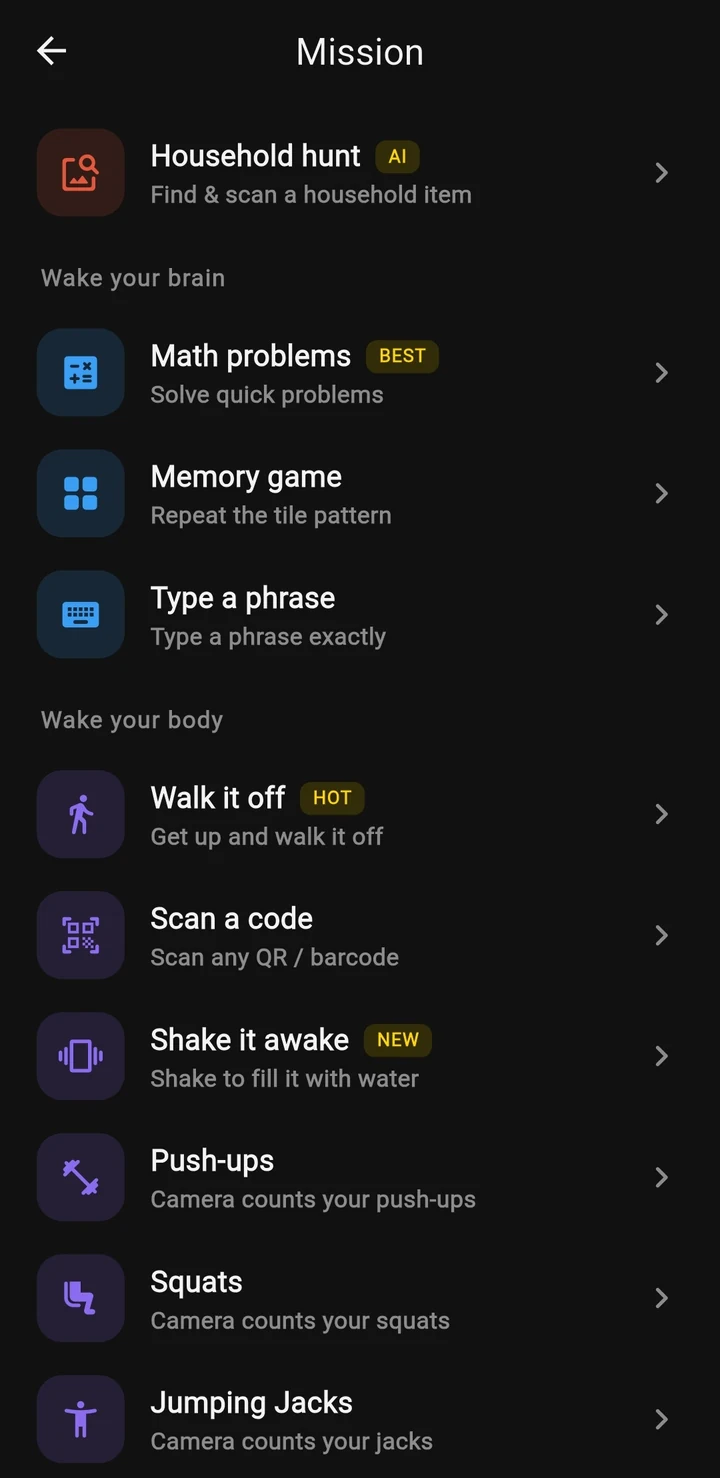
Beyond Alarm does this part for you: the alarm will not switch off until you have actually moved, and the apps you pick stay locked afterwards.
When to use it
- Study sessions and deep work: pick a length that matches your session.
- The scroll hours: the evening stretch where an hour disappears into short videos.
- Mornings: for a block that starts automatically when your alarm ends, use Morning Lockout instead.
- Time with people: dinner, a film, a walk. Lock the whole phone on Android and still take calls.
Set it up
- Open the Phone Block tab and tap Block now.
- Choose a length, or tap Custom.
- Under What to block, choose Whole phone (Android), a saved list, or Pick apps. On iPhone, Pick apps opens Apple's Screen Time picker and asks for Screen Time access the first time.
- Under How strict, choose Regular mode or Strict mode.
- Tap Block for …. On Android, the first time, the app walks you through switching on its guard in Accessibility settings. That's what enforces the block.
- If you chose Strict mode on the free plan, watch one short ad and the block starts.
Related
Common questions
How long can a Phone Block last?
Anywhere from 5 minutes to 8 hours. The quick choices are 15, 30 and 45 minutes and 1, 1.5 and 2 hours. Custom covers everything else, and you can add 5, 15, 30 or 60 minutes while a block is running.
Can I block the whole phone?
On Android, yes. Choose Whole phone and every app is blocked until the timer ends, with calls still coming through. On iPhone, Phone Block blocks the apps and categories you choose through Screen Time.
What's the difference between Regular mode and Strict mode?
A Regular mode block can end early after a short ad and a five-second hold. Strict mode has no stop button until the timer ends. Free users switch on Strict mode with one short ad, and Pro skips the ad.
Can I add apps to a block that's already running?
Yes. More Apps adds apps to the running block, and on Android Lock the Whole Phone widens it to every app. You can't remove apps or shorten the timer.
Does Phone Block cost anything?
Right now every feature in Beyond Alarm is free, Phone Block included. Pro removes the ads.
Beyond Alarm
An alarm that keeps ringing until you’ve actually moved — then blocks the apps that pull you back to bed. Free to start, no account.
More features
Free Strict mode
No stop button until the timer ends. Free with one short ad, on Android and iPhone.
Whole-phone block
Android: every app locked until the timer ends. Calls still come through.
Push-up alarm
Push-ups, squats or jumping jacks, counted by the camera on your phone. Fake reps don't count.
QR and barcode alarm
The alarm stops only when you scan a QR code or barcode. Keep one a room away from bed.
Photo alarm
Register a place the night before. The alarm stops only when you photograph it again.
Alarm reliability check
Checks battery, auto-start, exact-alarm and full-screen settings, with one tap to each fix.
Prevent power-off
Android: the power menu closes while the alarm rings. Optional uninstall protection.
Wake-up streaks
A run of kept wake-ups for each repeating alarm, plus a warning before you break it.
Daily Phone Block reminder
A daily nudge an hour before your usual Phone Block time, learned from when you really block.
Beyond Alarm on iPhone
AlarmKit alarms, wake-up missions, and Screen Time blocking with free Strict mode.