Free app blocker to reduce screen time (that you can't skip)
 Beyond Alarm29 October 2026 · Updated 13 November 2026 · 5 min read
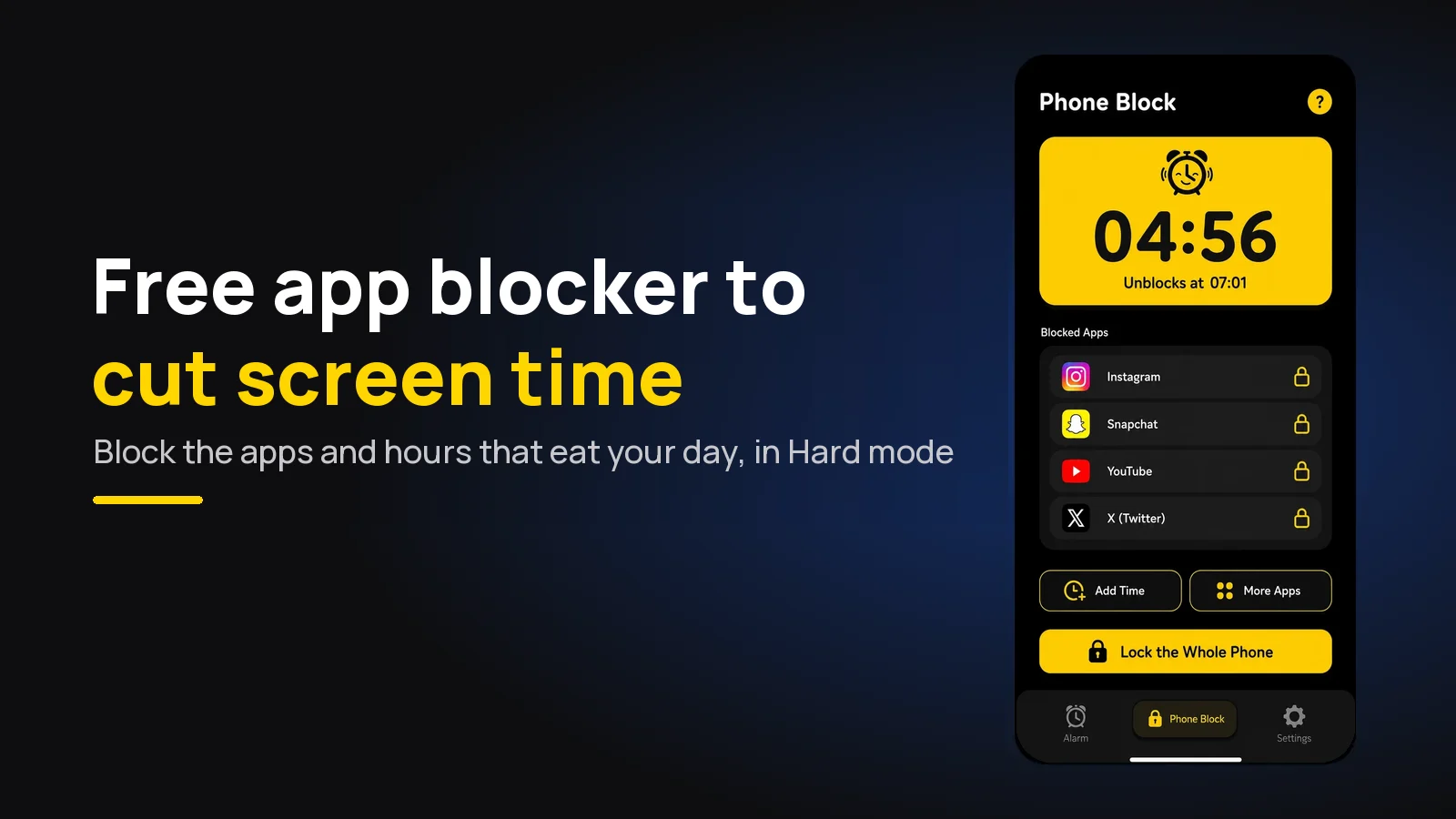
The best free app blocker to reduce screen time is Beyond Alarm's Phone Block, on Android and iPhone. Block the two or three apps your dashboard blames, at the hours it blames them, in Strict mode — no stop button until the timer ends, free with one short ad.
The short version:
- Beyond Alarm is the free blocker we recommend. Its Strict mode can't be cancelled, and it costs one short ad rather than a subscription.
- Most blockers charge for their strict mode — and a limit you can dismiss is the one that stops working by the second week.
- Read your dashboard first. A handful of apps and two times of day usually hold most of the hours.
- Block at those hours, not all day. A blocker you can live with is one you keep.
- Cover the morning automatically: Morning Lockout starts when your alarm is done.
Why a free blocker has to be hard to skip
Screen time goes down when opening the app takes more effort than the urge is worth. The clearest evidence is a field study of the app one sec, published in PNAS in 2023 by Grüning, Riedel and Lorenz-Spreen. Over six weeks with 280 participants, a short pause before chosen apps opened cut how often people opened them by 57%.
The detail that matters: in a follow-up experiment in the same paper, the part with the strongest effect was giving people a clear option to back out of opening the app. Friction at the moment of the urge works.
A built-in limit adds almost none. On iPhone without a passcode it offers "Ignore Limit"; on Android, a Focus session has "Take a break". So the free blocker worth installing is the one where getting past it costs more than a tap.
| Option | Cost | Getting past it | Phones |
|---|---|---|---|
| Beyond Alarm Phone Block (Strict mode) | Free — one short ad to turn it on | Not possible until the timer ends | Android and iPhone |
| Beyond Alarm Phone Block (Regular mode) | Free | A short ad, then a held button | Android and iPhone |
| Beyond Alarm Morning Lockout | Free | Starts when your alarm is done | Android and iPhone |
| Freedom | Free plan; Locked Mode is on Premium | Free plan: end the session | Phone and computer |
| Digital Wellbeing app timers | Free, built in | Change the timer in Settings | Android |
| Screen Time App Limits | Free, built in | "Ignore Limit", unless someone else holds the passcode | iPhone |
For a longer look at the free options, see the free app blockers worth installing, or the phone-specific guides for Android and iPhone.
Step 1: find the hours worth blocking
Both phones already record your screen time — Digital Wellbeing on Android, Screen Time on iPhone. Read it for three or four days before blocking anything. Menu names vary by phone and version, so search Settings if a path isn't where you expect.
Look for two things: the two or three apps at the top, and the hours when use clusters. For most people that is the first hour after waking and the evening. How much screen time is normal puts your number in context, and how to reduce screen time covers the settings side in full.
Step 2: set up a block in Beyond Alarm
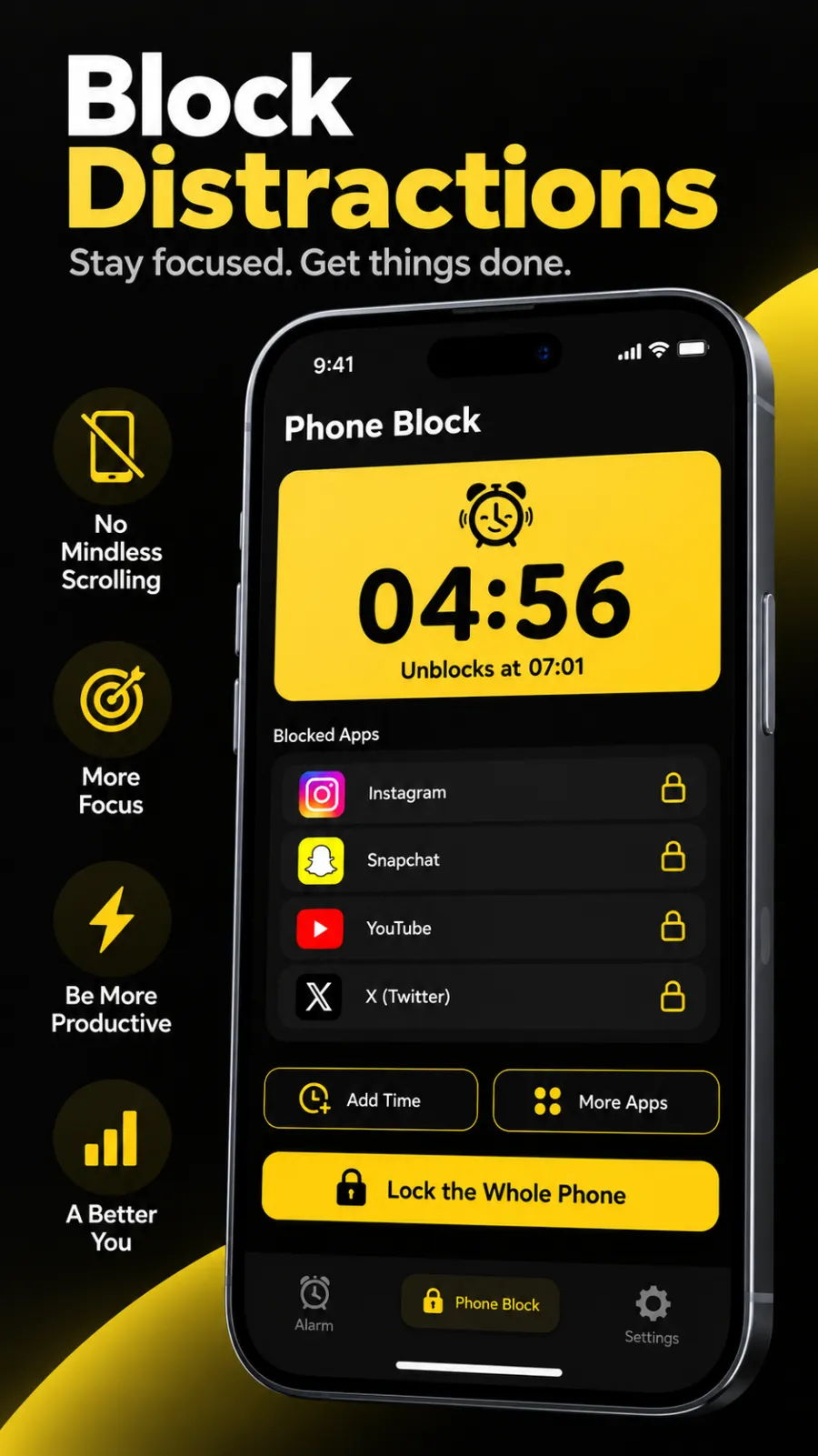
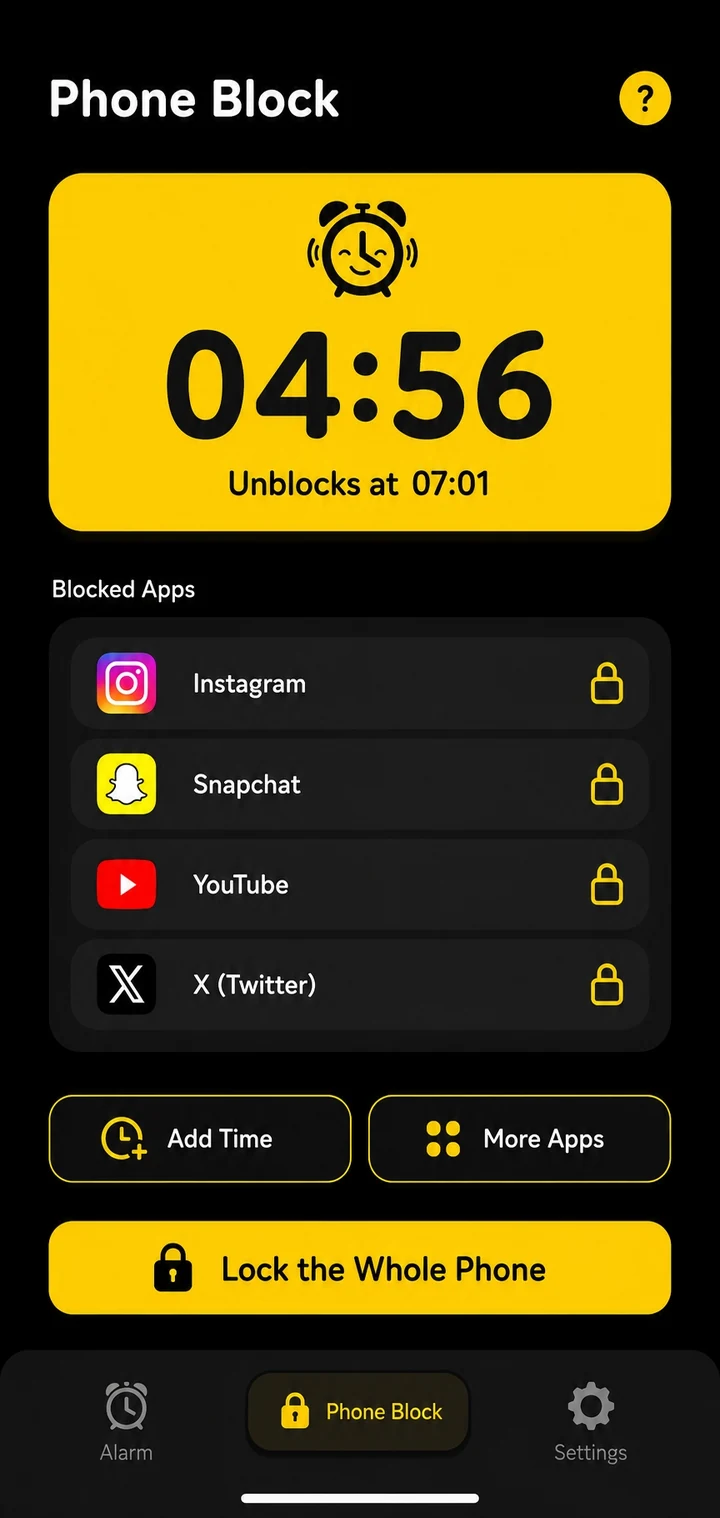
- Open the Phone Block tab and tap Block now.
- Choose what to block. On Android: a ready-made category list, a saved block list, Pick apps, or Whole phone. On iPhone: apps or whole categories in Apple's Screen Time picker (allow Screen Time access the first time).
- Pick a length — 15, 30, 45, 60, 90 or 120 minutes, or Custom from 5 minutes to 8 hours.
- Choose Regular mode or Strict mode, then start.
Save the apps your dashboard blamed as a block list. After that, each block is two taps.
A running block can be made longer or wider — Add Time, More Apps, and on Android Lock the Whole Phone — but never shorter. In our own code, a block survives a restart, and switching the phone off doesn't pause it; it still ends at the same clock time.
Beyond Alarm
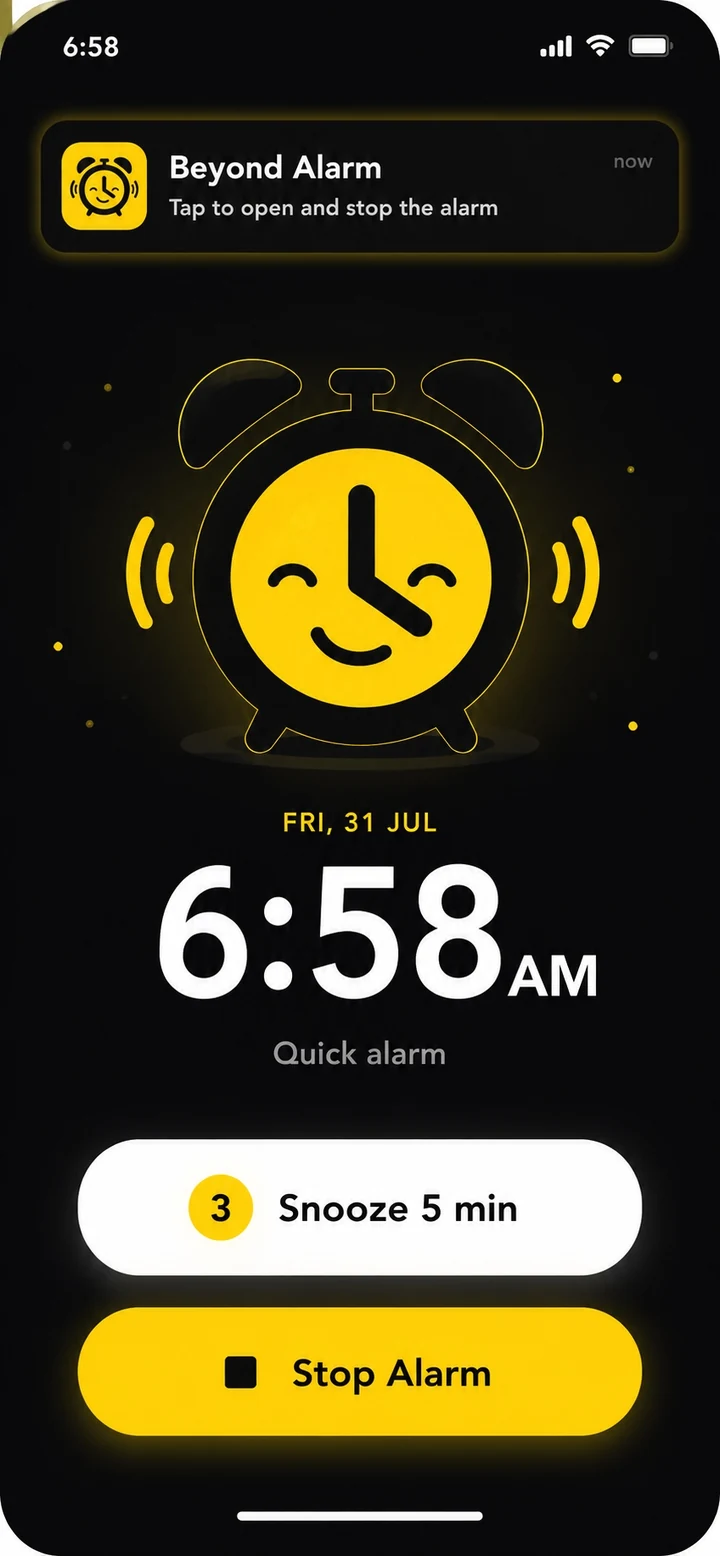
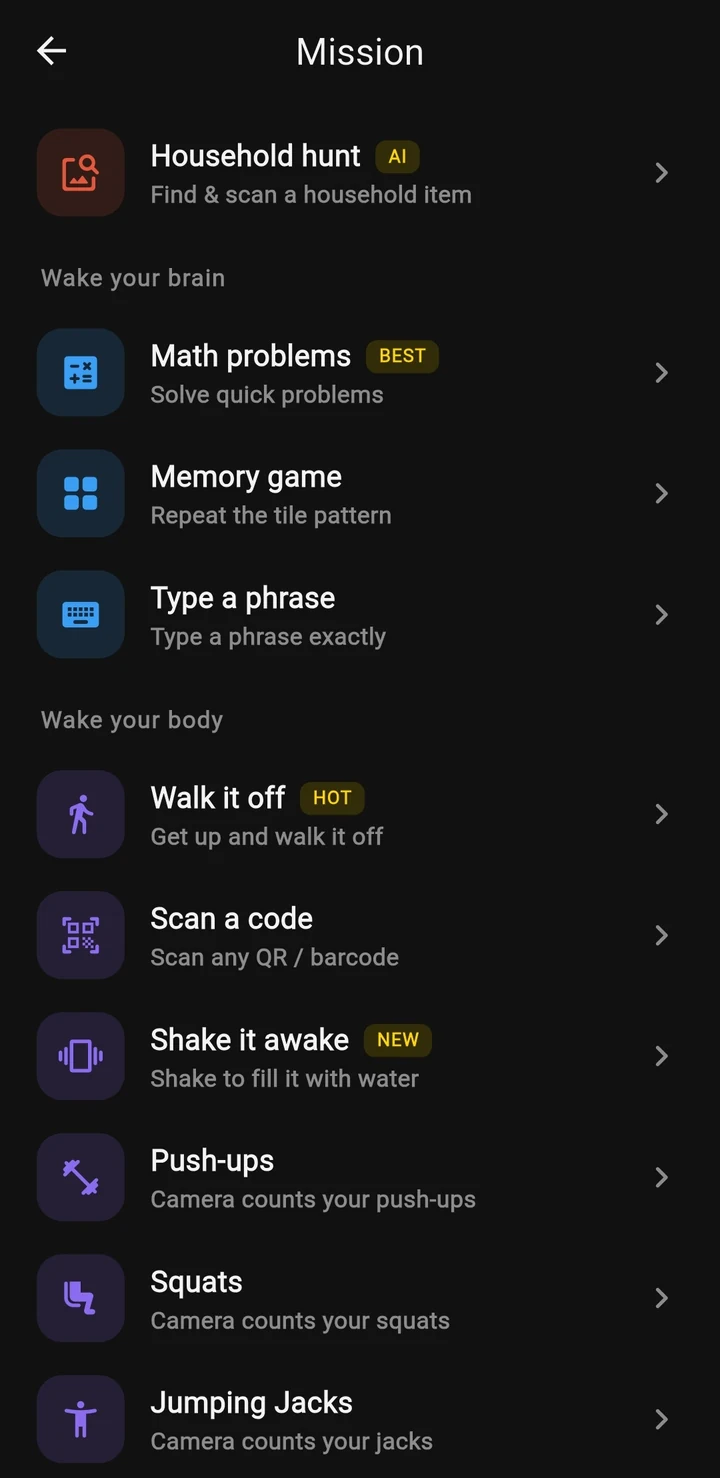
Beyond Alarm does this part for you: the alarm will not switch off until you have actually moved, and the apps you pick stay locked afterwards.

Step 3: choose Strict mode for the hours you lose
Regular mode is for blocks where you might genuinely need out: leaving early takes a short ad and a held button, long enough to change your mind.
Strict mode is for the hours the dashboard keeps showing — the evening scroll, the lunch break that becomes forty minutes. There is no stop button until the timer ends, and a free user turns it on by watching one short ad.
We built Strict mode to be free because it's the mode that does the work. Most blockers put their can't-cancel mode behind a paid plan; in Beyond Alarm one short ad switches it on, and Pro members skip the ad. Right now every feature in the app is free, and Pro only removes the ads. On iPhone, apps can't be deleted while a Strict mode block runs. How free Strict mode works.
Pick a length you will finish. An hour every evening, kept for a week, cuts more than one heroic four-hour block you abandon.
Step 4: let the routine run itself
A blocker cuts screen time only if you remember to start it. Beyond Alarm covers the two hours where most people lose the most.
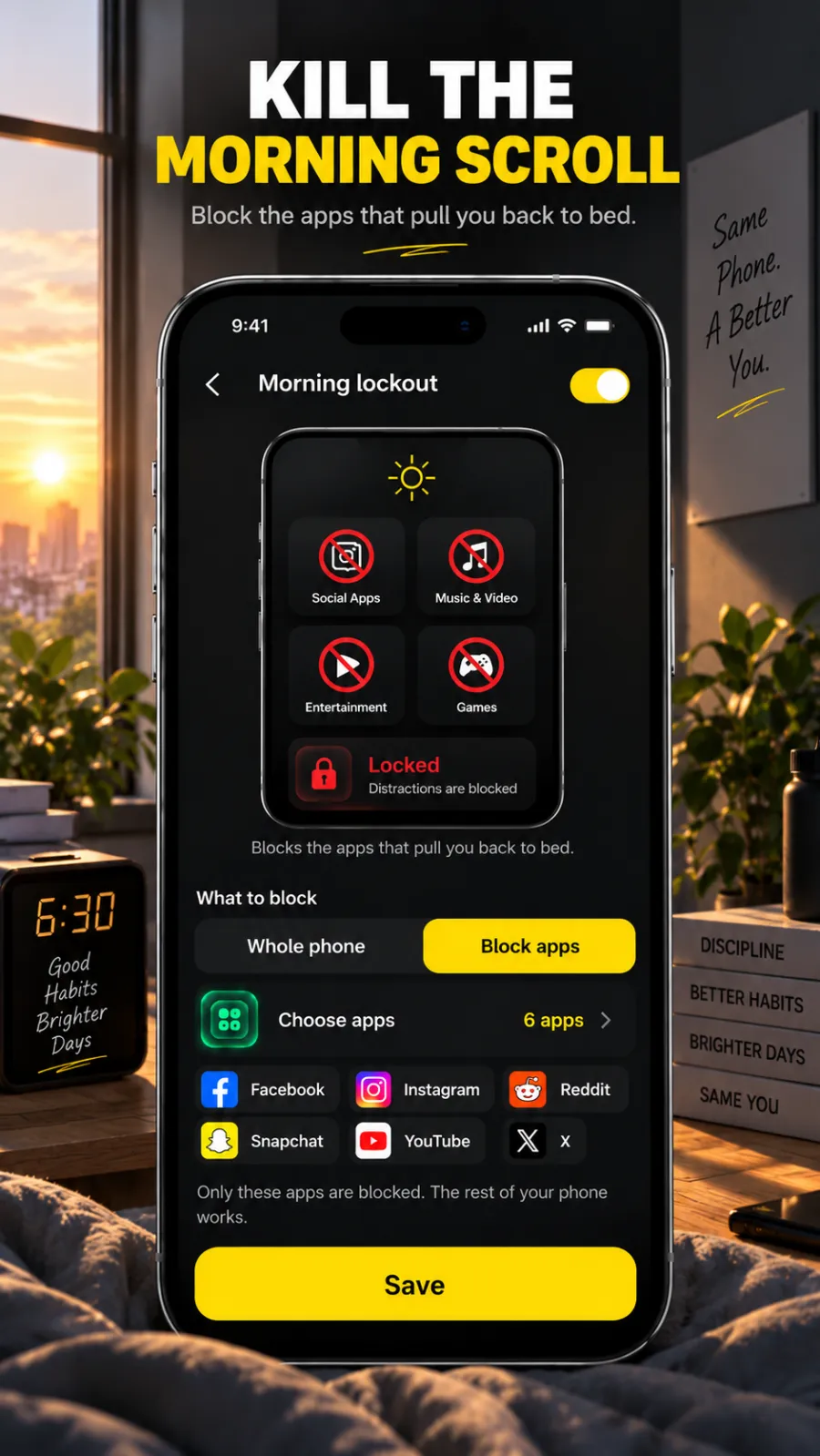
The morning. If your alarm is on your phone, the first pickup is the scroll. Morning Lockout starts by itself when an alarm is finished and keeps the apps you picked shut for the time you set.
The evening. Once you've used Phone Block a few times, Beyond Alarm learns when you usually start one and sends "Time to block your distracting apps" an hour before, every day. It skips the reminder on days you've already blocked. More on the daily reminder.
Check the number after a week
Go back to the dashboard after seven days and compare the top apps and the busy hours with where you started. If an hour hasn't moved, the block there is too short or in Regular mode when it should be in Strict mode — change one thing and give it another week.
Two habits help the blocker along:
- Turn off notifications for every app that isn't a person talking to you. Most pickups start with a buzz.
- Watch for the swap. When one feed is shut, another takes its place. Add it with More Apps mid-block.
If your screen time is mostly studying gone sideways, the step-by-step for that is the free app blocker for studying.
Not sure which apps to block? Screen time on Android shows how to read the Digital Wellbeing dashboard, and app timer for Android compares its daily timers with a countdown that locks.
Common questions
What is the best free app blocker to reduce screen time?
Beyond Alarm. Its Phone Block blocks the apps you choose on Android and iPhone, and its Strict mode - no stop button until the timer ends - is free after one short ad. Right now every feature is free; Pro removes the ads.
Do app blockers actually reduce screen time?
They can. In a six-week field study published in PNAS, adding friction before chosen apps opened cut how often people opened them by 57%. A block works best when getting past it takes real effort, not one tap.
Is Digital Wellbeing or Screen Time enough on its own?
They are good for measuring where the time goes, and they are free. Their limits can be dismissed by the person holding the phone, which is why a block with no stop button, like Beyond Alarm's Strict mode, holds better.
Can a free app blocker lock my whole phone?
On Android, yes - Beyond Alarm's Phone Block can lock the whole phone, with calls still coming through. On iPhone it blocks the apps and Screen Time categories you choose rather than the whole phone.
When should I block apps to cut screen time?
At the hours the dashboard shows the most use - usually the first hour after waking and the evening. Beyond Alarm's Morning Lockout covers the morning, and its daily reminder nudges you before your usual evening block.
We build Beyond Alarm, the alarm for Android and iPhone that will not switch off until you have actually moved, then blocks the apps that pull you back. Most of what we write here comes out of building it.
Beyond Alarm
An alarm that keeps ringing until you’ve actually moved — then blocks the apps that pull you back to bed. Free to start, no account.
Keep reading
Study Timer App That Blocks Distracting Apps (Free)
A study timer that only counts down won't stop you checking your phone. Use one that locks your apps until it ends - free on Android and iPhone.
Free app blocker for studying: set up a session that holds
The free app blocker for studying on Android and iPhone, and how to set it up for one revision session - with a Strict mode that costs one short ad.