
Free app blocker for studying: set up a session that holds
 Beyond Alarm29 October 2026 · Updated 13 November 2026 · 6 min read
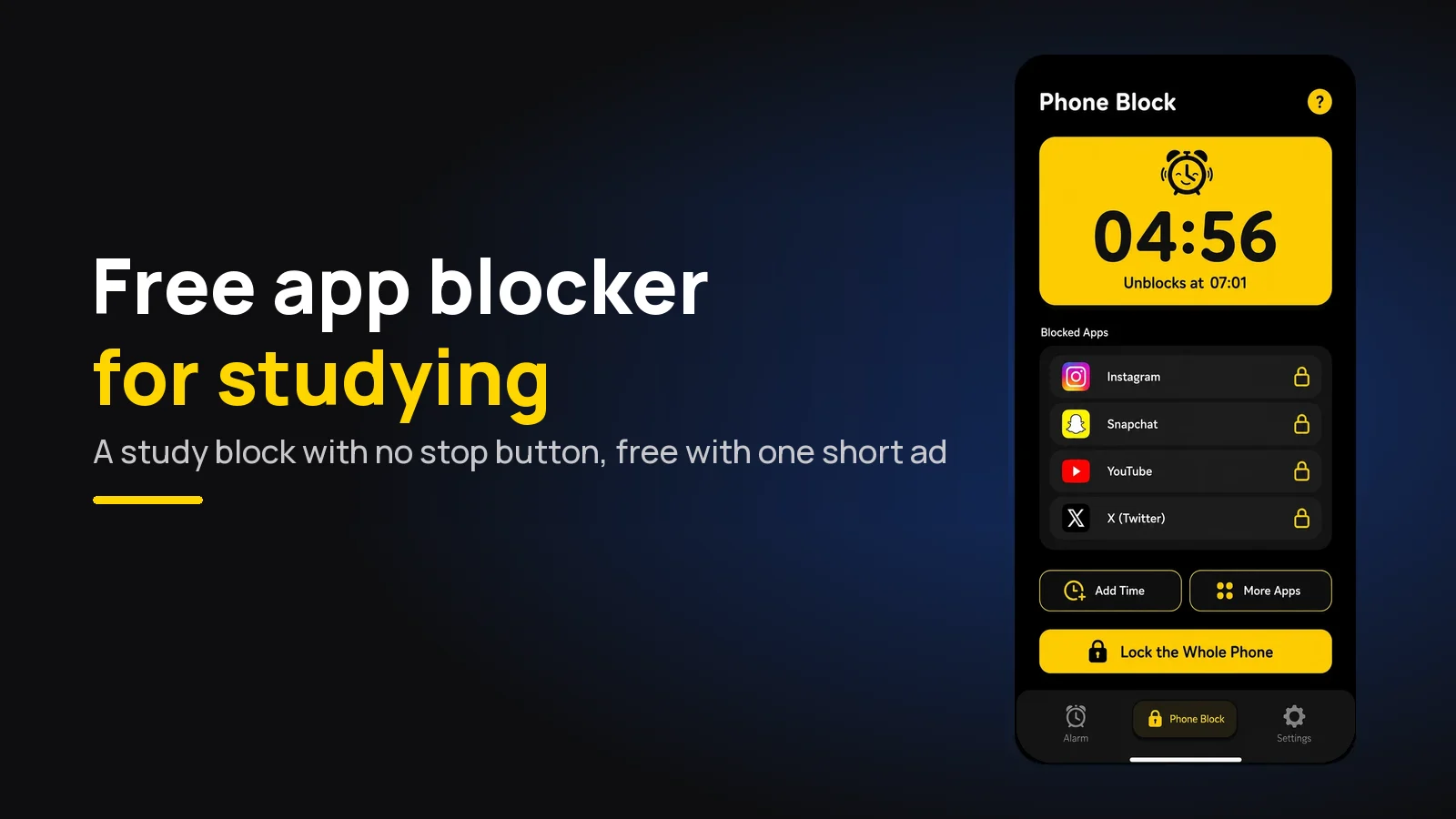
The best free app blocker for studying is Beyond Alarm's Phone Block, on Android and iPhone. Pick the apps that pull you away, set one study session, and choose Strict mode: no stop button until the timer ends, unlocked with one short ad.
The short version:
- Beyond Alarm is the free blocker we recommend for studying. Its Strict mode — the one you can't cancel — costs one short ad, not a subscription.
- Most blockers keep their strictest mode behind a paid plan. That is the mode a study session actually needs.
- Block one session at a time, sized to the work, not the whole evening.
- Block the feeds, keep the tools: calculator, dictionary and notes stay open.
- Let the app remind you. After a few blocks, Beyond Alarm nudges you an hour before your usual start.
What "free" usually leaves out
Plenty of blockers are free to download. The question for studying is whether the free version can stop you — at minute twenty, when the page gets hard and the phone looks easy.
That usually comes down to one feature: a mode with no way out. In Beyond Alarm it is called Strict mode, and a free user turns it on by watching one short ad, and Pro members skip it.
At the time of writing, every feature in the app is open to everyone during a free period, and Pro only removes the ads.
| Option | Cost | Can you stop a session early? | Phones |
|---|---|---|---|
| Beyond Alarm Phone Block (Strict mode) | Free — one short ad to turn it on | No. Only the timer ends it | Android and iPhone |
| Beyond Alarm Phone Block (Regular mode) | Free | Only after a short ad and a held button | Android and iPhone |
| Freedom | Free plan; Locked Mode is on Premium | Free plan: yes. Locked Mode: no | Phone and computer |
| Digital Wellbeing Focus mode | Free, built in | Yes — "Take a break" | Android |
| Screen Time App Limits | Free, built in | Yes, unless someone else holds the passcode | iPhone |
| Phone in another room | Free | Yes — you walk and get it | Any |
The built-in tools are a fine start, but they are built to remind, and the reminder loses the moment you want the phone more than the work. We went through why in why Screen Time limits and Focus mode don't stop you. For the full list of free options, see the free app blockers worth installing.
Set up a study session on Android
Beyond Alarm doesn't need an alarm or a schedule for this — you start a block when you sit down.
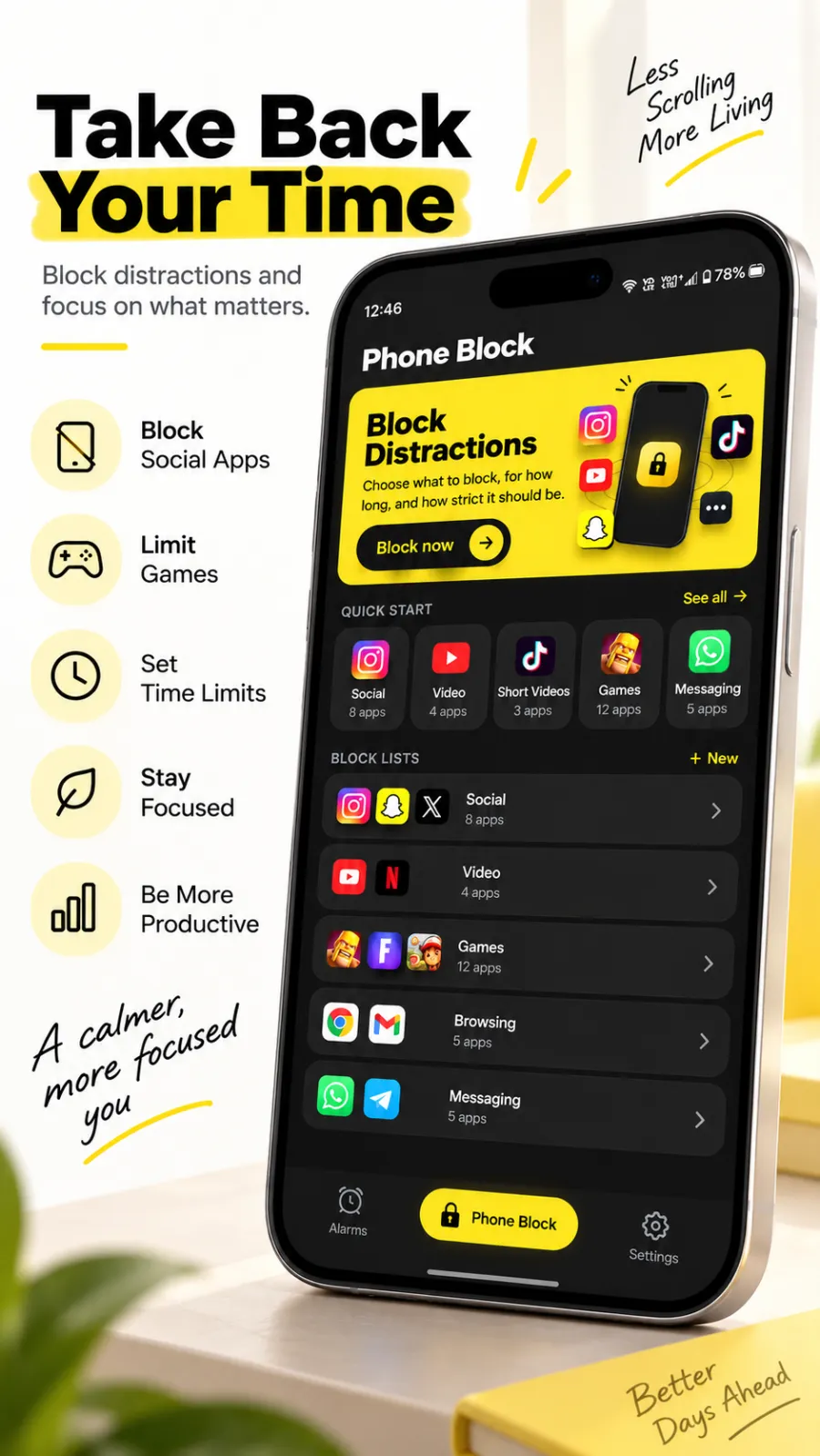
- Open the Phone Block tab and tap Block now.
- Pick a length. The presets run 15, 30, 45, 60, 90 and 120 minutes, and Custom covers anything else.
- Under What to block, choose a ready-made category list, one of your saved block lists, Pick apps, or Whole phone.
- Under How strict, choose Regular mode or Strict mode.
- Tap Block for …. The first time, the app walks you through switching on its guard in Accessibility settings, which is how Android lets an app send you back from a blocked one.
On Android a whole-phone block still shows a call button, so you can reach the dialer. In settings there are also optional Prevent app uninstall and Prevent power-off, for when the phone itself becomes the way out. The Android-only version of this guide, with more on which apps to list, is how to block apps while studying on Android.
Set up a study session on iPhone
The steps are the same, with one difference: iPhone blocking goes through Apple's Screen Time, so you choose apps and categories in Apple's own picker.
- Open Phone Block and tap Block now.
- The first time, allow Screen Time access when iOS asks. Without it, no iPhone app can block other apps.
- Choose the apps or whole categories — Social and Entertainment cover most of the pull in one tap.
- Pick the length and Regular mode or Strict mode, then start.
While a Strict mode block runs on iPhone, apps can't be deleted, so removing Beyond Alarm doesn't end the session early. If you want to check how the settings-only route compares, setting time limits on iPhone apps covers Screen Time button by button.
Beyond Alarm
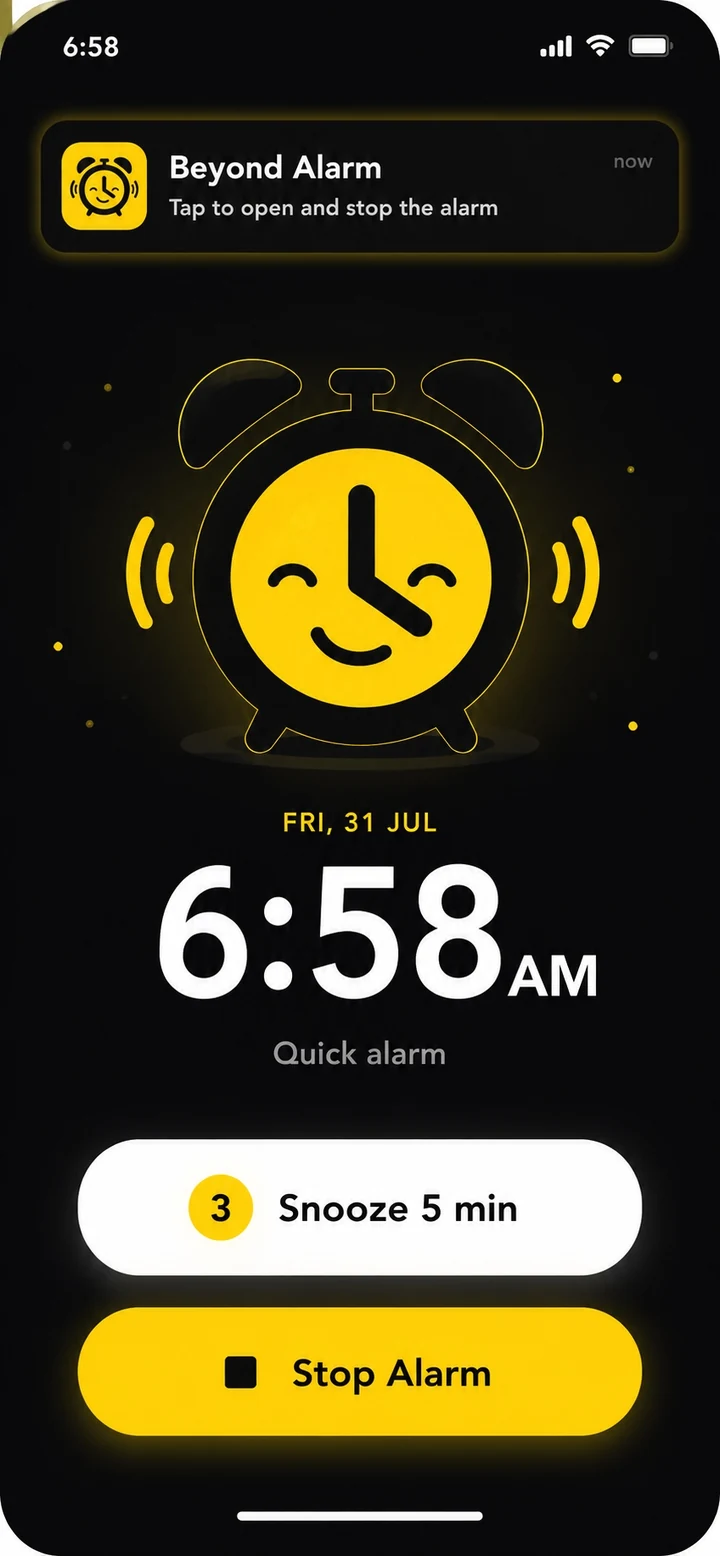
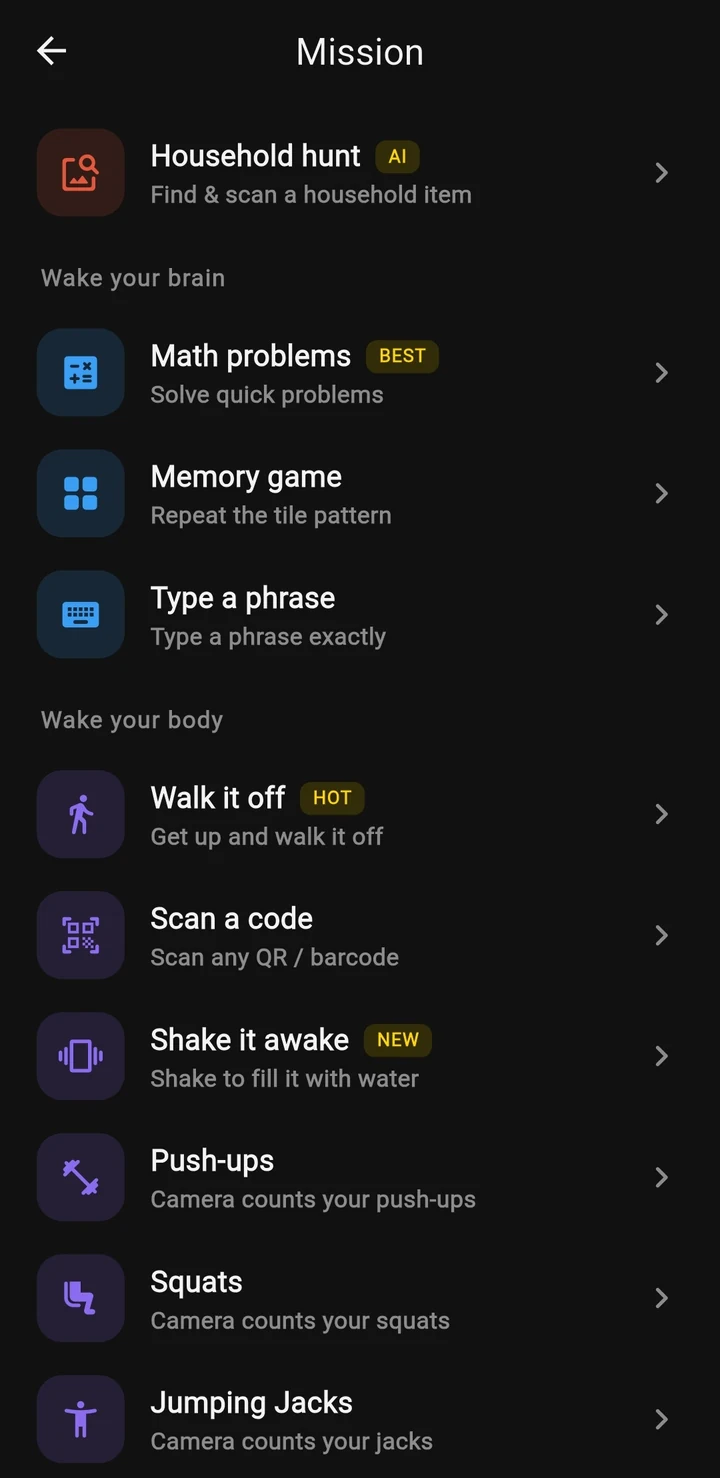
Beyond Alarm does this part for you: the alarm will not switch off until you have actually moved, and the apps you pick stay locked afterwards.

Regular mode or Strict mode for revision
This is the one choice that decides whether the session holds.
Regular mode has an exit, and it is deliberately slow: watch a short ad, then hold a button down. By the time you have done both, you have had long enough to decide whether you really wanted out.
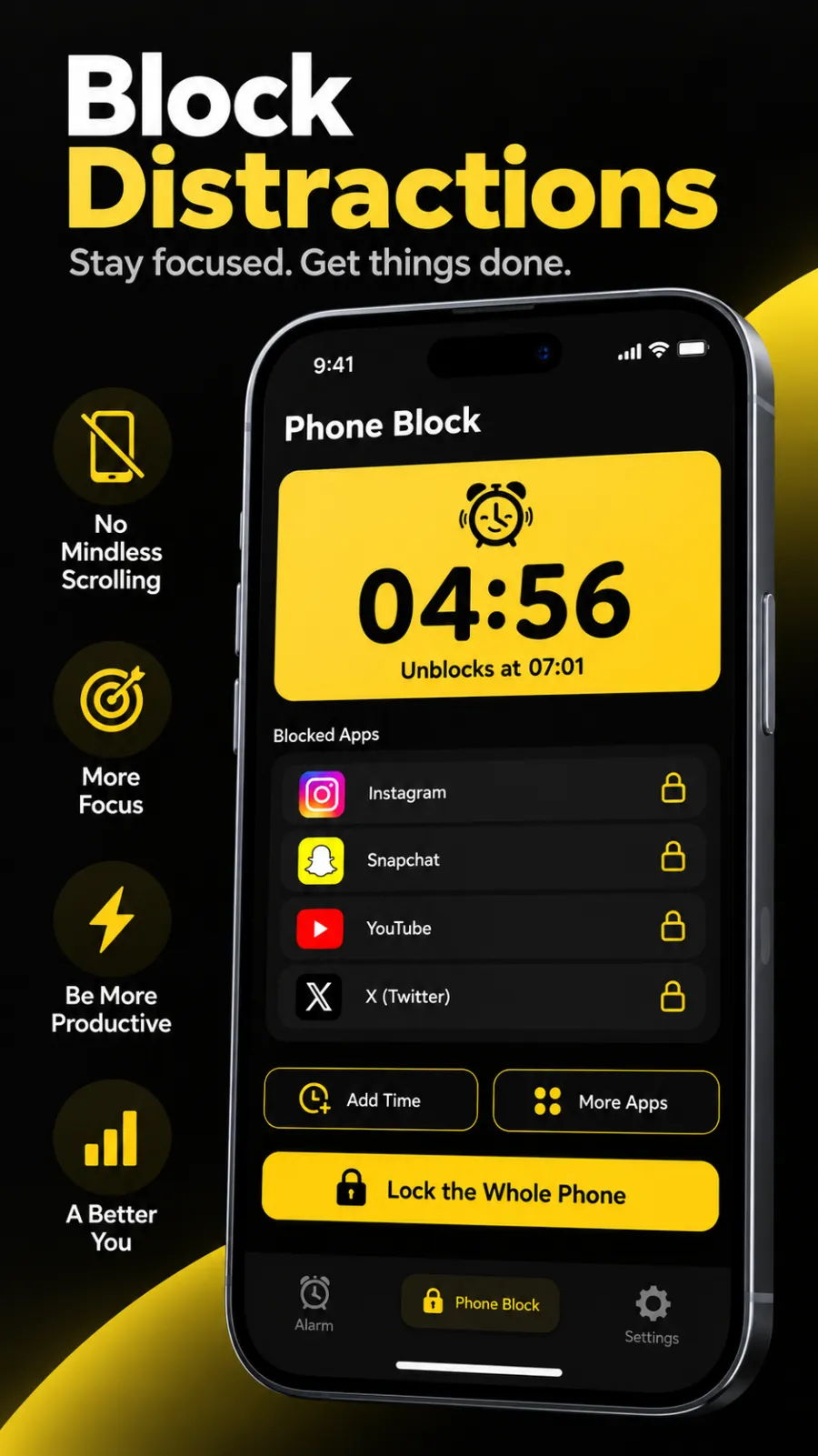
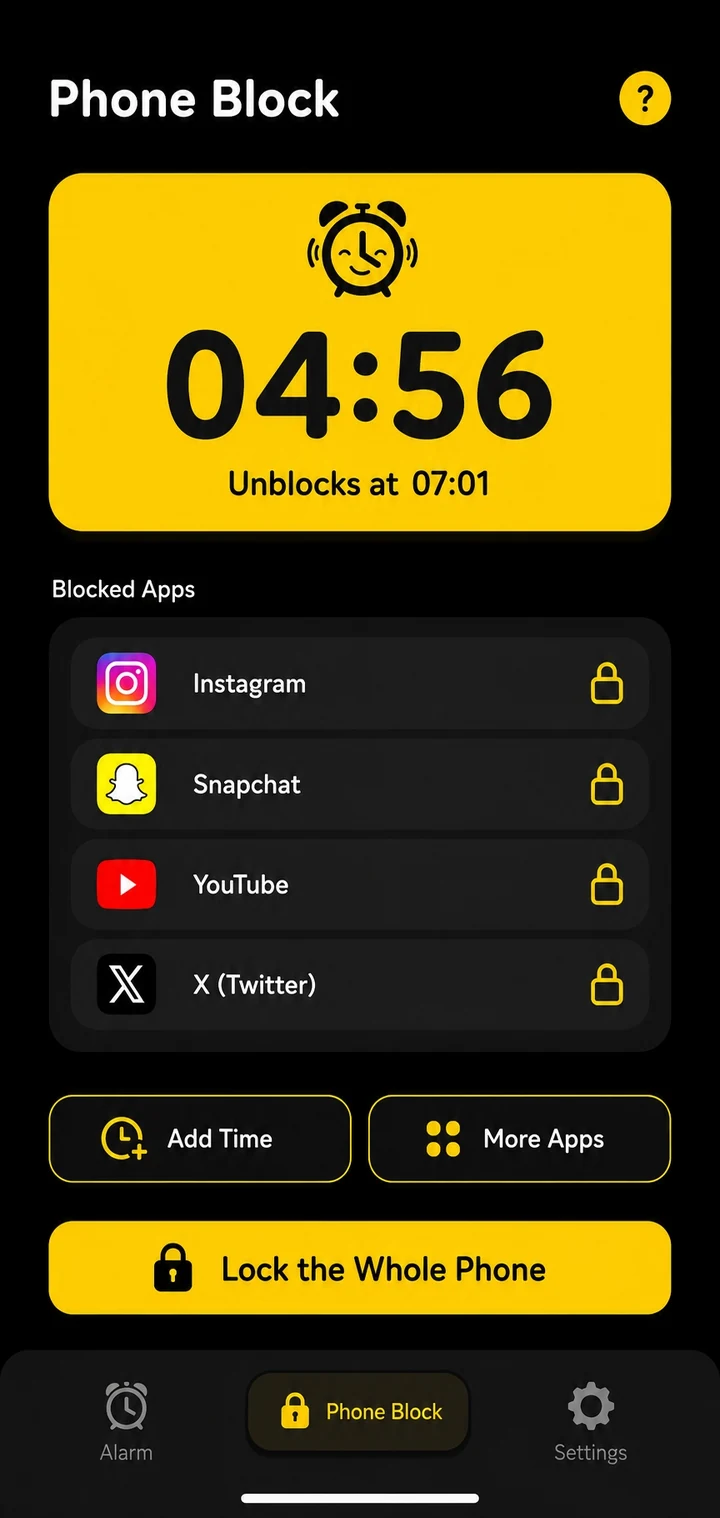
Strict mode has no exit. The running screen shows the countdown and the time it unblocks, and nothing else ends it. You can tap Add Time or More Apps if the list was too short, because a block can be made longer or wider, never shorter.
| Regular mode | Strict mode | |
|---|---|---|
| Turning it on | Free | Free with one short ad (no ad on Pro) |
| Ending early | A short ad, then a held button | Not possible |
| Adding time or apps | Yes | Yes |
| Best for | Everyday homework | Exam revision, deadlines |
We built Strict mode to be free on purpose. A student is the person most likely to need a block they can't cancel and least likely to want another subscription, so in Beyond Alarm the price is one short ad. Free with ads, on Android and iPhone — here is how Strict mode works.
One rule makes Strict mode work: pick a length you are sure you can finish. A 50-minute block you complete builds the habit; a three-hour one you resent does not. Study timer lengths compared helps you pick the number, and the Pomodoro technique for studying covers the short-cycle version. Each Phone Block is one session — start the next after your break.
Make it a daily habit
The hardest block to start is the first one of the evening. Beyond Alarm helps there too: once you've used Phone Block, it learns when you usually start one and sends "Time to block your distracting apps" an hour before, every day.
In our own code it takes the middle of your last five start times, so one late-night session doesn't move it, and it stays quiet on days you've already blocked. More on the daily reminder.
If it's exam week and the checking has got out of hand, this page is for exactly that. And if you start studying straight after waking, Morning Lockout keeps your chosen apps shut for a set time once the alarm is finished, so the first session isn't lost to the feed.
Which apps to block for studying
- Block: short video, social feeds, games, and anything you open "just to check".
- Keep: the calculator, dictionary, notes, flashcards, and messaging if your study group lives there.
- Watch for the swap. When Instagram is shut, YouTube often takes its place. Add it mid-session with More Apps — the running block takes it on straight away.
Save the mix as a block list and every study session after the first is two taps. Beyond Alarm keeps the phone, usually the biggest pull, shut; if you also revise on a laptop, Freedom vs Cold Turkey covers the computer side.
If you think of it as a timer first and a blocker second, our study timer app guide covers the same setup from that side, with a length for each kind of session.
Common questions
What is the best free app blocker for studying?
Beyond Alarm. Its Phone Block works on Android and iPhone, and its Strict mode - no stop button until the timer ends - is free after one short ad. Right now every feature in the app is free; Pro only removes the ads.
Is there a free app blocker you can't turn off?
Yes. Beyond Alarm's Strict mode has no stop button until the timer runs out, and a free user switches it on by watching one short ad. You can add time or apps to a running block, but nothing makes it shorter.
Does Beyond Alarm block apps on iPhone for studying?
Yes. On iPhone it uses Apple's Screen Time to shield the apps and categories you choose for the length of the block. Locking the whole phone is an Android option; on iPhone you block the apps that distract you.
Can I still use my calculator or notes during a study block?
Yes. You choose what gets blocked, so tools the session needs - a calculator, a dictionary, your notes app - stay open. Block the feeds, not the phone, unless the phone has no job in the session.
Will I still get calls while studying with a block on?
Yes. Calls still come through during a Phone Block, in Regular mode and in Strict mode, including a whole-phone block on Android.
We build Beyond Alarm, the alarm for Android and iPhone that will not switch off until you have actually moved, then blocks the apps that pull you back. Most of what we write here comes out of building it.
Beyond Alarm
An alarm that keeps ringing until you’ve actually moved — then blocks the apps that pull you back to bed. Free to start, no account.
Keep reading
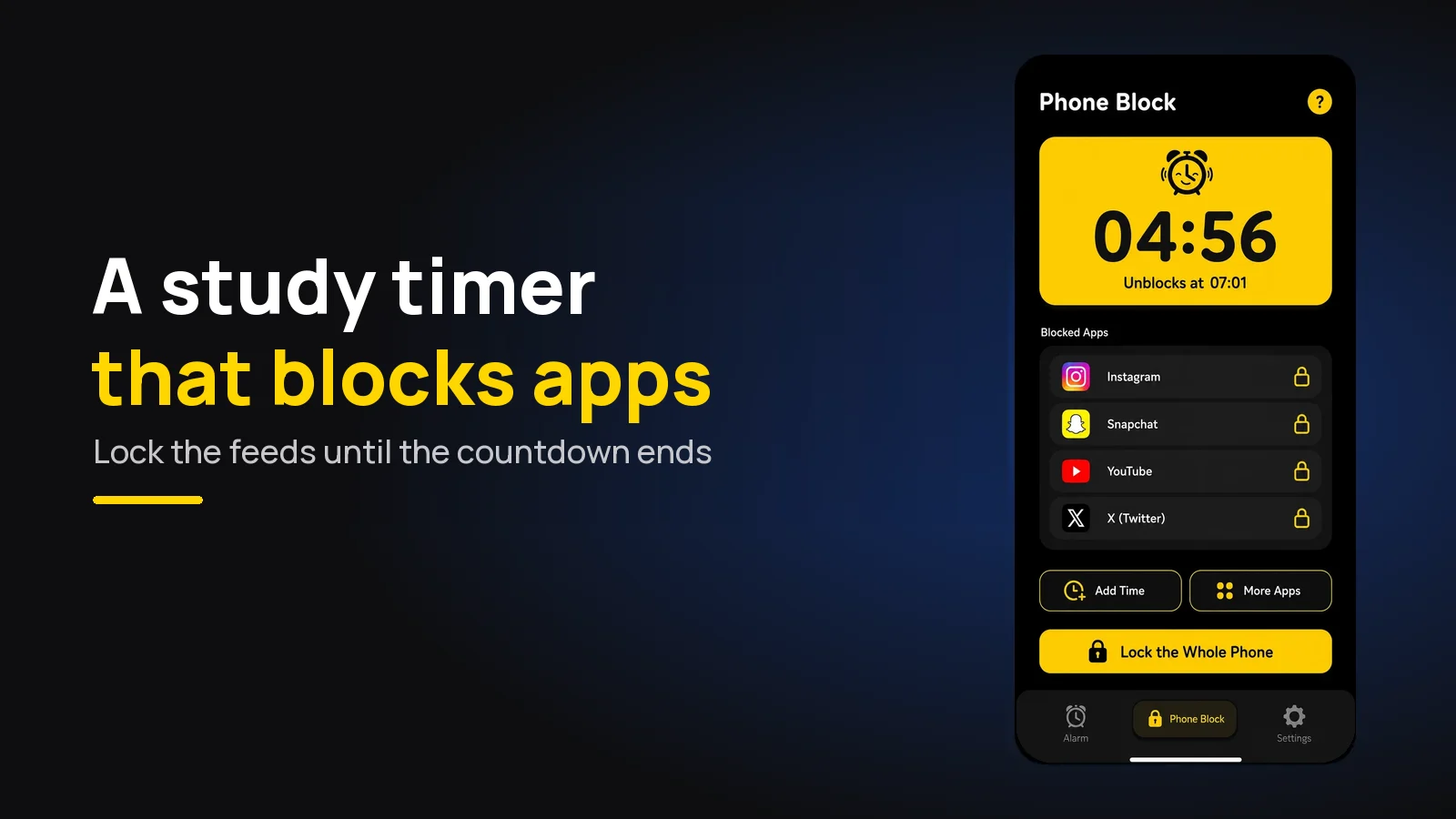
Study Timer App That Blocks Distracting Apps (Free)
A study timer that only counts down won't stop you checking your phone. Use one that locks your apps until it ends - free on Android and iPhone.
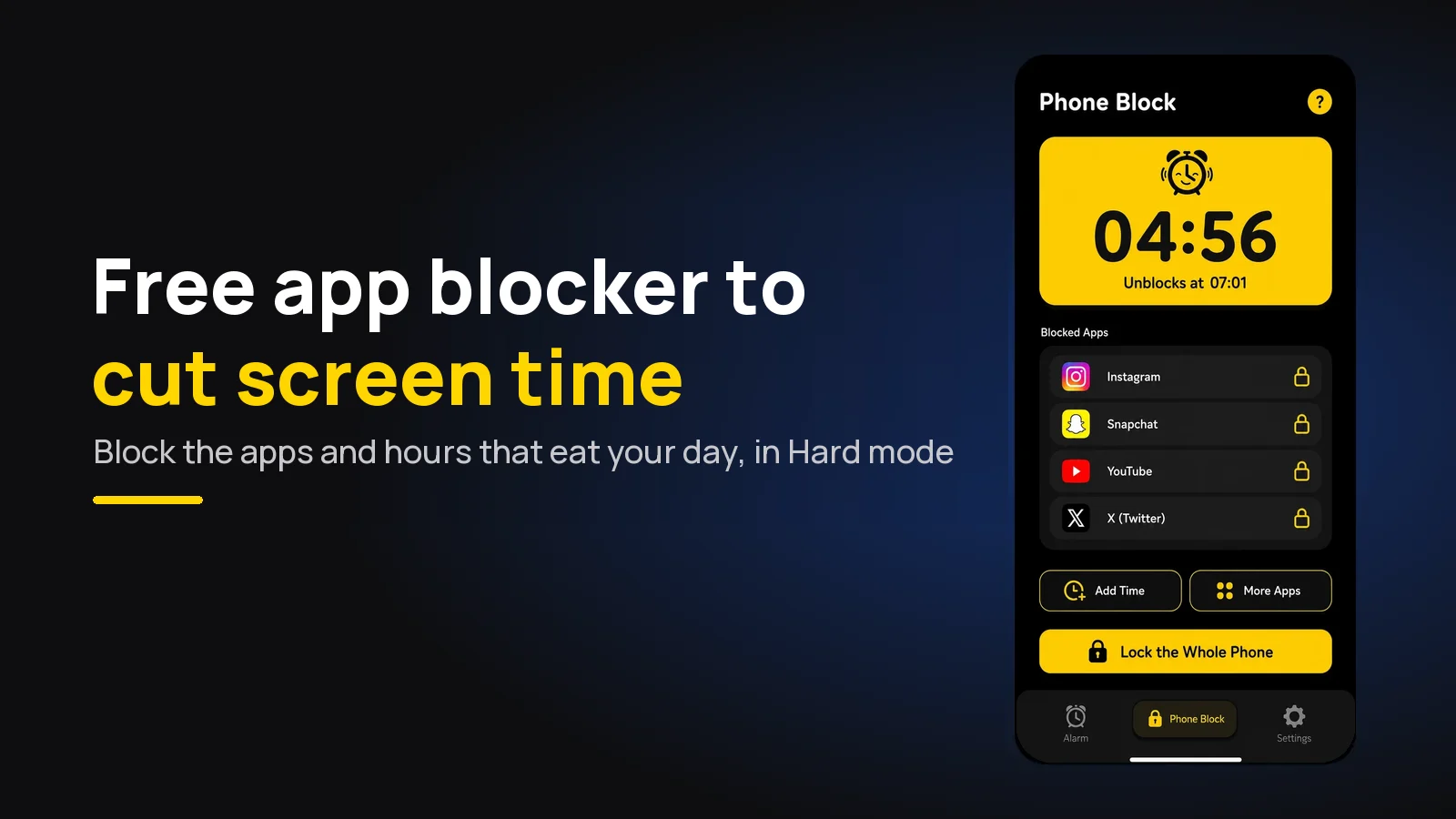
Free app blocker to reduce screen time (that you can't skip)
A free app blocker that actually cuts screen time on Android and iPhone - block the right apps at the right hours, with a Strict mode that costs one ad.