
Beyond Alarm on iPhone
The alarm that makes you get up, and then keeps the apps shut. On iPhone, Beyond Alarm uses Apple's own AlarmKit to ring and Screen Time to block, with free Strict mode on top.


Beyond Alarm on iPhone does the two things an iPhone alarm doesn't. It makes you get out of bed with a mission, and it keeps the apps you'd scroll shut afterwards. It rings through Apple's AlarmKit, blocks through Screen Time, and gives you Strict mode, a block with no stop button, free with one short ad.
What it does
| Feature | On iPhone |
|---|---|
| Alarms | Built on AlarmKit (iOS 26.1+). Ring through silent mode and Focus |
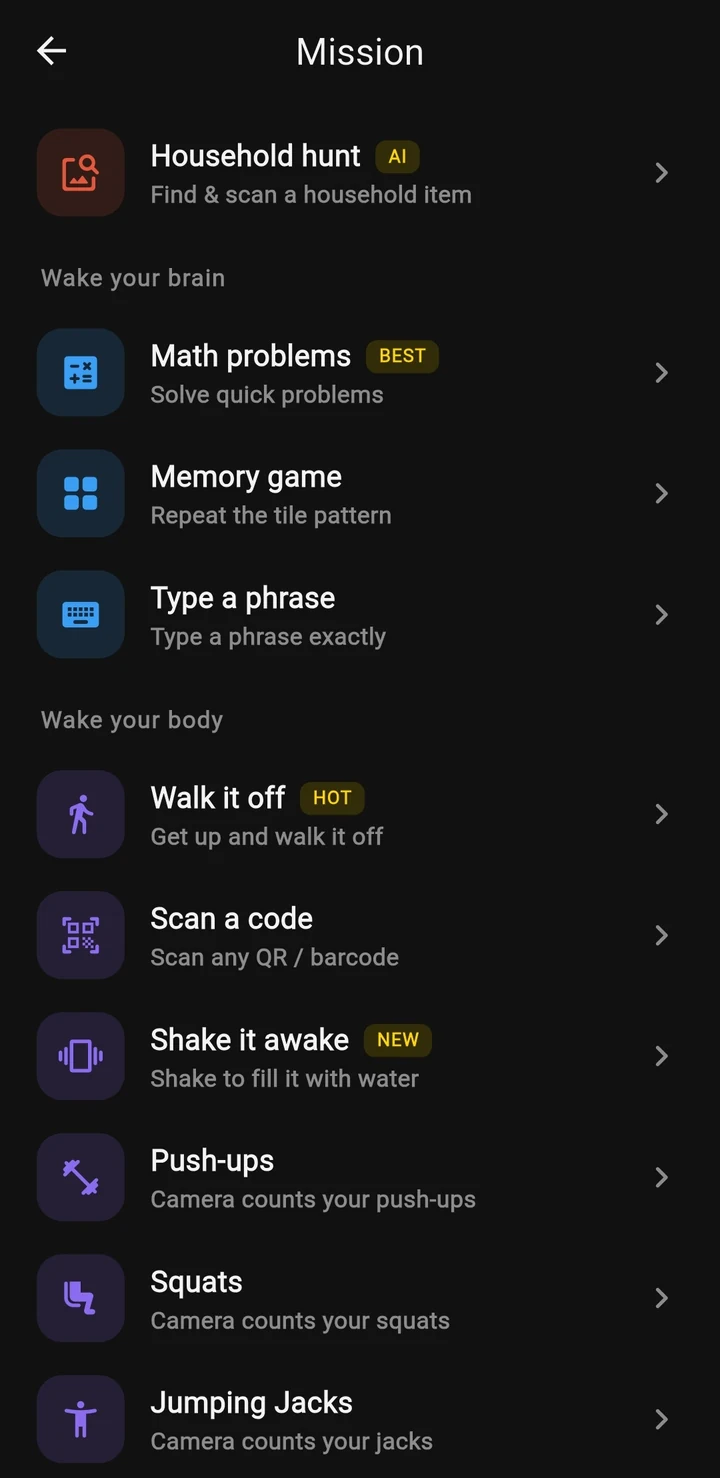
| Wake-up missions | Push-ups, squats, jumping jacks, photo, barcode scan, maths and more |
| Phone Block | Chosen apps and categories, through Screen Time |
| Strict mode | No stop button until the timer ends. Free with one short ad |
| Morning Lockout | Chosen apps stay shut after the alarm |
| Wake-up streaks | Yes, per repeating alarm |
| Daily Phone Block reminder | Yes |
| Prevent app uninstall | Yes, through Screen Time |
How it works
Alarms that are hard to dismiss
Beyond Alarm schedules its alarms with AlarmKit, so they ring the way an iPhone alarm does: through silent mode, a Focus or Do Not Disturb, and on the lock screen. It re-registers its alarms after a restart, a force quit or an update, with nothing to switch on.
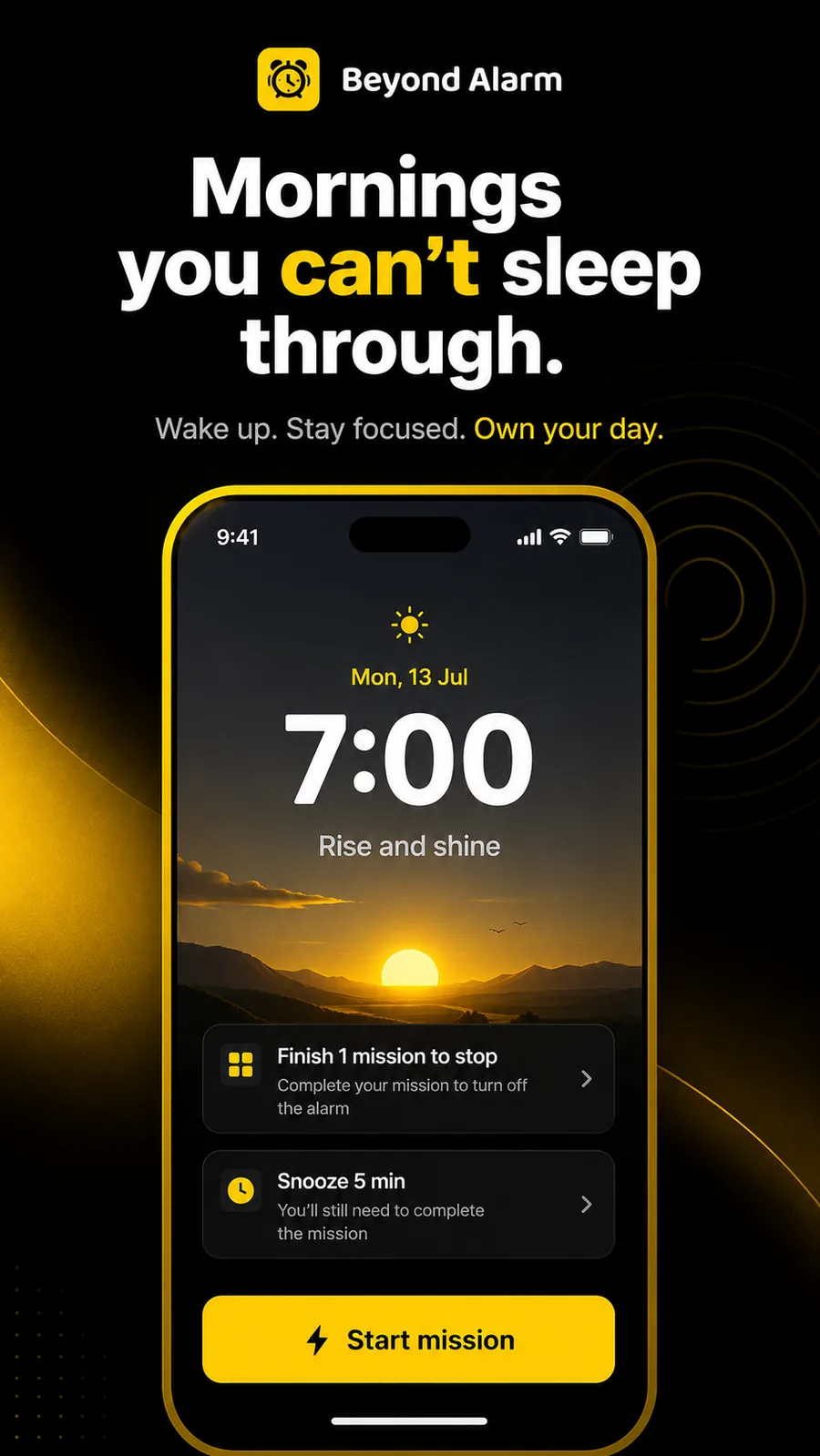
When an alarm with a mission rings:
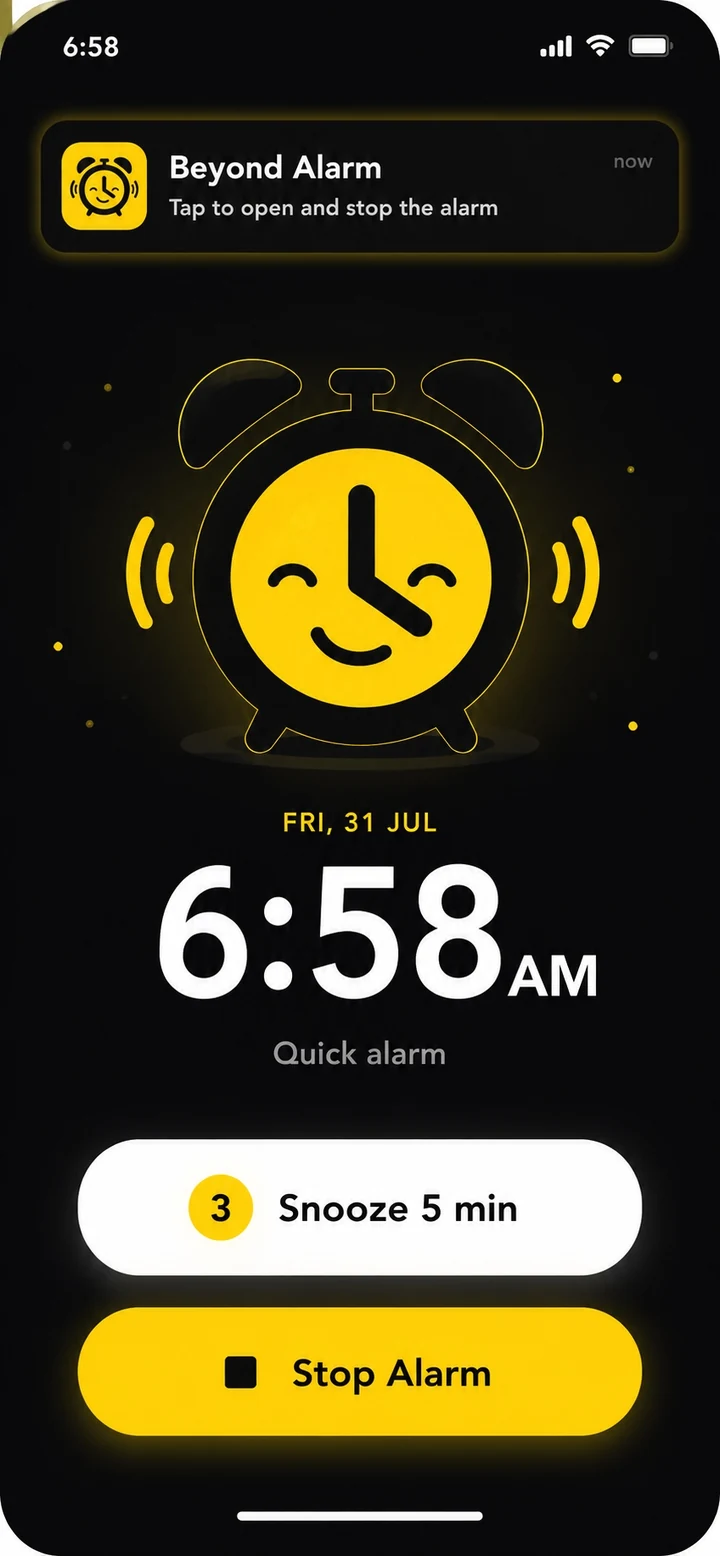
- Slide to stop on the lock screen. On an iPhone that doesn't end it. It opens Beyond Alarm's own ring screen, and the sound carries on while you unlock.
- Tap Start mission. Do your push-ups for the front camera, scan a barcode, photograph a place or solve the maths.
- Slid it away without opening the app? The full alarm comes back shortly, and only finishing the mission stops it for good.
- Finish the mission and the alarm stops.
Blocking through Screen Time
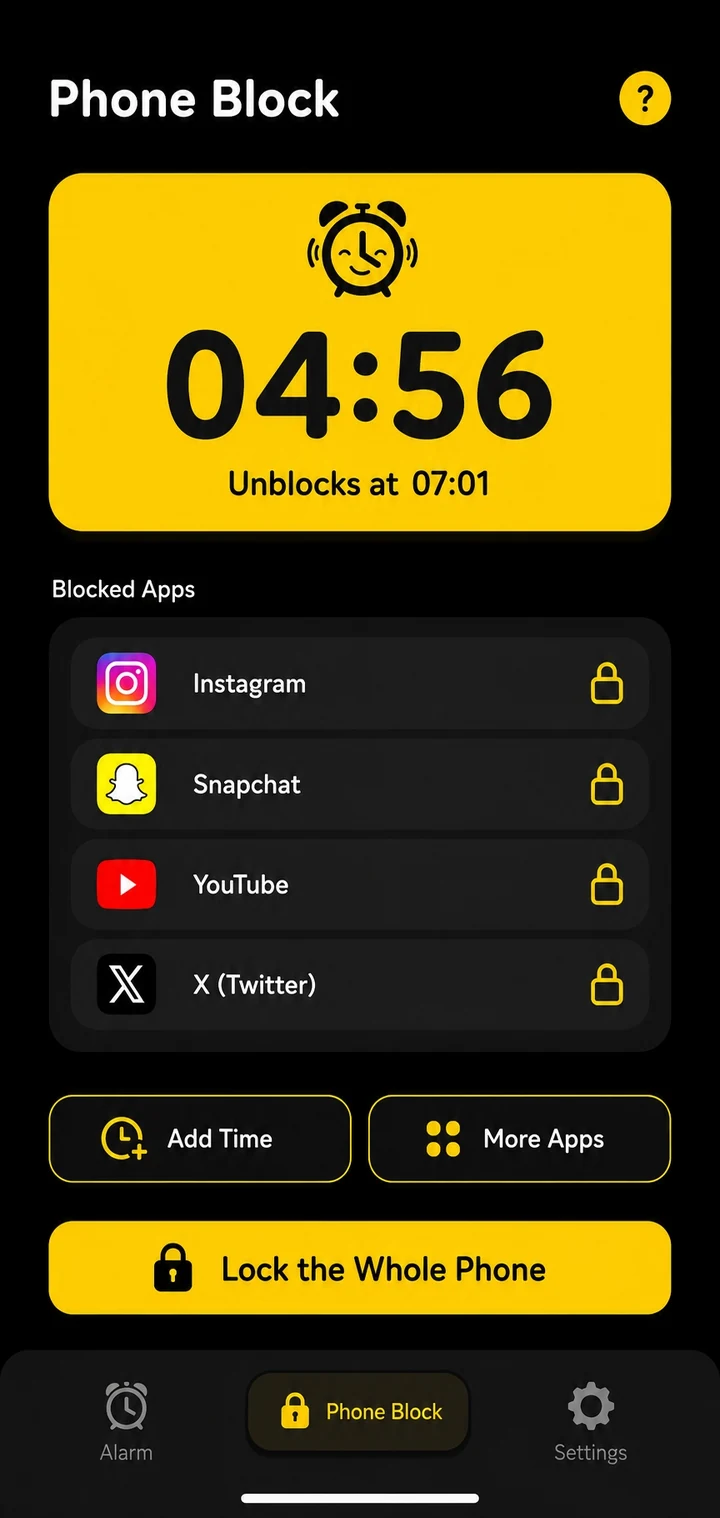
Phone Block and Morning Lockout use Apple's Screen Time, the same system behind iOS's own app limits. You give Beyond Alarm Screen Time access once. After that, Pick apps opens Apple's picker, where you choose individual apps or whole categories. Blocked apps show Apple's shield until the time is up.
- Phone Block: 5 minutes to 8 hours, Regular mode or Strict mode, with saved block lists. While it runs you can Add Time or More Apps, but never shorten it.
- Strict mode: no stop button until the timer ends, and no app can be deleted while it runs.
- Morning Lockout: the apps you pick stay shut for a set time, starting the moment you finish your alarm.
Beyond Alarm
Beyond Alarm does this part for you: the alarm will not switch off until you have actually moved, and the apps you pick stay locked afterwards.
What's Android only
Some features depend on things iOS doesn't allow any app to do, so they're on Android only: locking the whole phone, Wake-up Check, and prevent power-off (iOS doesn't let an app close the power menu). The reliability screen is also shorter on iPhone. It checks the Alarms permission, notifications and Screen Time access, because iOS handles battery and background settings itself.
When to use it
- You sleep through iPhone alarms, or turn them off without waking up.
- Your morning starts in Instagram or TikTok, and you want it to start in the kitchen instead.
- You want a phone block you can't cancel without paying for one.
Set it up
- Install Beyond Alarm from the App Store on an iPhone running iOS 26.1 or later.
- On the Alarm tab, tap +, set a time and add a wake-up mission. Tap Save and allow Alarms when iOS asks.
- Tap Morning lockout on the same screen to pick the apps that stay shut after you're up. Allow Screen Time access when asked.
- For a block any time of day, open Phone Block, tap Block now, pick your apps and a length, and choose Regular mode or Strict mode.
- Check Settings → Alarm reliability to confirm everything is allowed.
Related
Common questions
Which iPhones can run Beyond Alarm?
Any iPhone on iOS 26.1 or later. Beyond Alarm's alarms are built on AlarmKit, Apple's alarm system for apps, which arrived in iOS 26.
Will Beyond Alarm ring if my iPhone is on silent?
Yes. AlarmKit alarms ring through silent mode, Focus and Do Not Disturb, and Low Power Mode doesn't delay them. You allow this once, the first time you save an alarm.
Can I block the whole iPhone?
Beyond Alarm blocks the apps and categories you choose, through Apple's Screen Time. Locking the whole phone is an Android feature, because Screen Time works on a selection of apps.
Is Strict mode free on iPhone?
Yes. Free users switch on Strict mode with one short ad, and Pro members skip the ad. While a Strict mode block runs, apps can't be deleted, so deleting Beyond Alarm isn't a way out.
Can I just swipe the alarm away on the lock screen?
Not on an alarm with a mission. Sliding to stop opens Beyond Alarm's ring screen while the sound carries on, and if you don't open the app, the full alarm comes back. Only finishing the mission ends it.
Beyond Alarm
An alarm that keeps ringing until you’ve actually moved — then blocks the apps that pull you back to bed. Free to start, no account.
More features
Free Strict mode
No stop button until the timer ends. Free with one short ad, on Android and iPhone.
Phone Block
Block chosen apps or the whole phone for a set time. Regular mode or free Strict mode.
Whole-phone block
Android: every app locked until the timer ends. Calls still come through.
Push-up alarm
Push-ups, squats or jumping jacks, counted by the camera on your phone. Fake reps don't count.
QR and barcode alarm
The alarm stops only when you scan a QR code or barcode. Keep one a room away from bed.
Photo alarm
Register a place the night before. The alarm stops only when you photograph it again.
Alarm reliability check
Checks battery, auto-start, exact-alarm and full-screen settings, with one tap to each fix.
Prevent power-off
Android: the power menu closes while the alarm rings. Optional uninstall protection.
Wake-up streaks
A run of kept wake-ups for each repeating alarm, plus a warning before you break it.
Daily Phone Block reminder
A daily nudge an hour before your usual Phone Block time, learned from when you really block.