
Photo alarm
Pick the place you want to be first thing, like the kettle, the mirror or your running shoes. Beyond Alarm keeps ringing until you're standing in front of it with the camera up.


A photo alarm turns "get up" into "go somewhere". Beyond Alarm's Photo mission keeps the alarm going until you've photographed a place you chose the night before, such as the kettle, the bathroom mirror or your shoes by the door. The only way to take that photo is to be there, on your feet, several metres from the bed.
What it does
You register one or more places ahead of time. When the alarm rings, the mission shows you each reference photo in turn ("Place 1 of 2") and asks you to go and take the same shot. A green frame means it matched. A red frame means it didn't, with a hint and a "how close was that" score so you know what to change.
- 1 to 5 places per mission, matched in the order you registered them.
- A saved library: places are kept on your phone and reused across alarms. Delete one when it stops being a place you want to stand in.
- Matching on the phone: no upload, no account.
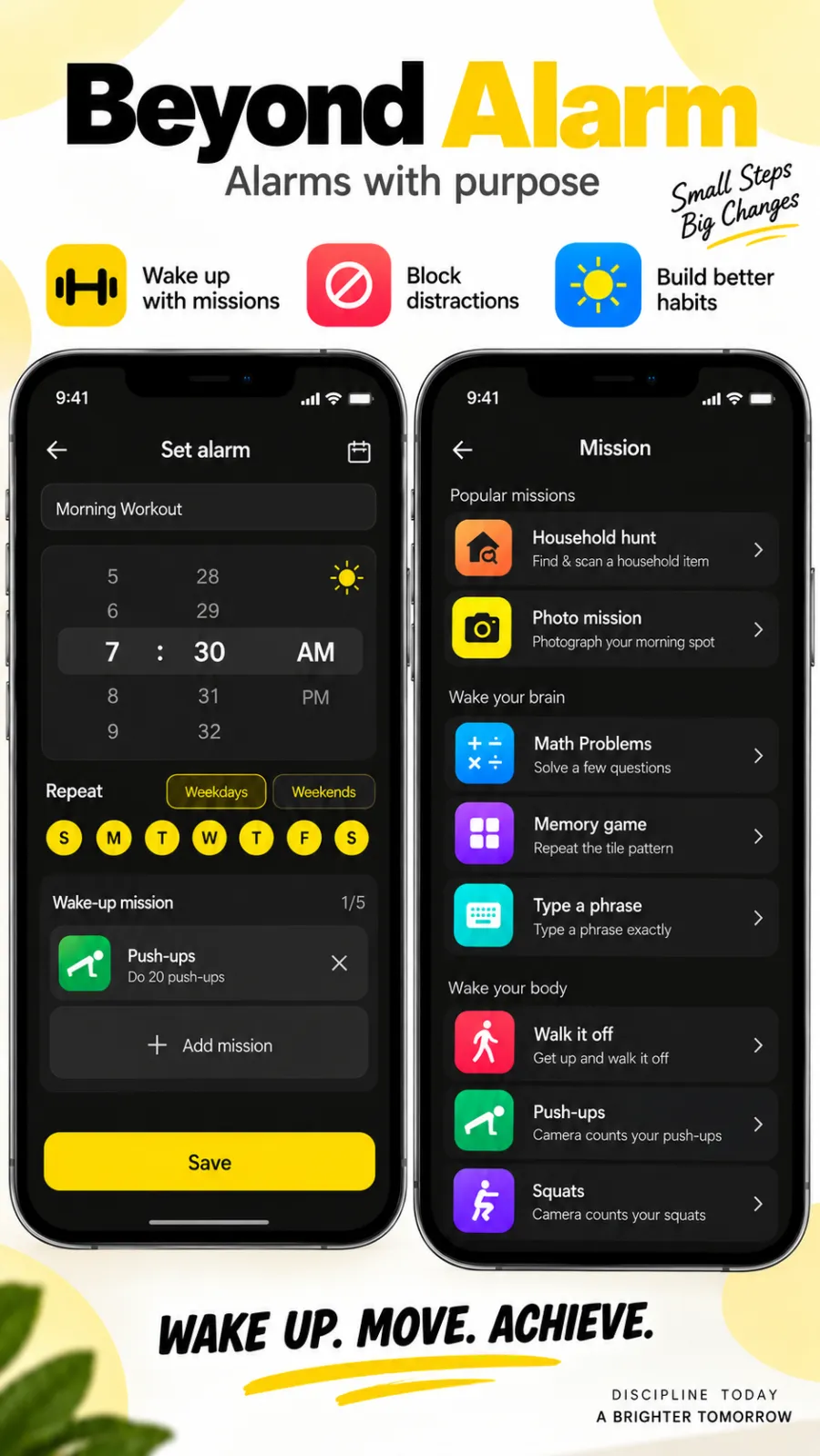
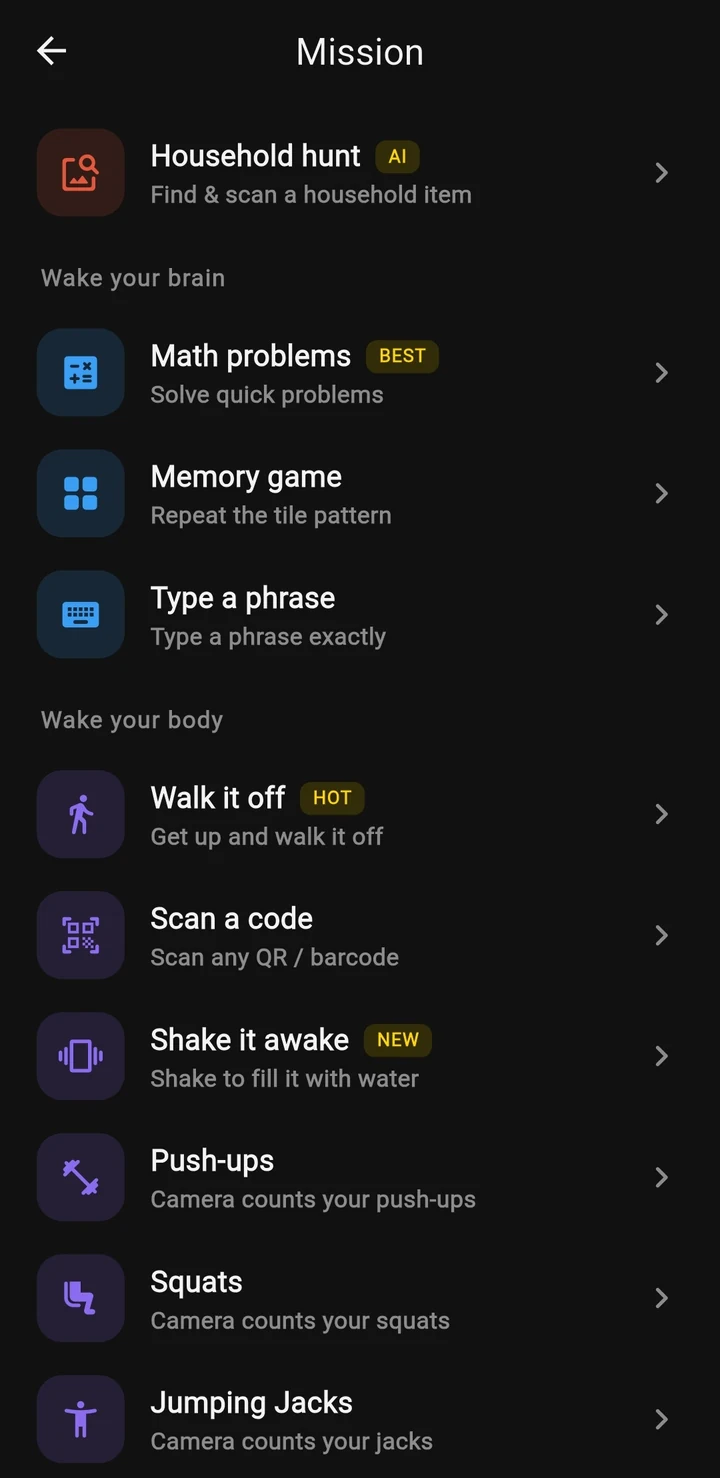
- Stack it: up to five missions on one alarm, for example a photo of the kitchen and then a set of squats.
How it works
- The night before, you photograph your places. Beyond Alarm reduces each photo to two small fingerprints: the brightness shape of the scene and a grid of its colours.
- The alarm rings and you start the mission. You see the place you need, tap I'm ready, and go there.
- You take the photo. Beyond Alarm compares it with the reference. To count, it has to match both the shape and the colours. Two photos of the same corner at 7am and 11pm look alike on both. A bathroom and a kitchen don't.
- It's forgiving when you're clearly up. If a few attempts miss, the match loosens a little, since you're plainly standing in a room taking photos. It never loosens enough for a different room to pass.
- The alarm stops once every place has matched.
If you really can't reach a place (the door's locked, you're away from home), Emergency — solve a sum to skip appears after one photo that doesn't match. It skips that place only.
Beyond Alarm
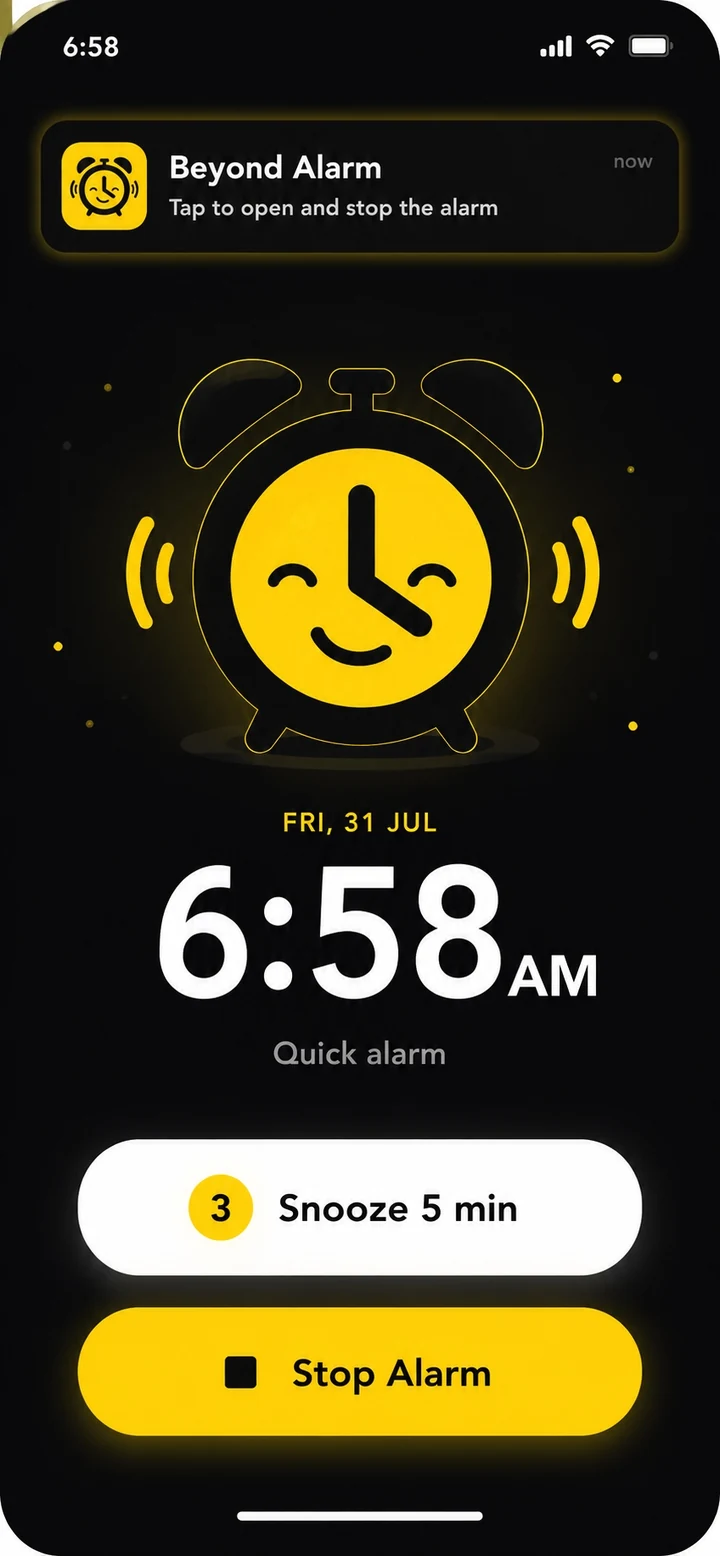
Beyond Alarm does this part for you: the alarm will not switch off until you have actually moved, and the apps you pick stay locked afterwards.
When to use it
- You want your morning to start somewhere specific: the kettle for coffee, the shower, the desk.
- You've learned to beat maths problems half-asleep. You can't photograph the kitchen from bed.
- You want a two-room routine. Register the bathroom and the kitchen, and you're up and moving before the alarm stops.
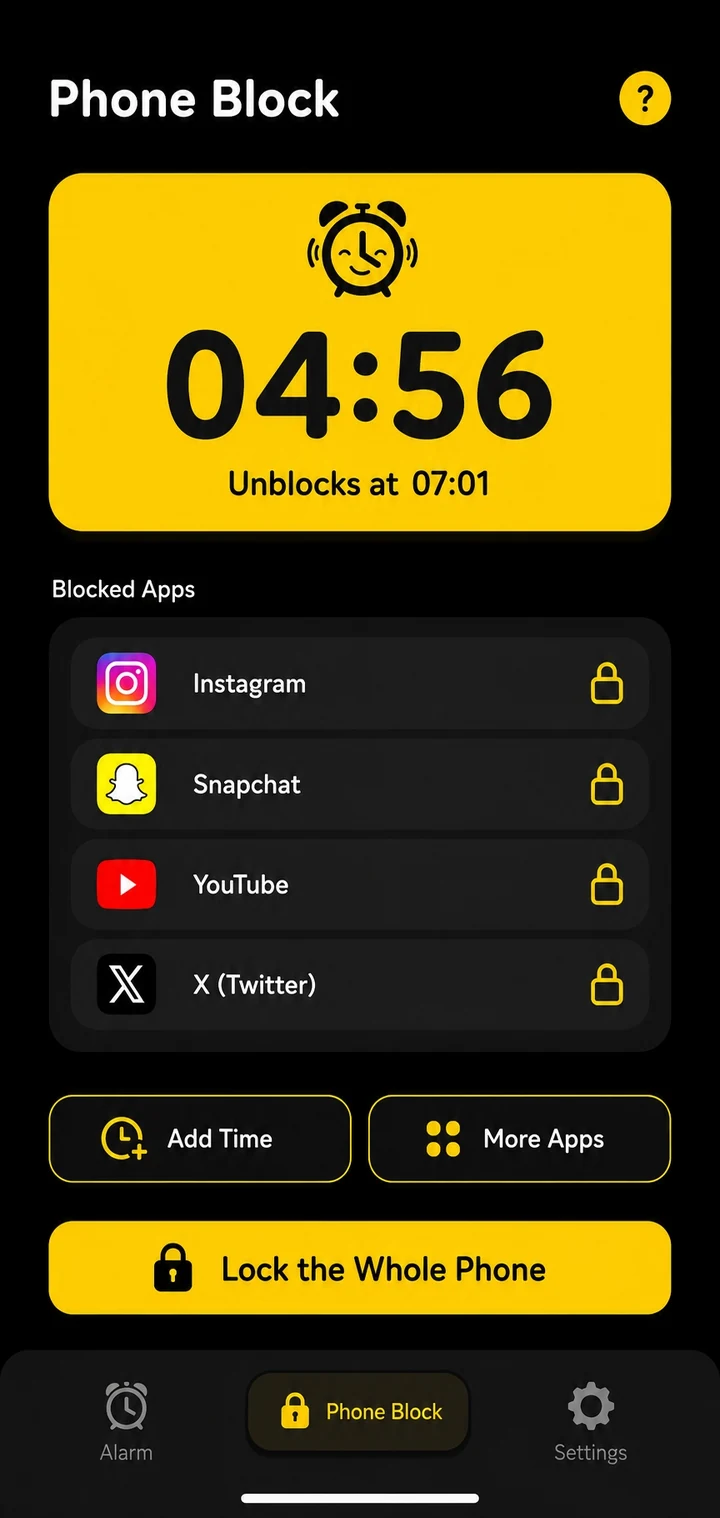
- Follow it with Morning Lockout, so the first thing you do after the photo isn't opening a feed.
Set it up
- Open the Alarm tab and tap + for a new alarm, or tap an alarm to edit it.
- Under Wake-up mission, tap an empty + box and choose Photo mission.
- Set how many places it takes, then tap Take the photos.
- Photograph each place with New place, or pick ones you've saved before from the Library. Shoot something distinctive with some of the room around it, not a blank wall.
- Check the review of what you picked, then tap Done and Save.
- To practise, tap the mission on the alarm and then Preview.
Related
Common questions
How does the photo alarm know it's the same place?
When you register a place, Beyond Alarm reduces the photo to two fingerprints, one for the shape of the scene and one for its colours. Your morning photo has to match both, which a different room doesn't. The matching happens on the phone.
Does it have to be the exact same angle?
No. The match is deliberately forgiving, because morning light differs from night light and nobody stands in exactly the same spot twice. If a shot doesn't match, the screen tells you how to fix it, for example to step back so more of the room is in shot.
Can I use more than one place?
Yes, from 1 to 5 places per mission. You photograph them in the order you registered them, so the nearest one can't be shot five times.
What if I really can't get to the place?
After a photo that doesn't match, an emergency option appears. Solve a maths problem to skip that place, and the rest of the mission carries on.
Do I have to retake the photos for every alarm?
No. Places are saved in a library on your phone. Take them once and pick from them for any alarm.
Beyond Alarm
An alarm that keeps ringing until you’ve actually moved — then blocks the apps that pull you back to bed. Free to start, no account.
More features
Free Strict mode
No stop button until the timer ends. Free with one short ad, on Android and iPhone.
Phone Block
Block chosen apps or the whole phone for a set time. Regular mode or free Strict mode.
Whole-phone block
Android: every app locked until the timer ends. Calls still come through.
Push-up alarm
Push-ups, squats or jumping jacks, counted by the camera on your phone. Fake reps don't count.
QR and barcode alarm
The alarm stops only when you scan a QR code or barcode. Keep one a room away from bed.
Alarm reliability check
Checks battery, auto-start, exact-alarm and full-screen settings, with one tap to each fix.
Prevent power-off
Android: the power menu closes while the alarm rings. Optional uninstall protection.
Wake-up streaks
A run of kept wake-ups for each repeating alarm, plus a warning before you break it.
Daily Phone Block reminder
A daily nudge an hour before your usual Phone Block time, learned from when you really block.
Beyond Alarm on iPhone
AlarmKit alarms, wake-up missions, and Screen Time blocking with free Strict mode.