
QR and barcode alarm
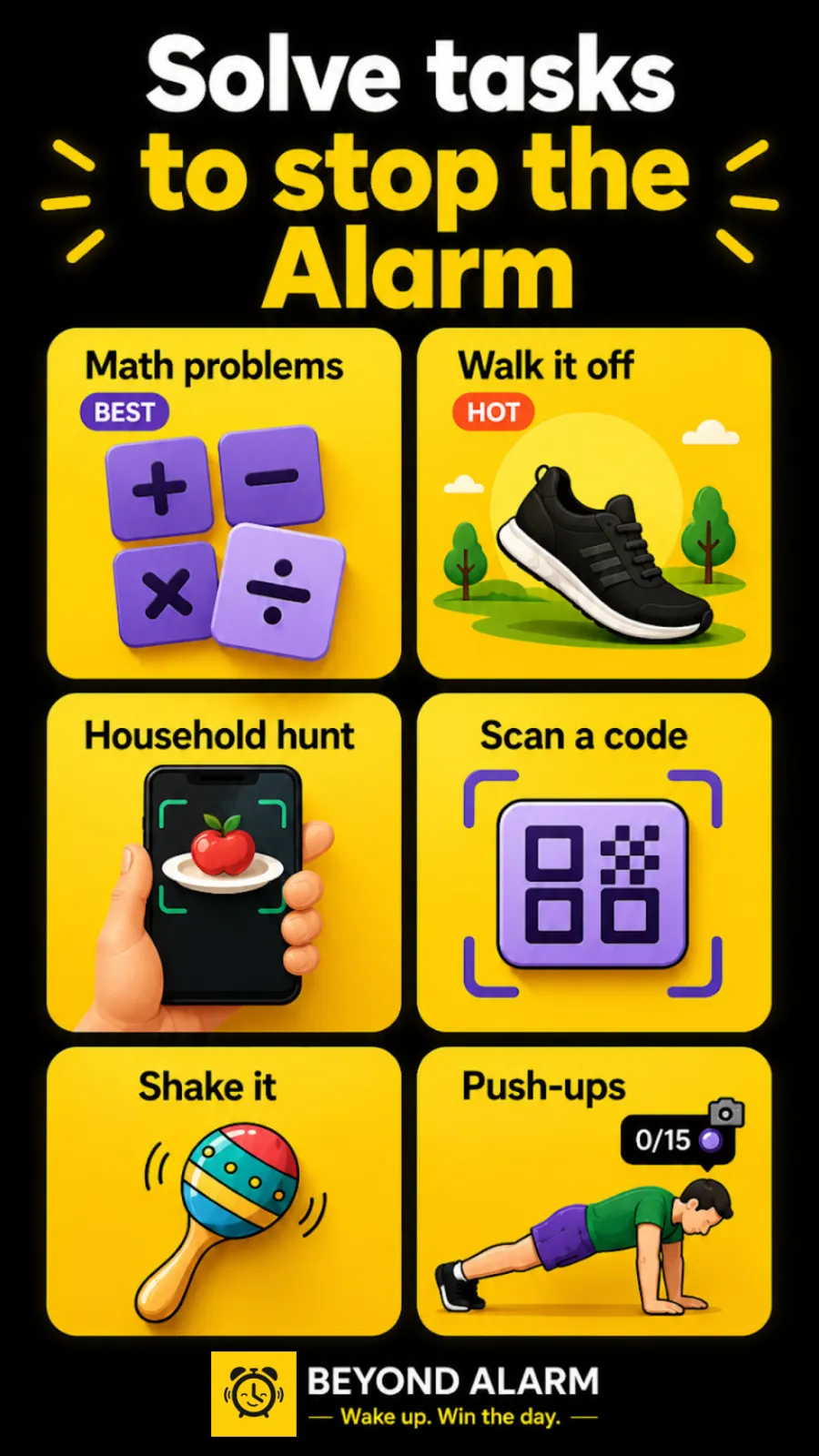
An alarm you can only stop from the bathroom. Beyond Alarm's Scan a code mission keeps ringing until the camera reads a QR code or barcode, so where you keep the code decides where you wake up.


A QR code alarm works for one simple reason: you can't scan a code in the kitchen while you're still in bed. Beyond Alarm's Scan a code mission keeps the alarm going until your camera reads a QR code or barcode. Put one in another room and getting up stops being optional. There's nothing to register, and it works offline.
What it does
Add Scan a code to an alarm and the stop button is replaced by your phone's back camera. When the alarm rings you start the mission, walk to a code and point the camera at it. The alarm stops after the number of scans you set.
- Any QR code or barcode works: a product barcode, a printed QR code, a label on a box.
- 1 to 5 scans per mission (1 by default).
- Offline: the scanning runs on the phone and needs no internet.
- Stack it: up to five missions on one alarm, say a scan in the bathroom and then 10 squats.
While you're making progress the alarm can stay quiet. If you stall for 20 seconds it starts ringing again, and the screen says "Alarm's back — point at a QR or barcode".
How it works
- You choose where the code lives. Because any code is accepted, the setup that matters is yours: one code in a room you have to walk to, and nothing scannable next to the bed.
- The alarm rings, and you start the mission. The camera opens with "Point at any QR code or barcode".
- The camera reads the code on the phone. Each read counts as a scan. If you've set more than one, scan another code, or scan the same one again after a short pause.
- The alarm stops when the count is reached, with a "Scanned!" to finish.
The walk is what wakes you up. Being on your feet with the lights on, in another room, is a very different state from reaching for a phone in the dark.
Where to put the code
- Bathroom mirror. Scan the toothpaste, then you're already at the sink.
- Kitchen. Something on the kettle or coffee jar, if breakfast is the first thing you do.
- Front door or running shoes, if the morning plan is a run.
- Two rooms, two scans, if one walk isn't enough to keep you up.
Whatever you choose, keep the bedroom clear of barcodes: books, bottles and packaging on the bedside table all count.
Beyond Alarm
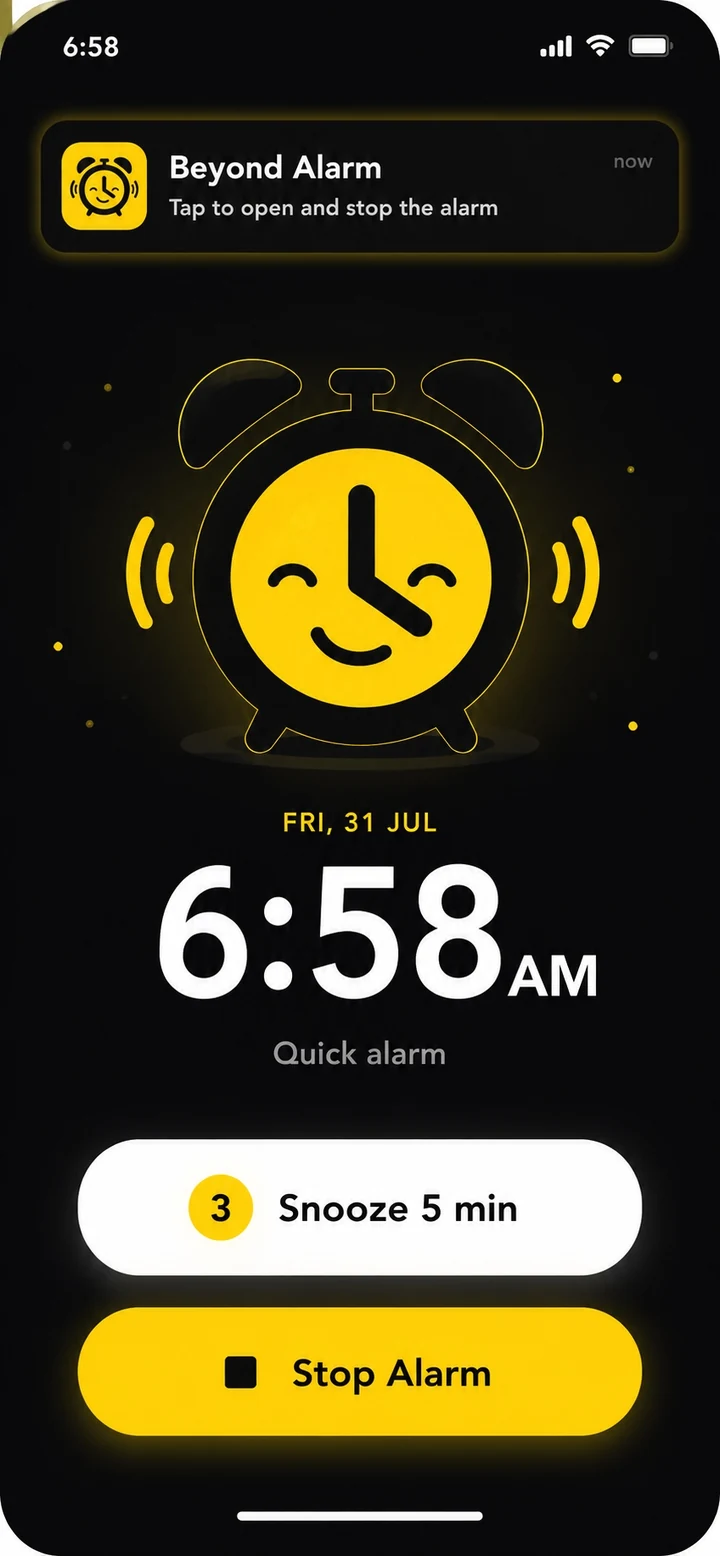
Beyond Alarm does this part for you: the alarm will not switch off until you have actually moved, and the apps you pick stay locked afterwards.
When to use it
- You've beaten every other alarm from bed, including maths problems.
- You want a fixed first stop in your morning: the shower, the kettle, the gym bag.
- You want something quieter than exercise. Scanning makes you walk, not sweat.
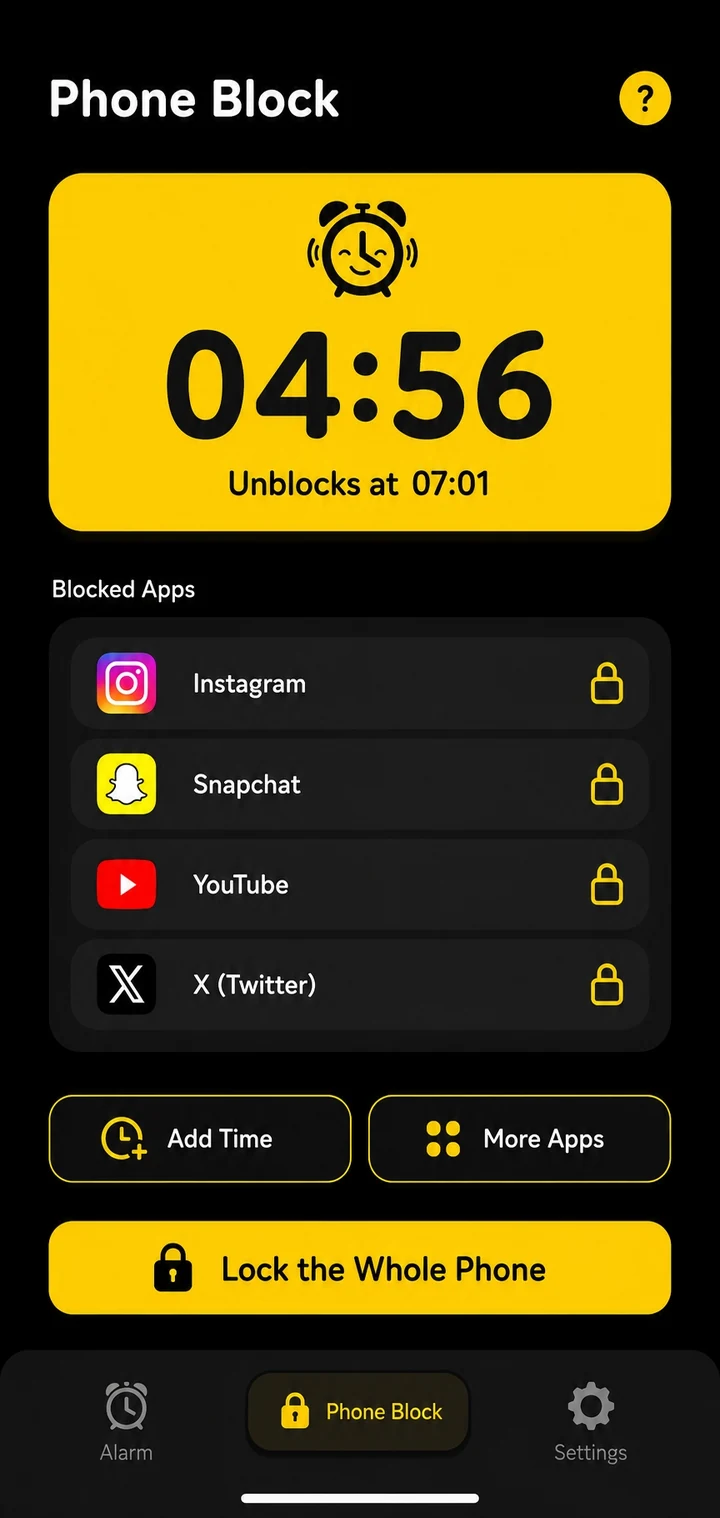
- After you're up, Morning Lockout keeps the apps you'd scroll shut for a set time.
Set it up
- Open the Alarm tab and tap + for a new alarm, or tap an alarm to edit it.
- Under Wake-up mission, tap an empty + box.
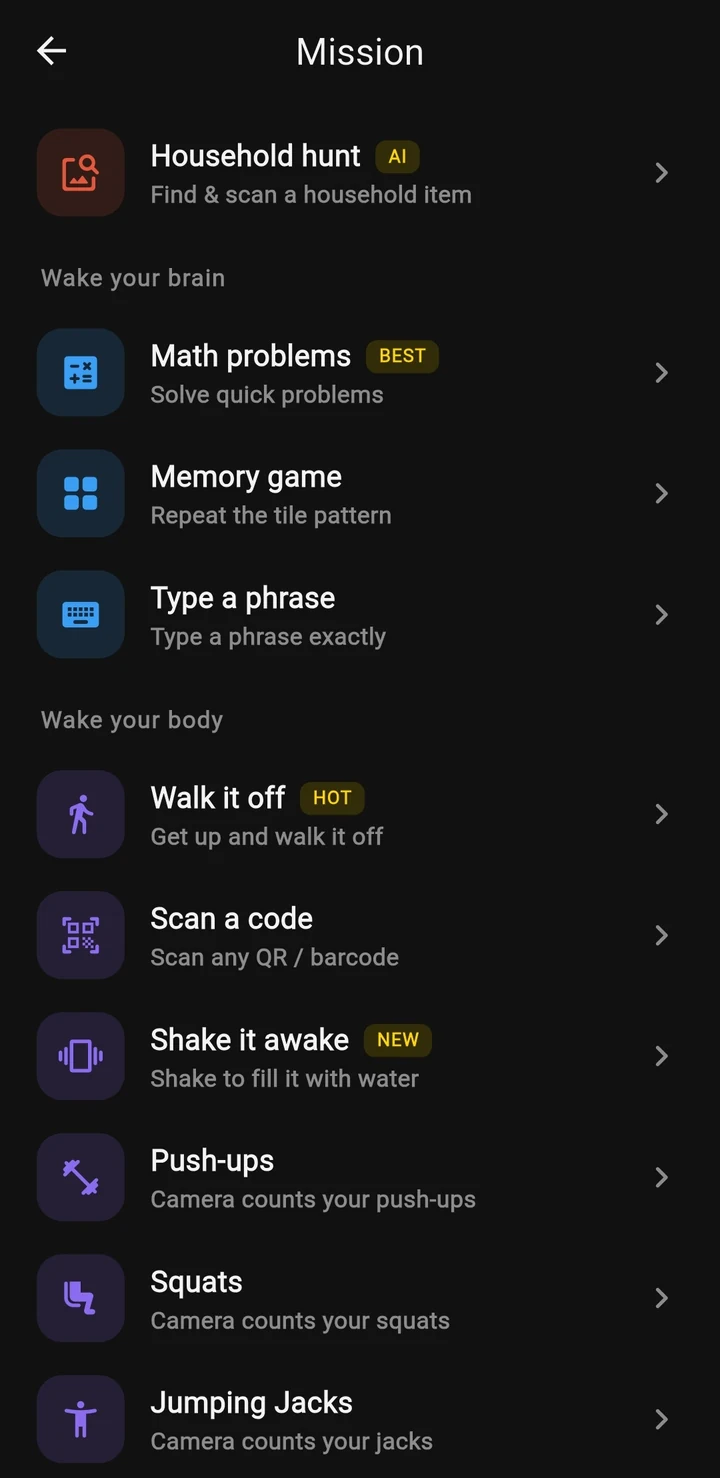
- Choose Scan a code ("Scan any QR / barcode").
- Set how many scans it takes, then tap Preview to try it.
- Tap Done, then Save.
- Put your code somewhere a room away and test it once before you rely on it.
Related
Common questions
Do I need to print a QR code?
No. Beyond Alarm accepts any QR code or barcode, so the one on a toothpaste tube, a shampoo bottle or a cereal box works. Printing one is fine too, if you'd rather stick it on a wall.
Where should I put the code?
In another room, somewhere you want to be in the morning, such as the bathroom mirror or the kitchen. Keep anything with a barcode out of reach of the bed, since any code counts.
Does the barcode alarm work offline?
Yes. Scanning happens on the phone with the camera, and no internet connection is needed.
Can I make it scan more than once?
Yes, from 1 to 5 scans per mission. Two scans in two different rooms makes a good routine if you tend to drift back to bed.
Does it work on iPhone?
Yes. The Scan a code mission is on Android and iPhone.
Beyond Alarm
An alarm that keeps ringing until you’ve actually moved — then blocks the apps that pull you back to bed. Free to start, no account.
More features
Free Strict mode
No stop button until the timer ends. Free with one short ad, on Android and iPhone.
Phone Block
Block chosen apps or the whole phone for a set time. Regular mode or free Strict mode.
Whole-phone block
Android: every app locked until the timer ends. Calls still come through.
Push-up alarm
Push-ups, squats or jumping jacks, counted by the camera on your phone. Fake reps don't count.
Photo alarm
Register a place the night before. The alarm stops only when you photograph it again.
Alarm reliability check
Checks battery, auto-start, exact-alarm and full-screen settings, with one tap to each fix.
Prevent power-off
Android: the power menu closes while the alarm rings. Optional uninstall protection.
Wake-up streaks
A run of kept wake-ups for each repeating alarm, plus a warning before you break it.
Daily Phone Block reminder
A daily nudge an hour before your usual Phone Block time, learned from when you really block.
Beyond Alarm on iPhone
AlarmKit alarms, wake-up missions, and Screen Time blocking with free Strict mode.